From a cluttered table to a listing photo.
White Background Generator
Put any product on pure white in seconds — cut out, centred on a square and padded evenly, with the product’s own pixels untouched. The layout shops and marketplaces ask for.
1 credit a photo; failed runs are refunded. Plans renew monthly until cancelled and can be cancelled online at any time — see pricing details.
The subject keeps its original pixels; only the background changes.
Listing-ready, from any shot
Generated product photos on busy backgrounds, run through this tool with the default settings. The last one uses a colour instead of white.
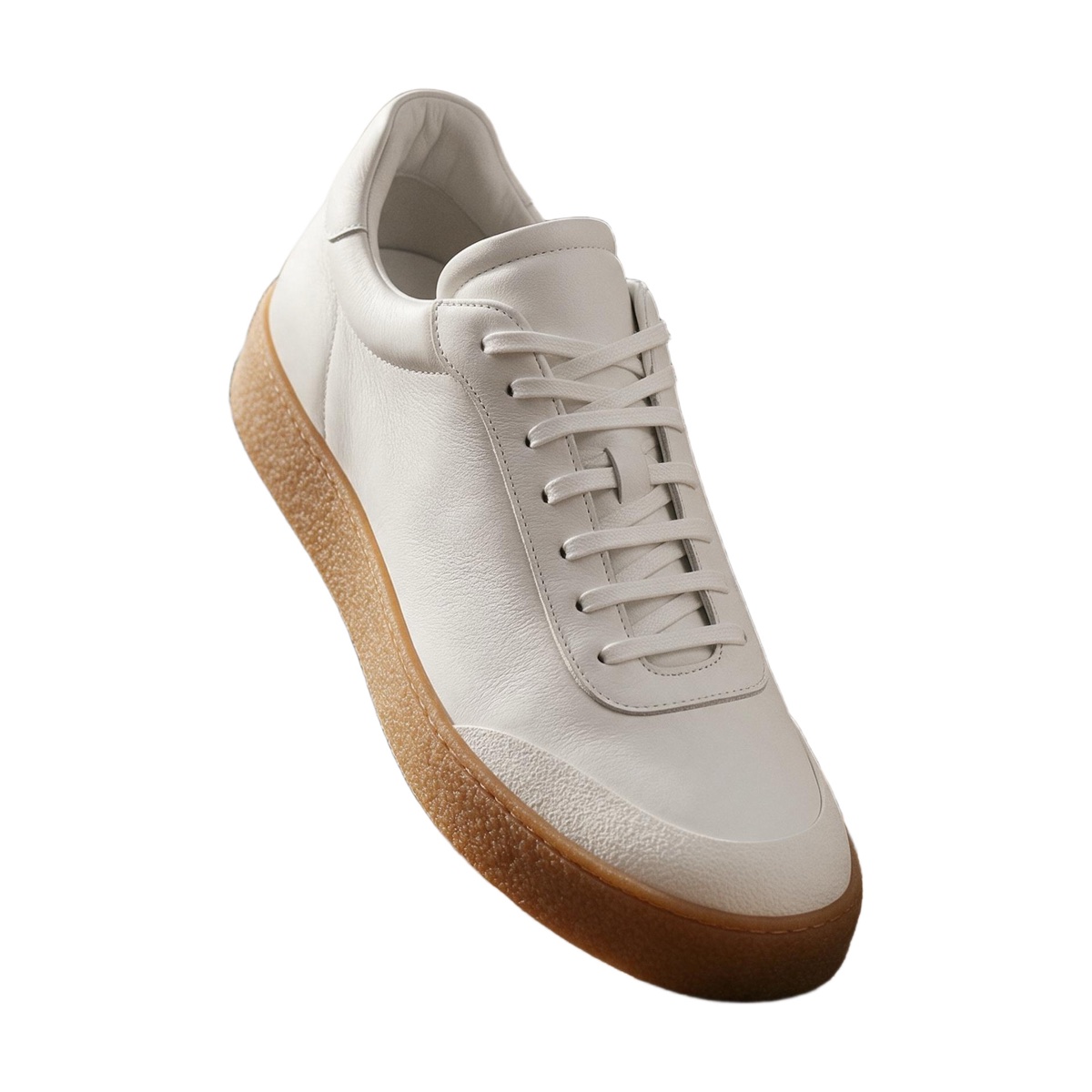
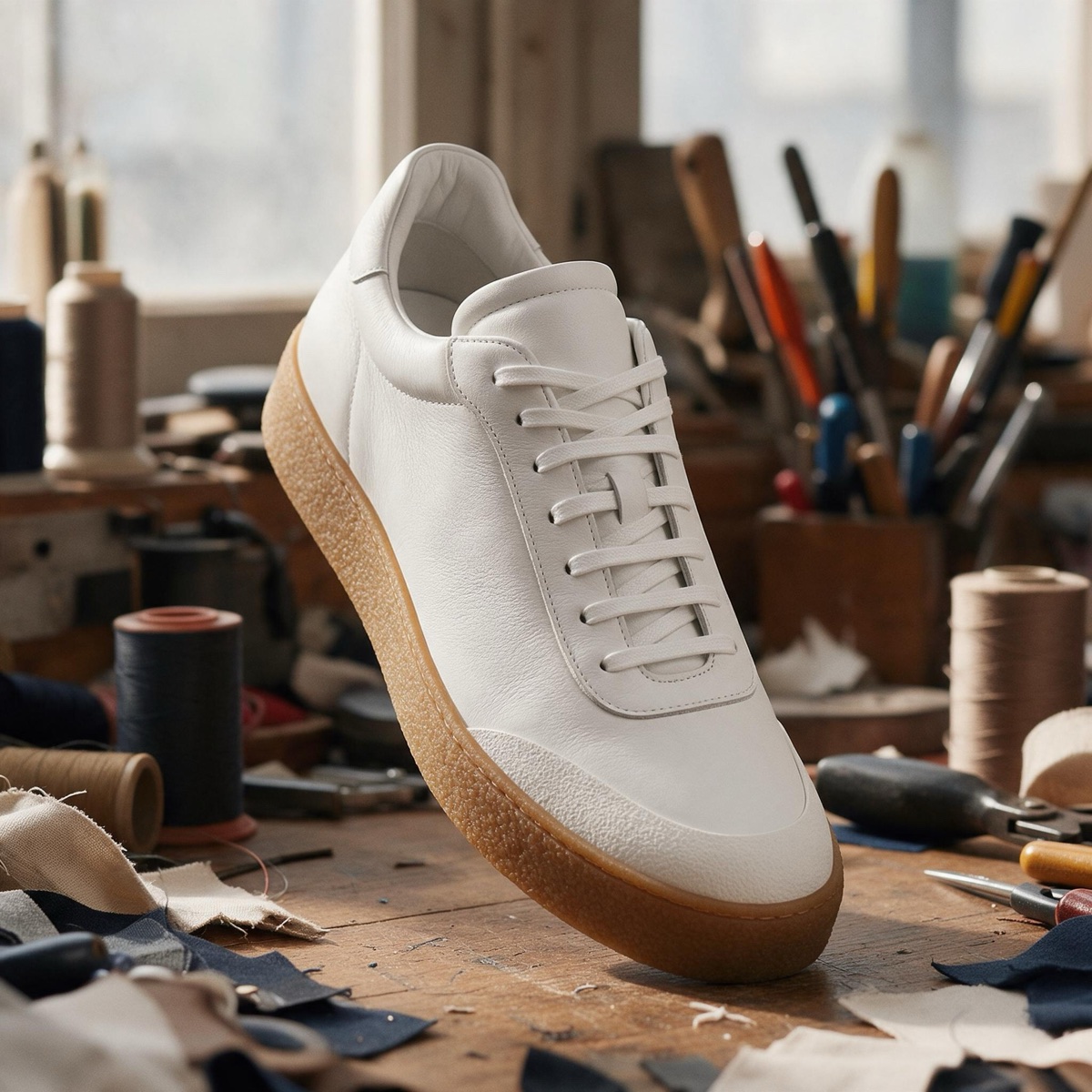 BeforeAfter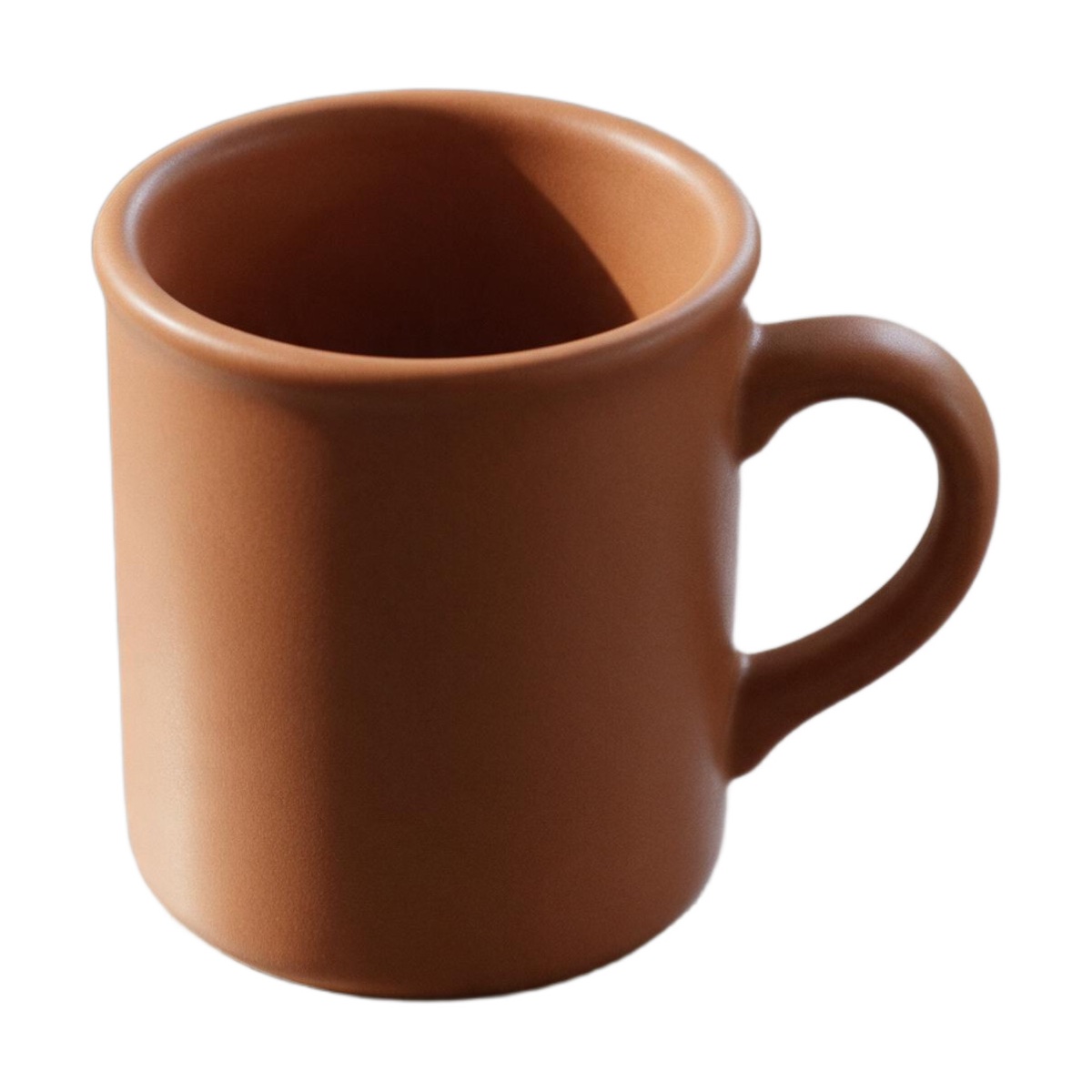
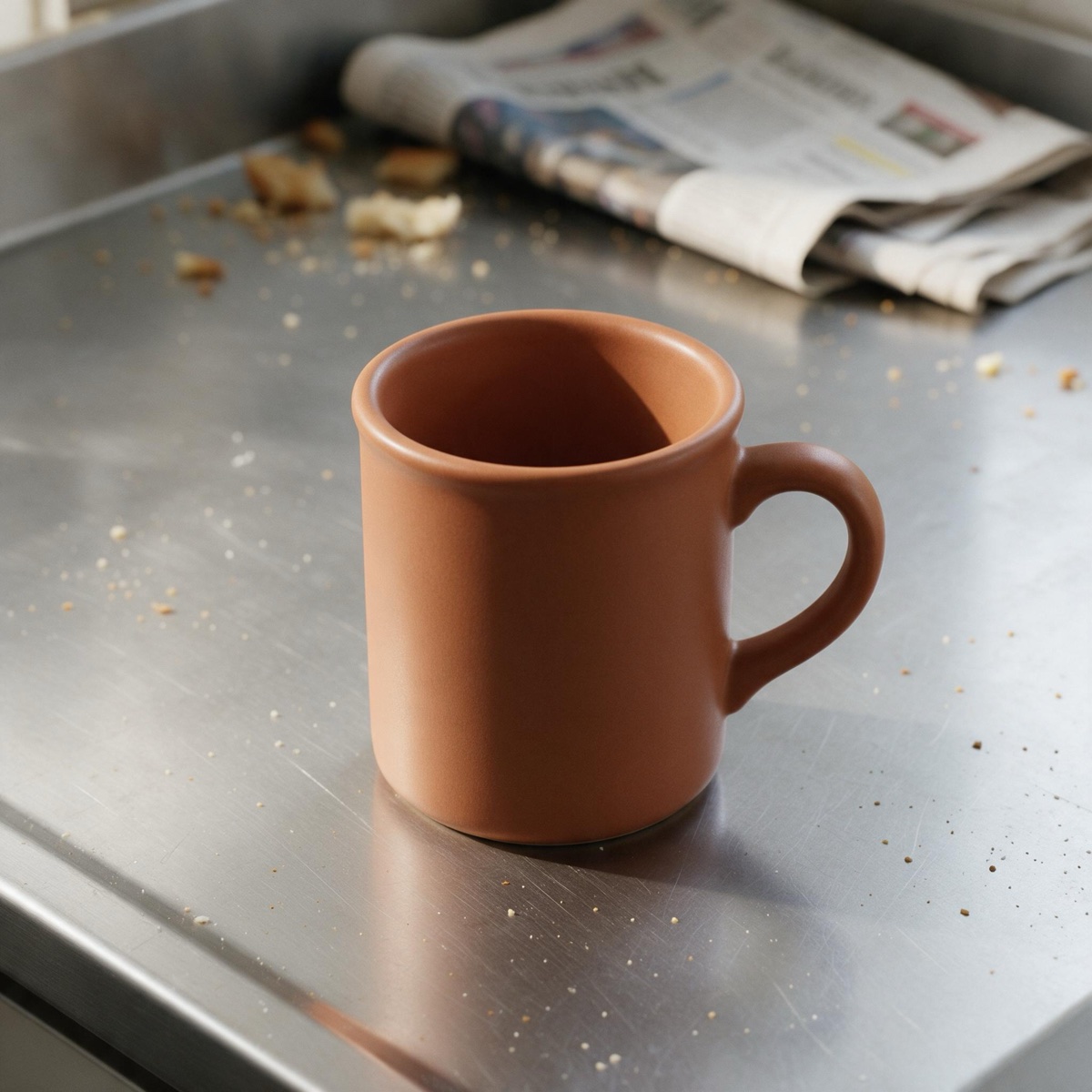 BeforeAfter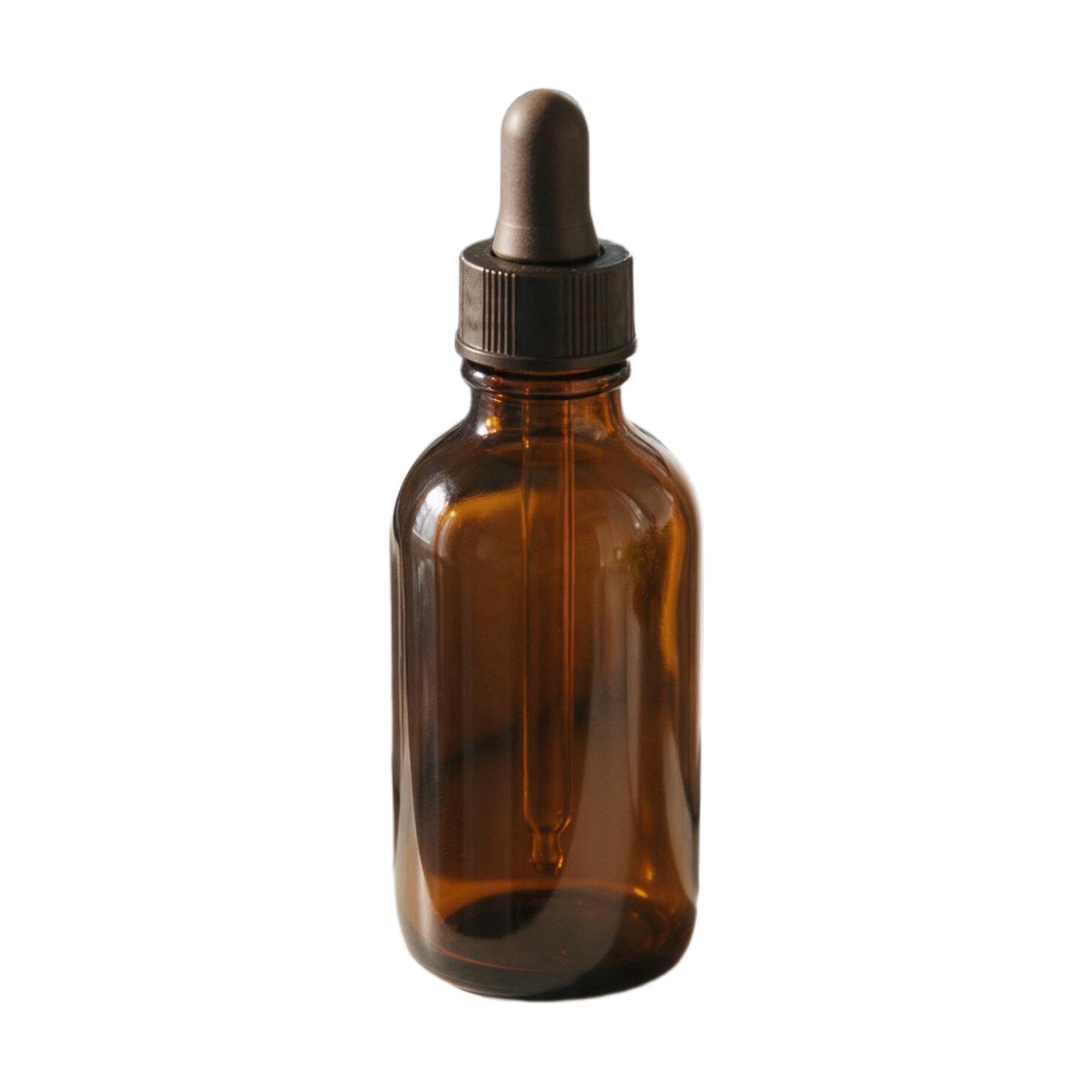
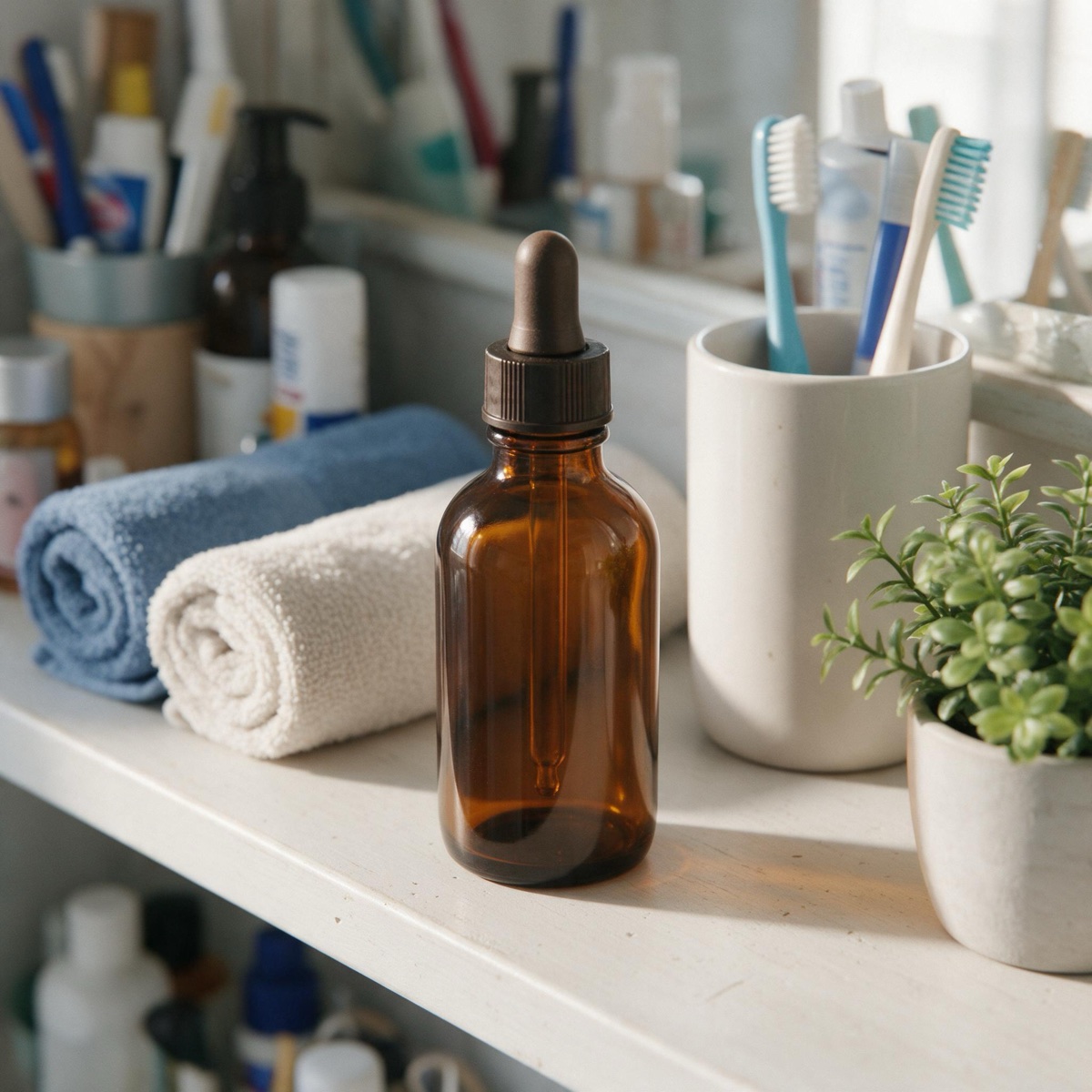 BeforeAfter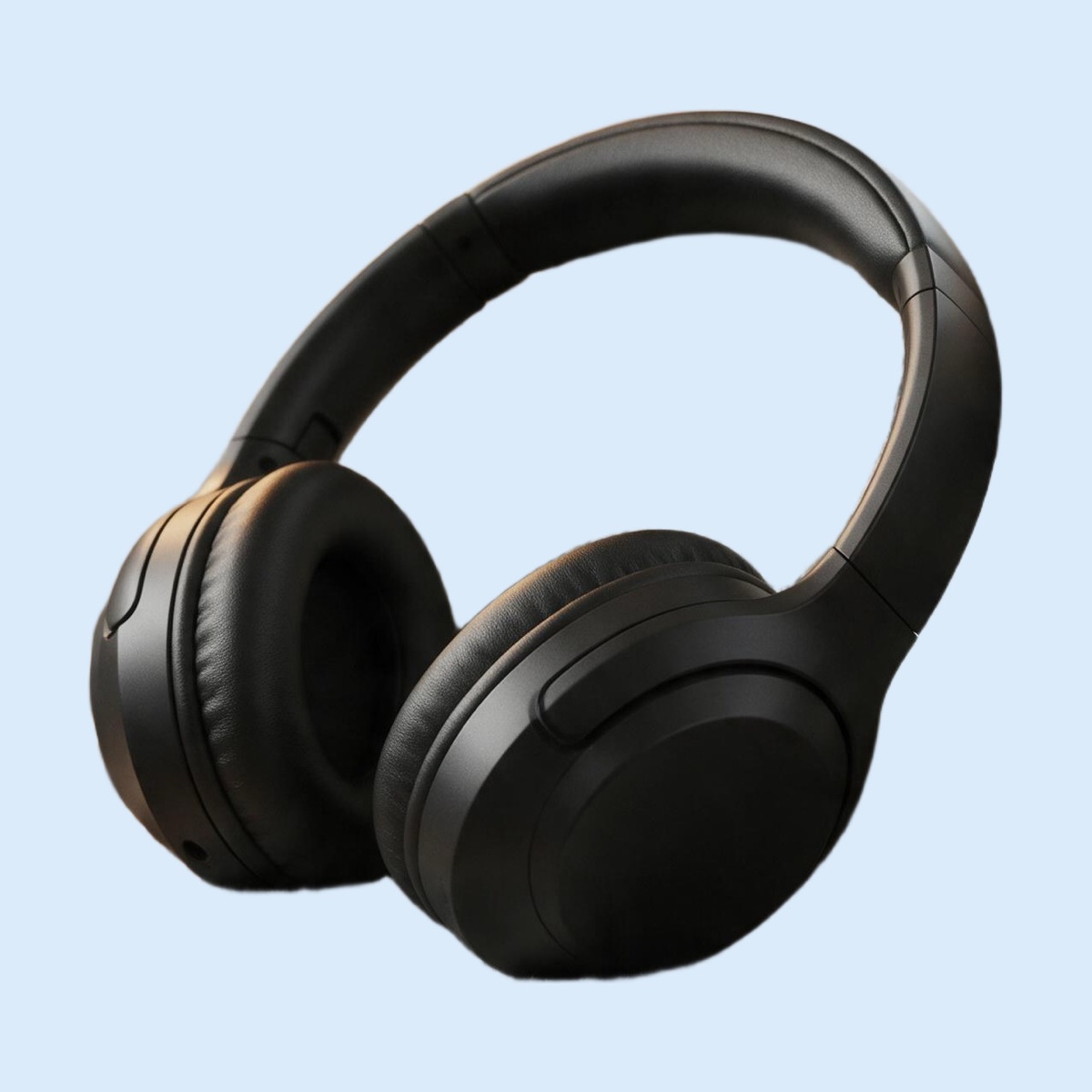
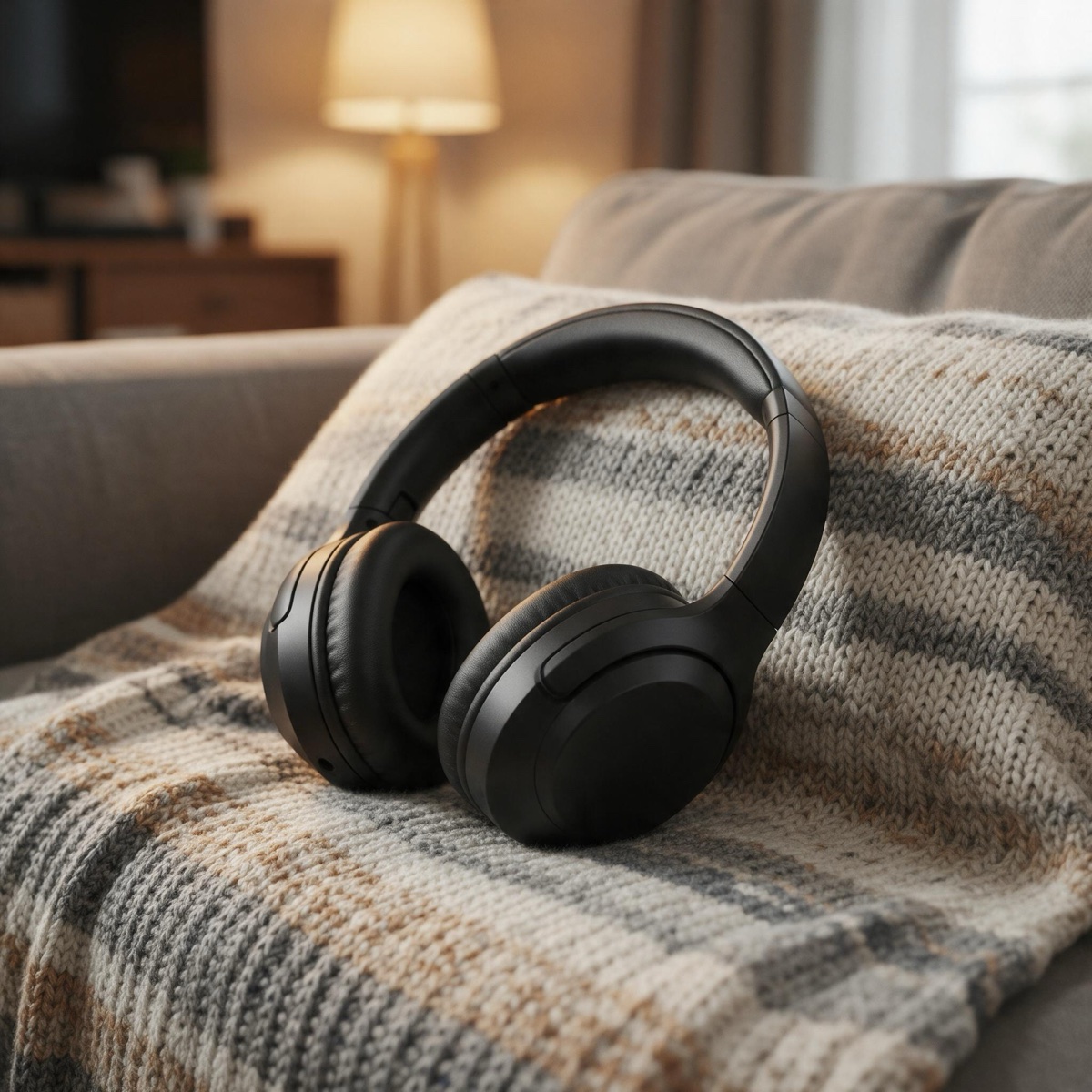 BeforeAfter
What the white background output is
| Output | Detail | |
|---|---|---|
| Background | Pure white, #FFFFFF | Flattened into the JPG |
| Framing | Square, product centred | Even 8% margin on all sides |
| Product size | About 84% of the frame | Measured on the product's long side |
| Product pixels | Unchanged | Only the background is replaced |
| File | JPG, quality 92 | Up to about 2,300 px square |
A white background photo is judged on three things: the white is truly white, the product is centred, and it fills most of the frame. The generator does all three from any photo — a phone shot on a kitchen table works — and it does them without redrawing the product, so what the buyer sees is what you photographed.
Three steps to a listing photo
Upload the product shot
Any background, any room. Click, drag or paste — or pick a photo from My Creations.
Keep white and square
Both are already selected. Switch to Keep original if you need the photo's own proportions.
Compare, download, list
Drag the slider to check the edges, download the JPG, and upload it as the main image.
Tips for sellers
Shoot the whole product. The generator crops to the product’s edges, so anything cut off in the photo stays cut off. Leave a little room around it when you take the shot.
One product per photo. The remover keeps the main subject. For a bundle, arrange the items close together so they read as one group.
Keep a consistent grid. Run every product through the same settings and the whole catalogue lines up: same white, same margin, same square. For lifestyle images alongside the main one, the AI background changer places the product in a styled scene, and the product video generator turns a still into a short clip.
Rights and labelling
Edit photos of products you have the rights to sell or show. Uploads are screened before any credit is taken. Every result carries a signed C2PA provenance mark recording that it was edited with AI, in line with Article 50 of the EU AI Act, and the example products on this page are AI-generated. Anyone can read the mark on the verification page; the Content & Safety Policy sets out what may not be created. Plans renew monthly until cancelled and can be cancelled online at any time; the full terms are on pricing details.
Frequently asked questions
How do I put a product photo on a white background?
Upload the photo to the tool at the top of this page. It opens on Colour with white and Square, centred already selected, so press Replace background. The product is cut out, centred on a pure white square and saved as a JPG in a few seconds, for 1 credit.
Is the white really pure white?
Yes: #FFFFFF, RGB 255, 255, 255, with no gradient, shadow or off-white cast. That is the value marketplaces check for on a main product image, and it is flattened into the file, so it survives every upload.
How big is the product in the square?
The product is cropped to its own edges and centred with an even 8% margin on every side, so its longest side spans about 84% of the square. Most main-image guidelines ask for the product to fill around 85% of the frame, so this lands where they expect.
Will the product look exactly the same?
Yes. The white background option keeps the product's own pixels: labels, colours, stitching and texture are untouched, and only the background is replaced. If you want the product re-lit in a styled scene instead, use the AI background changer, which re-renders the photo.
What size should the original photo be?
Start with 1,200 pixels or more on the long side and the product in sharp focus. Many marketplaces need at least 1,000 pixels for zoom, and a bigger original gives cleaner edges. For a small photo, run the result through the image upscaler.
Can I use a colour other than white?
Yes. Pick any swatch or open the colour picker for an exact shade — light grey, cream or a brand colour for a consistent shop grid. Every colour costs the same and comes out as a JPG.
Does it follow every marketplace's rules?
It produces the layout most main-image rules describe — pure white, product centred and filling most of the frame — but rules change and differ by marketplace and category. Check your marketplace's current image requirements before listing. Every result carries a C2PA mark recording that it was edited with AI.
The rest of the listing
One credit balance across image, video and music.
AI Background Changer
Lifestyle shots with matching light.
OpenBackground Remover
Transparent, colour or a new scene.
OpenImage Upscaler
Enough pixels for marketplace zoom.
OpenAI Product Video
A still product shot, moved on camera.
OpenVideo Ad Maker
A finished ad from the product page.
OpenAI Image Studio
Generate extra angles and scenes.
OpenVerify AI content
Read the C2PA provenance mark on any file.
Open