Paint it out. It's gone.
AI Object Remover
Remove unwanted objects, passers-by, wires, clutter and text overlays from your photos. Tap what should go and the AI outlines it — or paint it, or just say it — then it rebuilds the background behind it, matched to the light and texture around it.
A removal is 3 credits and failed runs are refunded. Plans renew monthly until cancelled and can be cancelled online at any time — see pricing details.
The AI rebuilds what was behind the object from the rest of the photo. Failed runs are refunded.
Before and after
AI-generated example photos, cleaned up with Tap. Drag the line to compare the original with the result.

 BeforeAfter
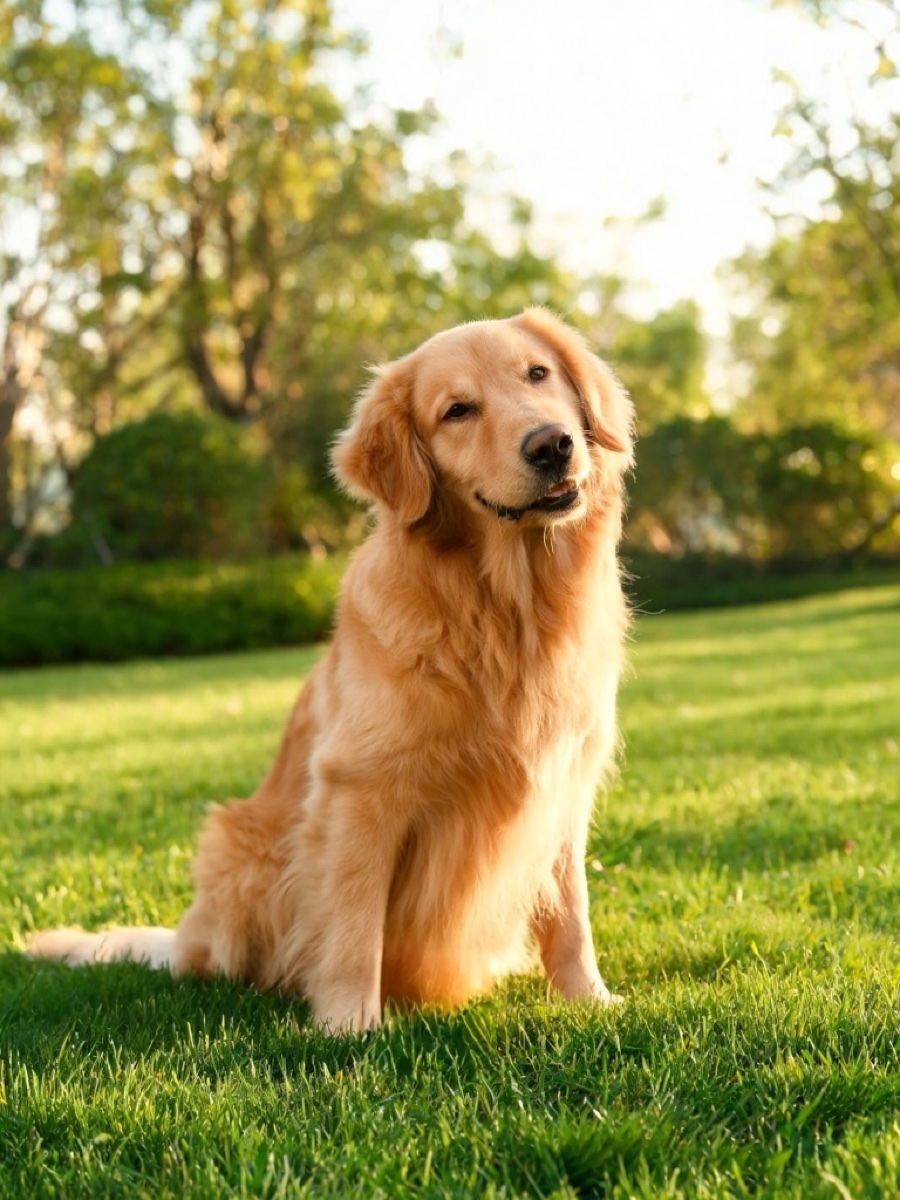
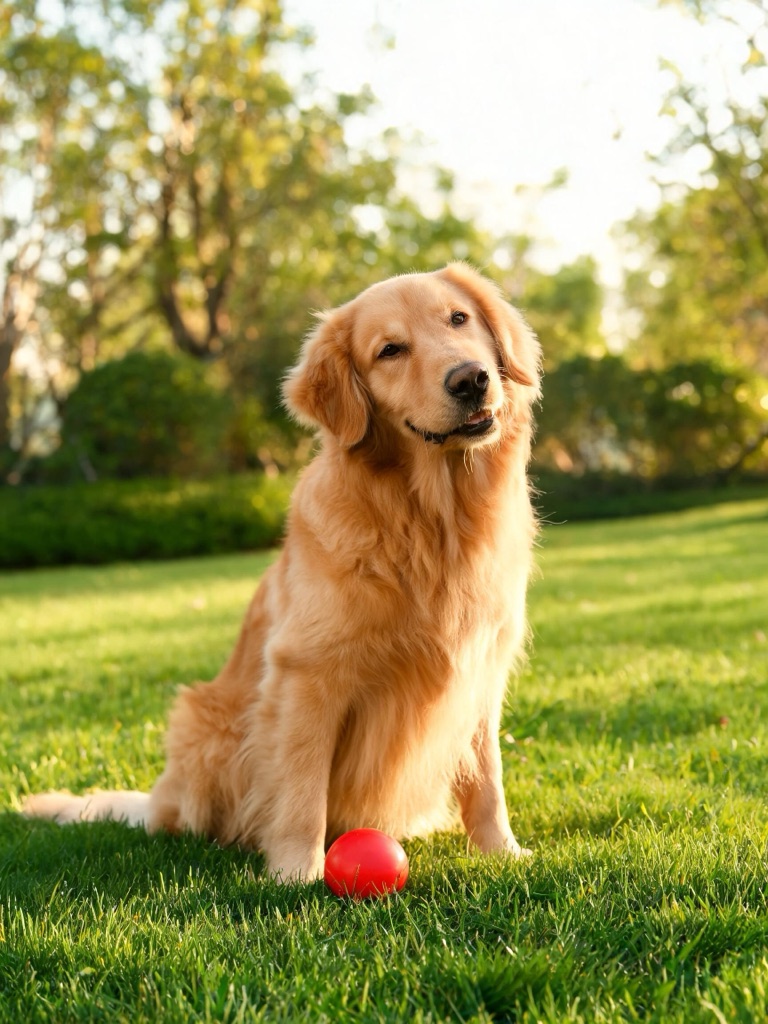 BeforeAfter
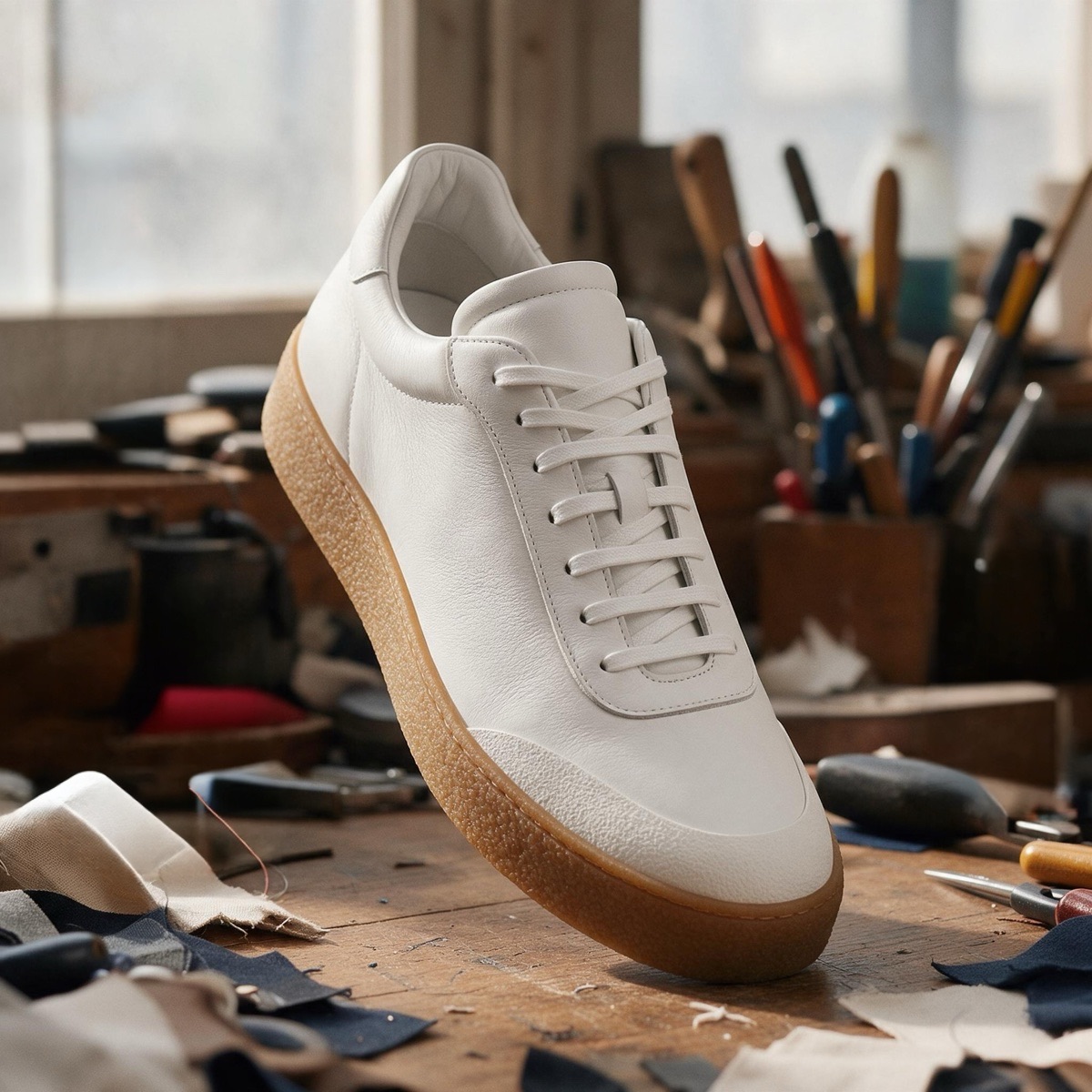
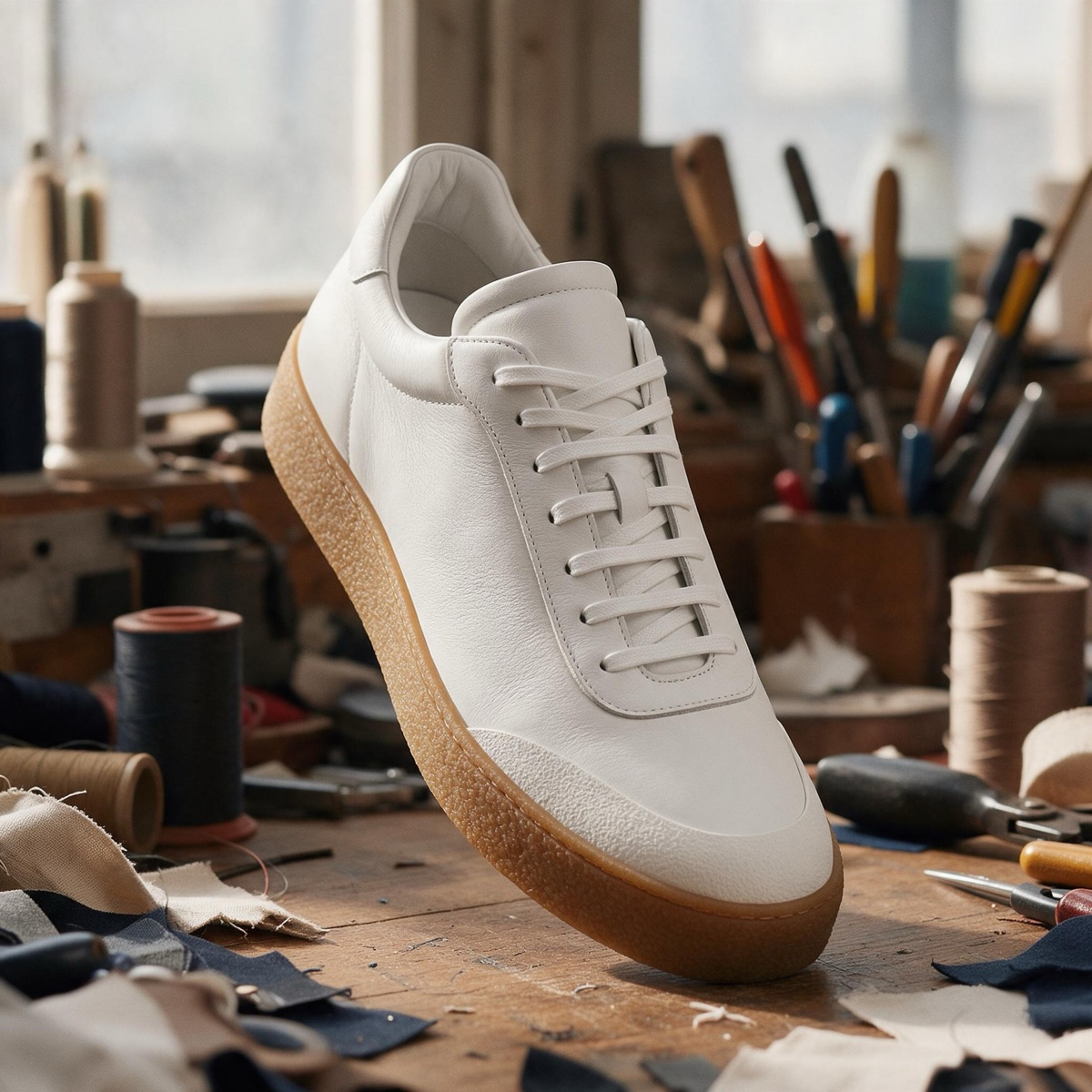 BeforeAfter

 BeforeAfter
Four ways to say what goes
| Mode | How | Best for | Cost |
|---|---|---|---|
| Tap | Touch it; AI outlines it | Objects and people with a clear shape | 3 credits |
| Brush | Paint over what should go | Touch-ups, stains, wires, odd shapes | 3 credits |
| Describe | Type what should go | Quick clean-ups, clearly named objects | 3 credits |
| Watermark | Nothing — it finds them | Text, logos and date stamps on your own images | 3 credits |
Switch between them without uploading again. Plans renew monthly until cancelled — see pricing details.
Remove an object in three steps
Add the photo
Click the upload area, drag a file onto it or paste an image. Photos from My Creations work too, or start with one of the samples.
Mark what should go
Tap it and the AI outlines it; touch up with the brush, undo if you slip — or type it in Describe. Watermark mode needs no marking.
Compare and download
Drag the slider to check the fill against the original, then download, or remove something else from the new version.
What it is good at
Clutter and stray objects. A cup on the table, cables on the floor, a bin at the edge of a view, crumbs on a counter before a product shot. Small things on plain or repeating backgrounds disappear cleanly.
Passers-by and photobombers. People walking through the back of your holiday or street photos, painted out so the scene reads as empty.
Wires, signs and blemishes. Power lines across a sky, a sticker on a laptop, a scuff on a wall, a spot on a product.
Text on your own images. A date stamp from an old camera, a caption on a draft, a preview mark on your own shot — the Watermark mode finds and fills them without any selection. Something moving in a video instead? The video object remover takes people, cars and overlays out of a clip.
Getting the cleanest result
Paint generously. Cover the whole object with a small margin, and include its shadow and any reflection — anything left unpainted stays in the photo.
Big objects in two passes. The AI invents what was behind the object from its surroundings. The more of the photo it has to invent, the more it guesses, so remove a large object in two halves and check each one.
Start from the largest file you have. Fine texture in the fill — grass, brick, fabric — comes from the pixels around it. To sharpen a small photo first, use the image upscaler; to lift the whole subject out instead, the background remover; to add or change things rather than remove them, the image studio.
Rights and labelling
Edit photos you own or have the rights to edit, and do not use the tool to remove anyone else's watermark, credit or signature. Uploads are screened before any credit is taken, and photos of public figures are declined. Every result carries a signed C2PA provenance mark recording that it was edited with AI, in line with Article 50 of the EU AI Act. Anyone can read the mark on the verification page, and the Content & Safety Policy sets out what may not be created. Plans renew monthly until cancelled and can be cancelled online at any time; the full terms are on pricing details.
Frequently asked questions
How do I remove an object from a photo?
Upload the photo to the tool at the top of this page, tap the object — the AI outlines it for you — or paint over it with the brush, and press Remove. The AI fills the painted area with what would plausibly be behind it, matching the surrounding texture and light. It takes a few seconds, costs 3 credits, and the result is saved to My Creations.
Tap, Brush or Describe — which should I use?
Start with Tap: touch the object and the AI selects its whole outline, then tap again to add more things. Use Brush to touch up the edges of a selection or for things with no clear outline, like a stain or a patch of wires. Describe is the quick one — type “the cup” or “the person on the left” — but it is the least precise, so check the result and switch to Tap if it misses.
Can I remove people from the background of my photo?
Yes. Passers-by, a stranger at the edge of a holiday shot, or a crowd behind you can be painted out of your own photos. The fill is rebuilt from the scene around them, so a person standing in front of a detailed building is harder than one against sky or grass.
Can I remove several things from one photo?
Paint over all of them in one go, or remove them one at a time: after each result, press Remove something else to keep editing the new version. Each run is 3 credits.
Why is there a smudge or a leftover shadow?
Usually the brush did not cover the whole object. Paint a little beyond its edge and include its shadow and reflection — the AI only rebuilds what is painted. Large objects over complex backgrounds are the hardest case; removing them in two smaller passes often looks cleaner.
Can it remove a watermark or text from a photo?
Yes. The Watermark mode finds text, logo and date-stamp overlays by itself and fills them in — nothing to select, 3 credits. Corner logos, captions and date stamps clear best; a large see-through mark across the middle may not come out fully — paint it out with Brush instead. Use it only on images you own or have the rights to edit, such as your own drafts or a preview mark on your own shots; never to remove someone else's watermark or credit.
Whose photos can I edit?
Your own photos, and photos you have the rights to edit. Uploads are screened before any credit is taken, and photos of public figures are declined. Every result is saved with a signed C2PA mark identifying it as edited with AI, which anyone can read on the verification page.
What happens if the removal fails?
You keep your credits. A failed or timed-out run is refunded automatically, and you can try again on the same photo straight away.
Photo tools
One credit balance across image, video and music.
Video Object Remover
Remove people and overlays from a clip.
OpenBackground Remover
Lift the subject out as a transparent PNG.
OpenAI Background Changer
Put the subject in a new AI scene.
OpenImage Upscaler
Sharpen and enlarge a photo.
OpenAI Photo Enhancer
Fix blur, noise and dull colour.
OpenImage to Video
Animate the cleaned-up photo.
OpenVerify AI content
Read the C2PA provenance mark on any file.
Open