Drop a photo. Get the subject back, clean.
Background Remover
Remove the background from any photo in seconds — products, people, pets and objects, cut out with hair and edges intact. Keep it transparent, put it on white, or drop it into a new AI scene.
A cut-out is 1 credit and failed runs are refunded. Plans renew monthly until cancelled and can be cancelled online at any time — see pricing details.
The subject keeps its original pixels; only the background changes.
Before and after
Generated examples cut out by this tool. The right half is the result — transparent areas show as a checkerboard.
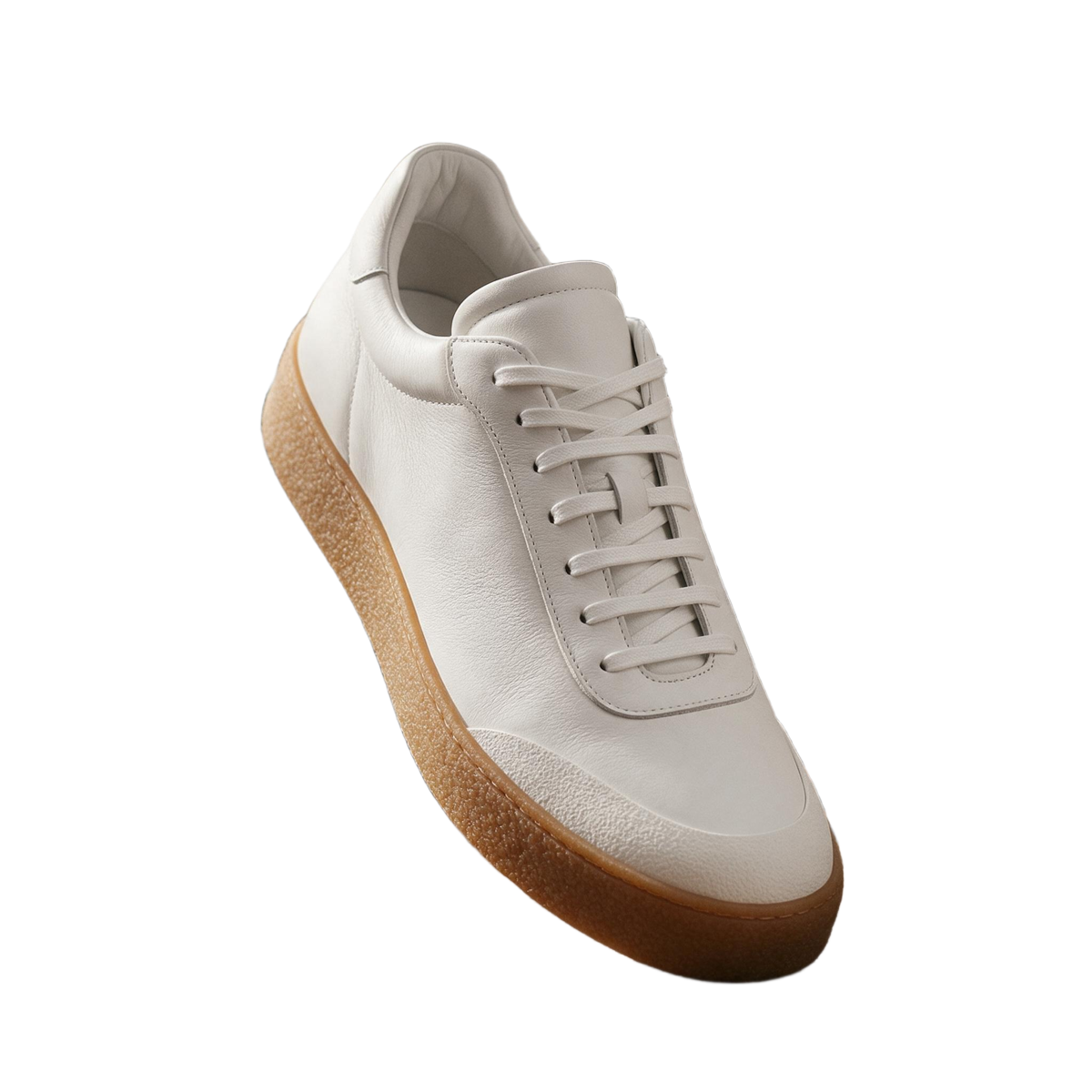
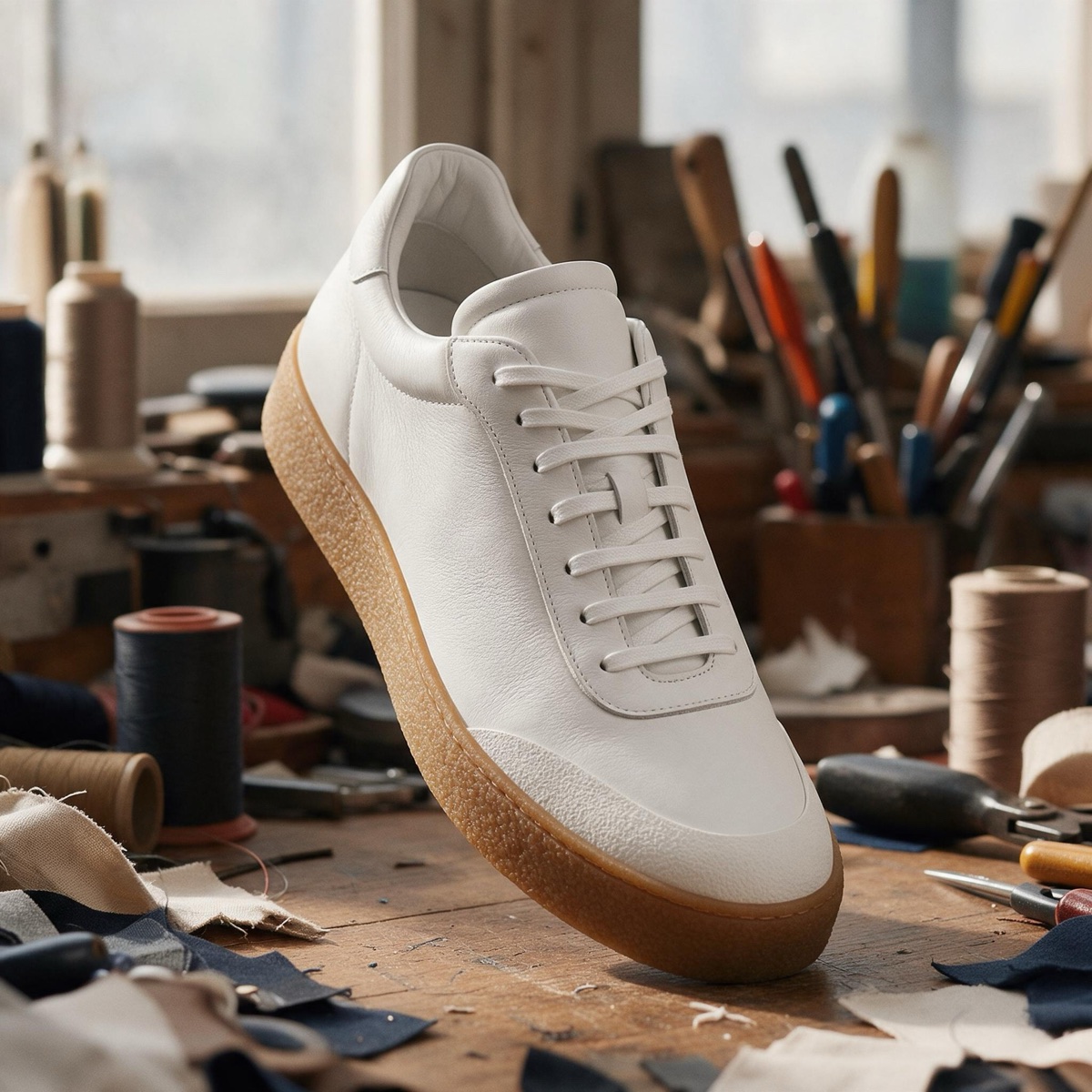 BeforeAfter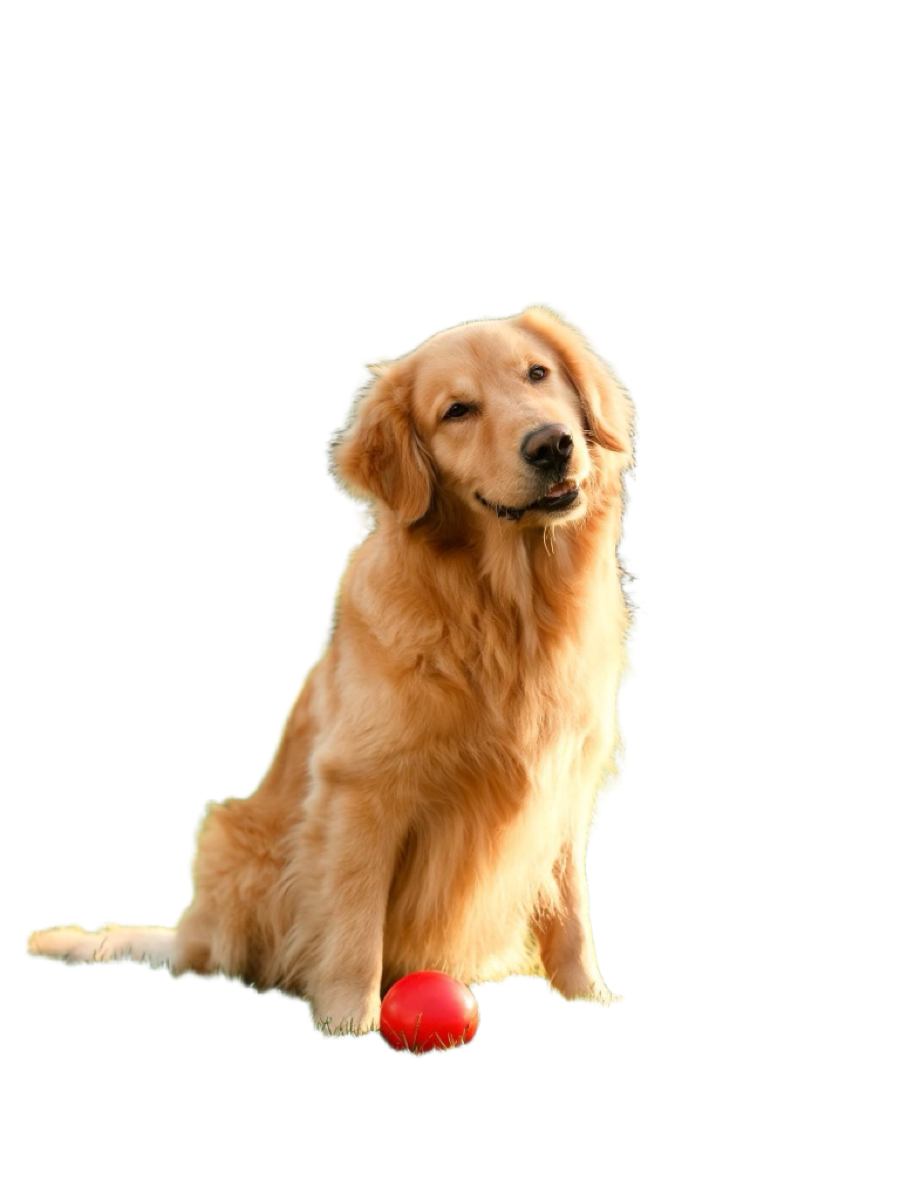
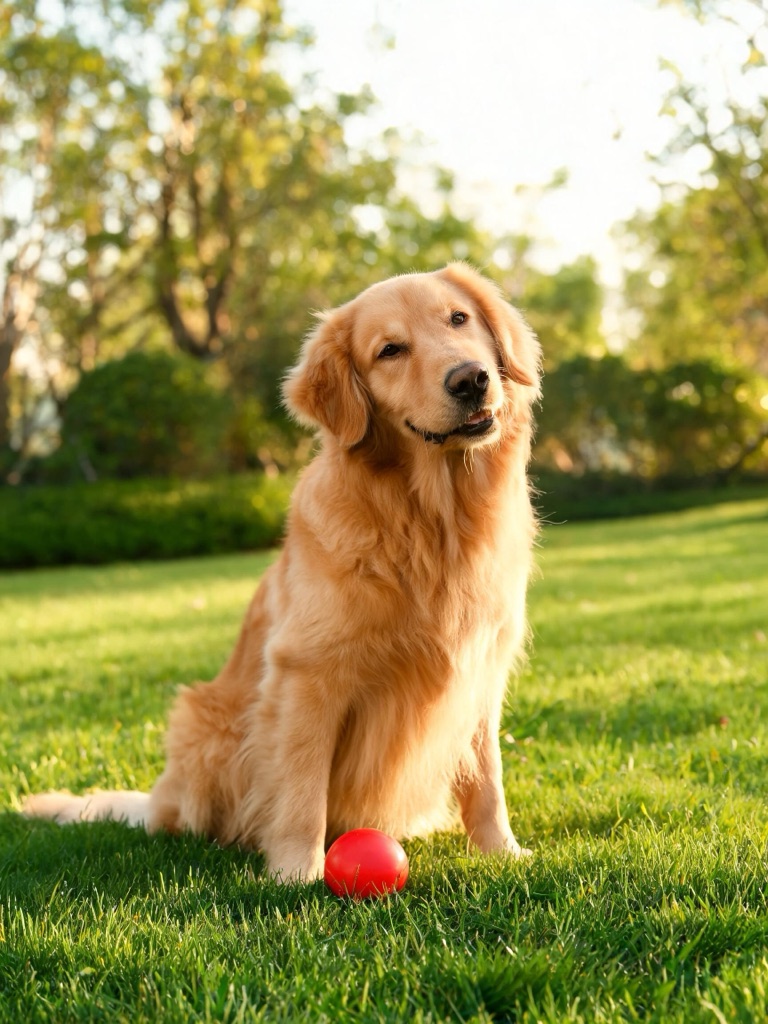 BeforeAfter
 BeforeAfter
Three results from one upload
| Output | File | Made for | Cost |
|---|---|---|---|
| Transparent | PNG with alpha | Design, stickers, slides, layering | 1 credit |
| Colour | JPG on white or any colour | Shops, marketplaces, catalogues | 1 credit |
| New scene | JPG, re-rendered by AI | Lifestyle shots, ads, social posts | 2–3 credits |
Switch between them in the tool without uploading again. Plans renew monthly until cancelled — see pricing details.
Transparent is the classic cut-out: a PNG whose background is empty, ready to layer over anything in a design tool. Colour places the cut-out on white or any colour you pick, optionally centred on a square — see the white background generator for the marketplace rules it is built around. New scene hands the photo to Seedream 5.0 Pro, which renders the subject into a new setting with light that matches — more on the AI background changer.
Remove a background in three steps
Add the photo
Click the upload area, drag a file onto it, or paste an image. Photos from My Creations work too.
Choose the result
Transparent, a colour, or a new scene. For colour, pick the shade and whether to centre it on a square.
Compare and download
Drag the slider to check the edges against the original, then download. The result is already in My Creations.
Getting the cleanest cut-out
Separate the subject. The remover decides what the subject is, so one clear, in-focus subject beats a crowd of objects. A little space between the subject and what is behind it helps more than a plain wall does.
Keep the whole subject in frame. A shoe cut off at the toe stays cut off; the remover does not invent what the photo does not show. For that, the background changer or the image studio can extend it.
Start from the largest file you have. Fine edges — hair, fur, glass, lace — come out better from more pixels. Uploads are sized to 1920 pixels on the long side.
Something the remover left behind, or a stray object in the shot? The object remover paints it out, and the image upscaler sharpens a small cut-out before print.
Rights and labelling
Edit photos you own or have the rights to edit. Uploads are screened before any credit is taken, and photos of public figures are declined. Every result carries a signed C2PA provenance mark recording that it was edited with AI, in line with Article 50 of the EU AI Act; images made in the New scene mode are AI-generated and marked the same way. Anyone can read the mark on the verification page, and the Content & Safety Policy sets out what may not be created. Plans renew monthly until cancelled and can be cancelled online at any time; the full terms are on pricing details.
Frequently asked questions
How do I remove the background from a photo?
Upload the photo to the tool at the top of this page — click, drag it in, or paste it — keep Transparent selected and press Remove background. The subject is cut out in a few seconds and saved to My Creations as a PNG with a transparent background. It costs 1 credit.
What kinds of photos does it work on?
Products, people, pets, cars, food, furniture and most everyday objects. The remover finds the main subject on its own, so there is nothing to trace or brush. It does best when the subject is in focus and stands apart from the background; hair, fur and soft edges are kept as fine detail rather than clipped to a hard outline.
Does the remover change my subject?
No. The cut-out keeps the subject's own pixels — the label on a bottle, the stitching on a shoe, the colour of a jumper — and only removes what is behind it. That is the difference from the New scene option, where the AI re-renders the whole photo so the lighting matches the new background.
Can I put a white or coloured background behind the subject instead?
Yes. Pick Colour in the tool, choose white or any colour, and the cut-out is placed on it and saved as a JPG. Square, centred framing puts the subject in the middle of a square with an even margin — the layout most shops and marketplaces ask for. The price is the same 1 credit.
Can I replace the background with a new scene?
Yes. Pick New scene, choose a preset such as a marble counter or a golden-hour beach, or describe your own, and Seedream 5.0 Pro renders the subject into it with matching light and shadow. It costs 2 credits at 1K or 3 at 2K, and because the whole image is re-rendered, small details can shift.
Whose photos can I use?
Your own photos, and photos you have the rights to edit. Uploads are screened before anything is charged, and photos of public figures are declined. Every result is saved with a signed C2PA mark identifying it as edited with AI, which anyone can read on the verification page.
What happens if the removal fails?
You keep your credit. A failed or timed-out removal is refunded automatically, and you can run it again on the same photo straight away.
Background tools
One credit balance across image, video and music.
Transparent Background Maker
PNG cut-outs for design, slides and stickers.
OpenWhite Background Generator
Marketplace-ready product photos on pure white.
OpenAI Background Changer
Put the subject in a new AI scene.
OpenObject Remover
Paint out anything left in the shot.
OpenImage Upscaler
Sharpen a small cut-out for print.
OpenImage to Video
Animate the finished product shot.
OpenVerify AI content
Read the C2PA provenance mark on any file.
Open