Six engines, from 1 credit
AI Image Generator
Turn a sentence — or a sentence plus a few of your own photos — into a finished image, in any ratio, up to 2K.
Made here, from one sentence:
Images cost 1 to 3 credits depending on engine and resolution, and the exact figure is shown on the Generate button before you commit. Plans renew monthly until cancelled and can be cancelled online at any time — see pricing details.
Made here, with the prompt that made it
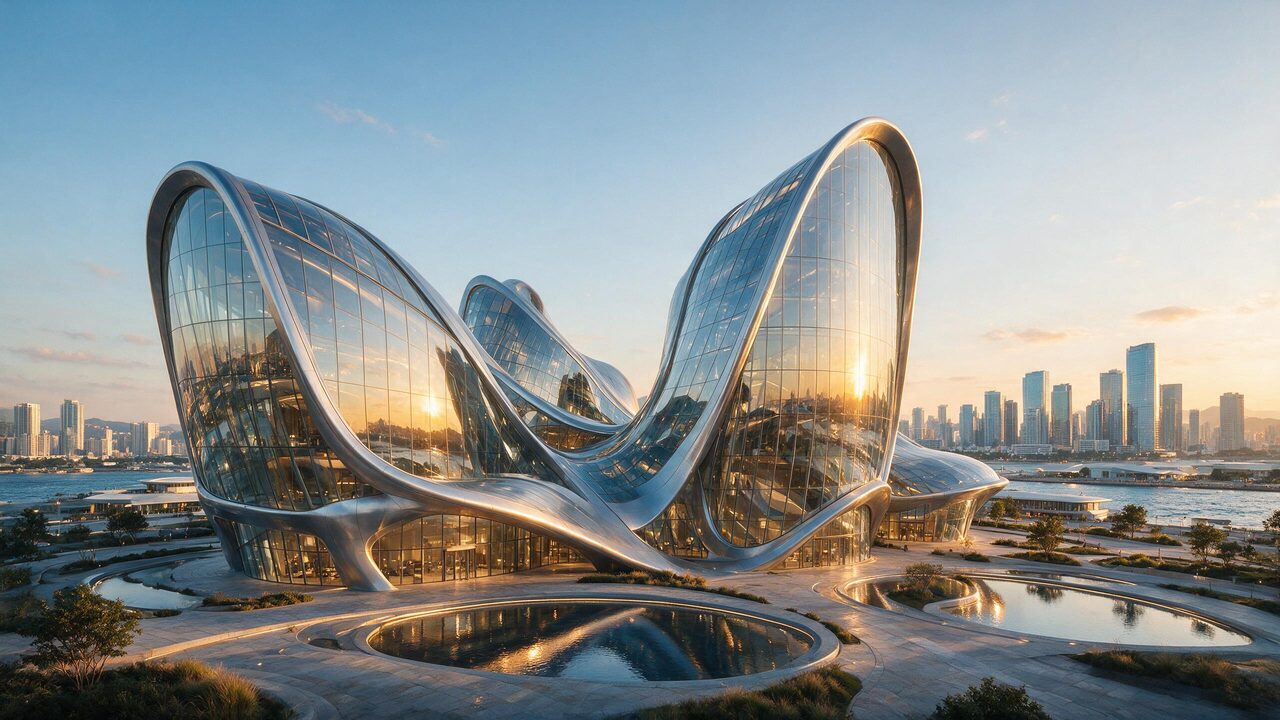
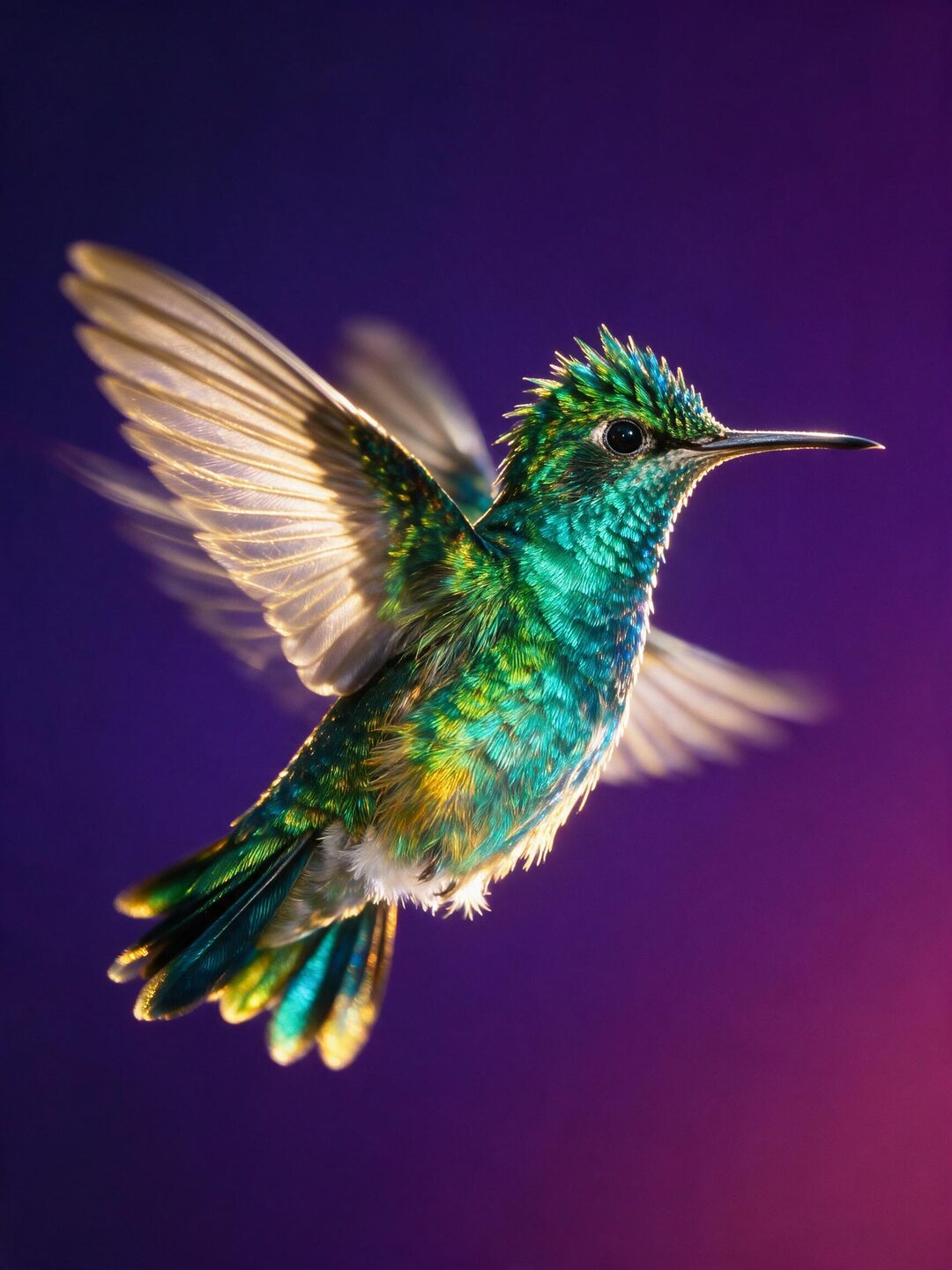
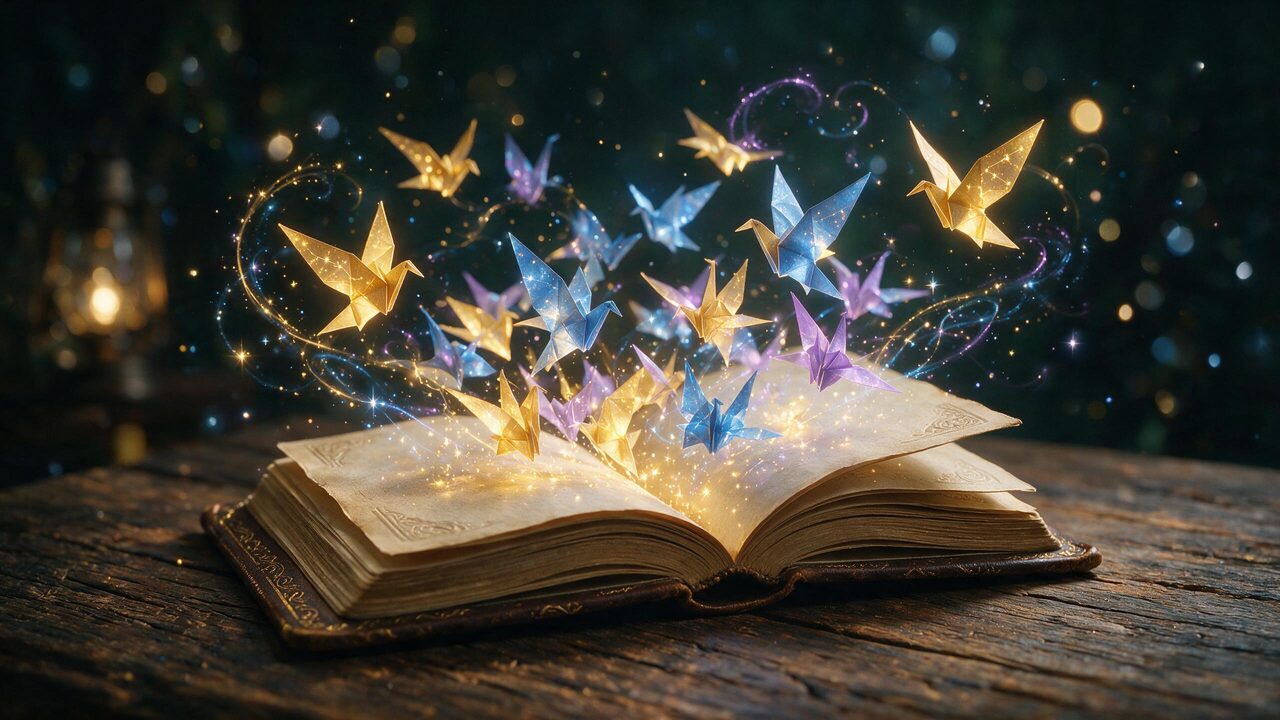
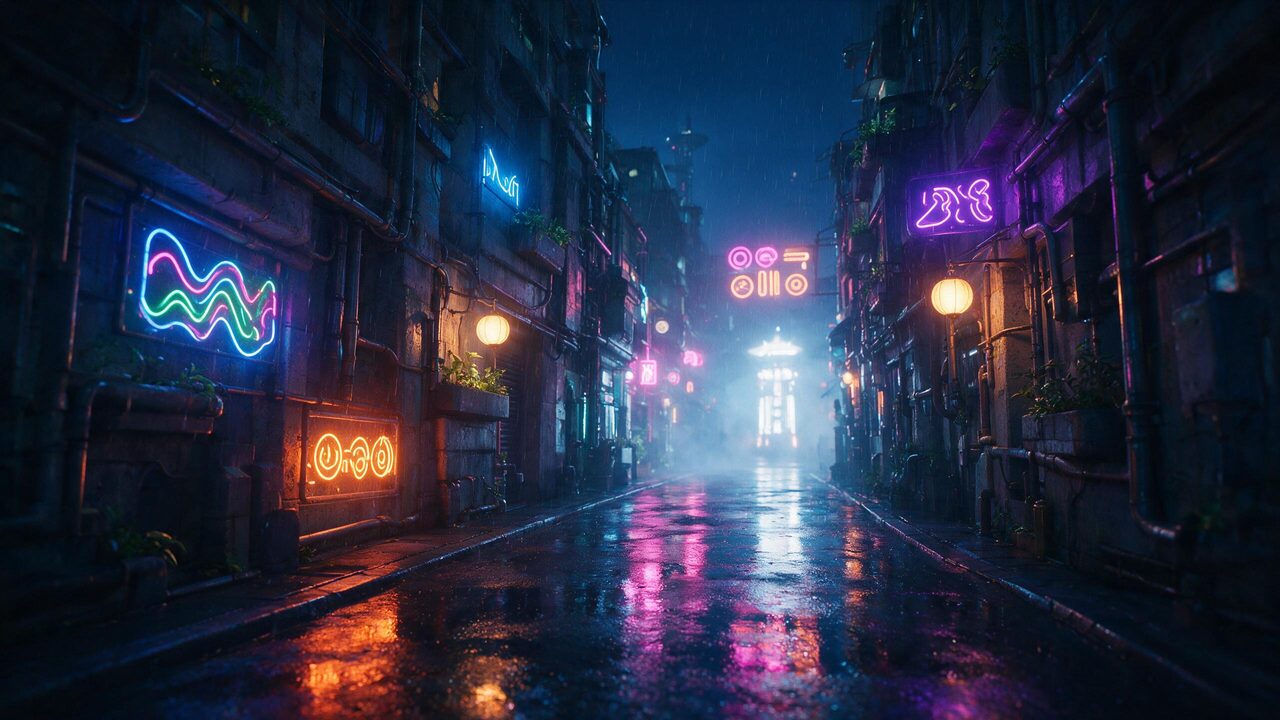
Twelve outputs from the engines in the picker. None of these prompts is longer than a sentence, and every one names a material, a light source or a camera distance — tap any of them to open it in the studio.
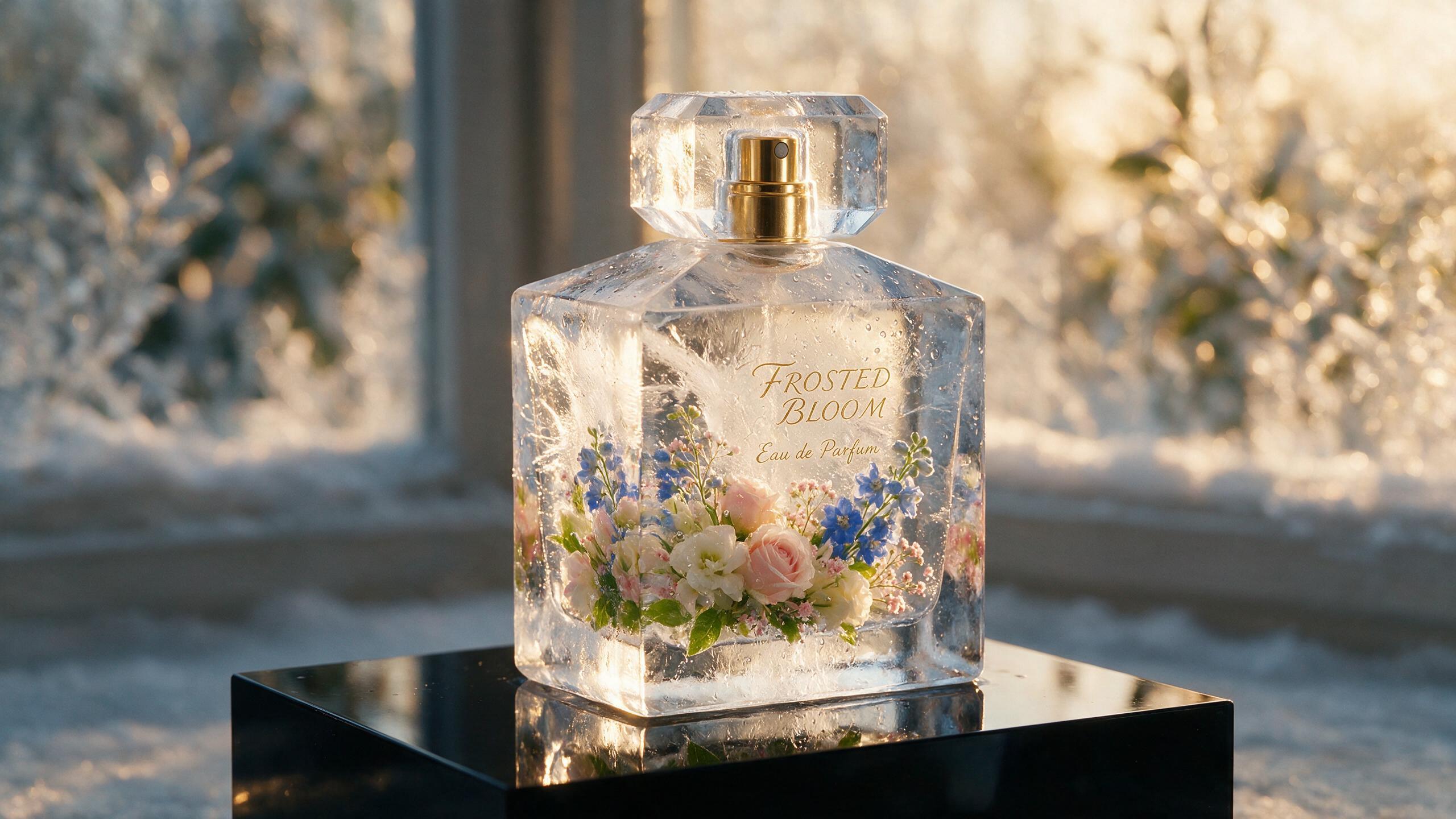 AI generated
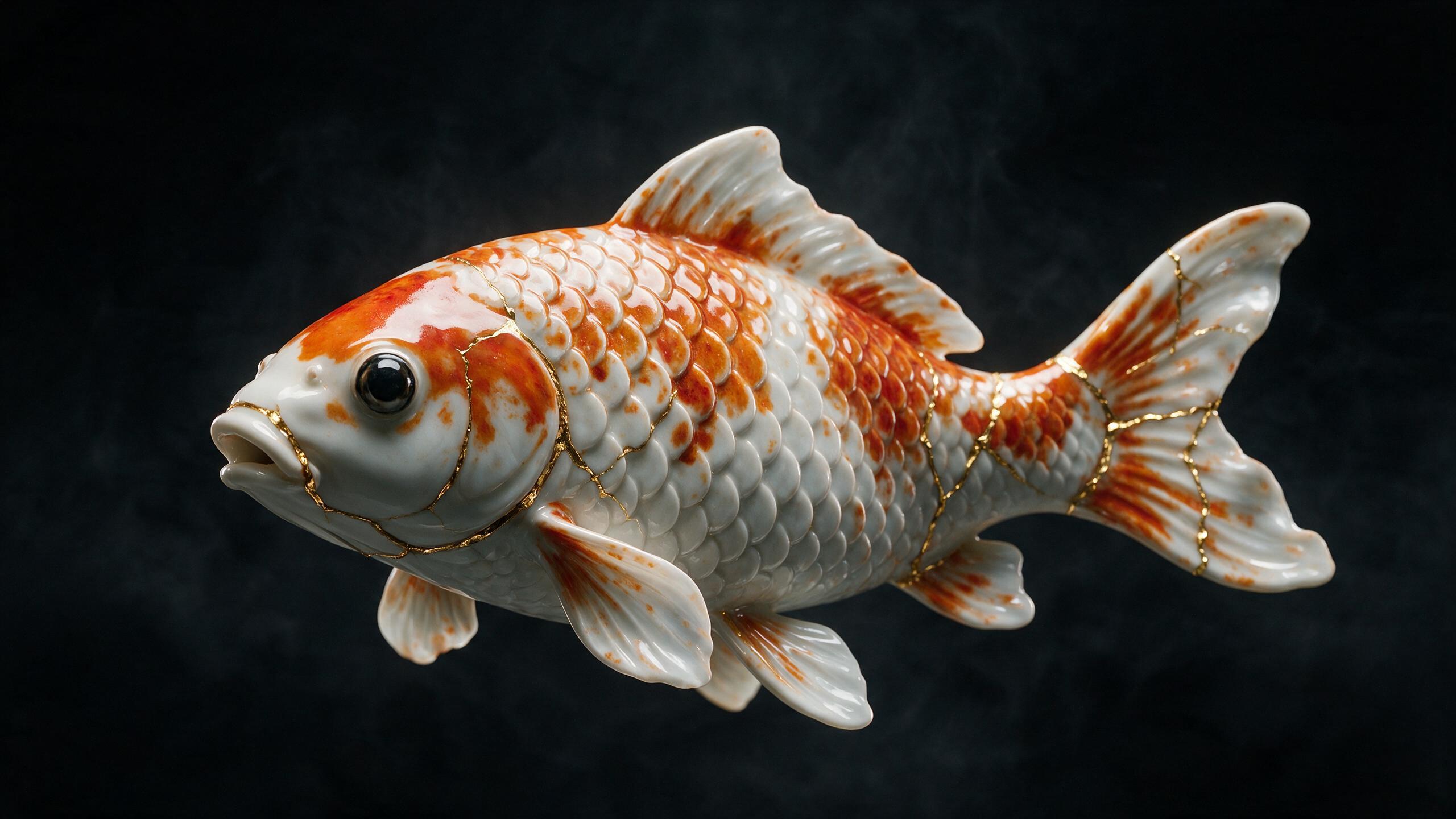 AI generated
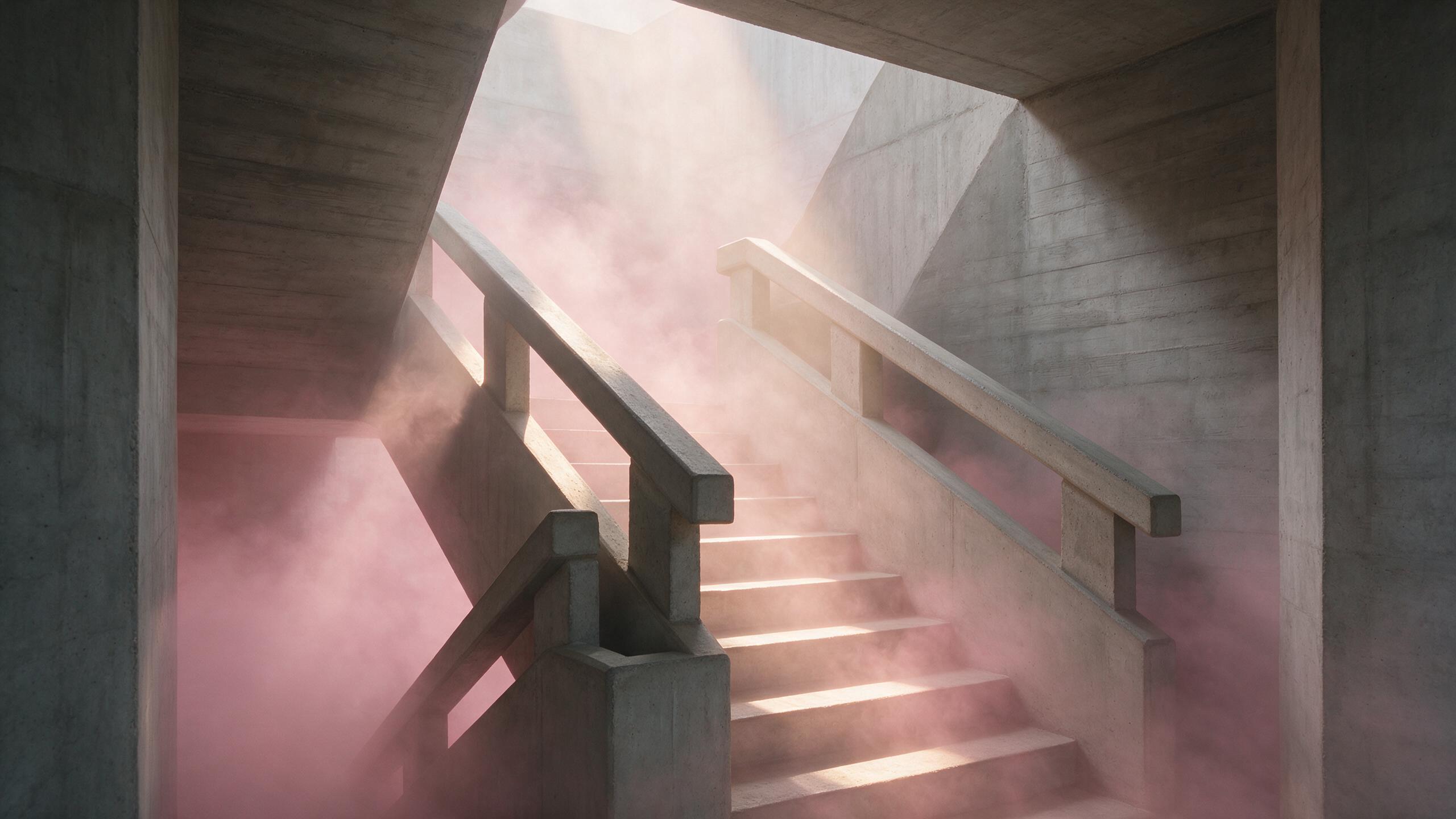 AI generated
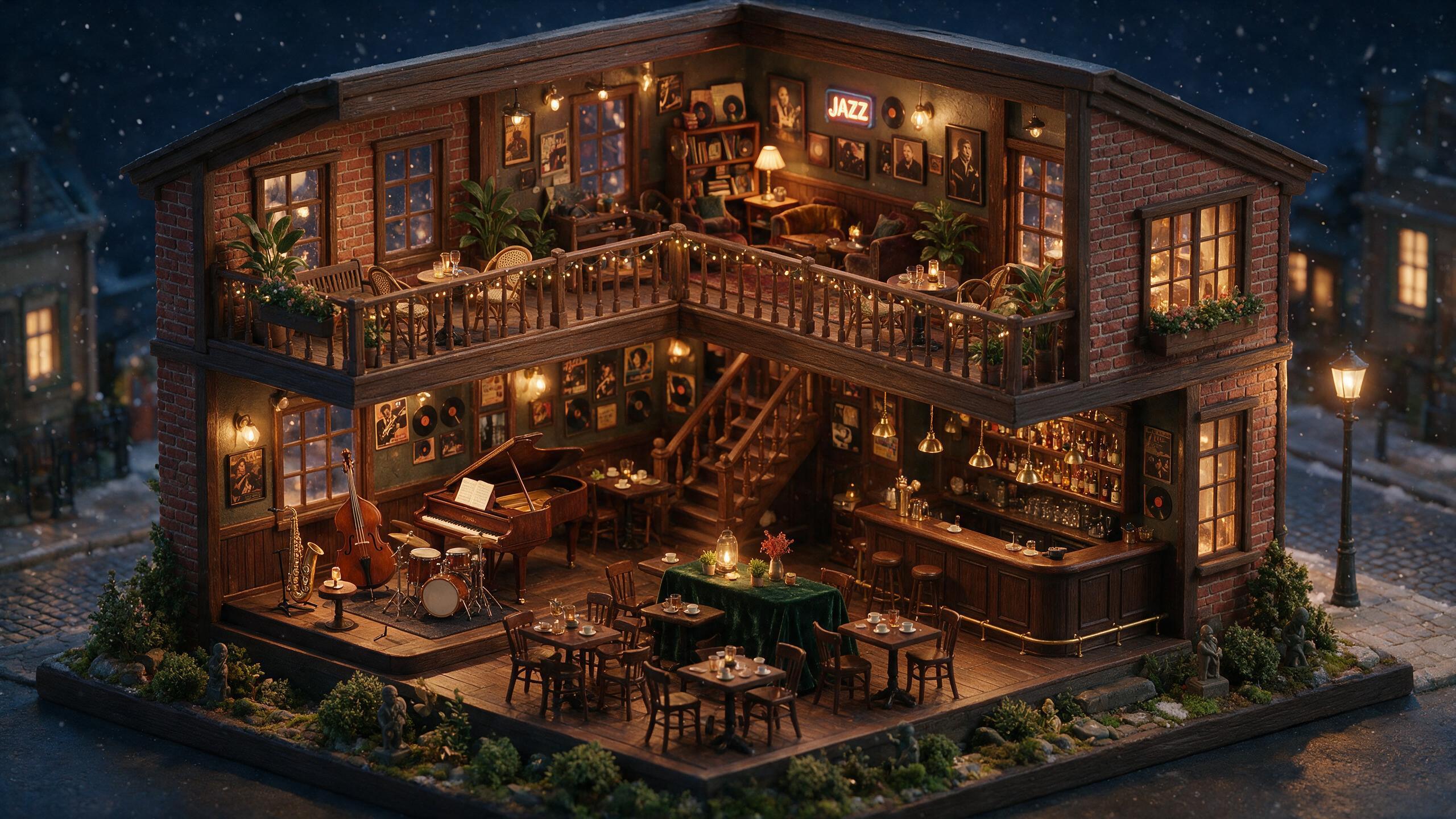 AI generated
 AI generated
 AI generated
 AI generated
 AI generated
 AI generated
 AI generated
 AI generated
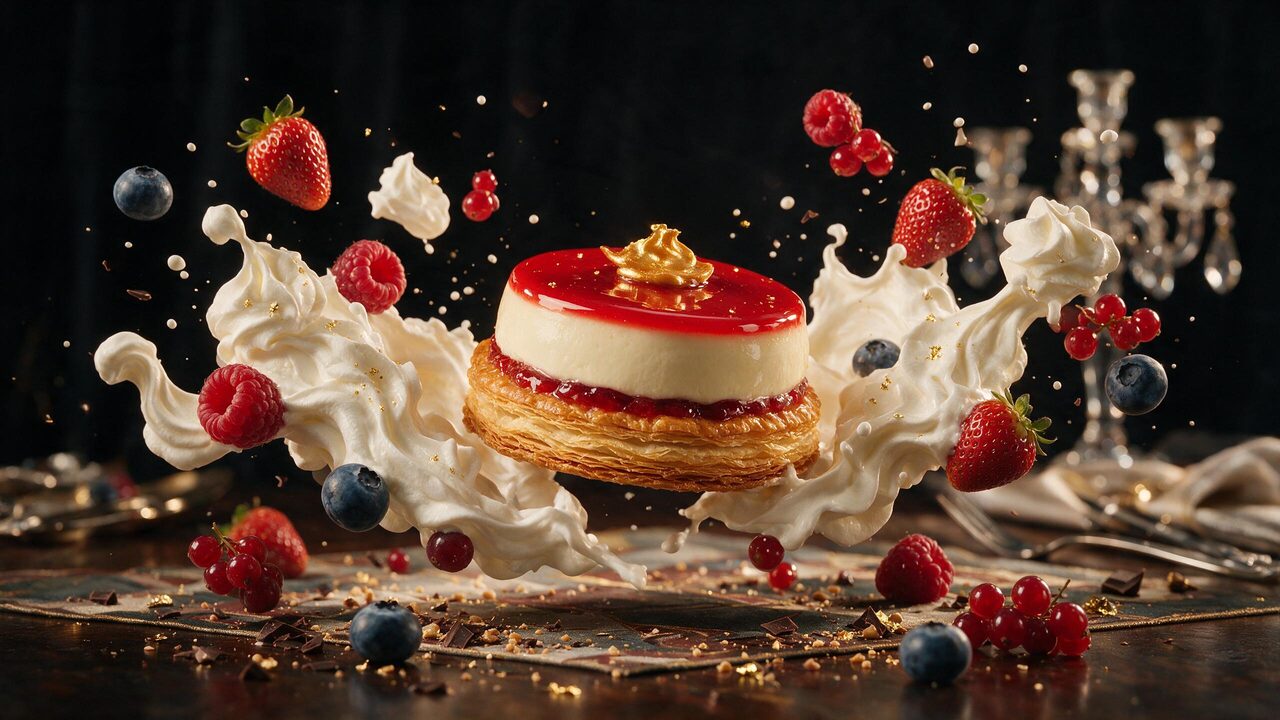 AI generated
What an AI image generator actually does
A generative image model renders a picture that has never existed, from a description of what should be in it. It is not a search over stock libraries and it is not a filter applied to a photo — which is why the useful skill is describing a scene precisely rather than knowing a photo editor. Give it a subject, a material, a light source and a lens and it has four decisions to work with; ask it for something “beautiful” and it has none.
WowMade puts six of those models behind one form, in two modes. Text to Image starts from words alone. Edit Image starts from photos you upload — your product, your room, your own artwork — and changes them to a brief. Everything happens in the browser: the finished image lands in the workspace beside the form, ready to download, to send through the image upscaler, or to animate with the AI video generator.

Editing starts from your photos, not ours
Switch to Edit Image and you can add reference photos, then describe the change: combine them, restyle them, replace a background, put a product into a new setting. Refer to them by position — “image 1”, “image 2” — inside the prompt and the model will follow.
How many references each engine accepts ranges from 3 to 14, and the counter above the upload area shows the limit for the one you have selected. A Describe Image button reads an uploaded picture back to you as a prompt, which is the quickest way to work out why a reference is landing differently from how you expected.
How it works
Describe it, or upload it
Write the picture in a sentence, or switch to Edit Image and add up to 14 reference photos to change instead. Improve prompt fills in a thin brief and costs no credits.
Choose engine, ratio and count
Six engines, six aspect ratios, 1K or 2K, and 1, 2 or 4 images from a single press. The total cost is printed on the Generate button.
Pick the winner, take it further
Edit this drops a result back in as a reference, Upscale opens it in the upscaler, and Animate carries it into the video studio as a start frame.
Text to image, in practice
In Text to Image mode the prompt is the whole input. This is the fastest route when the picture lives only in your head and you want several interpretations quickly. Longer prompts are not automatically better, but specific ones are — and you can pull an earlier prompt back out of your own history as you type, or lift one from the Inspiration panel and edit it. If a prompt is too thin to work with, Improve prompt rewrites it into a fuller one, adding the concrete decisions image models need — subject detail, materials, where the light comes from, lens and mood — while keeping what you actually asked for. It costs no credits and one press is always undoable.
Images per run decides how many pictures one press produces: one, two or four from the same prompt. Four tries of a cheap engine usually teach you more about a brief than one try of an expensive one.
Keeping a character consistent
The hard part of working with image models is rarely the first picture — it is the second one that has to match. WowMade handles that with a saved library: store a character or a location once, then drop it into any later prompt with an @ mention. The saved reference travels with the prompt, so your own recurring subject and setting stay consistent across separate generations without re-uploading anything or hunting for the original file.
This is reuse of references you saved yourself, and it is subject to the same rules as everything else here: the Content & Safety Policy sets out what may not be created, including depictions of real people made without the rights to use their likeness.
What people make with it
Six jobs the six engines are actually used for, from the first afternoon to a whole campaign.
Product shots without a studio
A bottle on black acrylic, a garment on a seamless backdrop, the same product in six settings before lunch. Start from your own packshot in Edit Image and the product stays the product.
Thumbnails and ad creative
Four variants from one press, tested against each other, and the winning prompt kept for the next campaign. At 1 credit an image on the Lite models, testing twenty ideas is a normal afternoon.
Covers, posters and episode art
Album covers, podcast art, event posters — square, portrait or cinematic, at 2K, in a look you can hold across a season by saving the style as a reference.
Storyboards and concept art
Draw the shot before booking the shoot, or pitch a concept with frames instead of adjectives. Cheap enough per frame that a whole sequence is affordable.
Start frames for video
The most controllable way into an AI video is a still you already approve of. Generate the frame here, then press Animate to carry it into the video studio.
Cleanups and variations
Replace a background, remove a distraction, restyle a photo you already own, or resize one hero image into every placement a campaign needs.
Choosing an engine
The six engines differ in how many reference images they accept, what resolution they reach, what they are strongest at and what they cost per image. Switching between them does not lose your prompt, so trying one brief on two engines is cheap.
| Engine | Maker | Max refs | Resolution | Credits | Strongest at |
|---|---|---|---|---|---|
| Seedream 5.0 Pro | BytePlus | 14 | 1K or 2K | 2–3 | Photographic detail |
| Qwen Image 3.0 | Alibaba Cloud | 3 | 2K | 2 | Text-rich layouts |
| Seedream 5.0 Lite | BytePlus | 14 | 2K | 1 | Iterating cheaply |
| Seedream 4.5 | BytePlus | 10 | 2K | 1 | Literal prompt reading |
| WAN 2.7 | Alibaba Cloud | 9 | 2K | 2 | Many references at once |
| Qwen Image 2.0 | Alibaba Cloud | 3 | 2K | 2 | Straightforward edits |
Credits are per image at the listed resolution; the exact figure for your settings is printed on the Generate button. Full side-by-side numbers, including real generation times, are on AI image models compared.
Seedream 5.0 Pro
The default, and the most capable engine here for photographic detail and complex scenes. Takes up to 14 reference images, offers a 1K or 2K choice, and outputs JPEG or PNG. Start here unless you have a reason not to.
Seedream 5.0 Lite and Seedream 4.5
One credit an image, both at 2K. Lite is the model to iterate on: run a prompt until the composition is right, then re-run the winner on Pro. 4.5 is the previous generation, kept because it still reads some prompts more literally than 5.0 does.
Qwen Image 3.0 and 2.0
Strong on text-rich, information-dense layouts and on prompts that lean on real-world knowledge. A good second opinion when Seedream reads a brief differently from how you meant it. Up to 3 references, 2 credits an image.
WAN 2.7
Handles up to 9 reference images, which makes it the choice when a scene has to pull from several sources at once — a product, a background and a style reference together.
Writing a prompt that works
“A nice photo of a bottle” gives the model nothing to decide with. The first image on this page came from “a perfume bottle carved from clear ice, frozen flowers inside, backlit on black acrylic” — four concrete decisions in one line. A reliable structure: subject, material or texture, where the light comes from, the lens or distance, and the mood.
Treat resolution as a separate lever from the prompt. Draft at 1K on Seedream 5.0 Lite until the composition is right, then re-run the winning prompt at 2K on Seedream 5.0 Pro. And if one engine keeps misreading a single word, try the same prompt on another before rewriting it — the two Qwen releases and the Seedream family often disagree in useful ways.
Sizes and formats
Six aspect ratios cover most of what a finished image has to fit: 16:9 widescreen, 9:16 for vertical stories and reels, 4:3 and 3:4 for classic and portrait crops, 1:1 for square posts, and 21:9 when the frame should read as cinematic. Most engines let you choose JPEG for a smaller file or PNG when you need a cleaner edge. While editing, the size picker also offers Match input, which reads the shape of your first reference photo and holds it.
An image made here is rarely the last step
Every next step is one press from the result: Edit this drops it back into the form as a reference, Upscale opens it in the AI image upscaler, and Animate carries it into the image-to-video flow as a start frame.
You can also clean up an unwanted element with the object remover. Everything shares one credit balance and one library of creations, so nothing has to be re-uploaded between tools.

Credits and what a generation costs
Generations are paid for in credits from your WowMade plan, and the exact cost of the current settings is printed on the Generate button before you commit. Seedream 5.0 Lite and Seedream 4.5 cost 1 credit an image; WAN 2.7 and the Qwen models cost 2; Seedream 5.0 Pro costs 2 at 1K and 3 at 2K. Credits do not expire while your account is open, and one balance covers images, video and music.
Plans renew monthly until cancelled and can be cancelled online at any time. Every plan, credit pack and billing term is listed on pricing details; you can choose a plan once you are signed in.
Every image is marked as AI-generated
Images made here are synthetic, and WowMade labels them as such. Each file carries a signed C2PA provenance manifest recording that it was AI-generated and which tool produced it, in line with Article 50 of the EU AI Act. Anyone can read that mark back on the verification page.
Prompts and uploaded reference images are screened before generation, and the Content & Safety Policy sets out what may not be created here — including sexual content, and depictions of real people made without the rights to use their likeness.
Frequently asked questions
What is an AI image generator?
It is a tool that renders a picture from a written description, or from a description plus reference photos, instead of from a camera. You describe the subject, the light and the framing, pick a model and an aspect ratio, and the image renders in a queue on the page. On WowMade this happens in the browser — nothing is installed and nothing renders on your own machine.
Which AI image models can I use?
Six sit behind the same form: Seedream 5.0 Pro, Qwen Image 3.0, Seedream 5.0 Lite, Seedream 4.5, WAN 2.7 and Qwen Image 2.0. You can switch between them without losing your prompt, so the same brief can be tried on more than one model for the cost of a second generation.
Can I edit an existing photo instead of starting from text?
Yes. Switch the generation mode to Edit Image, add reference photos and describe the change you want — combine them, restyle them, replace a background, drop a product into a new setting. How many references a model accepts differs: Seedream 5.0 Pro and 5.0 Lite take up to 14, Seedream 4.5 takes 10, WAN 2.7 takes 9, and the Qwen models take 3. Inside the prompt you can refer to them as "image 1", "image 2" and so on.
How do I keep the same character across several images?
Save a character or a location to your library once, then drop it into any later prompt with an @ mention. The saved reference travels with the prompt, so your own recurring subject and setting stay consistent across separate generations without re-uploading anything.
Can I generate more than one image at a time?
Yes. The Images per run control takes 1, 2 or 4, and one press of Generate renders them together from the same prompt so you can pick the best of a set rather than re-running the same brief by hand. Each image costs its own credits and the total is printed on the Generate button before you commit.
How do I stop an edit from recropping my photo?
Choose Match input in the image size picker while you are editing. It reads the shape of your first reference image and holds the closest ratio available, so a landscape photo comes back landscape instead of being recomposed to whichever ratio happened to be selected.
What aspect ratios and resolutions are supported?
Six aspect ratios — 16:9, 9:16, 4:3, 3:4, 1:1 and 21:9 — cover widescreen, vertical stories, classic and portrait crops, square posts and cinematic framing. Seedream 5.0 Pro offers a 1K or 2K choice; Seedream 5.0 Lite and 4.5 output at 2K. Most models let you pick JPEG for a smaller file or PNG for a cleaner edge.
How many credits does an image cost?
Between 1 and 3 credits depending on the model and resolution, and the exact figure is printed on the Generate button before you spend anything. Seedream 5.0 Lite and Seedream 4.5 are 1 credit; WAN 2.7 and the Qwen models are 2; Seedream 5.0 Pro is 2 at 1K and 3 at 2K. Credits never expire while your account is open, and one balance covers images, video and music.
Can I use the images commercially?
Yes. Commercial use is included with every WowMade plan and credit pack — images can go into ads, client work, social posts, print and monetised content.
Is every generated image labelled as AI-generated?
Yes. Every file WowMade produces carries a signed C2PA provenance mark identifying it as AI-generated and naming the tool that made it. The mark travels with the image when you download it, and anyone can read it back on the verification page.
Everything that follows an image
One credit balance across image, video, music and the editing tools.
AI Image Studio
The generator itself — prompt, engine, ratio, Generate.
OpenAI Video Generator
Animate a finished frame into a cinematic clip.
OpenImage Upscaler
Bring a soft result up to a crisp, printable size.
OpenObject Remover
Erase an unwanted element and fill the gap cleanly.
OpenAI Sticker Generator
Die-cut sticker sheets, cut out to a transparent PNG.
OpenPhoto to Cartoon
Redraw a photo as 3D, clay, vector or comic art.
OpenAI image models compared
Price, reference limits and real generation times.
OpenVerify AI content
Read the C2PA provenance mark on any file, yours or not.
OpenLatest AI images guides
See every AI images guide →
AI image commercial use: a risk-aware playbook for advertisers
A practical playbook for marketers and designers on licensing, provenance, and workflows to use AI-generated images in paid ads, with step-by-step WowMade examples.

Can AI be copyrighted? A practical guide for creators
Can AI be copyrighted? Clear legal guidance for creators using AI images, plus two step-by-step WowMade workflows to preserve authorship and register defensible works.

AI in marketing examples: practical ad creative workflows with AI images
Concrete AI in marketing examples: how teams use WowMade AI Image Generator to create compliant, high-performing ad images across the funnel, plus workflows and test plans.
One sentence is enough to start.
Start creatingNew here? The Academy has short lessons on prompting, and the glossary defines every term on this page.