Image animation for product: turn photos into vertical demo loops and animated B-roll
Convert single product photos into vertical demo loops and animated B-roll that boost Shopify conversions. Repeatable, low-cost image-to-video workflows for ecommerce teams.
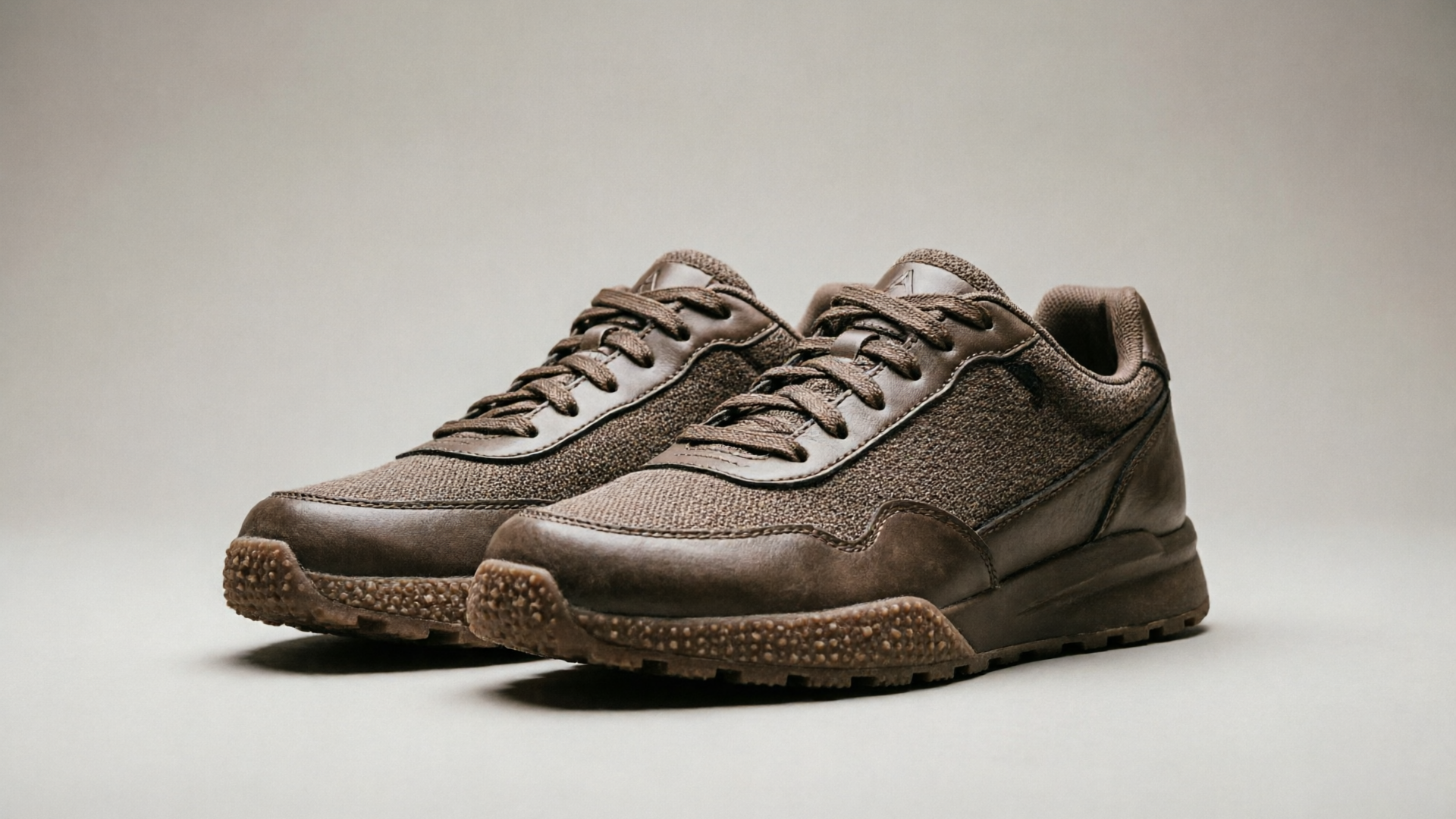
If you sell on Shopify, a single high-quality product photo can become multiple conversion-driving videos — from 9:16 demo loops for Reels to short animated B-roll for your product page. In this guide I’ll show ecommerce teams how to use image animation for product assets to create vertical demo loops and motion-forward B-roll fast, without a studio or a steep learning curve. The WowMade AI Video Generator, mentioned throughout, turns a still image into a social-ready MP4 in minutes and exports 9:16, 1:1, and 16:9 clips so you don’t need to reshoot for every channel.
Read on for practical photo-prep rules, two repeatable workflows (single-photo demo loop and batch collection B-roll), A/B test plans that measure real revenue signals, and a short walkthrough showing exactly how to make a 9:16 product loop using the WowMade AI Video Generator.
Why animated product B-roll and vertical demo loops move the needle for Shopify stores (data-driven case for adding motion)
Motion answers two ecommerce problems: quick attention on feed-driven channels and richer product context on the product page. Multiple industry summaries and platform case studies report meaningful lifts when merchants add video to product pages — aggregated reports show typical conversion uplifts in the 10–80% range for product pages that include video. For Shopify merchants specifically, a VideoPoint case study recorded a 24% conversion uplift for a fashion merchant after adding product video to the page (source linked below).
Why those lifts happen: video increases time-on-page, demonstrates fit and function, and reduces uncertainty that drives returns. Short animated B-roll or demo loops do this without requiring a full live shoot: a subtle rotate, a fabric flutter, or a quick teardown can convey material, scale, and interaction faster than a paragraph of copy.
For paid social, vertical 9:16 demo loops are optimized for attention and completion rates on TikTok and Reels. A single product photo repurposed into several aspect ratios (9:16 for TikTok, 1:1 for Instagram feed, 16:9 for YouTube) gives you multiple creative variants with near-zero incremental production cost. That scalability is why image animation for product increasingly powers growth stacks for small teams: you get more ad creatives, faster testing, and consistent brand motion without hiring a studio.
Choosing the right product shots to animate: photo selection, framing, and image prep for accurate motion
Image-to-video tools are powerful, but they’re not magic. Inputs determine output reliability. Use these best-practice rules when selecting photos to animate:
- High resolution and clear edges — Start with the largest file you have (2,000+ px on the long edge). Tools track edges to keep a product on-model; blurred or low-res images increase the risk of artifacting.
- Neutral or isolated background — A plain background (white, gray, or seamless) makes it easier to separate the subject and apply clean motion without ghosting.
- Multiple angles where possible — If you have a front, three-quarter, and detail shot, you can animate each differently (rotate, depth parallax, macro zoom) and stitch them into a single demo loop.
- Keep the subject centered and avoid cropped extremities — Parts of the product cut off at the frame edge can confuse the model and produce unnatural morphs.
- Provide a reference prompt or descriptive alt text — Briefly describe material, weight, and interaction (e.g., “linen shirt with wooden buttons, medium weight, soft drape”) so the generator preserves expected motion behavior.
Why these matter: community reports and tool guidance consistently emphasize preserving product fidelity. When you follow these inputs you reduce the chance that the AI will “morph” a product or invent details. If you need to edit photos before animation, a quick background isolation or shadow pass in an image editor or WowMade’s AI Image Generator can make the photo animation-ready.
Related guide: AI product photography.
Workflow 1 — From single product photo to 9:16 demo loop: step-by-step prompt, motion choices, and export settings
This step-by-step shows a concrete, repeatable way to produce a 9:16 demo loop from one product photo using the WowMade AI Video Generator.
Short walkthrough (worked example):
- Prepare the photo — choose a high-res front or three-quarter shot with a neutral background.
- Open the WowMade AI Video Generator (/create-video) and upload your image.
- Enter a concise prompt: “Animate into a 9:16 demo loop: slow 10° left-to-right rotation, soft parallax depth, gentle fabric flutter on edges, 4-second loop, natural lighting, product on white background.” Be explicit about motion magnitude and loop length.
- Select output framing — choose 9:16 and enable looped playback if available. Pick MP4 export optimized for mobile. The generator renders in minutes.
- Inspect and iterate — keep iterating on the same prompt with credits: reduce motion if the product looks distorted, or add subtle shadow if the product seems to float.
- Final touches — add 1–2 captions (brand, short USP) and a 0.5s CTA frame in your social scheduler.
Motion choices to consider:
- Micro-rotation (5–15°) for showing form
- Parallax depth (foreground/background separation) to suggest 3D
- Material effects (fabric flutter, liquid shimmer) only when they match the product
- Camera zoom-in/out for reveal or detail
Export recommendations:
- Primary social: 9:16 MP4, H.264, 30 fps, loop length 4–6s.
- Alternate crops: export 1:1 and 16:9 from the same prompt to reuse the clip on other channels.
This workflow reduces production time from hours to minutes for non-designers. The WowMade AI Video Generator renders short clips quickly and keeps the subject on-model so the finished loop looks product-accurate.
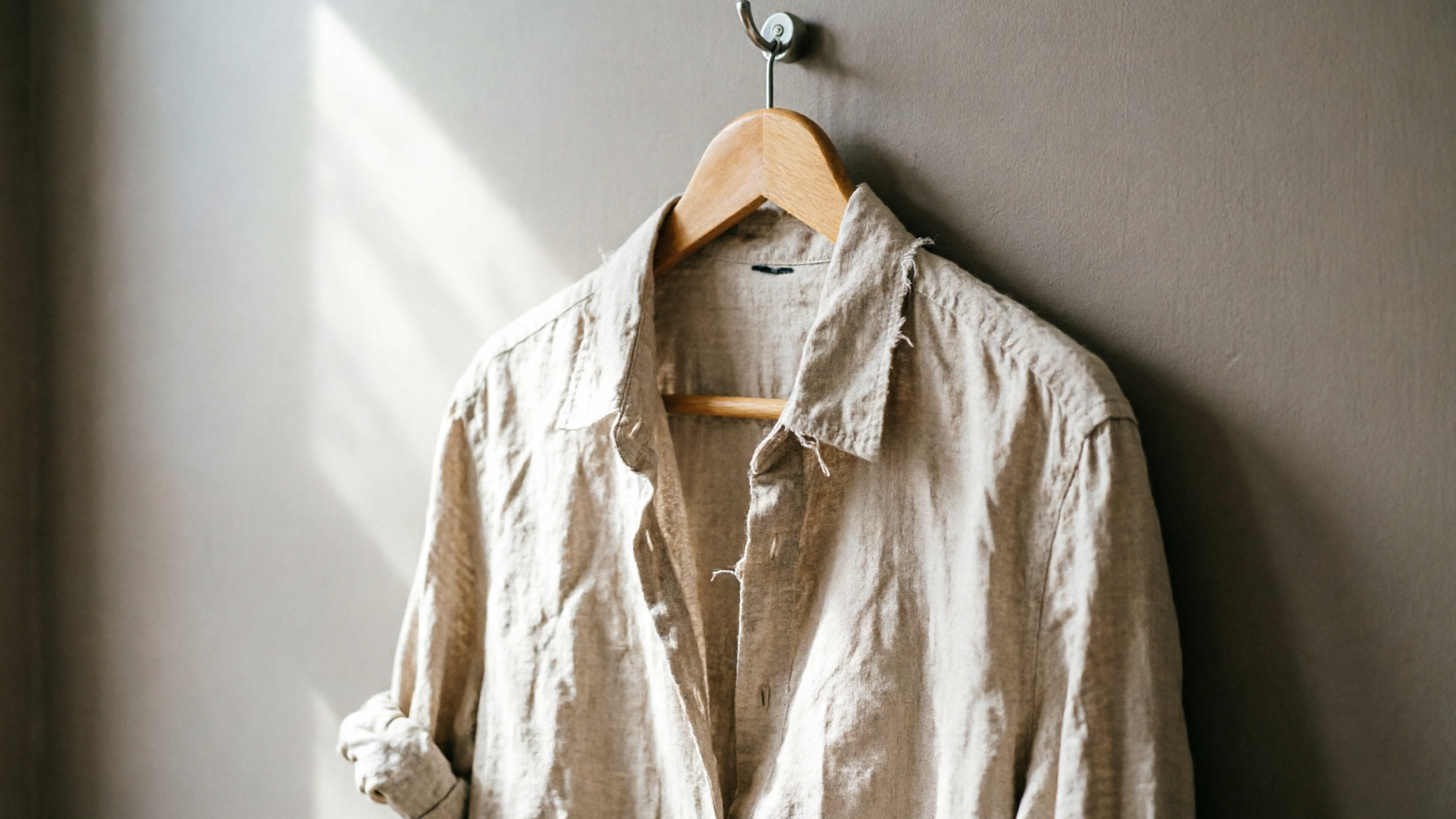
Workflow 2 — Batch-creating animated B-roll for collections and landing pages: templates, naming, and channel-ready crops
When you scale to dozens or hundreds of SKUs, a repeatable batch workflow is essential. The goal: uniform motion language across a collection, predictable file names for CMS import, and channel-ready crops produced automatically.
Template and naming strategy:
- Create a motion preset template (example): “Cloth-Rotate-Loop_v1” — defines rotation angle, parallax depth, loop duration (4s), and shadow strength.
- Naming convention: [collection][SKU][motionpreset][aspect].mp4 — e.g., “linenshirtA123ClothRotatev19x16.mp4”. This makes bulk import into Shopify or a DAM predictable.
- Store the prompt and preset metadata in a simple CSV alongside the image paths so you can run batch jobs and trace back settings.
Batch process (high level):
- Prepare a folder with isolated product photos following the photo-prep rules.
- Use WowMade AI Video Generator’s batch or repeat prompt feature to apply the motion preset to each image and export multiple aspect ratios in a single run.
- Verify a small sample (5–10 assets) for fidelity before running the whole batch.
Channel-ready crops and variants:
- For each SKU export 9:16, 1:1, and 16:9. The same motion preset should scale if you set motion magnitudes proportionally.
- Generate short caption overlays or a 1-frame branded bump using your social template so creative moderation is consistent.
Why templates matter: they maintain brand motion language and drastically reduce review time. Using consistent motion-presets also makes A/B tests cleaner because creative variation is controlled.
Design and brand guardrails: how to keep AI image-to-video output product-accurate and on-brand
Brand safety in image animation is both visual and operational. Visual guardrails are rules that ensure every clip looks like an official product asset; operational guardrails are policies that prevent accidental creative drift.
Visual guardrails:
- Motion magnitude limits: cap rotations and parallax so the product never distorts (e.g., max 15° rotation, subtle parallax).
- Color and texture fidelity: include prompt notes to preserve material (“retain original color and texture; no added patterns”).
- Shadow and contact: add a soft ground shadow in the prompt to prevent “floating” products.
Operational guardrails:
- Approvals: route first-run outputs through a single reviewer who checks product accuracy and returns a signed-off template.
- Prompt library: keep vetted prompts and presets in a shared doc so non-designers don’t invent new motion styles.
- Version control: use the naming scheme from Workflow 2 and tag files with version numbers when you iterate.
When to add extra checks: high-ticket, regulated, or safety-critical products (e.g., electronics with ports, medical gear) need an extra review step to ensure animated details do not misrepresent size or functionality. If you need to edit the original image before animation, the WowMade AI Image Generator (/create-image) can help isolate subjects or correct color prior to animation.
These guardrails keep your animated assets consistent with brand expectations while still letting teams move quickly.
How to A/B test animated stills and vertical loops on Shopify product pages and paid social (metrics to track)
A/B tests for animated assets should measure outcomes that connect to revenue and operational goals. Here’s a compact plan you can run with limited traffic.
Test structure (example):
- Objective: measure whether a 4s 9:16 demo loop on the product page increases conversions.
- Variant A: static hero photo (control). Variant B: animated demo loop (treatment). Keep price, copy, and layout identical.
- Sample size and duration: run until you reach statistical power for conversion rate change; for small merchants this may mean 2–4 weeks depending on traffic.
Metrics to track:
- Conversion rate (primary) — purchases per session on the product page.
- Add-to-cart rate — measures near-term intent.
- Time-on-page and bounce rate — engagement signals that can explain conversion changes.
- Return rate (longer-term) — to ensure animation did not misrepresent the product.
- CTR and video view-through on paid social — for creative-level performance.
Creative-level testing on paid social:
- Use identical captions and bids; swap only the creative (animated loop vs. static). Track CTR, cost-per-click, and add-to-cart attributable to the ad.
- For vertical ads, measure video completion rate and 2–6s view counts; these explain downstream engagement.
A/B test checklist:
- Randomize evenly and avoid running local seasonal promos during the test.
- Monitor early for product accuracy issues — pause if customers report mismatches.
- Analyze both page-level and channel-level results: a creative that boosts ad CTR but raises returns requires a product fidelity review.
This measurement approach keeps experiments tight and focused on metrics that matter for growth.
When to combine image animation with live UGC and when to use WowMade AI Video Generator as the timesaving backbone
Both animated product loops and live UGC have roles. Use image animation for product when you need scale, brand control, and speed; use live UGC when authenticity, human context, or complex interaction matters.
When to favor image animation (WowMade AI Video Generator):
- Scaling SKUs quickly: batch-animate hundreds of products to create a consistent catalog of short clips.
- Tight creative timelines: the generator renders short clips in minutes rather than hours.
- Brand consistency: presets and templates keep motion language uniform across product lines.
When to combine with live UGC:
- Use a hybrid creative stack: open with an 9:16 animated loop as the hook, then cut to UGC that shows real-world use. This keeps the ad attention-grabbing while delivering social proof.
- Repurpose UGC by adding animated B-roll: insert a 2–3s animated detail shot created with WowMade to highlight material or a feature shown in UGC.
Concrete combo example:
- Produce a 4s demo loop with WowMade AI Video Generator that highlights fabric texture.
- In your TikTok ad, show the 4s loop as the first frame, then transition to 15s UGC clips with a branded caption and CTA.
- Track CTR and add-to-cart for the combined creative vs. UGC-only.
When you need to ship many assets fast, build the motion backbone with WowMade AI Video Generator and slot UGC where human proof is essential. The generator’s ability to output multiple aspect ratios and keep subjects on-model makes it the timesaving backbone for most small ecommerce teams.
Frequently Asked Questions
Do I need special camera gear to use image animation for product?
No. Most teams can start with existing high-resolution product photos. The key is image quality: high resolution, neutral background, and clear edges produce the most reliable animated output.
Will animation change product colors or details?
Not if you include fidelity instructions in your prompt and use conservative motion presets. Visual guardrails like “retain original color and texture” and limiting rotation angles reduce the risk of misrepresentation.
How long does it take to render a clip?
With the WowMade AI Video Generator, short clips render in minutes rather than hours. You can iterate on the same prompt using credits until you reach the desired look.
Can I test animated loops without changing my product page layout?
Yes. Run A/B tests that replace only the media asset while keeping layout and copy identical; this isolates the creative impact on conversion and engagement.
Conclusion
Image animation for product removes the bottleneck between product photography and social-ready video. For most Shopify teams the fastest path is to make a small set of validated motion presets, batch-apply them to catalog images, and measure impact with focused A/Bs that track conversion and returns. When you need predictable, product-accurate loops that export to 9:16, 1:1, and 16:9 without re-shoots, use the WowMade AI Video Generator to generate your demo loops and animated B-roll — it renders short clips in minutes and keeps the subject on-model. Open the AI video generator, drop in a reference image or a prompt, and ship your next clip in your next break.
Make this with WowMade
Mentioned in
- ai video for youtube shorts: turn one still into repeatable ShortsA practical how-to that converts one product photo into four YouTube Shorts using an image-to-video pipeline and WowMade AI Video Generator.
- Turn One Product Photo into Vertical UGC Montages with AILearn a practical workflow to convert a single product photo into vertical UGC-style montage videos. Step-by-step, plus a walkthrough using WowMade AI Video Generator.
- Solo Creator Workflow: Fast AI Explainer Videos from Script or PhotoA practical workflow to turn a script or single photo into short AI explainer videos for landing pages, TikTok/Reels, and Shorts using WowMade AI Video Generator.
- Turn One Photo into a High-Performing Short: an Image-to-Video Workflow for CreatorsPractical guide to turn a single still image into attention-grabbing vertical Shorts using an image-to-video AI workflow with WowMade AI Video Generator.
- Turn a Thumbnail into a High-Retention Short: Practical Image-to-Video WorkflowsConvert a single thumbnail or product photo into vertical short-form intros and B-roll using image-to-video AI. Step-by-step workflows and WowMade examples.
- Image to Video Product Demo: Turn One Photo or Sketch into 9:16 TikTok LoopsLearn practical workflows to convert a single product photo or sketch into attention-grabbing 9:16 demo loops and TikTok hooks using image-to-video AI and WowMade.