Turn a Thumbnail into a High-Retention Short: Practical Image-to-Video Workflows
Convert a single thumbnail or product photo into vertical short-form intros and B-roll using image-to-video AI. Step-by-step workflows and WowMade examples.
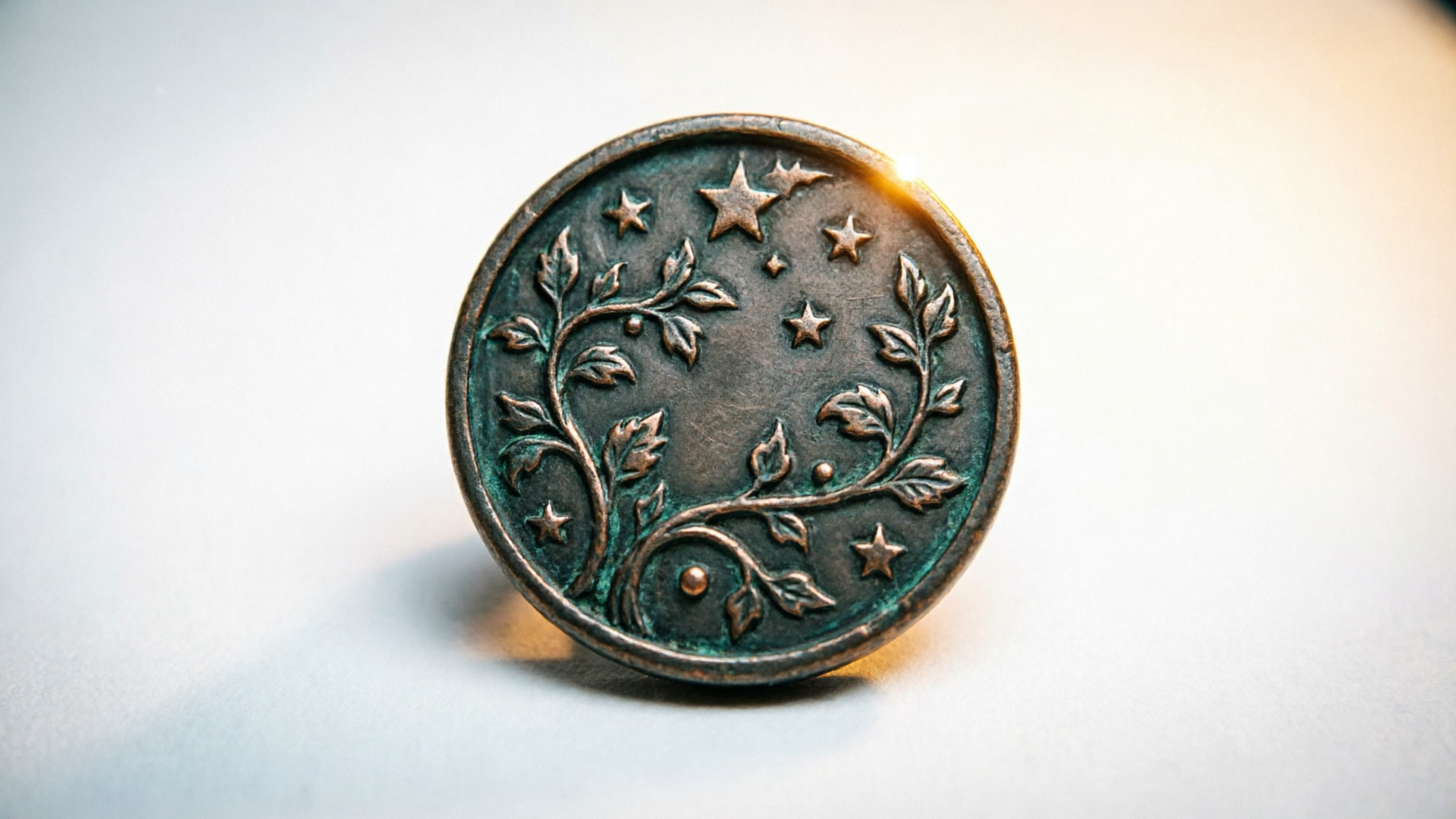
If you want fewer drop-offs between feed and play, the quickest lever is continuity: make the first frame of your clip look and feel like the tile people clicked. This guide shows creators how to convert a single thumbnail or product photo into a short-form intro or B-roll that preserves branding and improves watch-through. We’ll use practical, repeatable steps and a worked example in WowMade AI Video Generator so you can ship an on-brand intro in minutes.
You’ll learn why a thumbnail-to-intro match matters, what modern image-to-video AI is doing under the hood, and two concrete workflows: a vertical TikTok intro from one product shot, and a smooth image mood transition that preserves color, lighting, and pacing. Along the way we’ll cover framing, captions, export settings, A/B test ideas, and how to start fast with the WowMade AI Video Generator.
Why matching your thumbnail to the opening frame improves clicks and retention
The moment someone taps a tile they expect visual continuity. If the feed thumbnail and the opening frame feel different—different lighting, crop, or even logo placement—viewers need an extra beat to re-orient. That micro-friction is often enough to lose them: short-form engagement is driven by the first 1–2 seconds. Practical creator research and academic work on TikTok characteristics identify fast pacing and on-screen text as high-value features for younger audiences; the clearest way to keep them watching is to deliver the same visual promise the thumbnail sets.
Matching thumbnail and opening frame reduces cognitive friction in two measurable ways. First, composition continuity (same subject placement, similar negative space) signals that the clip is the same asset the viewer expected. Second, brand-consistent elements—logo, color palette, font—create instant recognition and trust. That quick recognition lets you use pacing and hooks immediately (bold text, quick camera push, a 0.5–1 second reveal) rather than spending time reintroducing the product.
For marketers and solo creators this is a small production tax with outsized returns: the opening frame is free real estate. If you invest minutes to make that frame identical to the thumbnail you often get better click-to-watch-through rates than reworking the full minute of content. The rest of this article turns that idea into workflows you can follow right away.
How modern image-to-video AI turns a still thumbnail into a short cinematic intro (tech snapshot)
Image-to-video models released since 2023–2024 have matured to where a single still can be transformed into a 2–15 second cinematic clip with plausible camera moves, parallax, and subtle subject motion. These systems combine depth estimation, motion synthesis, and generative inpainting: the AI estimates a depth map from the still, synthesizes mid-frames to create a camera dolly or rotation, and fills newly revealed areas by hallucinating surrounding pixels. The result is an animated clip that keeps your subject "on-model" while adding motion and atmosphere.
Commercial tools now expose simple controls: duration, camera style (push, pull, swing), stabilization, and crop for vertical/square/horizontal outputs. That means you can start with a thumbnail or product photo, pick a 9:16 framing and a rapid easing curve, and render a TikTok-ready opener without keyframes or After Effects knowledge.
These models don’t replace design choices. You still choose pacing, text overlays, and audio. But they do remove the biggest barrier: turning one flat image into motion. That’s why a feature like WowMade AI Video Generator—capable of animating a single still image into motion and exporting vertical 9:16 clips—becomes the practical tool for creators who need on-brand intros fast.
Related guide: Image animation for product.
Workflow A — From single product photo to vertical TikTok intro (step-by-step)
Goal: Create a 6–8 second vertical opener for TikTok that matches your product thumbnail and hooks in the first 1–2 seconds.
Step 1 — Prepare the image
- Start with the highest-resolution product photo or thumbnail you have. Keep the original crop that appears in your feed, or crop to preserve subject placement (rule-of-thirds works fine).
- If you use WowMade AI Image Generator first to tidy background or reinforce brand colors, export a PNG and keep a copy for reference.
Step 2 — Import into WowMade AI Video Generator
- Open the AI Video Generator (/create-video) and choose "Image-to-Video". Upload your product photo as the reference image.
Step 3 — Choose duration and framing
- Select 9:16 vertical output and set duration to 6–8 seconds. Choose a quick easing camera move: a slow 0.6s push in the first second, then a subtle float for the remainder.
Step 4 — Prompt and motion controls
- Add a concise prompt describing the desired motion: e.g. "subtle upward camera push, soft vignette, cinematic color grade matching warm orange brand palette". Pick "keep subject on-model" or similar to preserve the product's proportions.
Step 5 — Add on-screen text and music
- Add a bold, left-aligned headline in the first 1–2 seconds: short, 3–6 words. Sync an upbeat loop from WowMade AI Music Generator or your own track and set the tempo to match cuts.
Step 6 — Render and iterate
- Render a first pass, then iterate: tighten the opening push if viewers don’t stay past 1 second; reduce motion if the product reads shaky. WowMade lets you iterate on the same prompt with credits so you can test variations quickly.
Worked example (concrete)
- Upload product_photo.png to WowMade AI Video Generator. Choose vertical 9:16, 7s duration. Prompt: "gentle 0.6s upward dolly; keep product centered; warm orange color grade; soft vignette; cinematic film grain." Add caption "New—Fast Charge" at 0.0–1.8s, bold white 48pt with brand font, and an instrumental loop from /create-music at -3dB. Render, review, and export H.264 4MB target for TikTok.
This workflow outputs an on-brand clip in minutes, preserving the thumbnail’s visual cues and giving the feed-to-video transition a seamless feel. Use the same process for product demo loops on landing pages or story-mode openers for Shorts.
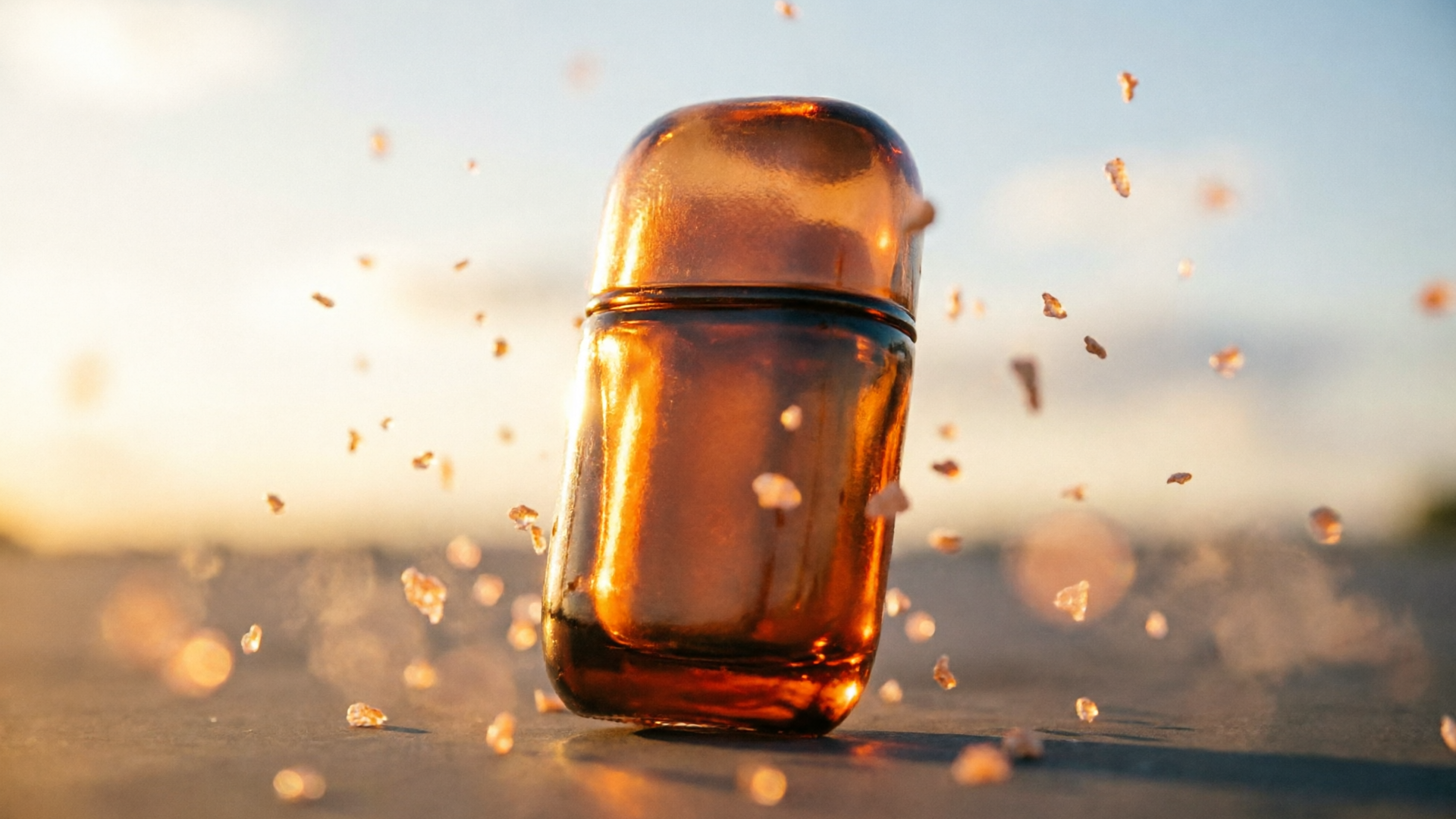
Workflow B — Create an image mood transition: matching color, lighting, and pacing between thumbnail and video
A mood transition is a brief animated bridge that carries the thumbnail’s color and lighting into the rest of your video. It’s especially useful when your main video content has a different style (talking head, demo scene) but you want a frictionless entry.
Step 1 — Extract color and lighting cues
- Sample three dominant colors from your thumbnail: background, accent, and shadow. Note the key light direction and highlight intensity.
Step 2 — Build a 2–4 second color match opener in the AI Video Generator
- Upload the thumbnail and set duration to 2–4 seconds. Prompt the generator to preserve the sampled palette and highlight direction: e.g., "match warm amber highlight from top-right; preserve deep navy background; introduce subtle particle dust for texture." Choose a fast 0.5–0.8s intro ramp so the viewer sees an immediate connection.
Step 3 — Design the transition out
- Add a masked wipe or a quick blur-to-cut timed at 1.2–1.6s leading to your main scene. The idea is the thumbnail leaves the frame in a way that suggests continuity—same color wash or a vignette that expands.
Step 4 — Apply matching caption style
- Use the same font and logo placement as the thumbnail for any opening text. Keep sizing and left/right alignment identical where possible so the viewer experiences layout continuity.
Step 5 — Audio crossfade
- Use a short audio bed that begins with a filtered version of the main track (low-pass) then opens up as the scene changes. The audio bridge reinforces the visual continuity.
Practical note: subtlety is everything. The transition should feel like an extension of the thumbnail—too much motion or a sudden shift in color will break the match. With WowMade AI Video Generator you can control both the visual match and the timing so the bridge feels hand-crafted, not automated.
Practical edits: framing, captions, aspect ratios and export settings for platform-specific delivery
Platform constraints are simple but critical. TikTok, Reels, and Shorts all favor vertical 9:16, but each platform compresses differently and viewers inhabit different viewing contexts.
Framing
- Keep the subject's focal point in the central safe zone for vertical crops. If your thumbnail places the subject slightly left, crop the same way for your first frame. That continuity prevents perceived cropping or content mismatch.
Captions and typography
- Mobile viewers often watch with sound off. Use bold, short captions in the opening 1–2 seconds. Keep line length to 20–30 characters for a single-line hook; use consistent font and color treatment across thumbnail and opening frame.
- Render the same prompt for 9:16, 1:1, and 16:9 outputs when you repurpose the asset: WowMade AI Video Generator supports all three outputs from the same prompt, which saves time and preserves composition across channels.
Export settings
- For social platforms, target H.264 MP4, 1080x1920 for 9:16, bitrate 6–10 Mbps for clean motion on mobile. Keep a rendered master at higher bitrate in case you repurpose for ads or web. If you add music from WowMade AI Music Generator (/create-music), export a separate stemless and stem-full version to swap audio during tests.
Pro tip (blockquote-tip)
When matching a thumbnail, export a short "reference clip" (1–2s) that exactly matches the thumbnail; use it at the start of every variant so your tests isolate pacing and audio rather than composition.
Testing and metrics: quick experiments to measure thumbnail-to-intro lift
Testing is the only way to know if your thumbnail-to-intro workflow actually moves the needle. Keep experiments simple and isolate variables.
A/B test design
- Variant A: Thumbnail + intro that matches exactly (identical framing, font, and color palette).
- Variant B: Same thumbnail but a different opening frame (different crop or lighting).
- Keep music, length, and caption text identical.
Key metrics
- Click-through rate (CTR) from the feed to the video. If CTR falls, your thumbnail promise may not match the video assets.
- 1–3 second retention. Because the opening seconds are decisive, measure retention at 1s and 3s. Small improvements here compound downstream.
- Watch-through to 15s or 30s for longer shorts.
Iteration cadence
- Run statistically meaningful tests: aim for 500–1,000 impressions per variant before drawing conclusions. If you can’t generate that many naturally, run a small paid test to accelerate learning.
Interpreting results
- If matching the thumbnail improves early retention but not total watch-through, use the continuity model only for the hook; the main content still needs pacing and value. If matching decreases CTR, your thumbnail may be promising different content—revisit the thumbnail copy and visuals.
Include an external source for context on what features drive attention: see the academic analysis of TikTok characteristics for evidence that fast pacing and on-screen text improve focused attention: https://doaj.org/article/df32fa5a653f4343acc4f714bc684108
Practical takeaway: run small, high-confidence tests that vary one element at a time (framing, text size, or audio) so you know what actually matters for your audience.
How to plug WowMade AI Video Generator into these workflows (quick start + use cases)
WowMade AI Video Generator is built for exactly this job: turn a still thumbnail or product photo into a short, brand-consistent intro without motion design skills. The generator animates a single still image into motion, renders 9:16 vertical clips for TikTok/Reels/Shorts, and lets you iterate on prompts until you land the right vibe.
Quick start (3-minute walkthrough) 1) Open the AI Video Generator (/create-video) and select "Image-to-Video." Upload your thumbnail or product photo. 2) Choose framing: 9:16. Set duration to 6–8s for a full opener or 2–3s for a mood bridge. 3) Enter a prompt that includes the motion, color-match, and "keep subject on-model." Example prompt: "0.6s soft upward dolly; preserve product scale; warm amber highlights; subtle film grain; vertical 9:16 output." 4) Add caption text in the editor and attach a short music loop from /create-music if you need audio. 5) Render, review, and use the platform’s iteration credits to make small changes (faster push, less vignette, tighter crop) until the first 1–2 seconds feel identical to your thumbnail.
Use cases
- Product demo loops for landing pages: animate a hero shot into a 6s looping clip that keeps the subject centered and on-model.
- TikTok hooks: generate a 7s vertical opener that matches the feed tile so you keep viewers past 1–2s.
- Animated B-roll: create 2–4s transitional bridges that carry a thumbnail’s color into your tutorial footage.
Supporting tools
- If you need new or edited imagery before animation, use WowMade AI Image Generator (/create-image) to polish or remix your thumbnail. If you want custom audio beds, the WowMade AI Music Generator (/create-music) provides fast instrumental loops you can test against audience retention.
Proof points and practical value
- The AI Video Generator renders short clips in minutes and exports 9:16, 1:1, and 16:9 from the same prompt, letting you publish the same creative across platforms without reworking assets. It keeps the subject of your photo on-model, so your product maintains scale and composition during camera moves.
Pull-quote
Use your thumbnail as the single source of truth—animate it, don’t replace it. That continuity saves seconds of viewer attention and improves early retention.
Final practical tip: tie your thumbnail match to a single hypothesis (e.g., "matching composition increases 1s retention") and test it using the simple A/B setups above. Because WowMade lets you iterate quickly, you can run meaningful experiments every week rather than every month.
Conclusion
Actionable next step: pick a high-performing thumbnail, export a clean PNG, and open the WowMade AI Video Generator to animate it into a 6–8 second vertical opener—keep the same crop, font, and logo placement, then iterate on the first 1–2 seconds until it reads identical to the tile. Open the AI Video Generator, drop in your prompt or a reference image, and ship a clip in your next break.