Sketch to Motion: Turn One Sketch or Photo into Platform-Ready Product Teasers
Learn a practical sketch to motion workflow to turn a single sketch or product photo into a 4–12s TikTok/Reels teaser using WowMade AI Video Generator.
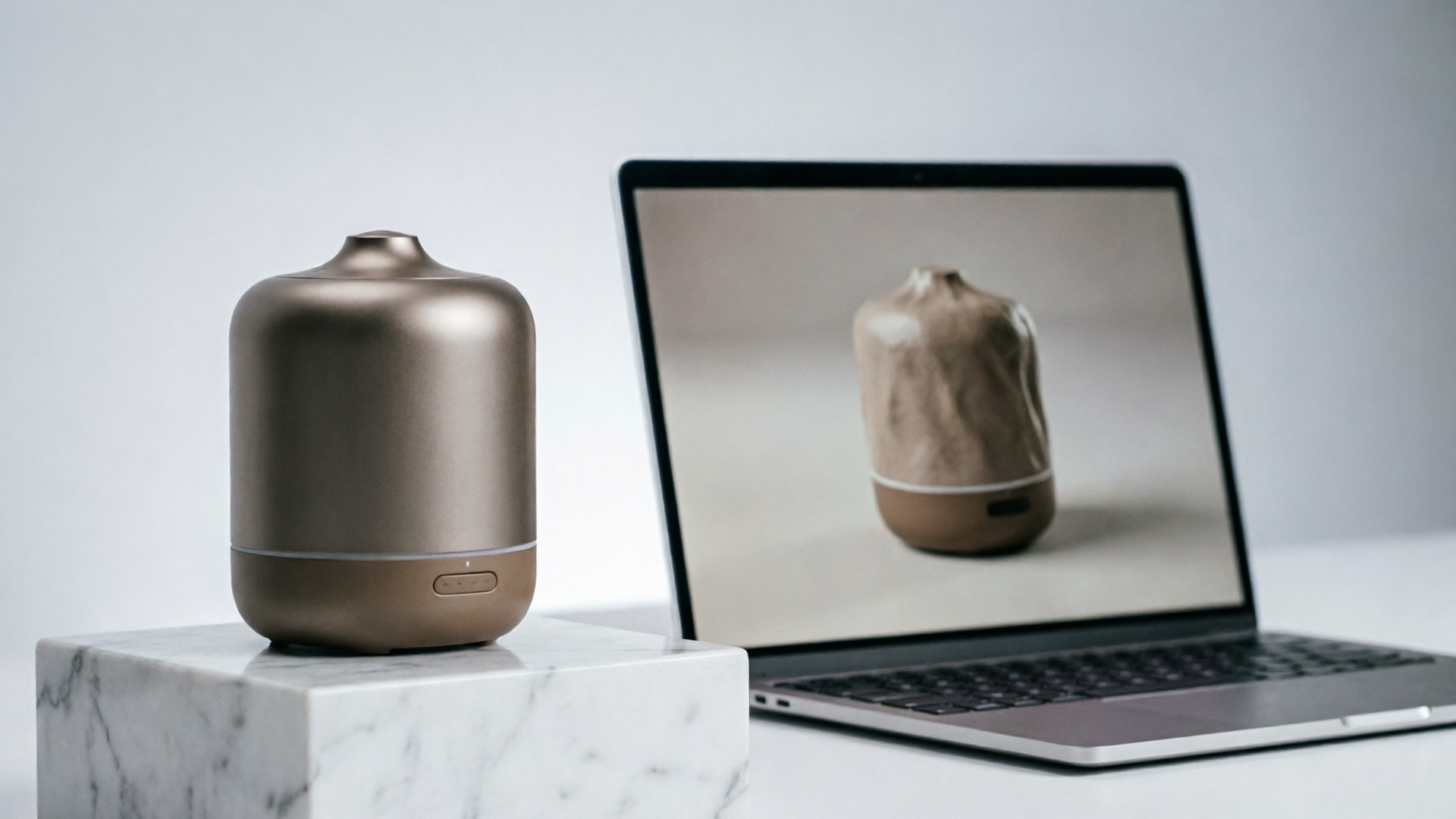
You’re staring at a single product sketch or a lone hero photo and you need a vertical, thumb-stopping 6-second clip for TikTok—fast. That pressure is exactly why the sketch to motion workflow exists: extract the story from one image, add cinematic movement and micro-interactions, and ship a short-form teaser that converts. In this guide you’ll learn the practical steps designers and e-commerce creators use to turn one still into a platform-ready loop. Early, repeatable wins come from three things: a clean source image, a tight motion prompt, and a target duration/aspect ratio. Throughout the walkthroughs I’ll use the WowMade AI Video Generator so you can follow along: it converts a single still into motion, renders vertical 9:16 outputs for TikTok/Reels, and lets you iterate quickly on the same prompt.
This article covers why animated product teasers outperform static images, a detailed sketch→motion workflow, how to prepare images and sketches for best results, motion prompt recipes, two hands-on walkthroughs (photo and sketch), quality-control and export tips, and how to scale dozens of teasers with batching and templates. Expect concrete settings, sample prompts, and one step-by-step mini workflow you can finish in under 10 minutes with the WowMade AI Video Generator.
Why animated product teasers outperform static images on social feeds (short-format attention mechanics)
Short-form feeds reward motion. A product photo scrolls past; a subtle camera push, a reveal, or a rotating capsule interrupts the thumb and creates a micro-moment of attention. Platforms like TikTok and Reels prioritize watch time and completion rate—small, deliberate movement in a 4–12s clip increases curiosity and completion, which directly improves organic distribution.
From a design perspective, motion encodes affordances: a rotating product implies tactility, a micro-interaction highlights a feature, and a reveal sequence focuses attention on the sale point. These are the exact outcomes marketers want—faster comprehension, higher CTRs on product pages, and more conversions on short-form landing sequences.
Image→video tools have matured to the point where creators can turn one still into cinematic clips without frame-by-frame animation. Industry roundups and tool comparisons show multiple services handling the task today, and TikTok itself launched an image-to-video product in 2025, signaling platform-level demand for the format (TechCrunch, May 13, 2025). Research papers like Step-Video-TI2V and Motion-I2V further demonstrate that models now produce temporally consistent, controllable short clips suitable for these marketing use cases. The takeaway: animated product teasers are no longer a production luxury—they’re an accessible, high-ROI format for creators who need to scale short-form assets quickly.
The step-by-step sketch→motion workflow: from idea and sketch to a 4–12s loop
A reliable sketch→motion workflow reduces guesswork. Break the process into clear phases: concept, source prep, motion recipe, generation, review, and export. Each phase has a few repeatable checks that keep outputs predictable.
Concept: Define the single idea the clip must communicate. For product teasers this is usually one of: tactile feel, a hero feature, a size/scale reveal, or a use-context moment. Keep the concept narrow—one idea per clip.
Source prep: Choose a high-resolution photo or a layered sketch. If you have a layered PSD or separate foreground/background, export each as PNGs. The best generators benefit from a clean subject and simple background.
Motion recipe: Write a short motion prompt that includes camera intent (push, pull, tilt), element moves (rotate, ripple, glow), and the desired duration/aspect ratio. E.g. “3s camera push + 3s 180° rotation around product, soft depth parallax, subtle highlight sweep.”
Generation: Load your source image into WowMade AI Video Generator, select 9:16 for TikTok, paste the motion prompt, set duration (4–12s), and render. The generator animates the single still into motion, keeps the subject on-model, and provides a near-final clip in minutes.
Review and iterate: Use WowMade’s iterative credits to adjust timing, camera speed, and interaction details without rebuilding from scratch. Small prompt tweaks yield big differences (ease-in, stronger parallax, hold on logo).
Export: Render the final version in the correct codec/aspect ratio and add music or voice if needed. For batch runs, lock the motion recipe and vary only product images and color treatments.
Related guide: Image to cinematic video.
Preparing your sketch or product photo for best image-to-video results (composition, lighting, and PNG/PSD tips)
Start with the cleanest file you have—high resolution, isolated subject when possible. Image-to-video models respond best to clear silhouettes and consistent lighting.
Composition: Center or slightly offset your subject so the generator can create natural camera moves. Allow extra canvas space around the product if you plan a parallax or push; cropping tightly limits apparent movement. For square or 9:16 outputs, previsualize by placing the subject within those safe areas.
Lighting: Neutral, even lighting is easiest to animate. Hard directional shadows can confuse background synthesis. If your photo has dramatic side-lighting, consider producing a cleaned variant using the WowMade AI Image Generator (/create-image) to flatten highlights or remove noisy background elements.
File types and layers: Export PNG with alpha when your subject is isolated. If you have a layered PSD—separate foreground, midground, background—export each layer as separate PNGs. Many image-to-video tools (including WowMade AI Video Generator) produce better depth-based parallax when given layer separation, because the system can move layers independently without guessing occlusions.
Sketch treatment: For pen sketches, scan at high DPI and clean stray marks. If the sketch is conceptual (no shading), provide a simple background layer or a faint gray fill—totally transparent sketches can lead to artifacts. When possible, provide a color reference photo so the model keeps the final product on-model during animation.
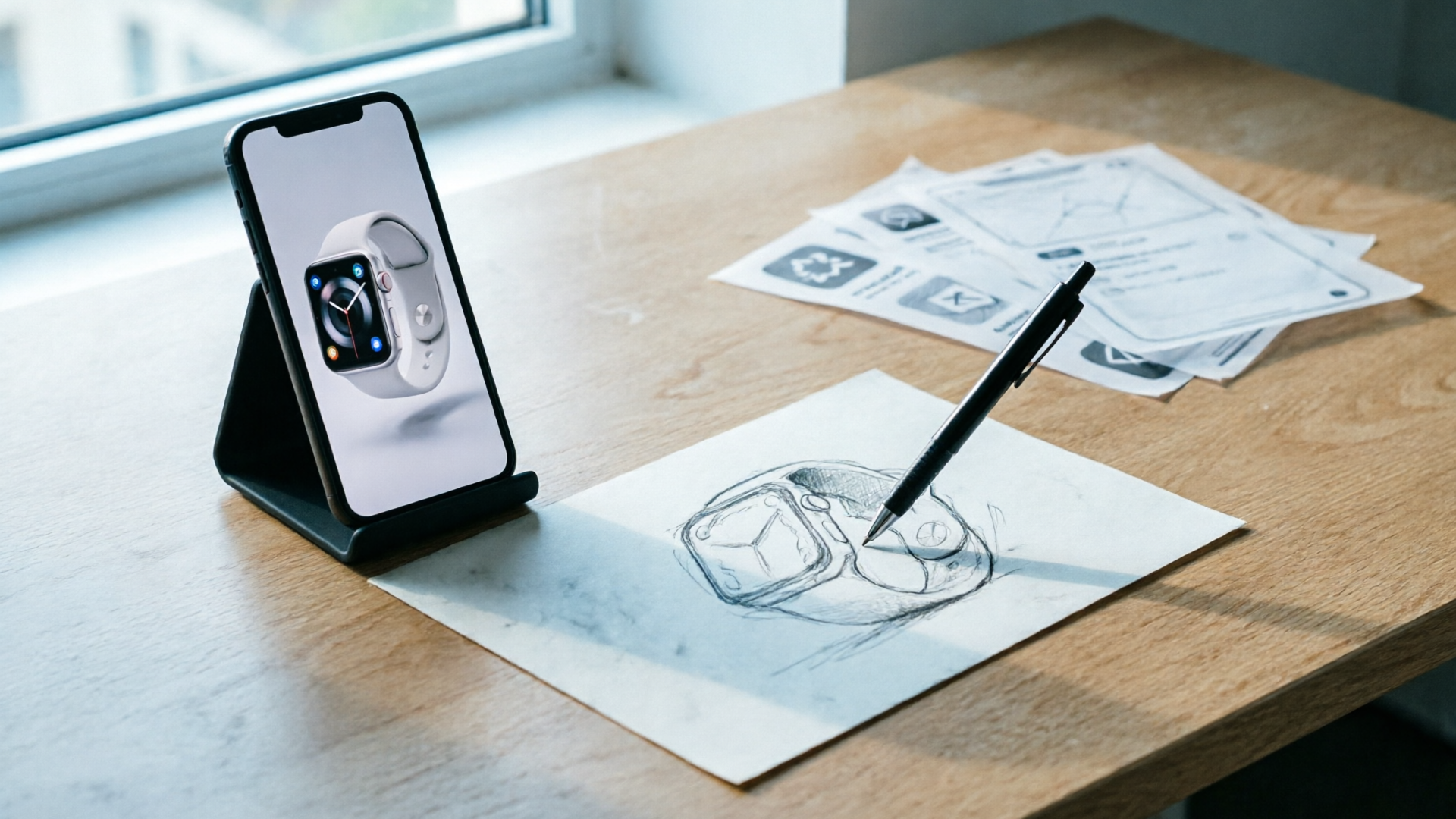
Prompt strategies and motion recipes that turn stills into cinematic movement (camera, parallax, and micro-interactions)
Motion prompts are your control layer. Treat them like micro-scripts: concise, composed of camera intent, element moves, and timing. Keep prompts under 40 words and be explicit about duration and easing.
Camera: Common camera moves that read well on feeds are slow push-in (0.6–1.2x speed), subtle crane up, and short arcs (30–60°). Example: “6s total: 3s slow push-in (ease-in), 3s 45° arc to the right (ease-out).” These reads create depth without dizzying the viewer.
Parallax: When you can supply layers, instruct the generator to create a depth-based parallax. Prompt example: “foreground moves 4% left, midground 2% left, background 0% — soft depth parallax.” Small relative offsets produce believable 3D motion.
Micro-interactions: Add tiny product-specific movements: button depress, LED pulsing, cloth flutter, or a highlight sweep. Keep these short (200–600ms) and tied to beats. E.g. “highlight sweep across logo at 2.5s, 300ms.”
Timing and beats: For hooks, frontload movement in the first 1–2 seconds. The middle can introduce a secondary reveal, and the last 1–2 seconds should stabilize on the product or CTA. For 6–8s clips, a 2/3/3 structure (hook/reveal/freeze) works consistently.
Sample motion prompt for WowMade AI Video Generator: “9:16, 6s. 2s slow push-in (ease-in), 3s 30° clockwise arc, foreground parallax (fg 5%/mg 2%/bg 0%), 1s logo highlight sweep at 5s, keep subject on-model.” This prompt communicates framing, duration, and specific motion cues the generator supports.
Hands-on: Creating a TikTok/Reels product hook from a single product photo — a practical walkthrough
This walkthrough shows a minimal path from photo to a 6s TikTok hook using WowMade AI Video Generator.
Step 1 — Source prep: Choose a high-res product photo with a neutral background. Crop to allow breathing room above and below the subject for a 9:16 frame.
Step 2 — Motion recipe: Decide the hook: a fast camera push and a logo highlight. Write a concise prompt: “9:16, 6s: 1.5s quick push-in (ease-in), 3s slow counterclockwise rotate (30°), 1.5s logo glow/freeze.”
Step 3 — Generate: Open the WowMade AI Video Generator (/create-video), upload the photo, paste the prompt, select 9:16 and duration 6s, then render. The generator will animate the still into a clip and keep the product consistent on-model.
Step 4 — Add audio: Drop in a short instrumental or rhythm hit using the WowMade AI Music Generator (/create-music) to create a punchy bed. Align a percussive hit with the logo glow at 5s.
Step 5 — Review and iterate: If the push feels too aggressive, tweak the prompt to “0.8s push-in” or change easing to “ease-out” in the prompt and re-render. WowMade’s credit system lets you re-run small changes without rebuilding the whole setup.
Step 6 — Export: Render the final video at 1080x1920 H.264 for TikTok. Save a square 1:1 variant for Instagram feed reuse.
This short loop workflow takes advantage of WowMade AI Video Generator’s image-to-video capability and multi-aspect outputs—shipable in minutes for creators without motion skills.
Hands-on: Turning a rough pen sketch into an animated product demo loop (sketch-to-motion case study)
Here’s a case study-style walkthrough converting a rough pen sketch into a 10s demo loop that demonstrates a feature sequence.
Step 1 — Scan and clean: Scan the sketch at 300 DPI, remove stray marks, and lightly thicken primary strokes for clarity. Save two files: a clean sketch PNG and a low-contrast filled background.
Step 2 — Provide a reference image: If the sketch represents a physical product, include a small reference photo so the generator keeps textures and materials on-model during animation.
Step 3 — Layer separation: Export the sketch as foreground PNG with transparency and create a background PNG with a faint gradient. If your sketch includes separate callouts (screen, buttons), export those as midground layers.
Step 4 — Motion prompt: Create a tutorial-style progression: “10s: 2s gentle reveal (fade+push), 4s screen content cycle (2 slides), 2s button press micro-interaction, 2s settle and zoom-out. Parallax: fg 6%, mg 3%, bg 0%.”
Step 5 — Generate in WowMade AI Video Generator: Upload the layers and reference photo, paste the motion prompt, choose 9:16 or 16:9 depending on destination, and render. Because WowMade accepts single-still animation and keeps the subject on-model, the sketch converts to a believable demo loop.
Step 6 — Refine: If the screen content looks generic, replace the screen area with a pre-rendered animated PNG or short GIF and use the generator’s composition controls to anchor the element. Small adjustments in timing and parallax will improve legibility.
Result: In under an hour you can produce a 10s demo loop that walks through a feature without frame-by-frame animation. This scales well for MVPs and landing page hero loops.
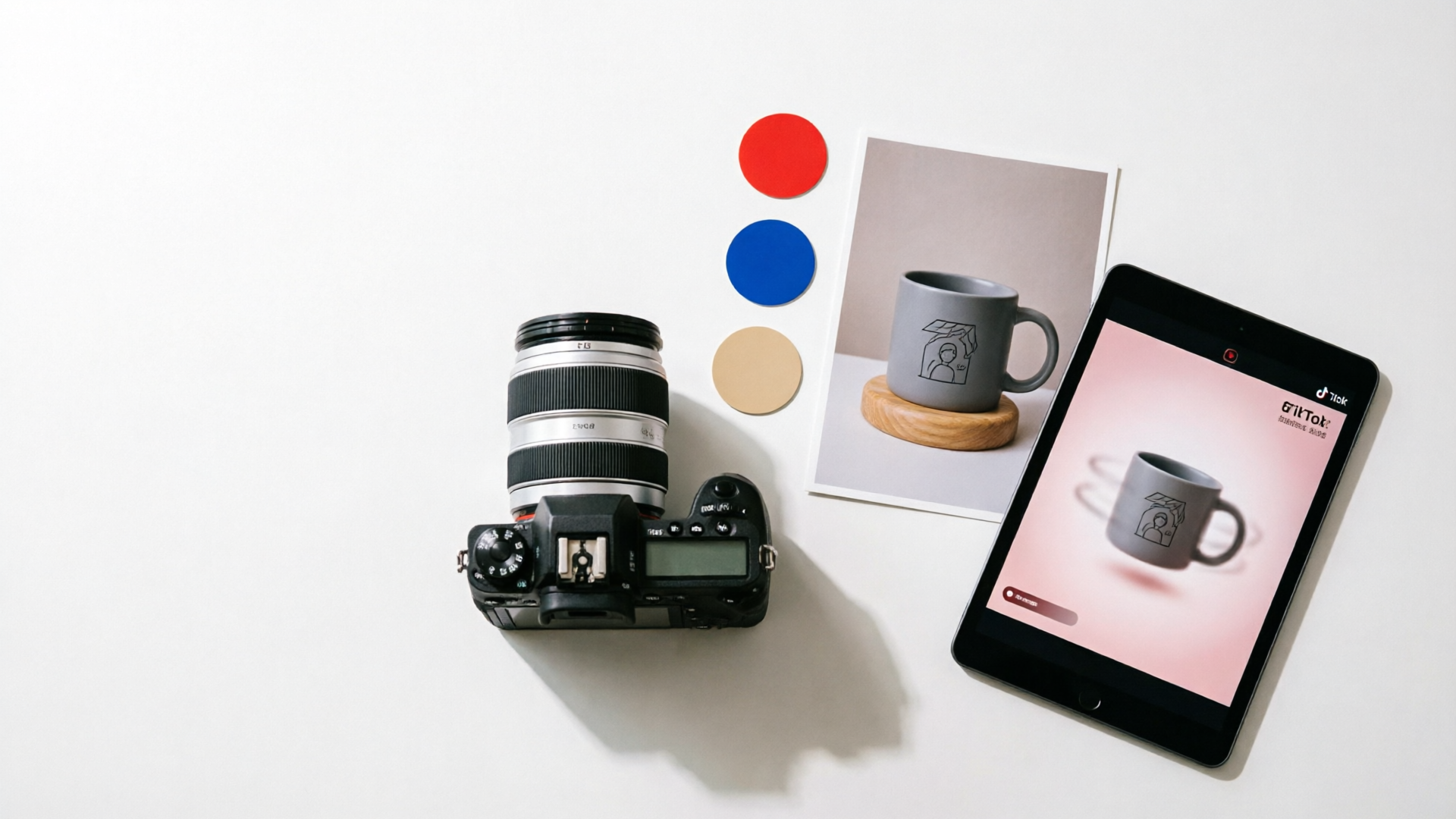
Quality control, export settings and platform-specific tweaks (TikTok/Reels/Shop loop specs, aspect ratios, codecs)
Quality control before publishing prevents common distribution issues. Check framing, legibility, motion comfort, and final file specs.
Framing: Preview in the exact aspect ratio. For TikTok/Reels, use 9:16 (1080x1920). For Instagram feed reuse create 1:1 exports. WowMade AI Video Generator can output 9:16, 1:1, and 16:9 from the same prompt—render each once the motion is locked.
Legibility: Ensure text, logos, and small UI elements remain readable at mobile sizes. If a motion increases scale, make sure critical copy doesn’t clip or blur. Freeze on-platform-critical frames for 0.5–1s to increase comprehension.
Motion comfort: Avoid fast 180° spins or heavy rolling movement; those can cause viewer drop-off. Stick to slow pushes, small arcs, and micro-interactions for product-focused content.
Export codecs and bitrate: For TikTok and Reels export H.264 MP4 at a reasonable bitrate (6–10 Mbps for 1080x1920). Add AAC audio at 128 kbps if including music. If you plan further edits, also export a high-bitrate master.
Shop loop specifics: Shop loops and platform storefronts expect short, loopable clips—prefer seamless start/end motion or a subtle hold at the end. Aim for 4–12s and test the loop points by playing the clip on repeat.
Validation: Play the final clip on a mobile device before upload. Check thumbnail selection, since the first frame or an auto-selected thumbnail can affect click-through. If needed, set a custom thumbnail in the platform UI.
These checks combined with WowMade’s multi-aspect export ensure your clip is upload-ready for TikTok, Reels, and shop loops.
How to scale dozens of product teasers quickly — batching, templates, and the role of an AI video generator
Scaling product teasers means turning repeatable motion recipes into templates and batching source images through the pipeline.
Template creation: Build motion prompts as templates with variable slots for product name, color, and micro-interactions. Example template: “9:16, 6s. {hookmove}, {revealmove}, {feature_highlight} at 4s, maintain on-model.” Save these prompts and standardize durations (6s or 8s) so editing and scheduling are predictable.
Batching workflow: Prepare a CSV with image file names and variable fields, then run images through the WowMade AI Video Generator in sessions. Because the generator renders clips in minutes and supports iterative re-runs, a single designer can produce dozens of teasers per day.
Quality spot-checks: Sample every 5–10 outputs rather than every file. Check for off-model artifacts, bad crops, or illegible text. Small prompt adjustments can be propagated across the batch template.
Supporting tools: Use the WowMade AI Image Generator (/create-image) to standardize color variants or apply brand-safe backgrounds before animation. Add soundtrack variations created with WowMade AI Music Generator (/create-music) to A/B test engagement.
Human-in-the-loop: Keep one creative lead for final approval. AI accelerates generation, but quick human touchups—thumbnail selection, timing tweaks, and CTA overlays—preserve brand quality.
Result: With templates, a consistent motion language, and an AI video generator at the center, you can convert catalog photography or sketches into a steady stream of platform-optimized clips without a motion team.
Frequently Asked Questions
How long should a product teaser be for TikTok and Reels?
Aim for 4–12 seconds. Shorter hooks (4–6s) work for discovery; slightly longer loops (8–12s) give time for a feature reveal and CTA.
Do I need separate assets for 9:16 and 1:1?
No—start with a 9:16 generate and export a 1:1 crop from the same prompt. WowMade AI Video Generator can render multiple aspect ratios from the same source.
Will the generator change my product’s appearance?
Good prompts and a reference image keep the subject on-model. Provide a color/material reference and use layer-separated files for best fidelity.
Can I add music and voiceovers inside the workflow?
Yes.
Conclusion
The fastest path from a sketch or single product photo to a high-converting short is a repeatable sketch→motion workflow: clean source, concise motion prompt, and the right aspect ratio. For creators and small teams who need consistent, platform-ready clips without a motion department, WowMade AI Video Generator is the practical hub — it animates stills, renders 9:16 vertical outputs, and lets you iterate quickly. Open the AI Video Generator, drop in a photo or sketch and motion prompt, and ship a platform-ready clip in your next break.