Image to Video Sketch: Turn One Drawing into High-Performing Vertical Teasers
A creator-first guide to turn a sketch or product photo into native 9:16 teaser videos using an image-to-video workflow and WowMade AI Video Generator.
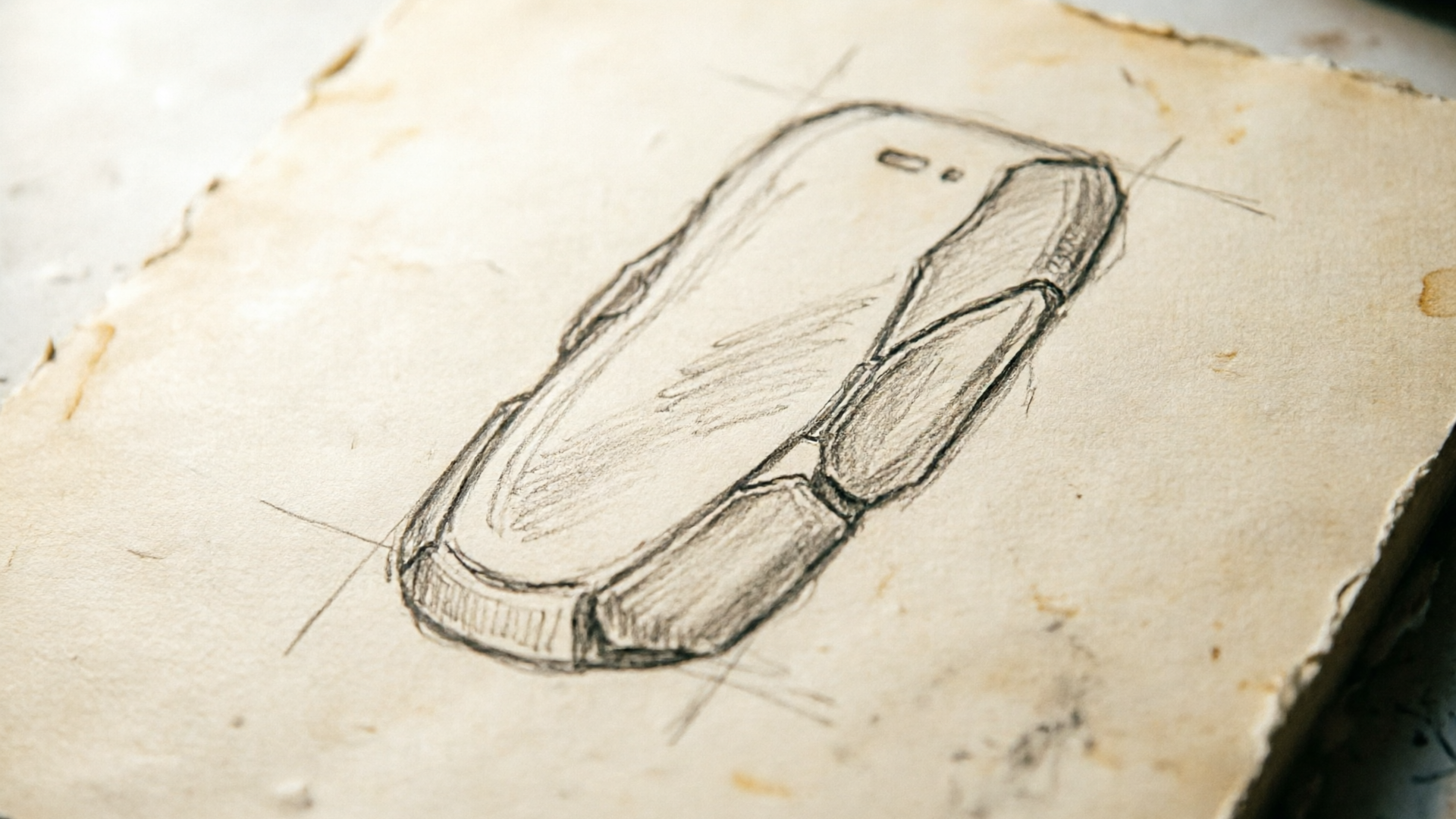
You’re staring at a single sketch or a product photo and thinking: could this one frame become a scroll-stopping 9:16 teaser? Imagine launching three short variations — a hook, a loop, and a b-roll — from that same image while you make coffee. That’s the practical promise behind the image to video sketch workflow: fast creative tests, consistent visual style, and vertical deliverables ready for TikTok, Reels, and Shorts.
This guide walks creators, marketers, and small teams through a tested process that turns a still into short-form assets with speed and control. I show what to prepare before animation, three repeatable prompt patterns that reliably translate drawn linework into motion, and a short step-by-step walkthrough using the WowMade AI Video Generator to animate a sketch and export native 9:16 clips. Along the way we’ll cover how to preserve hand-drawn texture, how to batch variations for A/B tests, and which formats maximize reuse across landing pages and social.
The workflow centers on the WowMade AI Video Generator because it animates a single still into motion, renders in minutes, and exports vertical 9:16, square, and horizontal formats from the same prompt — exactly what creators need to iterate fast.
Why image→video is the fastest way to test hooks: attention, formats, and conversion signals
Short-form vertical video continues to rewrite how audiences discover products. Platforms like TikTok and YouTube Shorts have expanded creator programs and viewership, which means the same visual hook that works in a 5–15 second clip can materially move conversions on landing pages and ads. The core advantage of an image→video approach is speed: instead of building a timeline in complex animation software, you generate short clips from a single still in minutes and launch multiple variations to measure engagement.
Image-to-video tools can produce short 5–15 second clips from a single still — often in minutes — enabling rapid creative iteration compared with traditional animation. Tools such as Speedpaint and Vivideo demonstrate how a still becomes motion fast; academic work (for example AniClipart and I2V3D) shows recent models improve controllability and alignment, which is why these clips stay on-model and readable even with stylized artwork. That controllability matters because performance tests require consistent subject appearance across variants.
For creators and product teams, the practical upshot is simple: run quick A/Bs on multiple hooks (first 1–3 seconds), measure watch-through and click-through, then funnel winners into landing page loops and paid ads. A common multi-format conversion strategy is to export native vertical (9:16) for social, 1:1 loops for product pages, and 16:9 cuts for long-form placements — maximizing reuse from a single source image. This speed-to-insight loop is why image→video is the fastest path from idea to measured result.
Preparing your sketch or product image for clean animation (prep checklist and capture tips)
Good results start before animation. The model needs predictable visual information to place motion without breaking linework or color. Follow this prep checklist to make an image/video tool behave:
- High resolution, tight detail: Use the highest-resolution still you have. Detail in the subject preserves linework and texture when the tool synthesizes motion.
- Isolated subject or clean background: A plain background enables confident parallax, rotations, and reveal effects without artifacting.
- Native vertical-aware framing: Crop to 9:16 or 3:4 during prep so the subject has usable negative space for camera moves. If you plan multi-format exports, keep a safety area for 16:9 and 1:1 crops.
- Layer suggestions: Export a flattened master for quick uploads, but when possible include a mask or separate subject layer. Masking is particularly helpful for keeping hand-drawn strokes intact.
- Reference notes: Add a short file (PNG or JPEG) with notes like “keep lineweight” or “no color fill” — these become handy alt references when iterating prompts.
Capture tips for photo-to-video: shoot straight-on with modest distance, avoid wide-angle distortion, and ensure consistent lighting. For sketches: scan at 300+ dpi under neutral light; remove dust and stray marks. If you’re using a single product photo, consider a quick soft shadow or tabletop reflection to give the generated motion a believable anchor.
Doing this prep reduces surprises during generation and keeps the output on-model. When you then feed the image into a tool such as the WowMade AI Video Generator, the generator has clean visual cues to respect style, resulting in usable 9:16 outputs faster.
Related guide: Sketch to Motion.
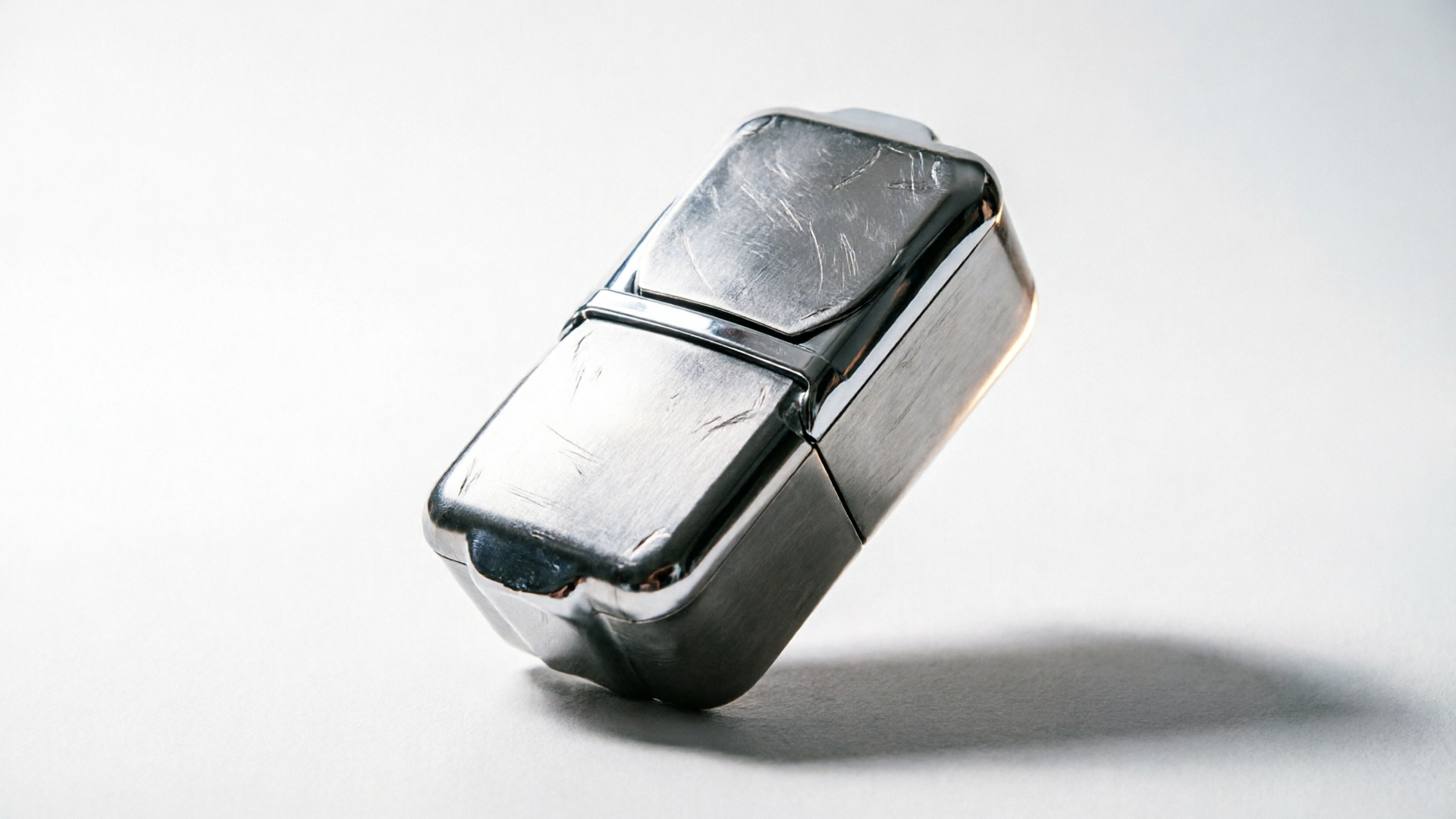
Hands-on: 3 prompt patterns to turn one illustration into three vertical teaser types (hook, loop, b-roll)
Below are three reliable prompt patterns that convert one illustration into distinct short forms. Each pattern is intentionally simple so it transfers between tools and scales in batch runs.
1) Hook — subtle parallax + reveal (0–6s)
- Intent: a fast attention-grabber that emphasizes the sketch stroke or product detail in the first 1–2 seconds.
- Prompt pattern: “Animate the provided sketch with a slow upward parallax, slight Z-depth on foreground linework, quick 0.6s stroke reveal on the right edge, dramatic soft rim light, vertical 9:16, 6s.”
- Why it works: the parallax creates depth while the quick stroke reveal gives a micro-narrative that hooks the viewer.
2) Loop — product rotate / 3D pop (4–10s)
- Intent: a seamless 3–6s loop for homepage demo tiles or TikTok loops.
- Prompt pattern: “Transform the product photo into a smooth 360-degree rotate around the vertical axis, subtle parallax layers for background, keep original shading and linework, loopable 4s, 9:16, mid-motion lighting.”
- Why it works: rotation keeps eyes on the product and the loop format increases view counts and time-on-page.
3) B-roll — stroke-by-stroke sketch reveal (6–15s)
- Intent: longer contextual motion for ad openers or tutorial inserts.
- Prompt pattern: “Animate the drawing as a stroke-by-stroke reveal: hand-drawn strokes appear sequentially from left to right while the camera slowly dollys out; keep pencil texture and visible grain, 12s, vertical crop 9:16.”
- Why it works: the reveal communicates craft and authenticity; longer duration gives room for voiceover or caption copy.
Worked example using WowMade AI Video Generator: turn a product sketch into a 6s hook.
- Step 1: Upload your high-res PNG of the sketch into the WowMade AI Video Generator (/create-video).
- Step 2: Paste a prompt: “6s vertical hook: subtle upward parallax, 0.6s stroke reveal from right, retain pencil line texture, soft rim light, cinematic 9:16.”
- Step 3: Select output framing as 9:16 and render. The generator animates the single still into a short clip in minutes and keeps the subject on-model.
Repeat the same image with the other two prompt patterns and you have three distinct assets ready to test.
Hands-on: quick steps — animate, refine, and export native 9:16 for TikTok, Reels, and YouTube Shorts
Animating is the rapid part; refining and exporting in platform-native formats is where you retain control and save time downstream.
Quick step sequence (15–25 minutes total per concept):
1) Animate the base clip
- Upload the prepared image to the WowMade AI Video Generator and select the initial prompt (hook, loop, or b-roll). Pick 9:16 output. The generator uses the image-to-video feature to produce the clip in minutes.
2) Review and note fixes
- Watch the full clip and note any drift, line breaks, or off-model color. Common quick fixes: tighten motion intensity, re-run stroke reveal timing, or reduce camera arc.
3) Iterate with credits
- Because the tool lets you keep iterating on the same prompt with credits, make small prompt changes (timing, motion intensity, camera arc) and re-render. Keep edits tight — change one variable per pass to measure impact.
4) Export multi-format assets
- After you have a winner in 9:16, export the same prompt as 1:1 for product page loops and 16:9 for YouTube. Having all three formats from the same prompt ensures consistent visuals.
5) Add music and narration
Platform tips: TikTok and Reels reward early motion and visible faces or product details in the first 1–2 seconds. Keep text minimal and aligned to safe zones. Export at native 9:16 with at least 24 fps and a short loopable tail if you expect repeat views.
The net result: by treating animation, refinement, and multi-format export as an iteration loop, you can produce platform-optimized assets in the time it takes to produce one conventional edit.
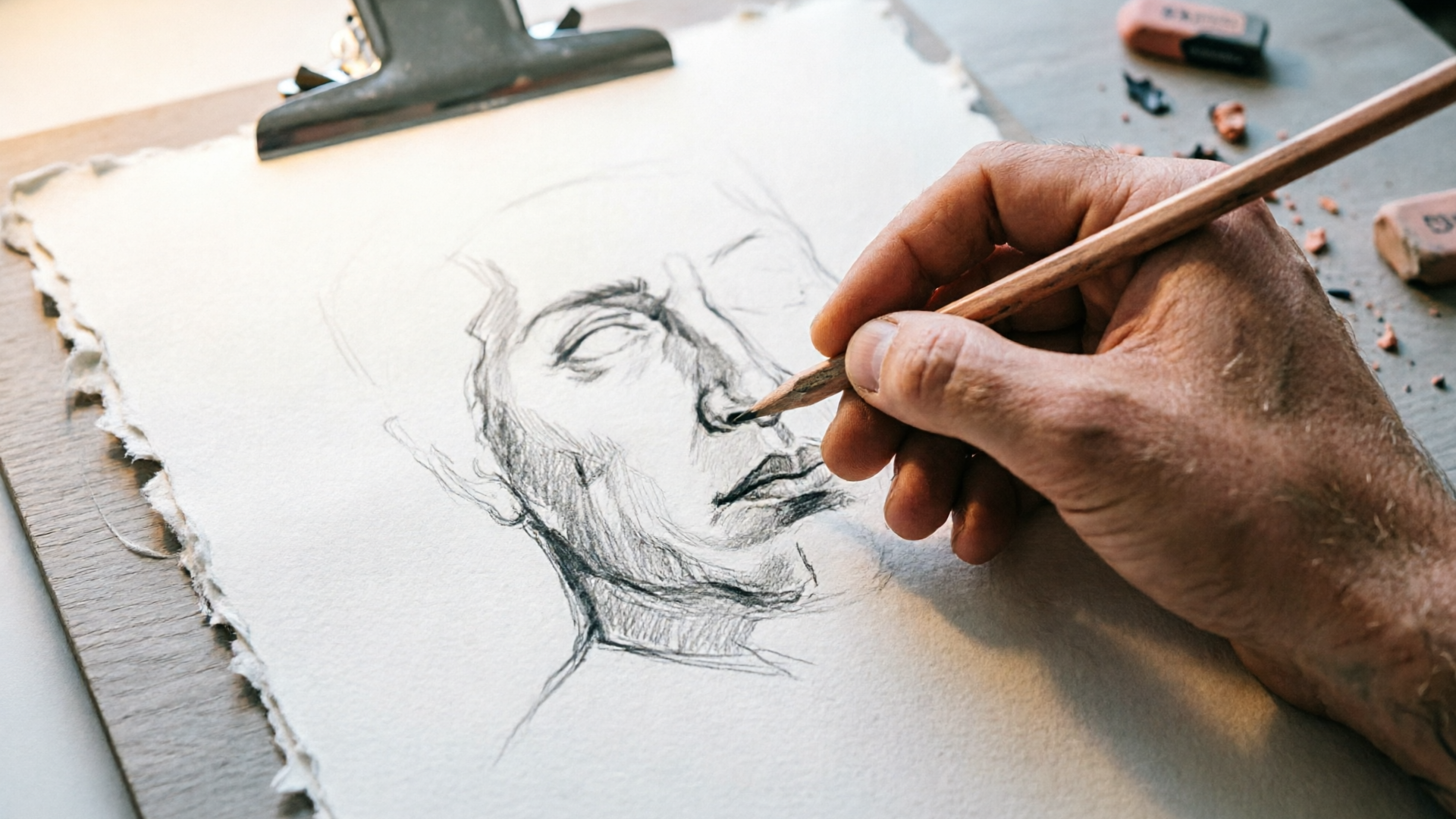
Creative techniques to keep drawn style and linework intact (masking, layered prompts, hand‑drawn stroke effects)
Preserving the original hand-drawn character is often the primary creative constraint. The model’s job is to add motion, not repaint the artwork. These techniques help ensure the output respects lineweight, texture, and stroke order.
Mask and protect: If your upload supports a mask or alpha layer, use it. Masks tell the model which pixels are sacred. When you can’t upload a mask, include explicit instruction in the prompt: “preserve original lineweight and pencil grain; do not re-render lines.” This reduces smoothing.
Layered prompts: Break the animation into layers via the prompt. For example, give separate instructions for (a) foreground linework, (b) fill color, and (c) background parallax. That separation lets the generator treat strokes as vector-like elements and apply motion to background without warping the lines.
Stroke-by-stroke reveal: For sketches, the sketch-reveal pattern (stroke-by-stroke) signals the generator to synthesize each stroke sequentially. Prompt: “keep visible pencil texture; reveal lines stroke-by-stroke over 8s; do not add smoothing.” This produces an organic animated drawing instead of a smoothed digital redraw.
Subtle texture overlays: When the generator tends to over-smooth, add a final layer: “overlay 25% film grain and keep pencil texture.” This nudges the render toward hand-made imperfection.
Use the tool’s iteration affordances: The WowMade AI Video Generator keeps the subject on-model and lets you iterate with credits. If a render softens the lines, reduce motion intensity or shorten camera arcs and re-render. Combining masks, layered prompts, and small iterations typically yields a clip that looks hand-crafted rather than algorithmic.
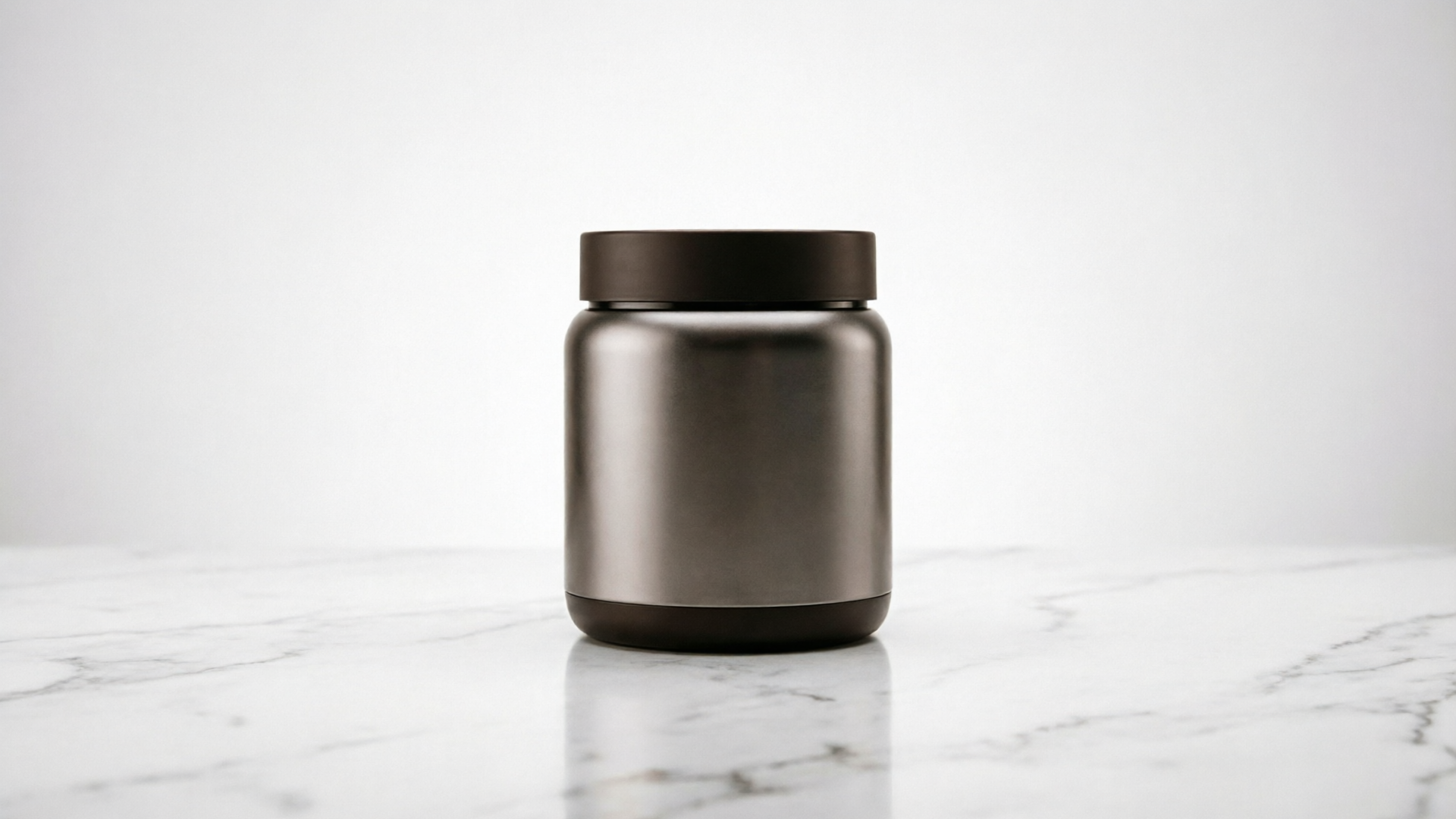
Scaling experiments: A/B testing variations and batch generation workflows to iterate faster
If one image can spawn three vertical assets, then batch generation with small prompt changes becomes a multiplier for testing. Here’s a practical approach to scaling experiments without raising costs or chaos.
Design a matrix: Create a simple A/B matrix of variables: motion intensity (low/medium/high), camera arc (none/small/medium), reveal timing (instant/0.6s/1.2s), and music tempo (slow/fast). Three variables with three levels produce manageable permutations while keeping tests interpretable.
Batch generate: Use the WowMade AI Video Generator to queue prompt variants. Because the generator renders clips in minutes and you can iterate with credits on the same prompt, you can produce 10–20 variations from a single source image in an afternoon. Focus runs on 6–10 key permutations to conserve credits and attention.
Measure and iterate: For social, short A/Bs should track watch-through, 3s completion, and CTR. On landing pages, measure time-on-loop and click-to-cart. Small differences (e.g., a 0.6s reveal vs 1.2s reveal) can change watch-through by measurable margins.
Automate naming and metadata: Keep a CSV with prompt, seed, and intended variant (hook A, loop B) so you can trace which parameters correlated with performance. This makes it easy to scale winners into paid creative sets.
Scale responsibly: Batch generation is powerful, but quality control remains essential. Start with a 6-clip pilot, analyze results, then scale winning patterns. For high-volume runs, use the same base prompt and vary only one variable per batch to isolate effects.
This structured approach converts creative intuition into repeatable testing workflows, letting small teams run data-driven experiments without a big production budget.
Frequently Asked Questions
How long does it take to turn a sketch into a 9:16 clip?
With image-to-video tools, typical renders are minutes. Using the WowMade AI Video Generator you can animate a single still into a 6–12s 9:16 clip in under 10 minutes including one quick re-render.
Do I need separate files for 1:1 and 16:9?
No — export from the same prompt. Prepare your original with safe zones and then export as 9:16, 1:1, and 16:9 so visuals remain consistent across placements.
Will the tool change my linework or colors?
It can, which is why masking and layered prompts matter. Instruct the generator to preserve lineweight and texture, and use masks or alpha layers where possible to keep hand-drawn elements intact.
Conclusion
Image-to-video is the most direct path from a sketch or single photo to testable short-form creatives. By preparing assets, using three repeatable prompt patterns, protecting linework, and batching small variations, creators can generate performance-focused vertical teasers in minutes rather than days. The WowMade AI Video Generator is built for exactly this workflow: animate a single still, iterate on the same prompt with credits, and export native 9:16, 1:1, and 16:9 outputs so you can launch tests across social and landing pages quickly.
Open the AI Video Generator, upload your sketch or product photo, and ship a vertical clip during your next break.
Make this with WowMade
Mentioned in
- Image to Video Prompt Examples: 12 Copy-Ready Prompts to Turn Stills into ClipsPractical image to video prompt examples and a prompt library for product, portrait, and landscape shots — plus step-by-step WowMade AI Video Generator workflows.
- AI in advertising examples: real campaigns and hands-on workflowsPractical AI in advertising examples: how brands use generative creative and step-by-step workflows to turn a product photo into short ad clips with WowMade AI Video Generator.