Flatlay image to video: turn one product photo into scroll-stopping 9:16 loops
Learn how to convert a single flatlay into high-performing 9:16 product loops for TikTok, Reels and Shorts using WowMade AI Video Generator with step-by-step workflows.
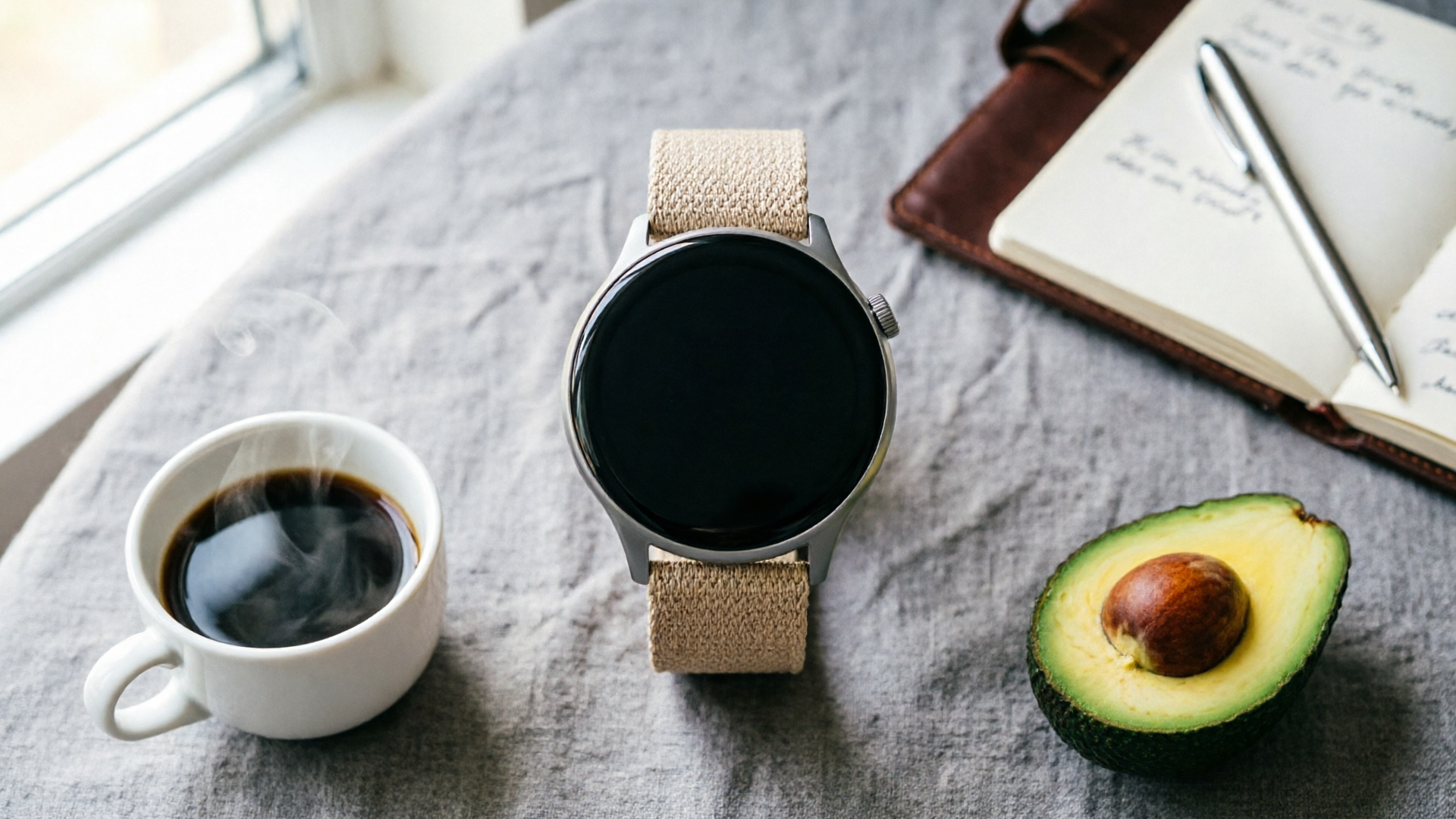
If you want fast, repeatable mobile-first product clips from one still, converting a flatlay image to video is the highest-leverage move you can make. This guide shows ecommerce and DTC teams how to turn a single flatlay into multiple 9:16 vertical product loops — including a practical walkthrough using the WowMade AI Video Generator so you can ship vertical ads and social clips in minutes.
Why 9:16 vertical product loops beat recycled horizontal clips (data-driven case for mobile-first)
Vertical 9:16 is not a fad — it's the dominant format on mobile discovery surfaces. Platform analyses and industry reports repeatedly show vertical content gets higher watch-completion and engagement rates than repurposed horizontal footage. In many cases vertical creatives deliver 2–4x higher engagement or completion rates on mobile; specific platform analyses even report spikes up to 9x for optimized vertical ads versus horizontal equivalents.
For ecommerce teams this matters because discovery and purchase intent live in short interactions: people scroll quickly, judge a creative in the first 1–2 seconds, and either swipe or watch. Short-form vertical video is the discovery format audiences prefer — a recent industry study found a large majority of consumers want short-form vertical experiences beyond social platforms. That preference means vertical product loops perform better across paid and organic channels.
Practically, turning flatlay product photography into 9:16 loops addresses two common problems: limited production budgets and the need for fresh creative at scale. You don't need a new shoot for every platform. Instead, extract new motion, camera moves, and focal crops from one high-quality flatlay to generate multiple iterations — a workflow that reduces production time from days to minutes when you use image-to-video tools like the WowMade AI Video Generator.
The anatomy of a scroll-stopping 9:16 product frame: composition, safe zones, motion and pacing
A scroll-stopping 9:16 frame balances composition, readable text, intentional motion, and a seamless loop point. Think of the vertical frame as a tight stage: the product must be the hero while supporting elements guide the eye.
Composition and safe zones
- Center vs top-aligned product: Centered compositions are safe for product demos and single-item displays because they work across platform crops and thumbnail previews. Top-aligned products feel dynamic and are useful when you want room for captions and CTAs below the product. Always design with platform UI in mind — captions and in-app buttons often overlap the bottom 10–15% of the frame, so treat that area as a safe zone for important information.
Motion and pacing
Motion amplitude is a direct performance lever: subtle parallax or slow scale-in creates a premium feel and higher watch retention; dramatic dolly or rotate gets attention but can hurt readability if it's too fast. Set your loop duration to match platform norms: 6–15 seconds is a sweet spot for product loops because it fits common attention spans and the formats used by TikTok, Reels, and Shorts.
Loop points and seamlessness
A loop is only satisfying when the end state aligns with the start. For flatlay animations, common techniques that produce seamless loops include: slow back-and-forth parallax, recurring micro-bounces on a key element, and reversible camera pushes. These patterns keep the creative feeling live without introducing jarring cuts.
Text placement and contrast
Place short copy within top or mid-safe zones, avoid the bottom 10–15%, and keep text under three lines. Use high-contrast type and a subtle shadow or stroke so the caption remains legible over texture. These small composition choices directly influence completion rates and CTRs when the creative is used for ads.
Related guide: Image to cinematic video.
Prepare your flatlay: how to crop, separate layers and choose focal points for image-to-video (hands-on)
Preparation is where most successful image-to-video projects win or lose. A well-prepared flatlay gives the AI clean elements to animate and ensures the subject stays "on-model" when transformed into a 9:16 frame.
Start with the right source image
- Resolution: use the highest-resolution flatlay you have. Higher pixel counts let you crop into vertical frames cleanly without blurring.
- Contrast and isolation: images with clear edges between product and background are easier to separate and animate.
Crop strategy for 9:16
Create multiple crops from the same flatlay. Typical starters:
- Tight vertical crop focusing on the primary product (for single-item demos).
- Mid-shot vertical that includes props for a lifestyle context.
- Top-down with breathing room for copy at bottom.
Layer separation
Export PNGs or layered PSDs when possible. If you can't provide PSD layers, create a clean mask for the product and any props you want to animate independently. Separate layers enable parallax (foreground, subject, background) and allow the WowMade AI Video Generator to keep the subject on-model while animating surroundings.
Pick focal points
Identify 1–2 focal points — the product logo, the main SKU, or a unique texture — and plan the motion around them. For example, animate a slow, vertical reveal on the logo while the background performs a gentle parallax. This guiding principle keeps the eye where you want it and improves message retention.
File checklist before upload
- Master flatlay (high-res JPEG/PNG)
- Optional masked PNGs or PSD with layers
- Short copy options (6–12 characters for overlay) and one CTA line
- Reference thumbnail crop for preview
These steps make your flatlay future-proof: you can generate several distinct 9:16 loop variants without re-shooting.
Step-by-step workflow — turn one flatlay into a 6–15s cinematic product loop using an image-to-video AI (hands-on with WowMade AI Video Generator)
Here’s a concrete, repeatable walkthrough using WowMade AI Video Generator to convert a single flatlay into a 9:16 loop. This example assumes you have one high-res flatlay and an optional masked PNG.
1) Pick your vertical crop and upload
- Open the WowMade AI Video Generator (/create-video) and choose "Start from image." Upload the high-res flatlay and select a 9:16 output.
2) Define the animation prompt
- Use a concise prompt like: "Slow vertical reveal on center product, soft background parallax, subtle shadow bounce, cinematic color grade, loopable 8s". The generator accepts natural-language prompts and applies the requested motion.
3) Set motion parameters and loop length
- Choose an 8–10 second length for an attention-grabbing loop. Set motion amplitude to low for product clarity and choose a smooth easing curve for the camera move. WowMade AI Video Generator renders configurable motion amplitude and preserves subject fidelity when animating stills.
4) Apply layer controls (optional)
- If you uploaded masked elements, assign foreground motion to props and a slower parallax to the background. This creates perceived depth without obscuring the product.
5) Add finishing touches
- Add simple overlay text in the mid-safe zone (3 words max) and pick a contrasting type treatment. If you need music, export the draft and add a short loop from WowMade AI Music Generator (/create-music) for a cohesive soundbed.
6) Preview and iterate
- Render a low-res preview to check the loop point and motion. Tweak one variable at a time — e.g., reduce motion amplitude or shift the loop length by 1–2 seconds — then re-render. WowMade AI Video Generator lets you keep iterating on the same prompt using credits, so refining a winning variant is fast.
7) Export and platform-ready variants
- Export final 9:16. Use the same project to render 1:1 and 16:9 crops for other placements without rebuilding the animation.
Worked example result
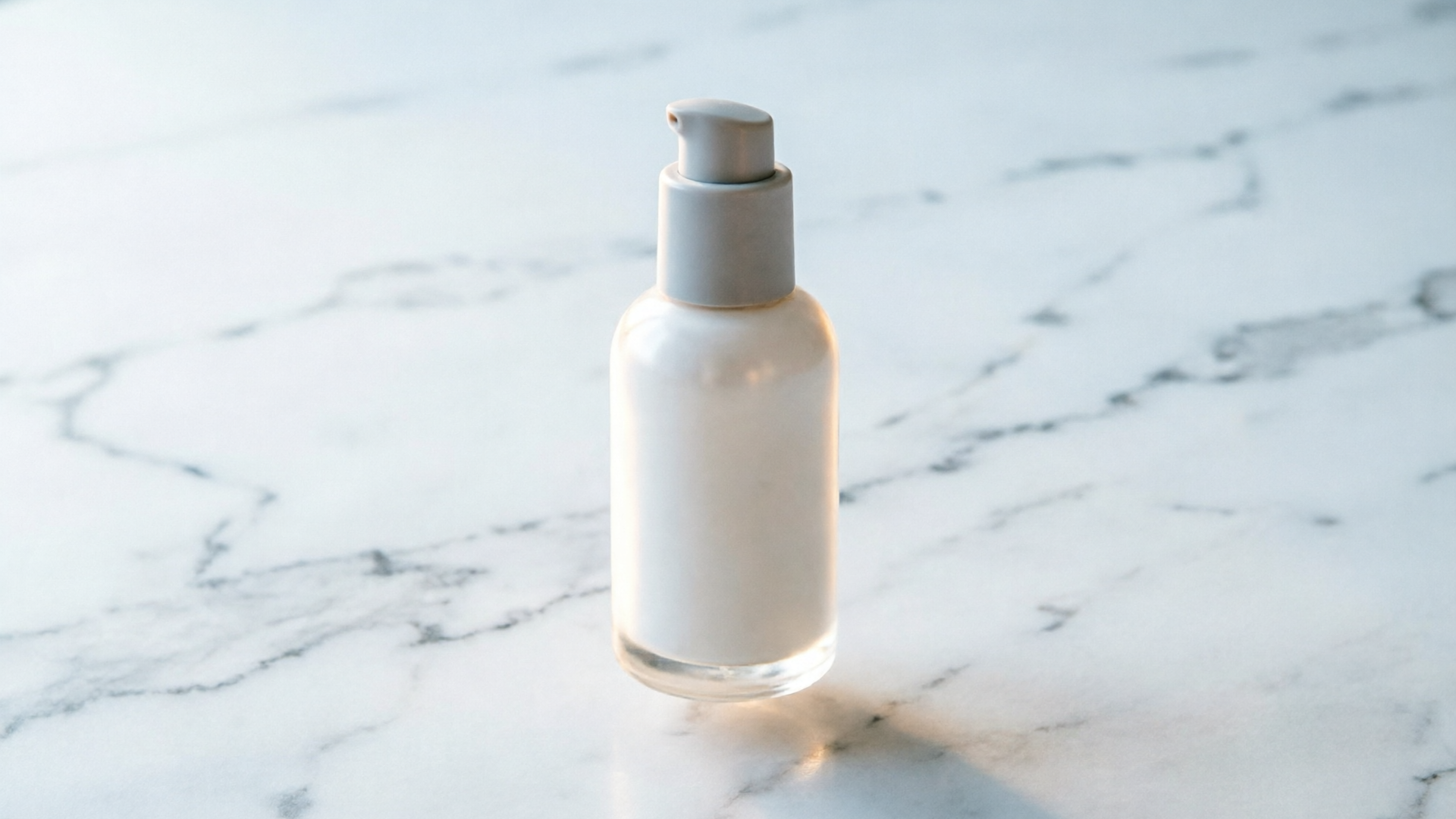
Starting from a single masked flatlay, you can produce three final clips in under 20 minutes: an 8s tight product loop, a 10s lifestyle loop, and a 6s quick hook for stories. Each clip preserves the product's look and uses distinct motion profiles to test performance.
Platform playbook: sizing, length, captions and CTA placement for TikTok, Instagram Reels and YouTube Shorts
Each platform has nuances that affect how your 9:16 loop performs. Use these practical rules to optimize for placement without changing your creative dramatically.
TikTok
- Length and pacing: 6–15 seconds is ideal for product hooks; faster pacing can work in paid discovery. Native sounds and initial 1–2 seconds decide if a viewer keeps watching.
- Captions and CTAs: place the core message in the top or mid-safe zone; leave the bottom 10–12% free of critical text to avoid UI overlap.
Instagram Reels
- Visual polish matters: users expect slightly higher production values on Reels. Use subtle color grade and ensure the first frame is legible as a thumbnail.
- Overlay copy: Instagram may show captions differently in feeds; keep text high and concise. Consider a short CTA at 4–6s if the clip is longer.
YouTube Shorts
- Title and thumbnail: Shorts autoplay in-feed; pair a clear title and a strong first frame to earn watch time. 6–30 seconds work well; under 15s often performs better for product loops.
- Monetizable placements: if you're running shopping or ad campaigns, ensure the loop looks good in autoplay muted environments (so add on-screen text to convey key points).
General sizing tips
- Always export native 9:16 at full resolution for each platform (1080x1920 minimum). For paid ads, check the ad manager's specs and deliver the recommended codec and bitrate.
- Provide 1:1 and 16:9 variants from the same project to reuse the same creative assets across feeds and landing pages.
These platform-specific optimizations are easy to implement when your base clip is produced with an image-to-video tool that outputs multiple aspect ratios, like the WowMade AI Video Generator.
How to measure performance and iterate: KPIs, simple A/B tests and what to optimize next
Measurement is the only way to turn creative volume into real growth. Focus on KPIs that map to discovery and conversion and run tight A/B tests to find which creative levers matter for your audience.
Core KPIs
- View-through rate (VTR) and completion rate: for short loops these metrics indicate whether your first 1–2 seconds are working.
- Click-through rate (CTR) and conversion rate: measure creative influence on downstream actions like product page views and purchases.
- Cost-per-click (CPC) and cost-per-acquisition (CPA): when running ads, these tell you the financial efficiency of a creative.
Simple A/B test matrix
- Motion amplitude: low vs high (same copy and crop) — this reveals whether your audience prefers subtle or dramatic movement.
- Framing: center crop vs top-aligned crop — tests compositional placement for higher retention.
- Loop length: 6s vs 12s — shorter loops for quick discovery vs longer loops for product storytelling.
Iterate quickly
- Run tests for small batches (2–3 creatives) to get statistically meaningful results faster. Use the best-performing variant as a control and iterate one variable at a time.
- When you have a winning motion profile and crop, scale that template across product SKUs. Because WowMade AI Video Generator renders clips in minutes and lets you iterate on the same prompt, you can quickly replicate winning formulas across a catalog.
Optimization checklist
- If VTR is low: tighten the first second (faster reveal or stronger focal contrast).
- If CTR is low but VTR is high: test different CTAs and on-screen copy positions.
- If completion is high but conversions lag: test product page experience and landing page match between the clip and the product detail.
Scale and repurpose: batch-producing 9:16 product frames and reusing loops for landing pages, stories and ads with WowMade AI Video Generator
Once you have a proven recipe, scale is about repeatability and efficiency. The combination of a single flatlay and an image-to-video pipeline lets you produce catalog-wide vertical assets quickly.
Batch-processing workflow
- Prepare a source folder of master flatlays and simple masks.
- Create a template prompt in WowMade AI Video Generator that encodes your winning motion, loop length, and color grade.
- Batch feed images into the generator, rendering 9:16 outputs in sequence. WowMade AI Video Generator supports repeated iterations on the same prompt, which reduces time spent re-authoring each clip.
Repurposing strategies
- Landing pages and product pages: use a slightly longer loop (10–15s) with a subtle reveal as an on-page hero. Looped motion draws attention without the need for autoplay sound.
- Stories and ads: crop the same project down to story aspect, use a tighter thumbnail, and add a direct CTA card at the final frame.
- Paid ad rotations: generate several motion amplitudes and caption variants per SKU to keep frequency low and freshness high.
Supporting tools
- For on-brand music beds, pair exports with tracks from WowMade AI Music Generator (/create-music) to avoid licensing friction and create consistent audio branding.
- When you need fresh stills or masked assets, the WowMade AI Image Generator (/create-image) can create variants or remove backgrounds to speed the prep phase.
Efficiency gains
Batch-processing with an image-to-video engine reduces the marginal cost of each new clip dramatically. What used to require a full reshoot can now be produced, tested, and iterated in hours for an entire catalog — freeing teams to focus on strategy and distribution rather than logistics.
Conclusion
Start with one high-quality flatlay and treat it as a creative asset that can be multiplied: crop for 9:16, separate a few layers, and use a repeatable animation prompt. The WowMade AI Video Generator is built for exactly this workflow — it turns a still into short cinematic loops, exports 9:16 and other ratios, and lets you iterate rapidly until you find a winner. Open the AI Video Generator, drop in a flatlay or prompt, and ship a test clip during your next break.