Turn One Photo into a Vertical Dance Reel: Fast AI Dance Effects for Creators
Learn how to make platform-ready vertical dance clips from a single photo using AI dance effects. Workflow, legal guidance, and a step-by-step with WowMade AI Video Effects.
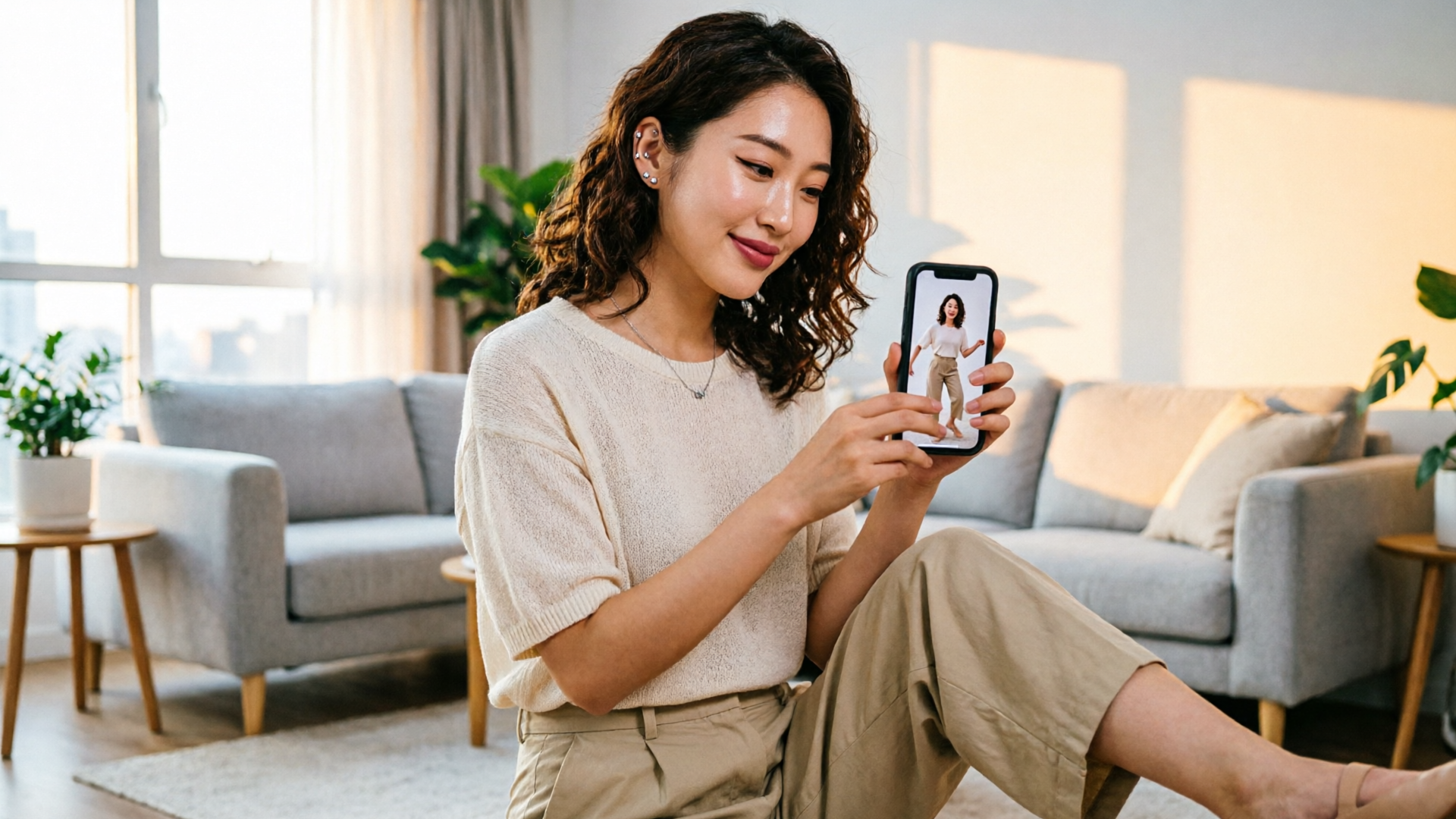
Short-form vertical video still dominates feeds in 2026 — and an AI dance effect can turn a single selfie into a scroll-stopping vertical dance clip in minutes. If you manage social accounts, make quick promos, or chase trends as a creator, this article shows a repeatable workflow to go from photo to TikTok/Instagram-ready MP4 without complicated editing.
I’ll walk through why photo→dance clips scale for trend-chasing, the basic tech that maps motion to a still image, how to pick the right reference clip, and exactly how to use WowMade AI Video Effects to produce a 9:16 dance reel. You’ll also get practical post-production tips and clear guidance on permissions, labeling, and safely repurposing the clip across platforms.
Why vertical dance clips (from a photo) are the fastest way to ride trends in 2026
Short-form vertical video remains the dominant format across platforms. A 2025/2026 consumer study found that 90% of consumers want short-form video experiences across the web and that 75% of respondents would stay longer on sites tailored with short-form vertical video. That behavior translates into higher completion and engagement rates for vertical clips, especially when the first 1–3 seconds are attention-grabbing.
Turning a single photo into a vertical dance clip is a high-leverage tactic for trend-chasers. Instead of filming multiple takes, coordinating choreography, or hiring performers, creators can reuse a single on-brand image (selfie, team photo, or product shot) and apply a preset motion. That dramatically shortens turnaround time and supports frequent posting — critical for riding platform trends where timing is everything.
Tools that convert photo→dance exist to meet this need: specialized apps return TikTok-ready 720×1280 files that map choreography from a reference video onto a static image. Those workflows make it realistic to produce a stack of variations: different music, captions, or framing from the same photo. The result is a fast content engine for creators who need fresh vertical clips daily.
How AI maps a single photo to dance motion: the tech behind photo→dance effects
At a high level, photo→dance pipelines do two things: they interpret the source photo as a poseable subject and they transfer motion from a reference video to that subject. First, a face-and-pose model detects facial landmarks, head orientation, and body hints from the still image. Even when only a headshot is provided, these models synthesize plausible torso and limb motion while keeping identity cues such as eye gaze and skin tone consistent.
Second, motion transfer takes a choreography reference — a video with skeleton or keypoint tracking — and maps that movement onto the target. The mapping uses learned priors so the result looks natural at human scale: hips move with knees, hands follow through, and head turns reflect the rhythm of the source clip. Some systems rely on optic-flow refinement and temporal smoothing so the generated output avoids jitter and unnatural popping.
A few points matter for creators: the effect presets are often tuned for specific outputs (dance, lipsync, avatar), and they render vertical 9:16 frames ready for platforms. Also, provenance and detection are becoming part of responsible pipelines: technical overviews (NIST, 2024) recommend watermarking and provenance metadata to label synthetic content. That makes it safer to share generated clips on networks that are tightening rules around synthetic media.
Choosing the right trend and reference clip (workflow) — scouting, timing, and preserving loopability
Picking the right trend clip is as important as picking the photo. A reference clip carries the choreography, rhythm, and visual beats that your photo will borrow; choose one that matches your goal: a quick loop for repeated watching, a hard beat for lip-to-beat edits, or a slower groove for product-focused messaging.
Workflow checklist for scouting:
- Trend horizon: Watch the trend for 24–72 hours. If it’s accelerating across creators and advertisers, it’s safe to repurpose. If it’s niche or regional, test a single variation first.
- Loopability: Prioritize clips with a clean loop point (motion that returns to a similar frame). Loopable dances increase total watch time because viewers rewatch from the start. Short loops of 3–8 seconds often perform best.
- Audio match: Choose reference footage whose beat and tempo match the energy you want. If you plan to use a different song, ensure the motion still reads when cut to your target tempo.
- Framing & energy: For selfies, select references with pronounced upper-body and head movement — these map best when the source photo is a head-and-shoulders shot.
Create a shortlist of 3 candidate references, export them as short MP4s, and run quick A/B tests with internal teammates or an ad group. When you’re ready to generate, use a tuned preset (dance effect) so the engine optimizes motion for that style rather than expecting manual keyframing.
Hands-on: From selfie to 9:16 viral-ready clip using WowMade AI Video Effects (step-by-step)
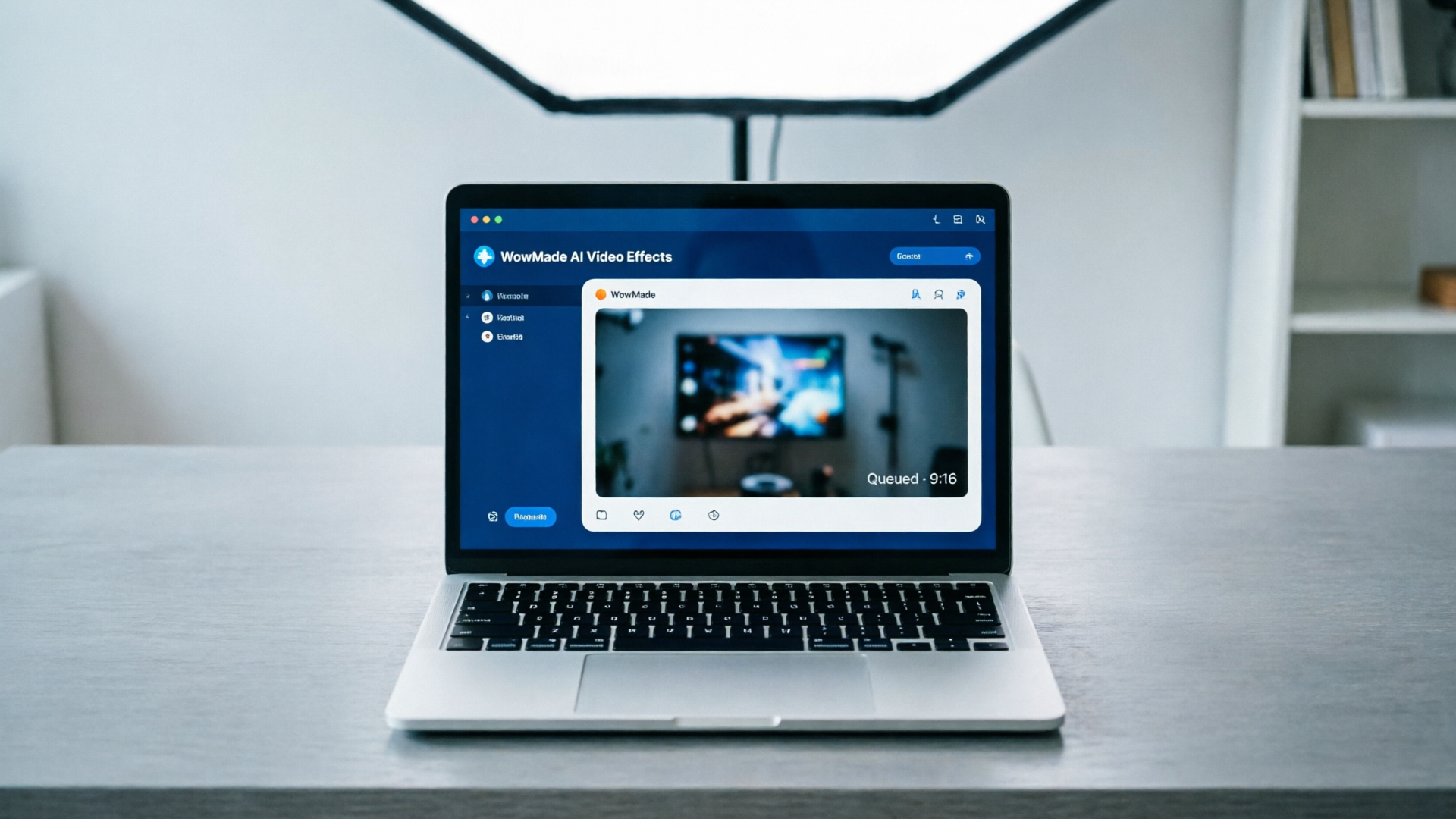
WowMade AI Video Effects is built exactly for this use case: one photo in, finished vertical clip out. It applies AI dance effects to a single photo, renders a 9:16 vertical output, and offers tuned presets so you don’t need prompt engineering. Here’s a compact walkthrough that turns a selfie into a TikTok-ready dance reel.
Step-by-step example (10–12 minutes total):
- Prepare assets: pick a high-contrast selfie cropped roughly to a head-and-shoulders composition, and save a short reference clip (3–8s) with the choreography you like.
- Open WowMade AI Video Effects (/effects) and choose the Dance effect preset. The preset is tuned for rhythmic head and torso motion — ideal for selfies.
- Upload your selfie and the reference MP4. For pets, choose the Pet Dance preset to preserve animal proportions.
- Set output to Vertical 9:16 and choose 720×1280 or higher if offered. Select the runtime (under 60s recommended).
- Preview and fine-tune: the preset applies motion and smoothing; tweak intensity sliders to increase hip or head movement as needed. Each effect is a tuned preset — no prompt-engineering required.
- Queue the job and export the MP4. WowMade renders a platform-ready vertical file you can download or push to social scheduling tools.
Concrete notes on settings: use moderate motion intensity for headshots to avoid uncanny movement. If you want lipsync instead of dance, switch to the Lipsync preset and upload the target audio. For single-photo ad generation, try the AI Video Effects ad preset — it applies product-friendly framing and motion calibrated for conversions.
This workflow saves hours of production time. If you need original visual assets, consider generating alternate photos with the AI Image Generator (/create-image) to produce multiple on-brand inputs from the same concept.
Polish & publish: framing, audio sync, captions and hashtags to maximize watch-through
A generated clip is only as good as its publish-ready mix. Small editorial choices materially affect watch-through and distribution.
Framing and crop: Start with a bold visual in the first 1–3 seconds. CSU Social best-practices recommend centering people and using a close framing for Reels/TikTok; make sure your subject’s face occupies about 25–40% of screen height. Use the crop tool to lock critical facial landmarks in the safe area for captions and stickers.
Audio sync and selection: If your dance is synced to a trending audio, import the exact audio and align the clip so major movement hits the song’s downbeats. If you need original music, the WowMade AI Music Generator (/create-music) can produce short tracks tailored to tempo and mood — a useful way to avoid copyright friction while keeping energy high.
Captions and hooks: Add a 1–2 line on-screen hook in the first 2 seconds (e.g., “I turned my selfie into a dance” or “Pet does the viral move”). Use short, readable type and test a dark translucent caption background for legibility.
Hashtags and timing: Use 3–6 platform-specific tags: one explicit trend tag, two niche community tags, and one branded hashtag. Post during peak engagement windows for your audience; if you cross-post, stagger releases by a few hours to avoid duplicate-content suppression.
Export checklist: 9:16 aspect, under 60s runtime, final MP4 at platform-recommended bitrate, and visible watermark/provenance label if you applied one (recommended). These small checks help maximize distribution and reduce friction with platform moderation.
Safety, rights and provenance: permissions, likeness, and labeling best practices for creators
Synthetic content raises legal and ethical questions that creators must manage proactively.
Permissions and likeness: If the photo includes another person’s face or a recognizable private individual, secure written permission before publishing. Commercial use may require a model release. The U.S. Copyright Office is actively examining AI-created works and digital replicas; creators should watch evolving guidance on registration and derivative works (U.S. Copyright Office, 2024).
Training data and claims: Avoid claiming an AI model was trained on proprietary content unless you can verify it. If you use a supplied voice or music, ensure you have the rights for commercial use or generate original audio with an AI music tool that provides licensing (for example, WowMade AI Music Generator offers copyright-free tracks you can drop into edits).
Provenance and labeling: Government reports and standards recommend clear disclosure of synthetic media. Add a short on-screen label ("Generated with AI") and include provenance in the post copy or metadata. This reduces platform risk and builds trust with your audience.
When working with influencers or paid campaigns, include synthetic-media clauses in contracts that cover disclosure, liability, and content attribution. This keeps campaigns compliant and avoids downstream takedowns.
Hands-on: Repurpose one AI-generated dance clip across TikTok, Reels and Shorts (format, length, and export workflow)
A single generated vertical clip can serve multiple platforms with minor exports. The goal is to respect platform limits while keeping the creative intact.
Platform constraints and best practices:
- TikTok: Prioritize immediate visual hooks and native audio trends. TikTok favors original audio engagement; if you used a non-trending audio, upload it as the native sound and encourage reuse.
- Instagram Reels: Reels prefers clean captions and strong visual contrast. Keep primary captions and CTA elements in the center-safe area to avoid UI overlays.
- YouTube Shorts: Shorts often surface via search and recommendations; add a descriptive title and keyword-rich description. Shorts viewers expect slightly longer runtime options — you can push to 45–60s if the creative supports it.
Repurpose workflow (3 exports):
- Master export: From WowMade AI Video Effects, render the highest-quality 9:16 file (up to 1280×720 or higher). Keep an unbranded master without platform-specific captions.
- TikTok export: Trim to the strongest 9–20 seconds, add the trending audio natively, apply the on-platform caption and sticker, and upload with the trend hashtag. Use the native posting flow so TikTok recognizes the audio association.
- Reels/Shorts export: For Reels, keep a 15–30 second cut and embed caption text inside the middle of the frame. For YouTube Shorts, consider a slightly longer cut (30–60s) and include a keyword-forward title.
Small adjustments increase reach: a different first-frame thumbnail, a tailored caption that mentions the trend, and a platform-native sticker or challenge tag. If you want alternate visuals, use the AI Image Generator (/create-image) to make brand-safe background variations, or generate multiple music stems with the AI Music Generator (/create-music) to A/B test sonic identity.
Finally, track performance on each platform for 48–72 hours. The fastest-growing variations often share traits: immediate motion in the first second, loop-friendly edits, and clean audio alignment. Use those signals to iterate on future photo→dance clips.
Frequently Asked Questions
Can I use any photo for an AI dance effect?
Technically yes, but you should only use photos you own or have permission to publish. For commercial uses, obtain a model release if a recognizable person is present.
Will platforms penalize AI-generated clips?
Platforms are increasingly labeling synthetic media but generally allow AI-generated clips when clearly labeled and not misleading. Use provenance labels to reduce moderation risk.
How long should a photo→dance clip be for best engagement?
Keep it under 60 seconds; 9–20 seconds often performs best on TikTok for trend loops, while YouTube Shorts may accept longer variations up to 60 seconds.
Conclusion
AI dance effects let creators scale trend-driven vertical content with minimal production overhead. The practical workflows above — choosing loopable references, using tuned presets, and applying provenance labels — let you move quickly while staying legal and transparent.
When you need the fastest path from a single photo to a finished vertical clip, WowMade AI Video Effects fits the brief: one photo in, a finished 9:16 clip out, with dance and lipsync presets tuned for creators. Open the AI Video Effects library and ship your first single-photo dance clip this afternoon.
Make this with WowMade
Mentioned in
- Halloween AI video prompts: prompt recipes and a fast path to viral spooky clipsPlan, prompt, and publish spooky short-form AI videos fast. Practical Halloween AI video prompts, safety tips, and a step-by-step WowMade AI Video Effects workflow.
- How to turn a photo into a viral Halloween video with AI Halloween effectsA creator-first guide to turn any photo into a short, shareable Halloween clip using WowMade AI Video Effects — step-by-step workflows, music tips, and safety rules.
- Halloween video ideas for TikTok and Reels: 12 formats and 4 hands-on recipes with WowMade AI Video Effects12 high-impact Halloween short-form formats and four hands-on recipes that turn a single photo into viral TikToks and Reels using WowMade AI Video Effects.
- AI dance from photo: turn one still into scroll‑stopping dance reelsTurn a single photo into vertical dance reels fast. A practical how‑to for creators using WowMade AI Video Effects to make platform‑ready dance loops.
- Turn a Drawing into a Social‑Ready Avatar Intro with One ClickConvert a sketch or character art into a vertical avatar intro using one-click WowMade AI Video Effects — lipsync, dance, and singing presets for fast social clips.
- How to Turn One Photo into a Believable AI Singing Portrait (and Ship It to TikTok)A practical guide for creators to turn a single photo into a realistic singing or dance clip using WowMade AI Video Effects—step-by-step, legal, and platform-ready.