How to Turn One Photo into a Believable AI Singing Portrait (and Ship It to TikTok)
A practical guide for creators to turn a single photo into a realistic singing or dance clip using WowMade AI Video Effects—step-by-step, legal, and platform-ready.
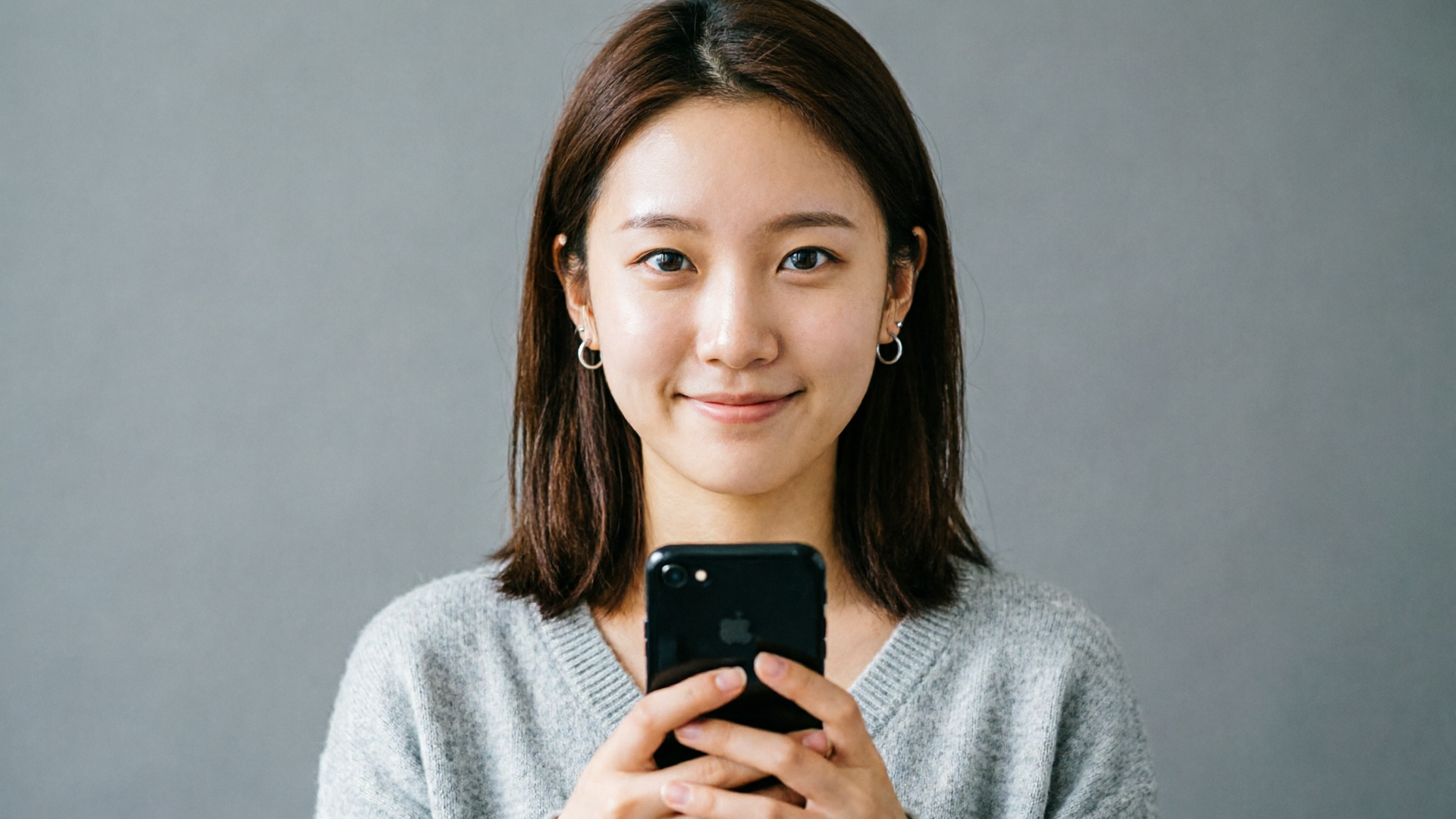
Imagine uploading a single selfie and ten minutes later you have a vertical clip of that face belting a chorus, nodding to the beat, and ready for Reels or TikTok. That’s the capability creators are using now to scale short-form music content. This guide shows how to make an AI singing portrait that looks convincing on feed, why the format works for discovery, and how WowMade AI Video Effects gives you tuned, export-ready presets so you don’t waste time on trial-and-error.
You’ll get a plain-English technical overview, a hands-on walkthrough that turns one photo into a singing clip (with concrete steps using WowMade AI Video Effects), a campaign-level workflow for branded singing anchors or mascots, and practical rules for rights and realism. Throughout I’ll point out where to pair effects with on-platform best practices and supporting WowMade tools like the AI Music Generator and AI Image Generator. If your goal is repeatable short videos from a single portrait—ads, promos, or regular music drops—this is a practical playbook that skips fluff and gets to finished clips.
Why photo-to-singing videos are dominating short-form feeds (and what that means for creators)
Short-form video platforms remain the dominant place people discover music and personalities. Deloitte’s 2024 Digital Media Trends study found 82% of Gen Z and 70% of millennials discover new artists via social media or user-generated video sites. That means formats that surface new music—dance, lipsync, and music-adjacent videos—get amplified naturally by discovery systems and user behavior.
Creators can exploit this in two practical ways. First, a single photo converted into a singing or lipsync clip lets you produce many near-identical assets quickly: different songs, different captions, and different thumbnails. Second, short vertical clips that include music are more likely to be shared and remixed, which translates into downstream streaming and attention for the song used—TikTok’s Music Impact Report and Luminate’s analyses both show how short-form clips influence streaming volumes and discovery. In short: if you want reach around a song or persona, a well-crafted AI singing portrait is a high-leverage format.
The category has matured. Dedicated consumer tools (for example, “make photos sing” features) show the idea works for UGC, but quality and commercial controls vary. That’s why creators and marketers need a toolchain with clear export options (vertical 9:16), tuned presets, and consistent outputs. WowMade AI Video Effects is built around these expectations: one photo in, a finished vertical clip out, with presets for lipsync, dance, and news-anchor styles so you can iterate rapidly without dialing low-level parameters.
How AI singing portraits and lipsync-from-photo actually work — a plain-English technical overview
At a glance, turning a static portrait into a singing video combines face understanding, animation mapping, and generative frame synthesis. A few components show up in nearly every modern pipeline:
- Face parsing and landmark detection: the system identifies eyes, nose, mouth, jawline, and facial contours from the still image. Reliable landmark detection anchors the animation so expressions and mouth shapes stay consistent with the subject.
- Neural face animation models: these map audio or phoneme sequences to mouth shapes and facial expressions. When you supply audio (a recorded vocal or a synthetic voice), the model predicts the timing and shape of mouth movements and related expressions necessary for believable singing or lipsync.
- Generative frame synthesis: rather than simple warping, modern systems synthesize new pixels for subtle head turns, background parallax, and lighting shifts. This reduces the “cutout” look and adds depth and motion that the brain expects when watching a living face.
In practice, an AI singing portrait pipeline can accept either recorded audio (a singer) or generated audio (an AI voice or music backing). Academic work on audiovisual coordination shows that visual cues strongly affect perceived realism when coordinating singing partners, which means the better your lip and micro-expression sync, the more believable the result will be (see peer-reviewed studies on coordination and visual information). Tools like WowMade AI Video Effects package these components into tuned presets—lipsync, avatar, dance, and news anchor—so you don’t need to assemble separate models or do low-level tuning. That’s important for creators: it reduces both trial-and-error and the specialized skill required to get a watchable result.
Related guide: Turn One Photo into a Vertical Dance Reel.
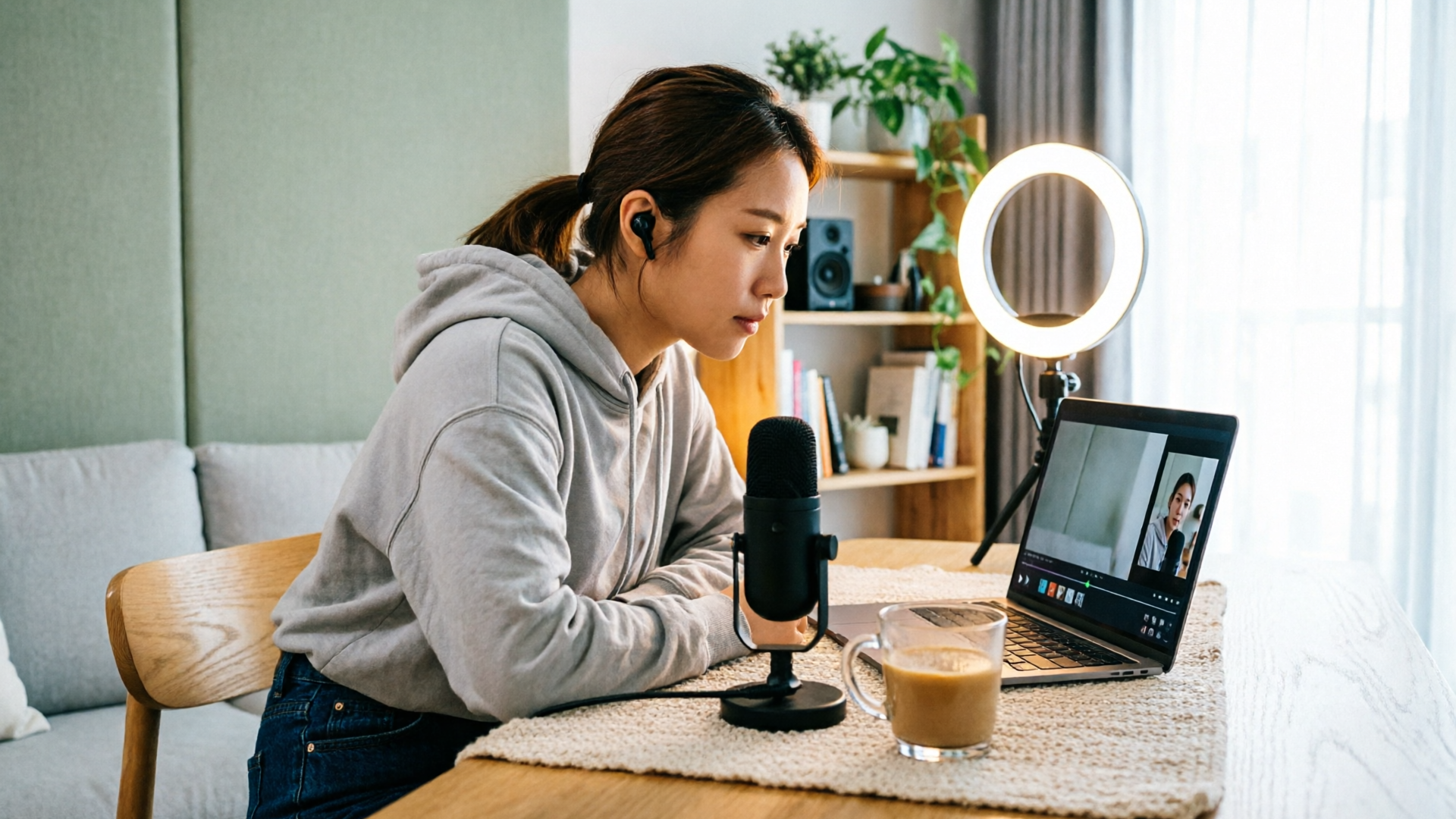
Step-by-step workflow: turn one selfie into a viral singing or dance clip (hands-on with effects and export tips)
This section is a practical walkthrough that uses WowMade AI Video Effects so you can move from photo to vertical clip fast. The example: make a 15–30 second singing clip from a selfie to post to TikTok.
1) Prepare the source photo
- Use a clear, front-facing portrait with neutral lighting and the subject’s face unobstructed. Tight head-and-shoulders shots work best for 9:16 framing. If needed, edit background or crop with the AI Image Generator to match your brand.
2) Choose the effect preset in WowMade AI Video Effects
- Upload your photo and pick the “AI singing” or “lipsync” preset. These are tuned presets that map audio to mouth shapes and expressions automatically—no prompt-engineering required.
3) Supply or generate audio
- Option A: Upload a recorded vocal track. Make sure it’s compressed and trimmed to the clip length.
4) Configure timing and facial emphasis
- Use the simple sliders in the effect interface to increase mouth articulation or head movement if you need more expressiveness. Because each effect is a tuned preset, these controls are coarse and friendly, preventing overfitting while letting you nudge the performance.
5) Render vertical output
- Select 9:16 render for TikTok and Reels. WowMade AI Video Effects renders finished vertical clips—no separate cropping step required. Queue the job and preview; if the mouth shapes look off in a single beat, re-upload a cleaner vocal or nudge the articulation slider.
6) Export and optimize for platform
- Keep clips 15–30 seconds for higher shareability. Add captions and a clear call-to-action in the first 2–3 seconds. Choose a thumbnail that shows an expressive face to improve tap-through.
Worked example: a simple lipsync chorus
- Upload selfie
- Pick “AI singing” preset
- Upload a 20‑second chorus WAV file
- Increase mouth articulation +10, head movement +5
- Render 9:16 vertical
- Download MP4 and post with the artist and song tags
Because WowMade AI Video Effects queues effects with the rest of the platform, you can batch multiple photos and different song clips, producing several variants for A/B testing. For richer audio control, create backing tracks in the AI Music Generator and bring them into the effect as the final mix. This keeps audio copyright-safe and custom to your campaign goals.
Campaign workflow: build a branded AI news-anchor or singing avatar from a photo for ads and promos (hands-on)
If you’re producing ads, promos, or a series of branded drops, treat the singing portrait as a reusable asset rather than a one-off. Here’s a campaign workflow using WowMade AI Video Effects plus supporting WowMade tools.
1) Design the visual identity
- Start with the AI Image Generator to create several portrait variants: brand-colored background, logo placement, and consistent color grading. Lock one master portrait that will become your avatar.
2) Define your voice and music palette
3) Create a library of short scripts and hooks
- For a news-anchor style, write 8–12 twenty-second scripts that hit different messages. For singing drops, prepare several 15–30 second lyric hooks or chorus snippets. Keep sentences short and hooks obvious.
4) Batch-create clips in WowMade AI Video Effects
- Upload the master portrait and queue multiple effects: news-anchor for scripted reads, AI singing for music snippets, and dance for trend pieces. Each effect is a one-click preset, so you can produce a suite of assets quickly.
5) Localize and iterate
6) Test and scale
- Run head-to-head tests: the same portrait with different songs, or identical scripts with different voice styles. Use platform analytics to measure which combinations drive watch time, saves, or click-throughs.
Brands use this approach to create a “digital spokesperson” that stays visually consistent while delivering fresh messaging. The key advantage of WowMade AI Video Effects here is the reduced setup cost: your master photo becomes a library of ad-ready clips without repeated shoots or expensive animation teams.
Rights, realism, and platform optimization: best practices to keep your AI singing clips authentic, legal, and shareable
You can get attention quickly with AI singing portraits, but there are clear ethical, legal, and platform rules to follow.
Rights and consent
- Always have explicit consent from the photographed subject for commercial use. For public figures or copyrighted likenesses, obtain rights or avoid reuse. If you’re cloning a voice or using a recognizable performer’s recording, verify licensing—the AI Music Generator can produce original instrumentals to avoid music-rights complications.
Realism vs. expectation
- Be transparent when necessary. If the clip is promotional or could mislead viewers about who actually performed the vocals, disclose it in the caption or tags. Visual realism improves perceived authenticity, but visual realism without disclosure can create trust issues.
Platform policies and takedowns
- Platforms have varying rules for synthetic content. Review respective guidelines for manipulated media and music usage. The better your audio syncing and natural expression, the less likely the clip will be flagged for low quality, but music rights enforcement is independent—use owned or licensed tracks when possible.
Optimization tips for shareability
- Keep clips short (15–30s) and start with a hook in the first 2 seconds.
- Use the vertical 9:16 export from WowMade AI Video Effects to ensure full-screen playback without extra cropping.
- Add captions and descriptive alt text for accessibility and to improve watch-through on silent autoplay.
A short technical note: research on audiovisual coordination shows that visual cues and timing strongly affect perceived realism for artificial partners. This explains why small improvements in mouth sync, micro-expressions, and head motion deliver outsized gains in believability. Use the articulation and head-movement controls in your effect presets to tune realism without overcomplicating the workflow.
Finally, keep an audit trail: retain original source files, permission records, and licenses for music. That protects campaigns from later disputes and speeds up platform reviews if needed.
Frequently Asked Questions
Can I use a copyrighted song in an AI singing portrait?
You can, but you need the proper rights. For paid promotions or commercial campaigns, license the song or use a custom track from the AI Music Generator to avoid clearance issues.
How realistic can a single photo look when it sings?
Very realistic if the photo is high-quality and the effect includes generative frame synthesis and good landmark detection. Tuned presets like WowMade AI Video Effects reduce the common artifacts users see with basic warping tools.
Do I need a separate tool to make the voice?
Can I localize the same avatar to multiple languages?
Yes.
Conclusion
Photo-to-singing clips are a high-ROI format for creators and marketers because they combine low production cost with strong music-driven discovery dynamics. The practical path is straightforward: start with a good portrait, pick a tuned preset (lipsync or AI singing), use owned or generated audio, and render vertical clips optimized for social feeds. For speed and consistency across single-photo campaigns, WowMade AI Video Effects removes most technical friction—one photo in, finished vertical clip out, with presets for dance, lipsync, and news-anchor styles. Open the AI Video Effects library and ship your first singing portrait from a single photo today.