Photo to Pet Video: Turn One Photo into Viral Pet Shorts with WowMade AI Video Effects
A practical guide to turn a single pet photo into dance, singing, or news‑style shorts using WowMade AI Video Effects—workflows, safety, and publishing tips.
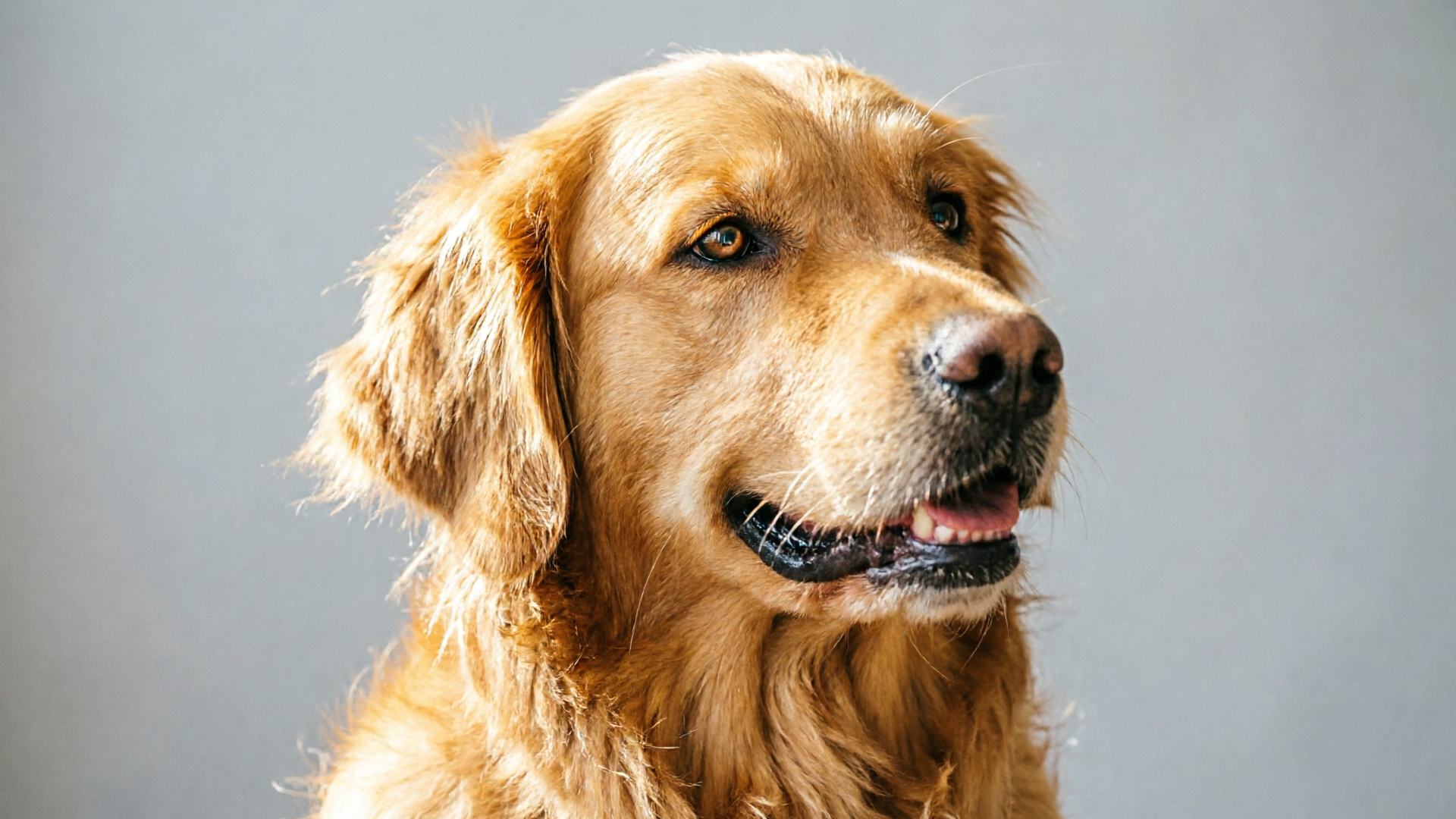
Pet videos keep winning on social because a single moment of charm or novelty can trigger big engagement. This guide shows creators how to convert one pet photo into a 10–20s social short—dance, singing, lipsync, or a tiny news clip—using WowMade AI Video Effects. If your goal is fast, repeatable clips that look polished for TikTok and Reels, this walkthrough puts the tools and rules you need on the same page.
You’ll get a practical tech primer, legal and ethical guardrails, two hands‑on workflows that use WowMade AI Video Effects step‑by‑step, and a publishing checklist that improves reach. The primary keyword “photo to pet video” describes the exact outcome we’ll deliver: one still image transformed into a vertical, shareable short with tuned presets for motion mapping, lipsync, and news‑anchor performance.
Why pet videos still win on social (the psychology and formats that work)
Pet content performs consistently because it taps three reliable engagement drivers: emotional resonance, surprise or novelty, and anthropomorphism. A pet’s face expresses clear emotion; when creators add movement or a humanlike action (dancing, singing, reporting) viewers assign intent to the animal, which boosts the share impulse. Short‑form platforms reward that mix: the algorithm favors content that creates quick reactions, and dance or performance hooks create predictable watch patterns.
Formats that work repeatedly include brief dance loops (3–12s repeated movement), a singing or lipsync punchline, and novelty framing such as “pet as news anchor” or “micro‑sketch.” Music or a clear performing cue raises retention: viewers wait to hear the payoff, and they’re more likely to rewatch to catch timing with the audio. That’s why the best pet shorts pair a single visual novelty with a tidy audio moment—think of a 10–20s clip that starts with a close, surprises with movement or a vocal line at 3–5s, then finishes with a reaction shot.
Creators who want repeatable production should favor workflows that start with one high‑quality image and use tuned presets for motion and framing. This reduces production friction and keeps a consistent look across dozens of posts. That’s the operational advantage behind tools like WowMade AI Video Effects: they let you jump from one photo to a social‑ready 9:16 clip without designing motion from scratch.
How modern AI makes pets sing, lipsync and dance: a practical tech primer
At a high level, photo→video pet tools map a static face to motion templates and synthesize timing for mouth, head, and body. There are three technical pieces working together: 1) face/landmark extraction, 2) motion mapping via a preset or animation rig, and 3) audio‑driven lipsync or singing synthesis. For pets, the pipeline must adapt facial proportions and fur textures while preserving a natural look.
One‑click effect tools use tuned presets that combine motion mapping with framing rules. The preset determines how much head tilt, paw movement, and lip motion are applied, and it includes social framing (9:16 crop, safe margins). That’s why a pet dance template can transform a single still into a believable movement sequence: the engine warps the face and uses procedural motion for body parts that aren’t in the photo.
Singing and audio‑driven generation rely on models that couple audio timing with visual mouth shapes. Recent research like the SINGER paper shows that vivid, audio‑driven singing video generation is now possible and that the same techniques—multimodal alignment and waveform‑aware animation—can be adapted for non‑human timbres. There are also experimental projects (So‑VITS‑SVC adaptations) exploring animal‑specific timbres for synthesized singing. While those advances are promising, practical consumer tools typically combine a human singing sample or stock vocal with a lipsync preset tuned for pets.
Because detection and disclosure matter, the research community is already building detection challenges (see the SVDD 2024 work) and stressing that generated singing must be labeled. That technical context explains both what you can do and why you should include clear disclosure when publishing an animated pet short.
Legal, ethical and platform rules you must know before animating a pet
Turning a pet photo into a viral short is technically easy, but creators should consider legal and ethical constraints before posting. First, copyright for the image and audio matters: use photos you own or have permission to use, and pick royalty‑cleared or original audio. Many platforms enforce copyright claims quickly; a takedown can erase engagement and hurt future distribution.
Second, platforms increasingly require disclosures when media is synthetic. The SINGER and SVDD research communities recommend visible labeling for AI‑generated singing. In practice, include a short caption line (e.g., “AI‑animated”) or an on‑screen badge—this reduces trust issues and helps your content comply with evolving platform rules.
Third, avoid synthesizing voices that impersonate real people without consent. Also be careful about political or harmful content; anthropomorphized pets delivering misinformation can still violate platform safety policies.
Finally, consider welfare and representation: don’t portray animals in distress or encourage risky behavior. Keep animations light, playful, and clearly fictional. Doing so protects your account, honors ethical standards, and keeps your audience comfortable sharing your clips.
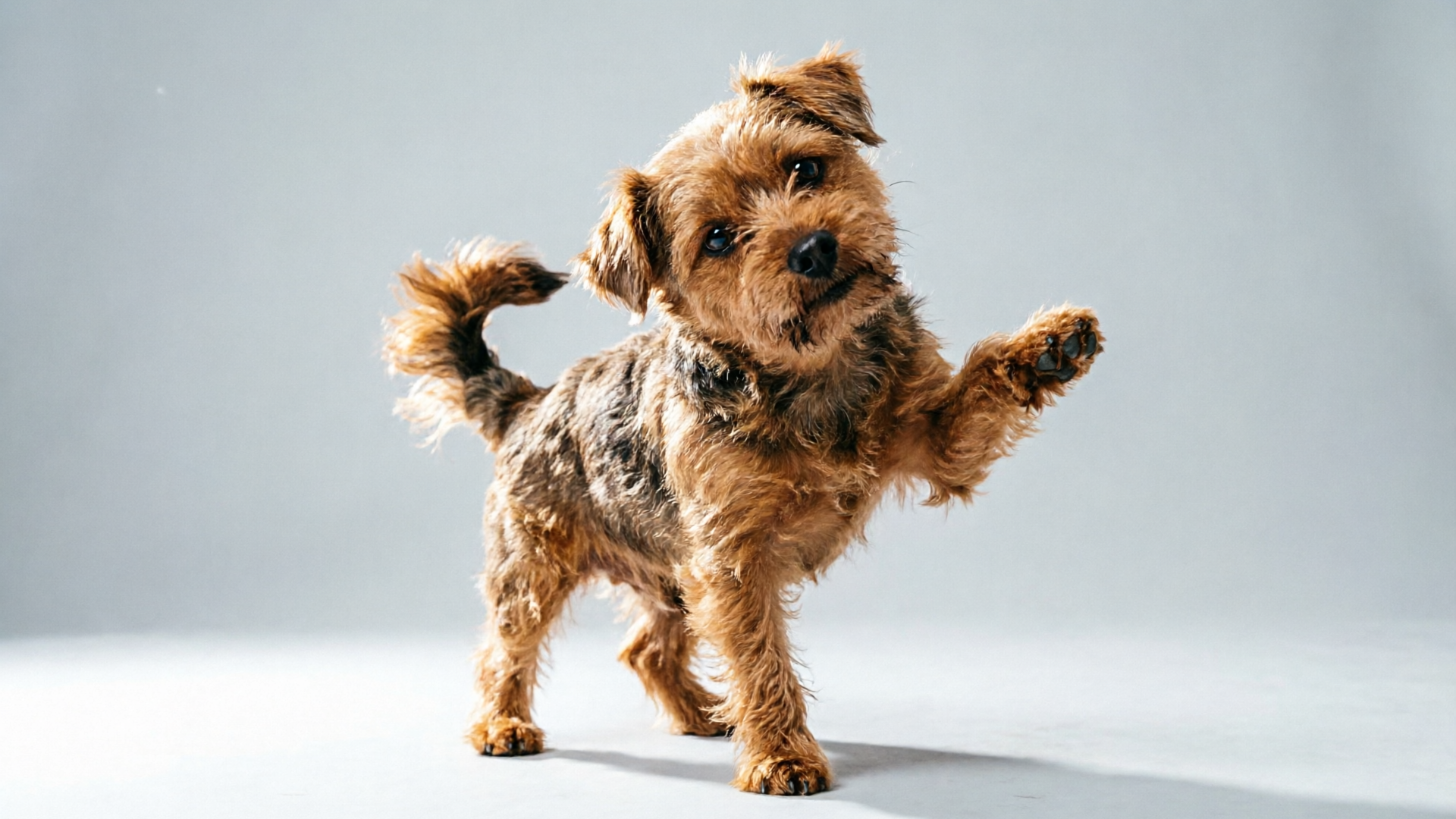
Hands‑on: Turn one pet photo into a 10–20s dance clip (workflow using WowMade AI Video Effects)
This step‑by‑step workflow uses WowMade AI Video Effects to produce a 10–20s pet dance clip from one photo. The goal is speed: a finished vertical clip in minutes.
What you’ll need: a clean high‑resolution head/face photo of the pet, a short royalty‑cleared music loop (6–20s), and the WowMade account with access to AI Video Effects.
Walkthrough (quick):
- Upload the photo: Choose a clear, well‑lit headshot. The algorithm performs best with unobstructed eyes and nose. Crop for a 9:16 preview, but keep the original high resolution.
- Pick a dance preset: Open WowMade AI Video Effects and select the pet/dance template. These presets are tuned for pet proportions and include motion mapping and rhythmic timing.
- Set timing and loop points: Choose a 10–20s length. If your audio is shorter, set the preset to loop subtle movements at the end to match the beat.
- Add music: Upload your cleared audio or generate a royalty‑free loop with the WowMade AI Music Generator if you need a custom groove. Align the main beat to the 3–5s performance cue for maximum viewer retention.
- Tweak motion intensity and framing: The effect exposes sliders for head rotation, paw bounce, and mouth openness. Reduce mouth motion for animals with heavy fur to avoid artifacts. Use the 9:16 output option to ensure platform‑ready framing.
- Render and review: Queue the effect—WowMade renders vertical clips optimized for TikTok/Reels. Preview at full speed. If there are unnatural frames, reduce motion intensity or try a different preset.
- Export and caption: Export an MP4 and prepare a caption that discloses AI animation and includes a hook. Example caption: “AI‑animated! Watch Baxter bust a move—10s of joy. #petdance #aianimated.”
Worked example: I uploaded a 3024×3024 headshot, chose the pet/dance preset, set length to 15s, added a 12s royalty‑free loop generated via WowMade AI Music Generator, reduced mouth motion to 20%, and used a moderate paw bounce. The render completed in under a minute and produced a vertical MP4 that hit the beat at 3s and looped cleanly at 12s.
This workflow delivers repeatable clips for trend chaining: swap the photo, keep the same preset and audio, and you have a fast batch pipeline for seasonal posts.
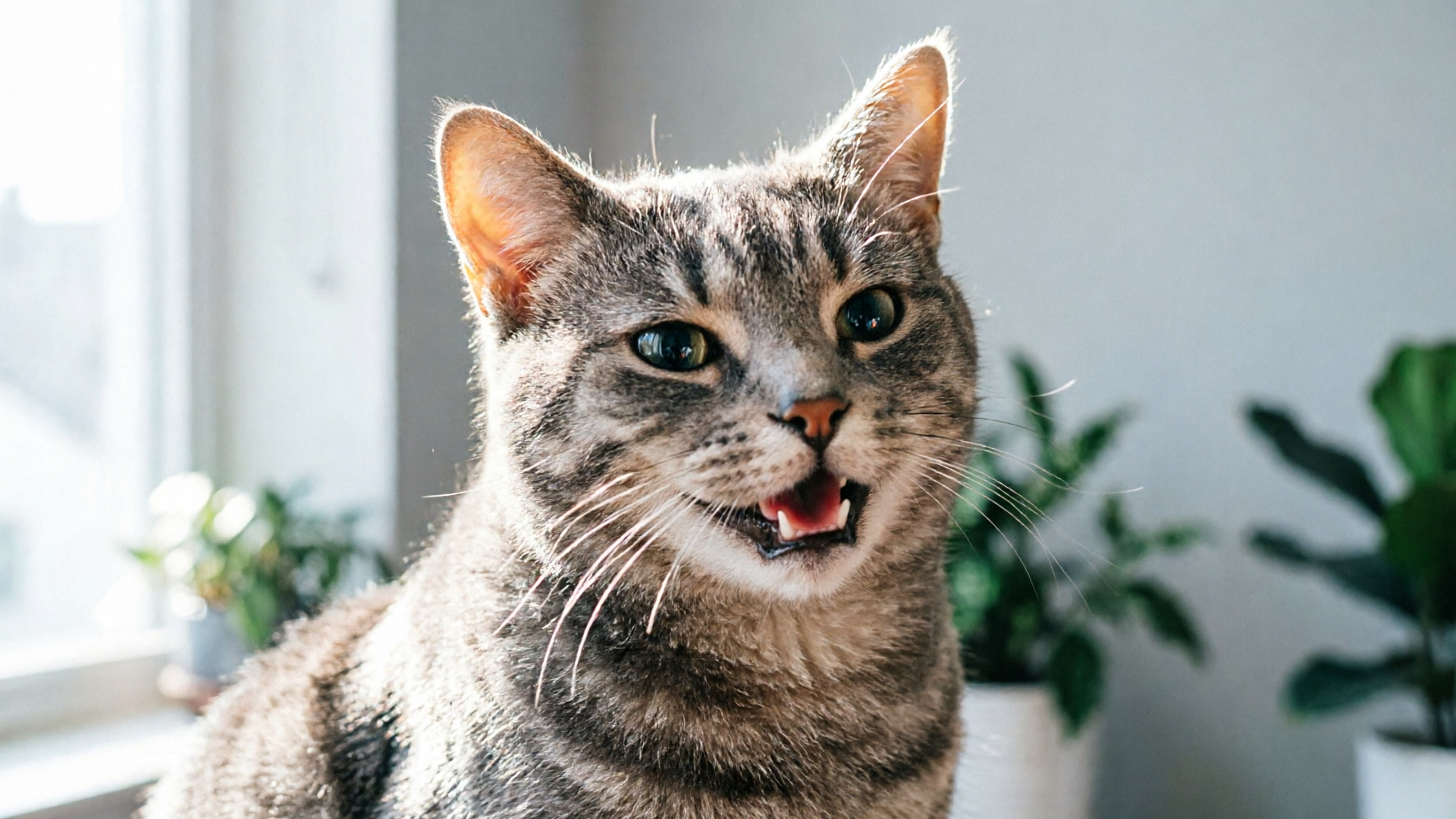
Hands‑on: Make your pet sing or lipsync a song — step‑by‑step for shareable shorts (using WowMade AI Video Effects)
Creating a convincing singing or lipsync short focuses on timing and audio selection. WowMade AI Video Effects provides a dedicated lipsync and AI singing preset to map audio phonemes to mouth shapes and expressive head motion. Follow these steps to make a shareable 10–20s singing clip.
What you’ll need: a high‑resolution pet headshot, a short cleared vocal line or chorus (6–15s), and a chosen lipsync preset within WowMade AI Video Effects.
Stepwise workflow:
- Pick the right audio: Choose a memorable line with a clear start. Choruses or punchlines work best. If you don’t own audio, create a custom short using WowMade AI Music Generator or pick a public‑domain clip.
- Upload photo and audio: In AI Video Effects, select the lipsync preset. The system aligns audio timing and computes phoneme marks to drive mouth and jaw shapes.
- Calibrate mouth openness: For furry pets, reduce extreme openness to limit artifacts. Increase eyelid and blink animation slightly to sell liveliness.
- Add performance gestures: Choose head nods, eyebrow raises, or small paw movements from the preset options. Those micro‑gestures make the lipsync read as intent rather than mechanical mouth movement.
- Set render resolution and output: Choose the 9:16 vertical format and render a draft. Review for alignment—if the mouth movement looks off, nudge the audio offset by 50–150ms and re‑render.
- Label and caption: Disclose AI animation in the text overlay or caption. Use an on‑screen tag for clarity and platform compliance.
Worked example: I used a 10s clean vocal hook, picked the lipsync preset, reduced mouth openness to 30%, added a subtle head bob, and rendered a 12s vertical clip. I included a short caption “AI‑animated singing” and added #petsong. The result had clear mouth timing with believable blinks and a playful head tilt that matched the vocal accent.
Why this matters: refined presets cut iteration time dramatically. Instead of building phoneme maps and keyframes, the tuned preset handles alignment, so creators can focus on audio and captioning.
Creative formats, hooks and monetization ideas for pet creators (templates + repurposing)
Once you can produce a reliable photo→pet video, you can scale content using formats and repurposing strategies that drive both growth and monetization.
Format ideas and hooks:
- Dance trend variant: swap audio to match current TikTok dances and reuse the same pet/dance preset for series continuity.
- Pet news clip: use the news‑anchor preset to have the pet “deliver” topical lines—great for branded updates or product drops.
- Lipsync punchline: pair a 6–10s vocal hook with a comedic caption for higher share potential.
- Reaction loop: create a short expressive loop for stickers or short reactions viewers can duet.
Repurposing templates:
- Cut a 15s vertical into 3×5s loops for stories and ads. The same clip can power a 30s Instagram ad with simple text overlays.
- Create a best‑of compilation: render multiple 10s dances and stitch them into a 60s highlight reel for YouTube Shorts.
Monetization pathways:
- Branded content: use the news‑anchor or ad preset to deliver sponsor messages in a novel way.
- Merch and CTA overlays: drive sales by adding a 2s end card that points to a shop.
- Affiliate or paid shoutouts: offer customized animates for fans (one photo → one clip) as a microservice.
Templates reduce creative friction. If you use WowMade AI Video Effects as your template library, you can produce consistent, on‑brand sequences without rebuilding motion or lipsync every time. Combine that with the AI Music Generator for original audio to avoid licensing friction and scale monetizable content faster.
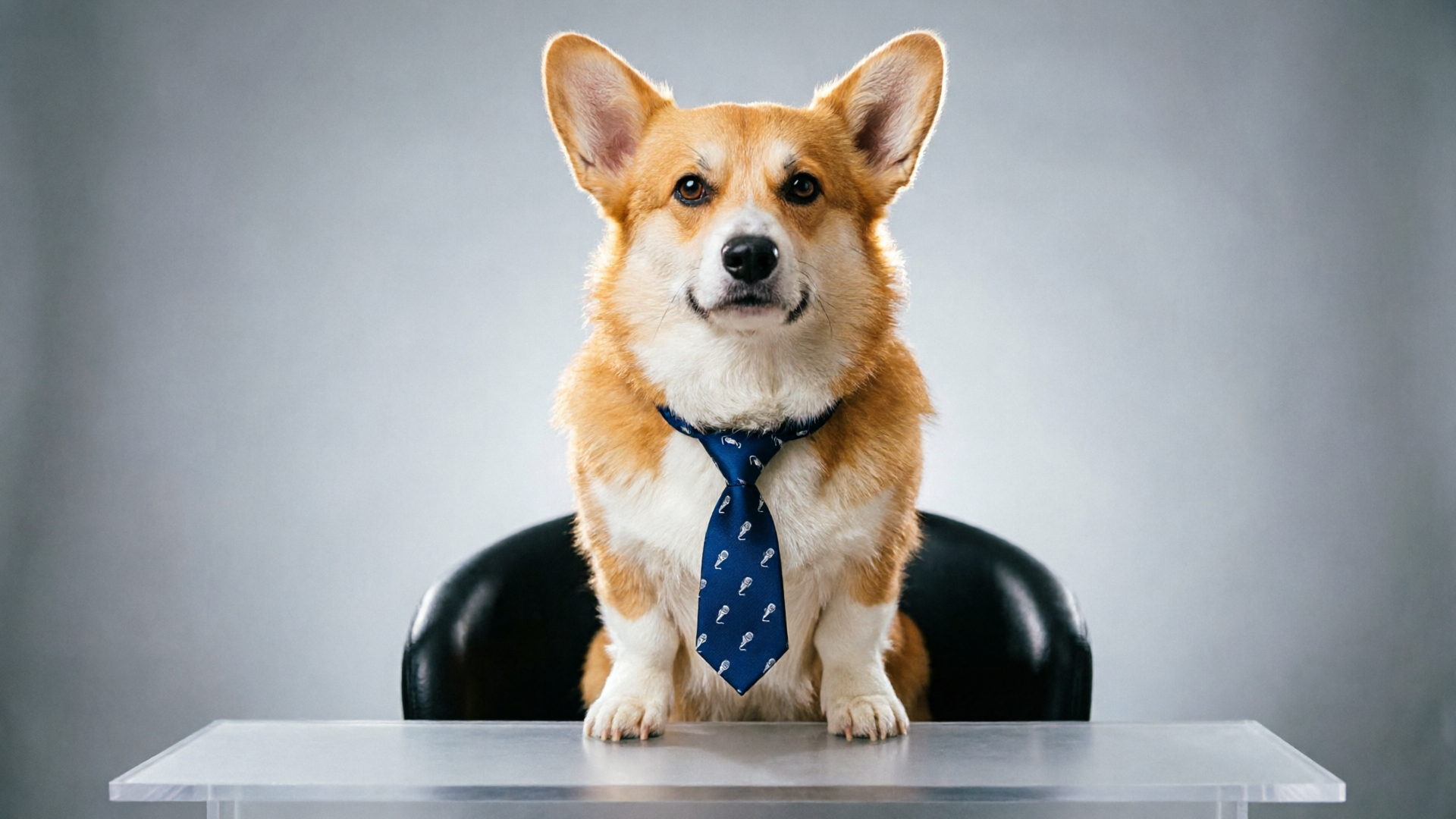
Publishing checklist: formats, captions, safety labels, and A/B testing for better reach
Before you hit publish, run this checklist to maximize reach and keep your account safe.
Format and technical checks:
- Output is 9:16 vertical, H.264 MP4, and under platform file limits.
- Audio levels normalized to -3 dB to prevent loudness penalties.
- Visual safe zones preserved—no important elements within 120 px of the top or bottom.
Caption and metadata:
- Short hook in the first 2–3 words of the caption and 2–5 hashtags that match the trend.
- Disclosure tag: include “AI‑animated” or “AI‑generated” in caption or as an on‑screen badge.
Safety and rights:
- Confirm you own the photo or have explicit permission.
- Use royalty‑cleared or original audio; generate quick music with WowMade AI Music Generator if needed.
A/B testing ideas:
- Test two audio hooks: identical visuals with different beats or vocal lines to see which retains viewers.
- Swap opening frames: try a 0.5s reaction before the main move versus immediate movement.
- Caption length: compare short captions with descriptive captions that add context or a call to action.
Measurement: track 3 metrics—view‑through rate (VTR), saves/duets, and share rate. Use those signals to pick the best performing preset + audio combo and repeat the format. Small iterative wins compound quickly when you can produce clips from one photo using tuned presets.
If you want a quick way to create the music and the video without juggling multiple apps, consider generating both assets inside WowMade: the AI Music Generator for a cleared loop and AI Video Effects for the motion preset. For image editing or background fixes before animation, the AI Image Generator can prepare your headshot cleanly.
For a broader view of the technology and templates in the market, Dancify and similar apps show how mainstream photo→dance demand has become. 03430.
Frequently Asked Questions
What type of pet photo works best for a photo to pet video workflow?
Use a high‑resolution, well‑lit headshot with the pet facing the camera. Avoid heavy obstructions (hands, toys) and crop to a portrait orientation before upload.
Do I need to own the audio I use for a lipsync or song?
Yes—use royalty‑cleared audio, original recordings, or generate a loop with WowMade AI Music Generator to avoid copyright claims.
Should I disclose that the pet video is AI‑generated?
Yes. Platforms and researchers recommend labeling synthetic media. Include “AI‑animated” in the caption or add an on‑screen disclosure to maintain trust and compliance.
Can WowMade AI Video Effects create a news‑style clip from a pet photo?
Yes. The news‑anchor preset maps a pet photo to a presenter‑style performance and is tuned for short, social‑ready clips.
Conclusion
Creating viral pet shorts from a single photo is now a practical, repeatable process: pick a clear headshot, choose a tuned preset, add cleared audio, and publish with transparent labeling. For creators who want speed and consistency, WowMade AI Video Effects delivers that pipeline — one photo in, a finished vertical clip out, with dedicated presets for dance, lipsync, AI singing, and news‑anchor formats. Use the preset sliders to control motion intensity, pair the clip with AI‑generated music when you need cleared audio, and always include a short disclosure in the caption. Browse the AI Video Effects library and ship a viral‑format clip from a single photo today.