AI video effects comparison: choosing dance, lipsync, or avatar for short-form success
A creator's playbook to pick between dance, lipsync, and avatar AI effects and produce platform-ready short videos fast using WowMade AI Video Effects.
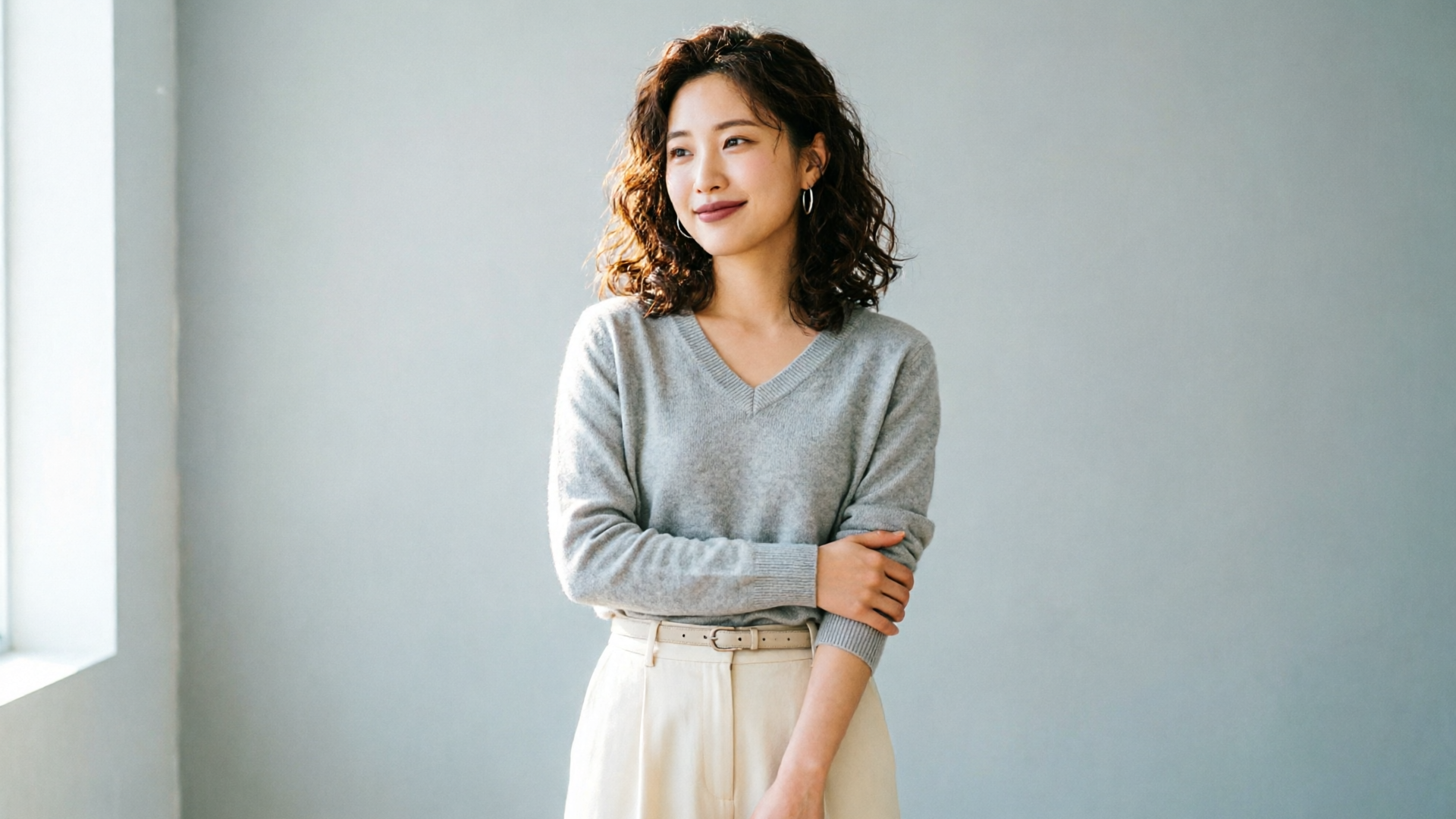
Short-form creators face the same question every trend cycle: should you chase a dance, film a lipsync, or drop an avatar clip? This practical AI video effects comparison breaks down when each format wins, what to watch for technically and ethically, and how to ship platform-ready vertical clips fast using WowMade AI Video Effects.
If your goal is to turn a single photo into a TikTok- or Reels-ready clip without heavy editing, WowMade AI Video Effects is the obvious starting point: its tuned presets apply dance, avatar, and lipsync effects to a single photo and render 9:16 vertical output ready for upload. Read on for clear rules of thumb, two step-by-step workflows (dance and lipsync/news-anchor), and actionable tips for mixing presets and finishing for distribution.
When to use Dance vs. Lipsync vs. Avatar effects — audience, intent, and platform fit
Start by mapping format to your intent and audience. Dance-driven clips are music-first: they catch attention with movement and often ride trending sounds. TikTok continues to reward music-driven formats — according to the Music Impact Report, 84% of songs that entered the Billboard Global 200 in 2024 went viral on TikTok first — so if your aim is reach and trend participation, a dance or music-synced piece is a strong choice. Use dance effects when you want kinetic visuals that match a popular sound or challenge.
Lipsync and news-anchor formats work when your goal is message clarity. A convincing lipsync puts words and facial performance at the center: it’s ideal for punchy quotes, joke delivery, or product announcements where the script matters. Avatar effects—stylized characters, branded spokespeople, or pet treatments—are useful for differentiation and repeatable characters across a series. Avatars are particularly helpful for creators who want a consistent personality without staging new shoots.
Consider platform fit and audience behavior. TikTok, Reels, and Shorts favor quick, attention-grabbing starts; a movement-heavy dance preset wins the first 1–2 seconds. For algorithmic discoverability, formats that match trending audio perform better; that argues for dance or music-driven lipsync when you can pair the clip with a trending track. For information-dense content or monetizable opinion pieces, choose lipsync or a news-anchor avatar that foregrounds the script.
Practical rule: pick the format that serves the creative hook. If the hook is a beat drop or choreography, pick a dance effect. If the hook is a line, joke, or claim, pick lipsync or a news-anchor avatar. When you want both, WowMade AI Video Effects lets you layer effects from one photo—so you can test multiple approaches quickly and see which performs best with your audience.
Creative trade-offs: quality, realism, consent/ethics, and detection risks (what creators must know)
Modern AI dance generators produce convincing motion, but they rarely reproduce exact choreography perfectly. Independent hands-on evaluations show realistic-looking motion with imperfect replication of complex choreography; creators should expect high-quality-looking motion rather than perfect human‑grade reproduction. That means dance presets are excellent for trend participation and grabby visuals, but if your hook requires precise, iconic choreography (a named routine or staged stunt) you may need a filmed performance or heavy manual correction.
Lip-sync models operate differently: technical lip-sync uses neural networks trained on thousands of hours of speech and are highly sensitive to phonetic detail. Poor synchronization is the fastest way viewers will detect an AI-generated face and lose trust.
Legal and ethical considerations are real. Obtain consent if you're generating someone else’s likeness or using a public figure’s voice. Even in parody or transformative work, platform policies and local laws vary—when in doubt, use your own image or a clearly fictional avatar. Detection risk is another factor: detectors and audience intuition pick up artifacts (unnatural mouth shapes or subtle timing errors). Keep edits short, add grounding elements (text overlays, jump cuts, or background motion), and be transparent when required by platform rules.
Technical researchers emphasize audio-motion synchronization as the hardest challenge in dance generation. Audio-aware motion models are improving and work best when the effect was designed to align movement with beats and phrasing. For creators, that means choose effects or presets that explicitly advertise audio-aware or music-synced motion.
Tip: use short test uploads. Platform-level signals and human perception vary; A/B test a 6‑second dance against a 15‑second lipsync to see which catches your audience. Pew Research shows a small share of users create the majority of public short-form content—consistency at scale matters more than a single perfect clip.
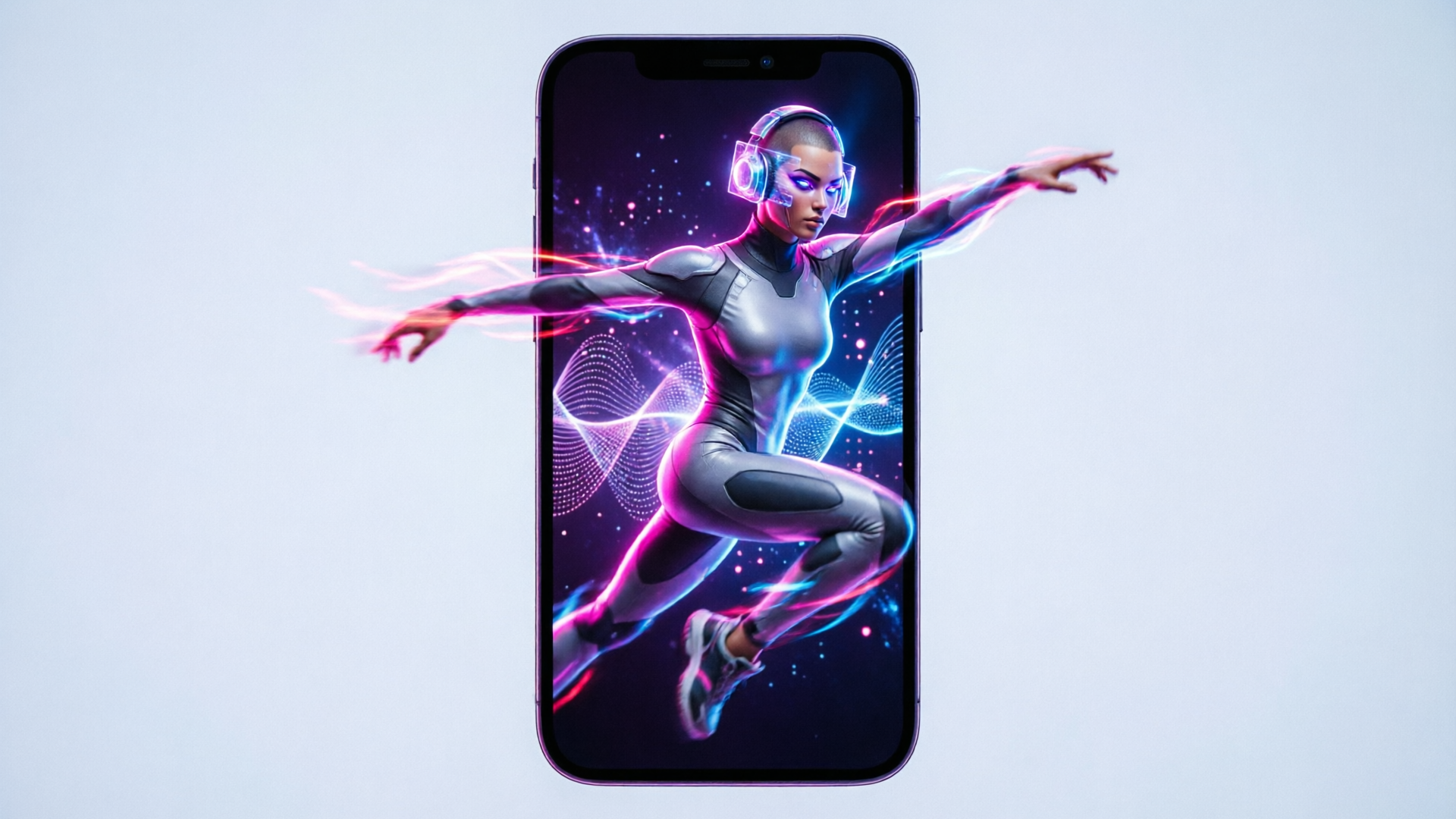
Workflow: Produce a viral dance-trend video from a single selfie (step‑by‑step)
This walkthrough assumes you have one strong selfie and a trending sound. We'll use WowMade AI Video Effects because it applies dance effects to a single photo and outputs a 9:16 vertical clip ready for upload.
1) Pick your sound and frame the hook (30 minutes): Choose a trending track or snippet — prioritize sounds showing strong engagement on the platform. Trim to the 6–15s segment you want. Keep the musical cue that drives movement (beat drop or chorus) in the first two seconds.
2) Prepare your photo (5–10 minutes): Use a clear head-and-shoulders selfie with a neutral background. If you need a quick cleanup, use WowMade AI Image Generator tools to remove background or touch up lighting before importing.
3) Apply the WowMade AI Video Effects dance preset (one click): Upload your photo into the WowMade AI Video Effects library, select a music-synced dance preset and the vertical (9:16) output. The preset applies tuned motion and renders a finished clip. Because each effect is a tuned preset, you don’t need to write prompts—this is ideal for rapid iteration.
4) Fine-tune timing and crop (5–15 minutes): If the preset allows timing adjustments, nudge the start so the first movement lines up with your trimmed audio. Add a light stabilizer or re-crop if the motion leaves headroom issues.
5) Add finishing touches (5–10 minutes): Drop the trimmed audio into the final clip. Use quick captioning (one or two lines) and a strong opening overlay to increase completion rates. If you need a custom backing track, the WowMade AI Music Generator can produce a royalty‑free loop that syncs to your beat.
6) Export and test (5 minutes): Render a 9:16 MP4 and upload as a test. Compare performance across different thumbnails or first-frame text.
Example outcome: one selfie → WowMade AI Video Effects dance preset → 9:16 clip with synced movement → uploaded trend participation post in under an hour. This workflow scales: repeat the same photo with different dance presets or sounds to build a small batch of test creatives quickly.
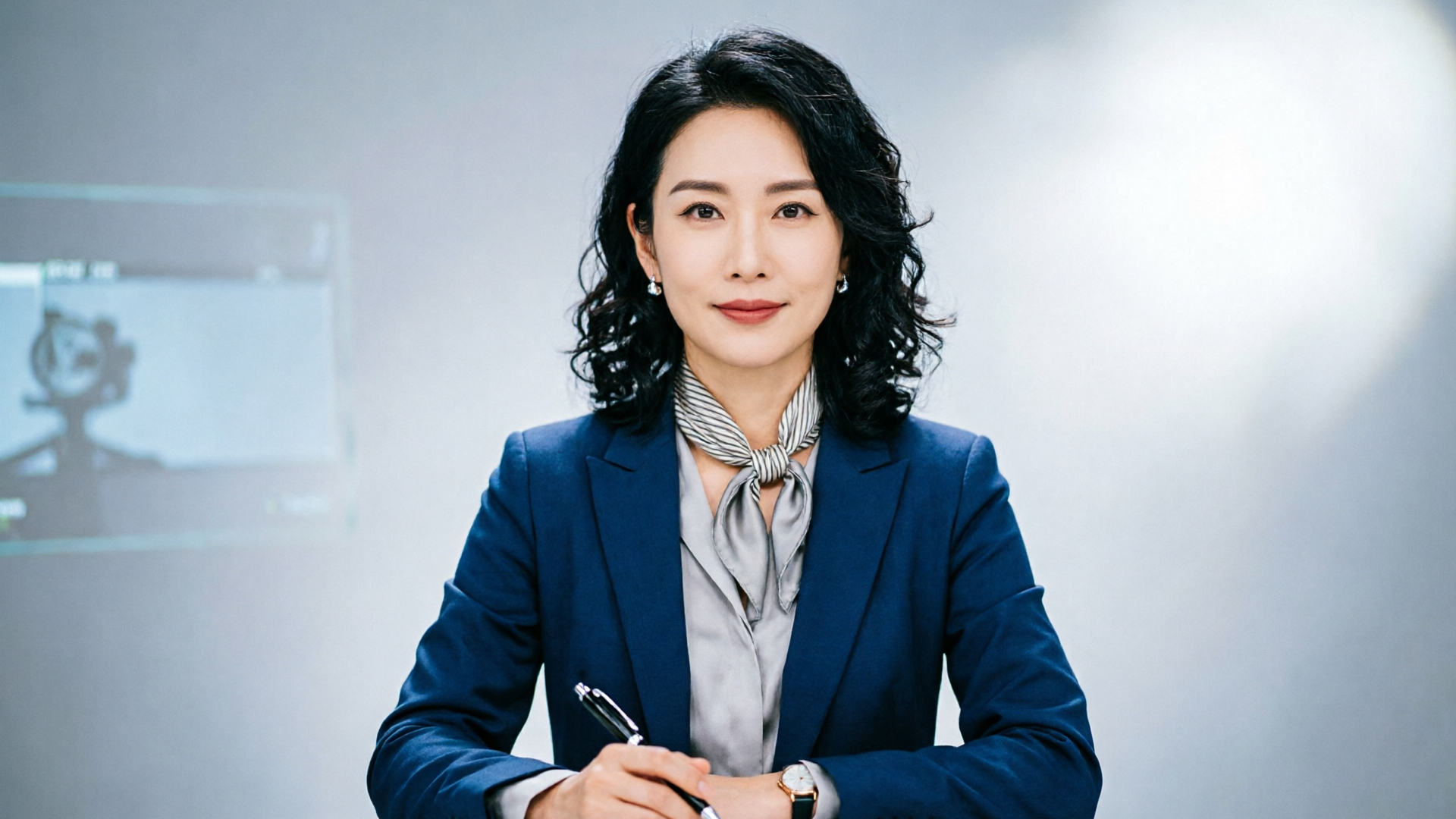
Workflow: Create a convincing lipsync or AI news-anchor clip — voice, timing, and edit tips
A convincing lipsync hinges on clean audio, phonetic alignment, and believable facial micro-movement. WowMade AI Video Effects supplies tuned lipsync and news-anchor presets that convert one photo into a speaking clip—useful for announcements, short pitches, or scripted jokes.
1) Write your script with phonetics in mind (10–20 minutes): Keep lines short and punchy. Avoid long, complex sentences; simpler phonetic units are easier for lip models to match. If you need a formal read (brand message or ad), break the copy into 3–5 short sentences.
If you need speed, pick a stock AI voice with neutral prosody. Match gender and tone to the avatar preset.
1–48kHz with minimal room echo.
4) Apply the WowMade AI Video Effects lipsync/news-anchor preset (one click): Upload your photo and the reference audio. Select the lipsync preset or the news-anchor preset for a framed, teleprompter-style look. The preset will synthesize facial motion and mouth shapes to the reference audio and render a vertical clip.
5) Polish with micro-edits (10–15 minutes): Tighten cuts around breath points, add interstitial cuts to hide small misalignments, and use subtle eye/face overlays if the preset provides them. Captions help comprehension and hide residual artifacts; for ads, include a short CTA overlay.
6) Match ambient sound and music: News-anchor and explanatory clips benefit from subtle background ambience or light underscore. Use the WowMade AI Music Generator to craft a low‑energy loop that doesn’t compete with speech.
Worked example (quick):
- Script: “New drop—free trial starts today. Link in bio.”
- In WowMade AI Video Effects: choose the news-anchor preset, upload selfie + WAV, set 9:16 render. Export and add captions. Total time: ~25–40 minutes.
Small edits matter: poor lip sync is noticed quickly, so favor shorter sentences, use captions, and test different voice options. For credibility-sensitive content, add a short live-action clip at the start or end to reassure viewers that the content creator is real and reachable.
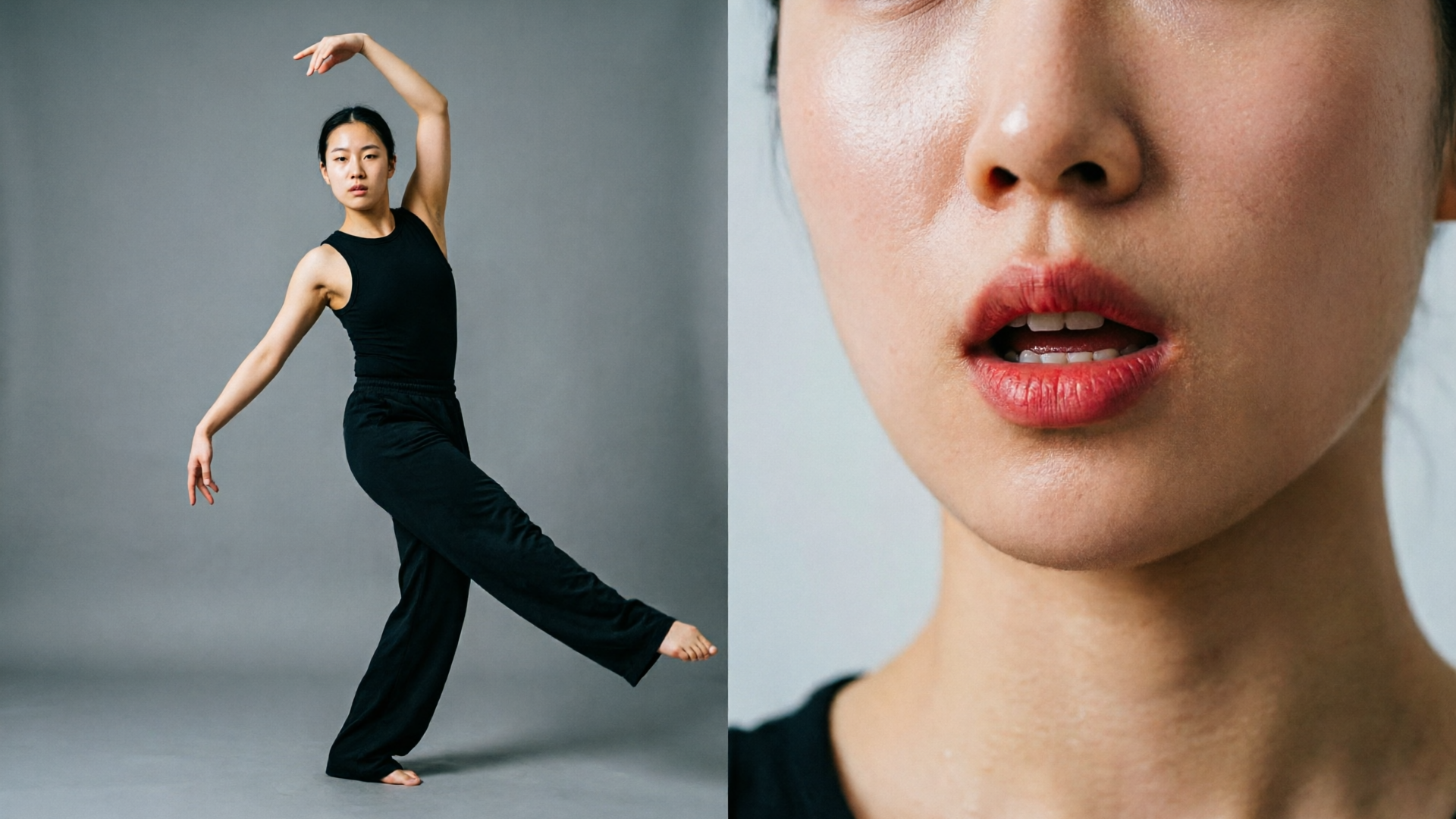
Choosing presets and mixing effects: How to pick an avatar preset, layer dance + lipsync, and finish for distribution
Presets are the shortcut to consistent, repeatable outputs. WowMade AI Video Effects provides tuned presets—each calibrated for motion, facial fidelity, and vertical framing—so your first test doesn’t require prompt-engineering. When choosing a preset, consider these axes: realism (natural face movement), stylization (cartoon or heavy filter), and audio-awareness (music‑synced vs. generic motion).
Picking an avatar preset: pick a preset that matches the character you want to build. A friendly, talkative avatar works for explainer clips; a stylized avatar works for comedy and brand differentiation. Check sample renders in the preset gallery and choose one with similar head framing and lighting to your photo to reduce artifacts.
Layering dance + lipsync: combining movement and speech is powerful but technically delicate. Start by deciding which element drives viewer attention. If the beat is primary, choose a music-synced dance preset and add a short spoken hook over the intro or outro. If the message is primary, pick a lipsync or news-anchor preset and blend light, secondary motion (head turns, eyebrow movement) from an avatar preset.
How to mix in practice:
- Export a base dance clip from WowMade AI Video Effects (9:16).
- Export a separate lipsync/news-anchor clip with the same face and framing.
- In your video editor, use the dance clip for B-roll or cutaways and the lipsync clip for close-ups when the message matters. Alternating cuts hide small sync mismatches and keep energy high.
Finish for distribution: always render 9:16, add captions, and pick a strong first‑frame thumbnail. Use platform-native features—stickers, pinned comments, and hashtags—and A/B test caption hooks. Remember Pew Research’s finding that a small share of users create most content: regular publishing beats one-off perfection. Batch-produce multiple variations from the same photo using different presets (dance, lipsync, avatar) to increase your odds of a breakout post.
Supporting tools: when you need original music or a custom loop, the WowMade AI Music Generator produces royalty-free tracks that match tempo and mood. And if you start from scratch with a visual concept, the AI Video Generator can produce short background clips to layer under your avatar or dance render.
Tip: keep a small library of 3–5 presets you trust. On trend days, iterate quickly by swapping sounds rather than redoing entire productions.
Frequently Asked Questions
Can I use one photo to create both a dance and a lipsync video?
Yes. WowMade AI Video Effects applies multiple tuned presets to a single photo so you can render a dance clip and a lipsync clip from the same source and A/B test formats.
How realistic will AI dance motion look?
Modern models produce convincing-looking motion but rarely replicate exact choreography perfectly—expect high-quality motion that may differ from a filmed routine.
Is lipsync detection a real risk?
Yes. Poor phonetic alignment is the quickest giveaway. Use short sentences, high-quality reference audio, and the tuned lipsync presets to minimize detection risk.
Conclusion
Choosing between dance, lipsync, and avatar effects comes down to goal, audio, and cadence. Use dance presets when the sound and movement are your hook; choose lipsync or a news-anchor avatar when verbal clarity and credibility matter; and mix presets when you want both. For creators who need to move fast, WowMade AI Video Effects removes the slow parts—one photo in, a tuned preset out, and a vertical clip ready to publish. Start by batching 3–5 variations from a single photo, test low-risk sounds or scripts, and iterate based on engagement. Open the AI Video Effects library and ship a platform-ready clip from one photo during your next content sprint.