How to Produce Fast Vertical ‘News’ Clips with AI News Anchors
Practical guide for teams and creators to produce on‑brand vertical news clips and team updates using one‑click AI news anchor effects with WowMade AI Video Effects.

Short, on‑brand vertical news clips are exactly what internal comms teams and creators need when speed and consistency matter. This guide shows how to use an AI news anchor workflow to turn a single photo or short script into a polished 9:16 news promo — and why WowMade AI Video Effects is the one‑click tool that makes it repeatable.
You’ll learn when an AI news anchor outperforms a selfie or live host, a hands‑on anatomy of high‑performing vertical clips, and two step‑by‑step workflows: photo‑to‑anchor and batch team updates. The primary feature in this playbook is WowMade AI Video Effects, which applies news‑anchor presets, generates lip‑synced vertical output, and renders finished clips from one photo in minutes.
Why AI news anchors and one‑click news clips are blowing up for teams and creators
Short vertical clips dominate mobile viewing: multiple industry reports show most mobile short‑form consumption is vertical and smartphone‑centered — publishers and brands are adapting to that behavior. That shift means teams that can launch frequent, branded news promos win attention and retain audiences. One‑click news clip effects — like the news anchor preset inside WowMade AI Video Effects — compress a multi‑step production down to minutes: one photo in, finished vertical clip out.
Equally important, AI avatar and talking‑head tools have matured. Recent blind tests and reviews in 2025–2026 rate top avatar platforms as producing humanlike, lip‑synced results a high percentage of the time. That maturity makes “news‑style” promos viable for both public social channels and internal comms, where clarity and polish matter.
Template libraries and one‑click effects reduce friction. Many platforms now advertise minute‑level creation, batch exports, and multi‑language lip‑synced outputs. For busy comms teams that need daily or weekly updates, these capabilities turn a once‑expensive produce‑and‑edit cycle into a repeatable engine. When speed, consistency, and vertical format are the goals, a tuned preset like WowMade AI Video Effects’ news anchor is a pragmatic choice.
When to choose an AI news anchor vs. a selfie or on‑camera host for team updates
Choosing between an AI news anchor and a live selfie host comes down to consistency, safety, and scale. Use an AI news anchor when you need uniform branding across a series, rapid multi‑language outputs, or frequent short promos where hiring a camera crew would be overkill. The news anchor preset in WowMade AI Video Effects produces consistent framing and vocal timing across episodes, which helps with recognition and template reuse.
On the other hand, choose a real person on camera when authenticity and spontaneous interaction matter — town halls, Q&As, and unedited reactions still favor live hosts. AI anchors are strongest for scripted updates, short promo clips, CEO announcements created from a single photo, and localization where you re‑render the same script across languages.
Practical rule: If your clip is under 60 seconds, scripted, and intended for discoverability (TikTok, Reels, Shorts), try an AI news anchor first. If you need live back‑and‑forth or unscripted emotion, film the host. For hybrid workflows, you can use an AI anchor for the headline promo and a short live clip for deeper context — keeping everything visually consistent by using the same branding elements and music from tools like WowMade AI Music Generator (/create-music).
Related guide: Turn One Photo into a Vertical Dance Reel.
Anatomy of a high‑performing vertical news clip: script, timing, and visual hooks (hands‑on)
A vertical news clip needs a tight script, strong visual hooks in the first 2–3 seconds, and rhythm that matches the platform. Here’s a practical template you can reuse:
- 0–2s: Visual hook — bold headline card, motion zoom on the anchor, or a quick logo sting.
- 2–8s: Hooked statement — the anchor delivers a single, attention‑pulling line.
- 8–25s: Body — 2–3 concise bullets or an explainer with on‑screen text or graphics.
- 25–30s: CTA — internal link, learn more, or meeting reminder.
Write for the ear: clips are consumed with sound on more often than people assume on TikTok and Reels. Keep sentences short and speakable. For cadence, aim for 120–150 words per minute; shorter clips (15–30s) land best for reach. Use caption cards and bold on‑screen text to increase retention and accessibility.
Tip: Use a repeating intro signature — same 1–2 second logo animation — to build series recognition. When you render in WowMade AI Video Effects, you can bake that intro into the template so every clip starts identical.
Visual hooks are small details that lift performance: tight head framing, animated lower‑thirds, and a color grade that matches your brand palette. Because WowMade AI Video Effects renders 9:16 vertical output ready for TikTok and Reels, you can focus on script and CTA while the effect handles framing and lip sync.
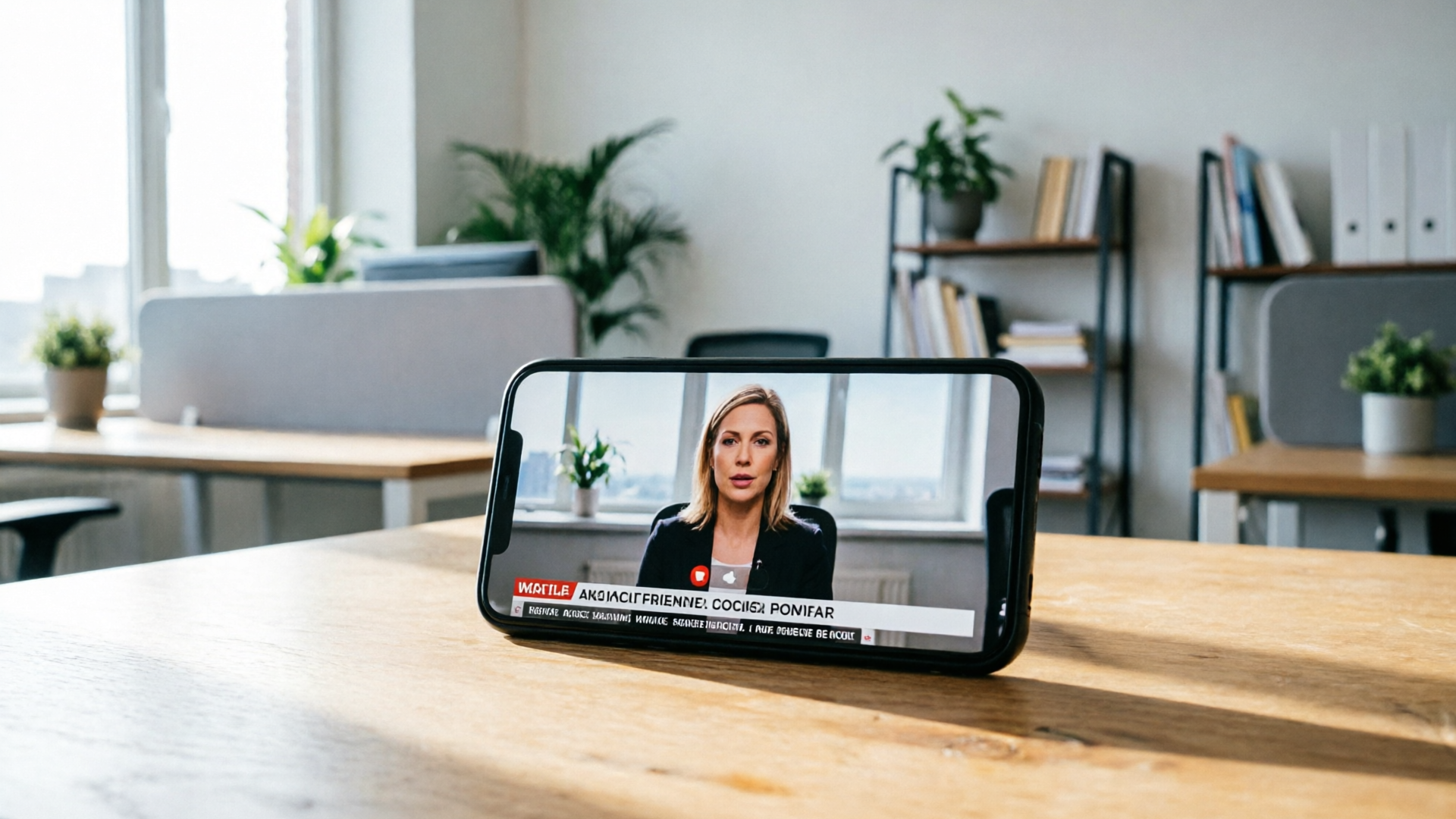
Workflow: Turn a single photo or selfie into a one‑click news video with PlayVideo.AI AI Video Effects (step‑by‑step)
This walkthrough shows a minimal, repeatable photo‑to‑news clip flow using WowMade AI Video Effects.
1) Choose the photo: pick a high‑resolution headshot or a branded presenter image with the subject facing forward. 2) Pick the news anchor effect: open the WowMade AI Video Effects library at /effects and select the "news anchor" preset. 3) Paste your script: write a 15–30s script (30–60 words), focusing on one clear message. The platform supports direct text input for lip‑synced delivery. 4) Select voice: choose an AI voice or upload a short reference. 5) Choose output settings: set 9:16 vertical, add your logo plate, choose a color grade if available, and include captions. 6) Render: queue the effect. With WowMade AI Video Effects each preset is tuned — no prompt engineering — and one photo becomes a rendered vertical clip in minutes.
Example: CEO weekly update
- Photo: CEO headshot
- Script (approx. 25s): "Quick update: we hit Q2 targets three weeks early. This means new hires and expanded budgets for product. More details at the all‑hands Friday — join us at 10am."
- Effect: news anchor preset
- Voice: neutral female stock voice
- Output: 9:16, captions on
Result: a polished, lip‑synced 25s vertical clip ready for Slack, the intranet, and social promos. Because WowMade AI Video Effects applies news‑anchor presets and renders vertical output, the whole chain is a single streamlined experience.
Workflow: Batch team update videos — templates, localization, and consistent branding (scale‑friendly)
When you need a stack of updates — regional teams, multiple leaders, or daily headlines — move from single renders to a batch workflow. Best practices:
- Create a master template: include intro/outro, lower‑third position, and caption style. Save it as your brand template in WowMade AI Video Effects so each render inherits the same look.
- Use variable text inputs: prepare a CSV with recipient/region, script lines, and CTA links. Many platforms support CSV-driven batch exports; WowMade AI Video Effects’ tuned presets are optimized for this pattern so you can queue dozens of anchors at once.
- Localization: re‑render the same script in different languages with localized voice choices and retimed lip sync. Competitive platforms now advertise fast language switching with re‑rendered lip sync; use this to send regional updates without re‑shooting.
- QA step: spot‑check every language and leader variant for timing and correct captions. Maintain a small checklist for brand colors, logo placement, and CTA accuracy.
Batch workflow example: global product rollout
- Master template: 5s logo intro, 20s anchor body, 5s CTA card
- CSV rows: language, localized script, voice selection, thumbnail text
- Queue: upload photo or avatar per leader, choose the news anchor preset, and batch render
This approach reduces production cost per clip and ensures consistent branding. When paired with short A/B tests on length and thumbnail, teams often see better engagement than ad‑hoc shoots.
Safety, authenticity, and disclosure: how to keep AI anchors believable and ethical
AI anchors are powerful, but they introduce clear responsibilities. For internal and external use, adopt simple guardrails:
- Disclosure: label AI‑generated clips with a short on‑screen note ("Generated with AI") and include a line in external captions. Transparency preserves trust.
- Content limits: avoid creating clips that simulate news about sensitive events, elections, or emergency alerts. The risk of misuse increases when AI content mimics official sources.
- Review workflow: enforce an approvals queue before publishing external clips. Keep an internal log of what was rendered and why.
From a production standpoint, realistic lip sync and humanlike avatars increase the need for disclosure, not the opposite. Use the policy and controls your platform provides — and add a short on‑screen disclosure in the template when you render with WowMade AI Video Effects. This balance keeps clips believable without crossing ethical lines.
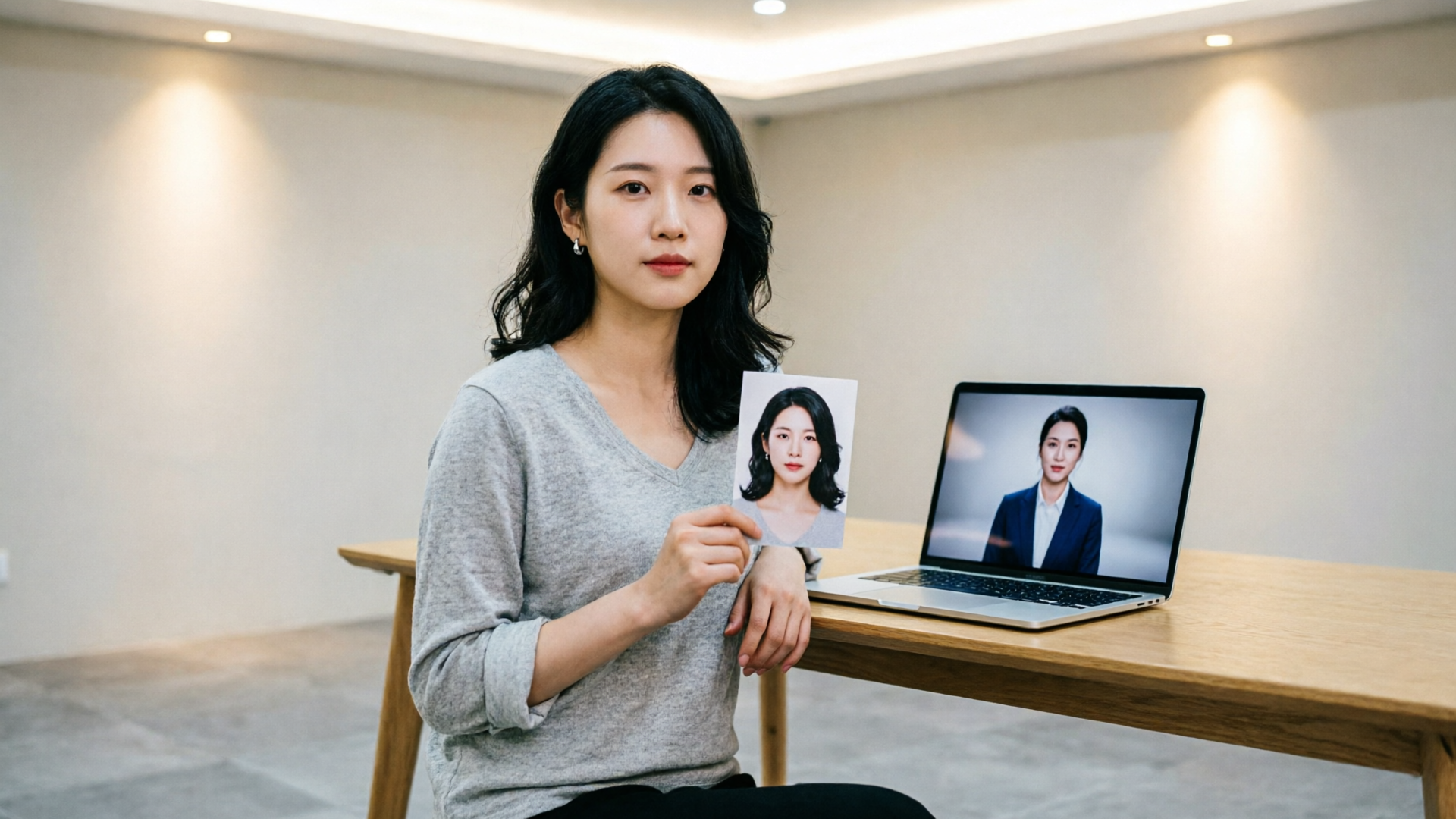
Distribution playbook: sizing, captions, thumbnails and optimization for TikTok / Reels / internal portals
Distribution decisions determine whether your news clip is discovered or ignored. Follow these practical steps:
- Format: always render 9:16 vertical for TikTok, Reels, and Shorts. WowMade AI Video Effects renders platform‑ready verticals so you don’t reformat afterward.
- Length: test 15s vs 30s. Shorter promos often get broader reach; longer clips work when you have a follow‑through CTA.
- Captions: enable burned‑in captions for accessibility and retention. Many viewers watch with sound off initially; captions recover views.
- Thumbnails: use a bold face closeup and short headline. For internal portals, a branded thumbnail with the leader’s name improves click‑through.
- Post timing: align with audience habits — mornings for internal updates, evenings for social promos targeting consumer audiences.
Optimization ideas to test:
- CTA placement: first 3s vs last 3s
- Thumbnail text: question vs declarative headline
- Voice choice: native language vs localized stock voice
For creative variations, pair your anchor clip with a short B‑roll or animated stat card produced via the AI Video Generator (/create-video) or an image from the AI Image Generator (/create-image). These assets can act as supplemental clips to expand distribution and improve retention.
Measure success and run experiments: metrics, A/B ideas, and the next features to try with PlayVideo.AI AI Video Effects
A measurement plan turns one‑off wins into programmatic improvement. Track both reach metrics (views, impressions) and engagement signals (watch‑through rate, shares, internal read receipts). For internal comms, measure meeting RSVPs and intranet click rates as downstream KPIs. Use this experiment roadmap:
- A/B length: 15s vs 30s; measure reach and CTR
- Thumbnail text test: name + headline vs headline only
- Voice test: localized voice vs original language with subtitles
- CTA placement: early vs late
Iterate weekly. Teams that use templates, consistent intros/outros, and short A/B tests tend to reduce cost per view and increase internal engagement metrics over time. As you scale, try adjacent features in the WowMade suite: use AI Music Generator (/create-music) to create short branded stings that differentiate your series, or AI Video Generator (/create-video) for cinematic intro cards and B‑roll.
For longer term roadmaps, explore multi‑anchor formats (roundtable clips from multiple photos) or dynamic data overlays (live stat cards). The key is to keep the experiment small, instrumented, and frequent.
Frequently Asked Questions
Can I use a single photo to create an AI anchor for every language?
Yes — photo‑to‑anchor workflows let you reuse one image and re‑render the same script in multiple languages with lip‑synced voices, making localization efficient.
Do I need special equipment or a production team?
No. One of the strengths of WowMade AI Video Effects is one‑click presets that produce vertical clips from a single photo, removing the need for cameras or editors for short promos.
How should I disclose AI use in external posts?
Include a short on‑screen note like “Generated with AI” and mention it in the post caption. For sensitive topics, avoid simulating official news.
Conclusion
AI news anchors let teams ship polished vertical promos faster and more consistently than traditional shoots. For repeatable series, multi‑language rollouts, or rapid CEO updates from a single photo, WowMade AI Video Effects is built for that exact workflow — one photo, tuned preset, ready 9:16 output. Start with a 15–30s script, save a brand template, run a small A/B test on length and thumbnail, and iterate weekly. Open the AI Video Effects library and ship your first news‑style clip from one photo this week.
Make this with WowMade
Mentioned in
- From Headshot to News Anchor: Ship an AI News Anchor Clip from One PhotoTurn a single headshot into a publishable AI news anchor clip or social update using one‑click effects. Fast workflow, examples, and templates for teams.
- From Illustration to Short: A Creator’s Guide to AI Lipsync Effect and Character ShortsStep-by-step guide to turning single images and illustrations into platform-ready lip‑synced character shorts using WowMade AI Video Effects.