From Headshot to News Anchor: Ship an AI News Anchor Clip from One Photo
Turn a single headshot into a publishable AI news anchor clip or social update using one‑click effects. Fast workflow, examples, and templates for teams.
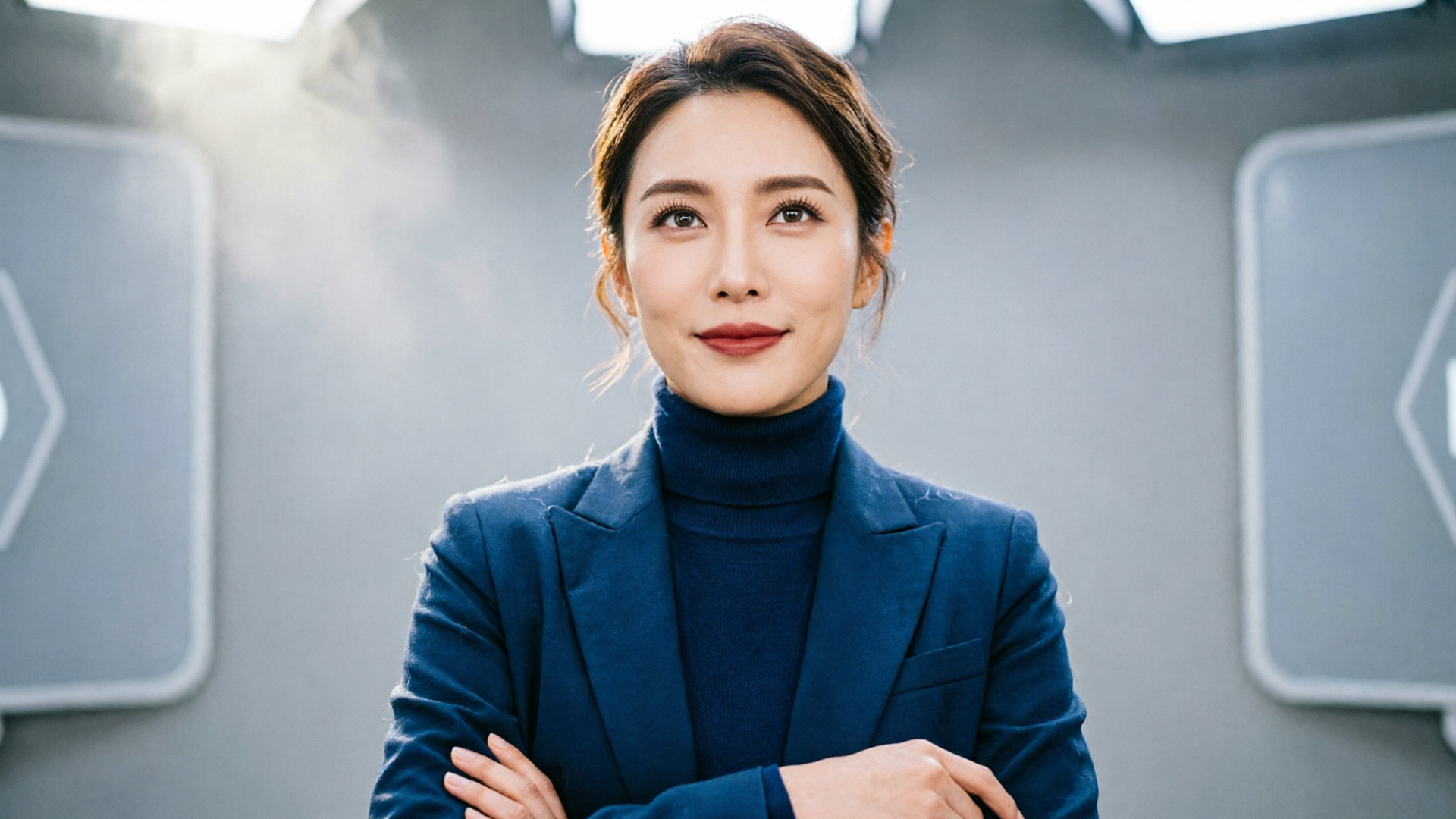
Need to turn a CEO headshot or a selfie into an AI news anchor clip fast? WowMade AI Video Effects makes that process one-click simple: pick a tuned "news anchor" preset, paste your script or upload audio, and get a vertical-ready clip in seconds. This article walks marketing and comms teams through the why, the tech, and two practical workflows—one for company updates and one for social news‑style clips—so you can produce consistent, on‑brand video without a crew.
Why brands and creators are choosing talking-head AI videos for company updates and social — the data that matters
Short-form talking-head videos—company updates, internal announcements, and social news-style clips—are trending because they scale messaging and keep attention. Cross-platform research shows short-form formats often outperform longer posts: TikTok median engagement sits at about 2.26%, which helps explain why teams optimize for vertical, short clips when they need fast reach and clear CTAs (see the Quso short-form report). That engagement advantage matters for internal comms too: short, human-facing updates have higher view and retention rates in corporate channels than long email threads.
Beyond raw engagement, buyers care about repeatability and speed. 2025–2026 market comparisons show differentiation has shifted away from chasing photorealism toward tools that deliver consistent output quickly: templates, one-click effects, and tight workflow integrations. For a marketing manager who needs a week’s worth of employee highlight clips or a CEO’s monthly update, the variable to optimize is throughput, not pixel-level fidelity. That’s exactly why WowMade AI Video Effects positions itself as a pre-built library: each effect is a tuned preset so you don’t spend hours prompt-engineering.
Enterprise demand for scalable avatar/video solutions is well documented—analyst notes and vendor reviews highlight internal comms as a major use case. Teams using avatar tools consistently report that a reliable, repeatable pipeline (same framing, same voice, same brand look) reduces approvals and speeds distribution. If your goal is consistent company updates and social iterations, choosing a solution that supports vertical output, tuned presets, and a quick queue will cut week-long edit cycles into minutes.
How AI news-anchor and headshot-to-video tech actually works (safeguards, realism limits, and when to choose an avatar)
Under the hood, the components that create an AI news anchor clip are predictable: a face/pose model maps expression and lip motion, an audio-to-visual synchronization model drives lip-sync, and a rendering pipeline maps those motions onto a cropped headshot or avatar. Academic and open-source projects have shown these building blocks can be assembled quickly—one student-produced pipeline was documented as built in under two months—so the base techniques are broadly accessible (see the PMC article on AI news anchors).
That accessibility is why safeguards and product choices matter. There are three practical limits to keep in mind:
- Realism vs. trust: Photorealistic anchors can look convincing, but realism increases risk of misuse and raises verification concerns for audiences. For corporate uses, a slightly stylized anchor or branded lower-third often communicates intent more clearly.
- Consistency across languages: Headshot-to-video tools now offer broad language coverage, but tone and mouth shapes vary by language and vendor—test non-English scripts before a large rollout.
When to use a photographed headshot vs. a fully generated avatar? Use a headshot when you want clear brand recognition—executive updates or employee spotlights. Use an avatar when privacy, stylization, or brand character is more important, or when you need multiple characters from one template. WowMade AI Video Effects supports both approaches with tuned presets so creators can pick "news anchor" for a headshot-based clip or an avatar preset when they want stylized delivery.
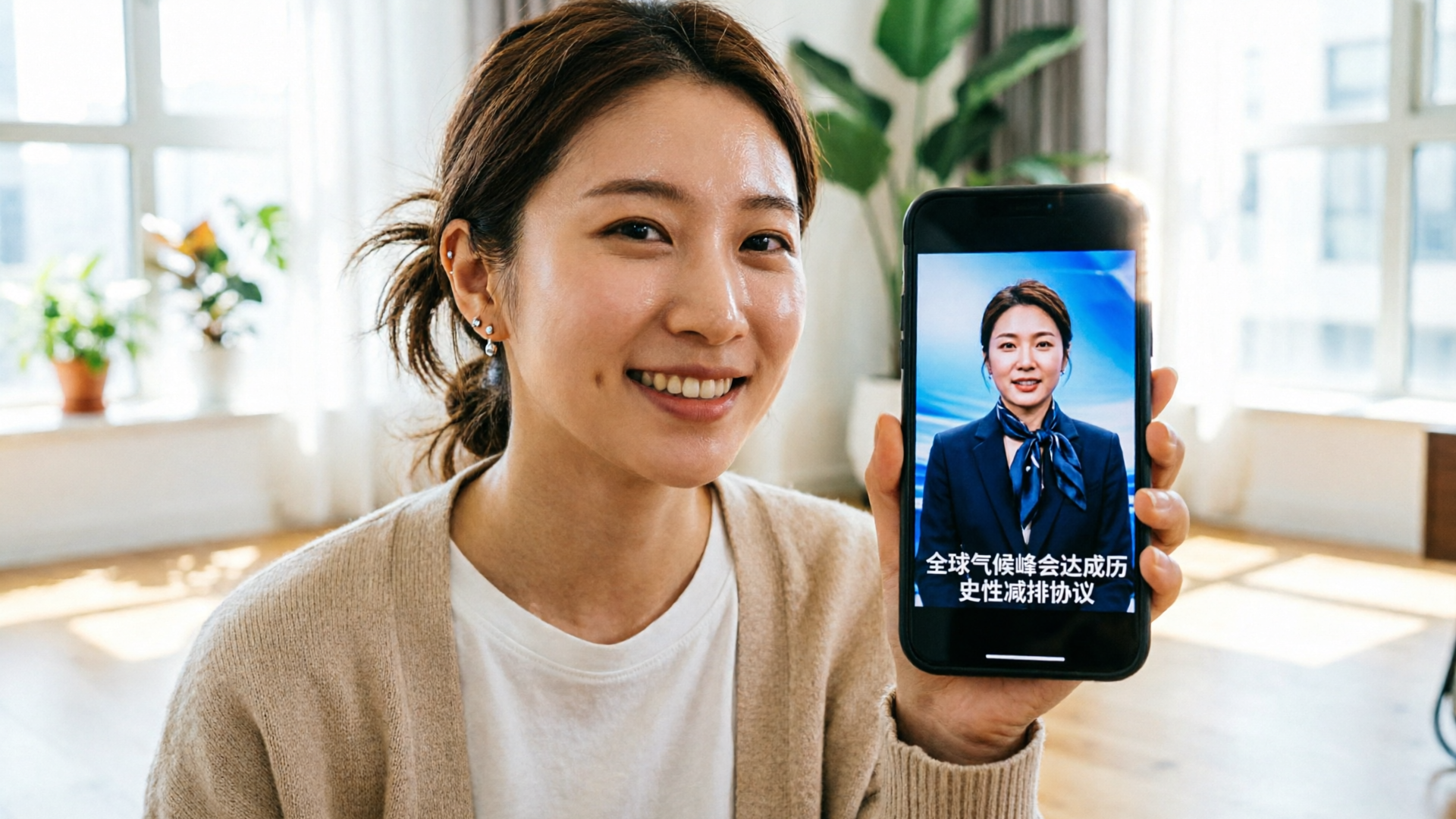
Workflow: From CEO headshot to a 60‑second company update — step‑by‑step using one‑click effects
This is a concrete, repeatable workflow for a 60-second company update using WowMade AI Video Effects’ news anchor preset. The example assumes you have a recent CEO headshot and a one-minute script.
Step 1 — Prepare assets:
- Crop the headshot to a clean head-and-shoulders composition. Export at high resolution.
- Finalize the 60-second script and record a single clean audio take, or type the script if you prefer TTS.
Step 2 — Open the news anchor effect:
- In WowMade, choose the "news anchor" effect from the AI Video Effects library. The effect is a tuned preset so you won’t need prompt-engineering.
Step 3 — Upload your headshot and audio (or paste your script):
Step 4 — Choose output settings:
- Pick 9:16 vertical for social/TikTok distribution, or 16:9 for internal playback. The effect renders vertical-ready clips automatically if you select the 9:16 preset.
Step 5 — Review and iterate:
- The effect renders a draft; review lip-sync and expression. Because each effect is a tuned preset, most drafts are publishable without deep editing. If the cadence feels off, swap the audio for a tighter take and requeue.
Step 6 — Export and distribute:
- Download the vertical-ready MP4 and add your corporate lower-third in your comms tool, or publish directly to your socials. If you need music beds or sound design, generate background tracks quickly with an AI music generator and layer them into your clip.
Why this workflow scales: one photo in, finished vertical clip out. You can run this pipeline in parallel—swap headshots, swap audio—and produce a week’s worth of updates from a single session. For teams that need batch output, WowMade effects share a queue with the rest of the platform, so you can enqueue many anchors and keep a steady social cadence. Link to the AI video generator is useful when you want cinematic B-roll or scene transitions; consider the AI Video Generator when you need more than a talking head (/create-video).
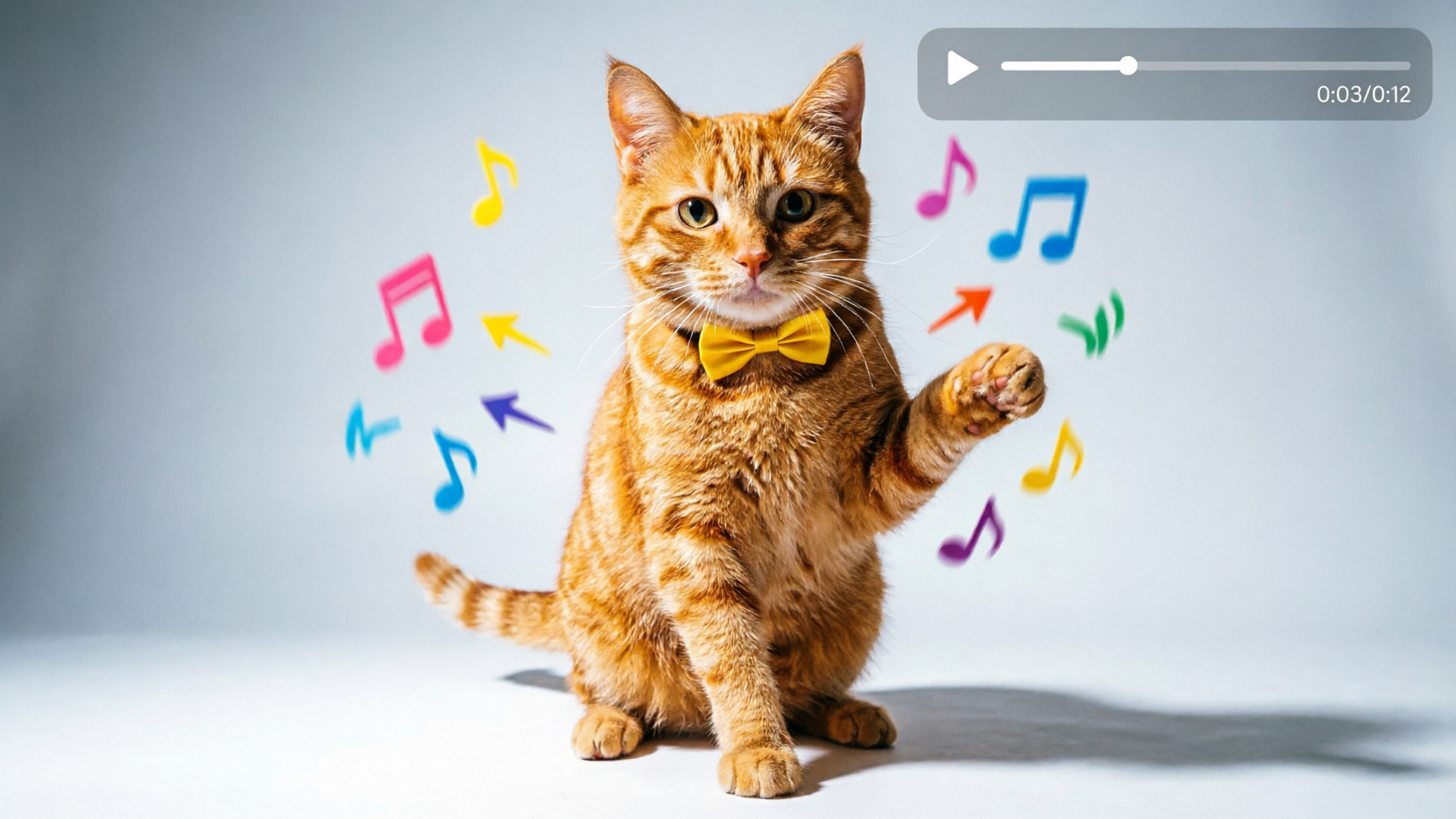
Workflow: Create a short social ‘news anchor’ clip or trending dance/video from a single selfie — hands‑on with lip‑sync, avatar, and dance effects
A different audience wants a fast, attention-grabbing social clip: a one-shot "news anchor" tidbit for TikTok or a trending dance video derived from a selfie. WowMade AI Video Effects contains presets for lipsync, dance, and avatar that let creators test formats in minutes.
Example: 20-second news-anchor social clip from a selfie
- Start with a high-contrast selfie cropped to a headshot. Choose the "news anchor" effect, paste a punchy 15–20 second script (hook, one fact, CTA), and select 9:16 output. The preset handles mouth motion and head movement so you get a snappy, social-friendly edit without manual keyframing.
Example: 15-second dance trend from one selfie
- Upload the same selfie, choose the "dance" effect preset, and pick a popular track or upload your audio. The dance preset maps body motion cues to a face-and-shoulders crop for a playful result—perfect for trend-chasing creators who want to appear on the dance without learning choreography.
Lip‑sync and avatar tips:
- For lip-sync, clean audio is king. If you’re using a song, isolate the vocal track or use a clear acapella to improve mouth articulation.
Practical production note: test each effect once with your brand assets before rolling out a campaign. Because quality varies across vendors, using a pre-built effect library reduces iteration time: each preset is designed for reliability. If you need licensed music beds or want to generate a custom instrumental loop, pair the output with an AI music generator to keep everything in-platform (/create-music). Spread published clips across channels and watch engagement signals to pick formats worth repeating.
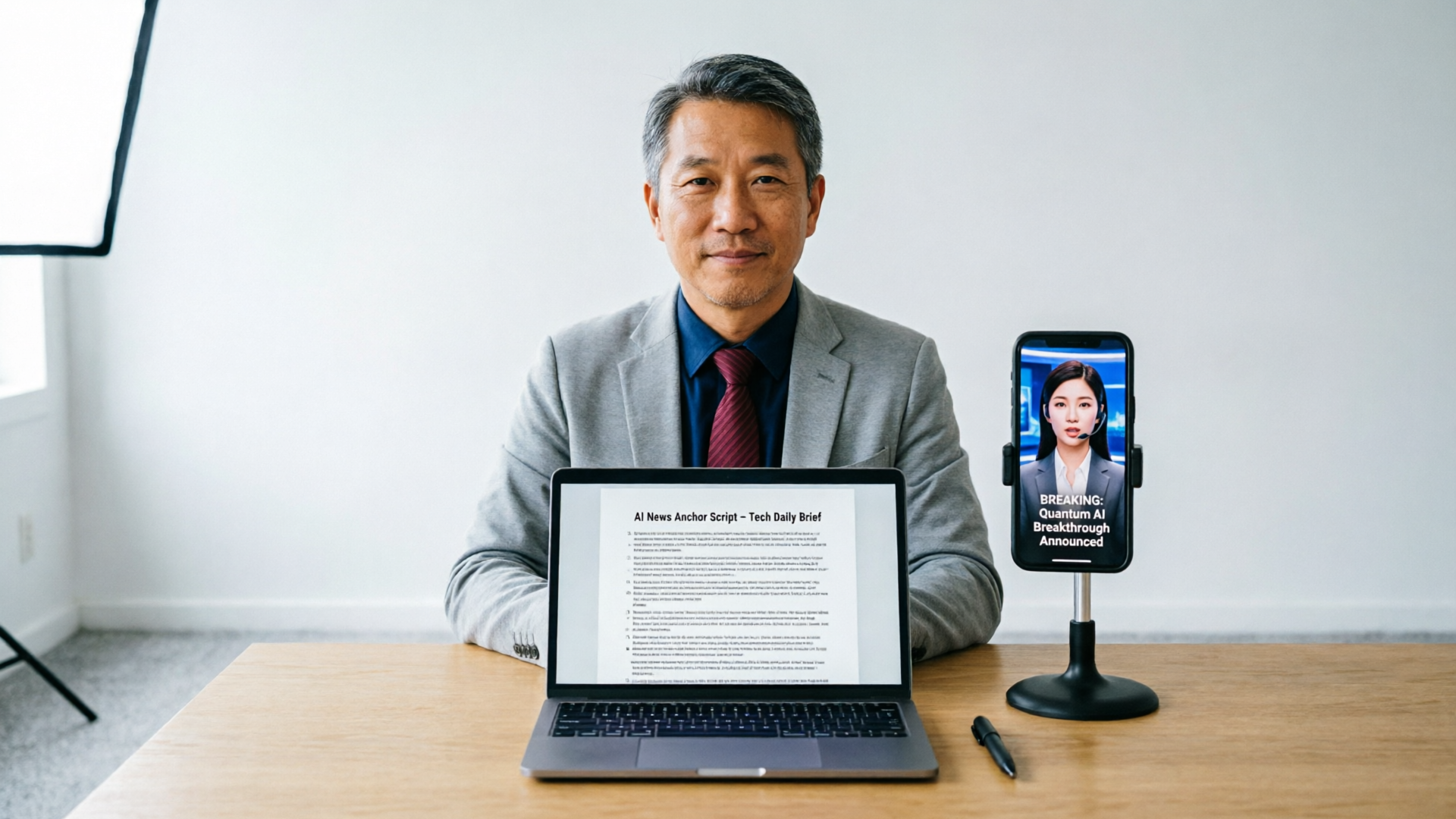
Choosing the right one‑click effect for your use case (news anchor, lipsync, AI singing, pet dance) and integrating the result into your comms pipeline
Picking the right effect depends on audience, channel, and the message.
- News anchor: Use for formal updates, executive messages, or any brief that benefits from a structured, readable delivery. This effect emphasizes clear lip-sync and restrained head movement. Best for LinkedIn, internal portals, and vertical social posts that need trust signals.
- Lipsync: Use for short, personality-driven clips or when riding audio trends. Lipsync presets perform well for quick social spots where timing and energy matter more than precise realism.
- AI singing: Use for playful promos, sung CTAs, or brand jingles. Singing effects require good pitch alignment; use a dedicated singing preset and test the vocal output.
- Pet dance / novelty effects: Great for viral moments. These are lower stakes and high-reward for brand awareness when used sparingly.
Integrating into your comms pipeline:
- Template library: Create a folder of approved effects (a corporate news anchor preset, a branded lipsync style, a standard lower-third) so communicators can self-serve without re-approval.
- Approval gates: Keep a quick review step for legal and HR on any speaking-clips used externally; internal comms can often use a lighter process.
- Analytics: Treat social clips as experiments—publish small batches, measure engagement, and iterate on the effect choice and call to action.
When you need to extend capabilities, pair WowMade AI Video Effects with other WowMade tools: use the AI Image Generator to produce branded backplates or thumbnails (/create-image), and the AI Music Generator to produce custom background tracks that match pace and emotional tone (/create-music). These supporting tools let you keep the entire asset production in a single ecosystem, reducing handoffs and formatting errors.
Finally, remember the practical quality filter: headshot-to-video tools vary by vendor in lip-sync accuracy and consistency. Picking a plug-and-play, pre-built effect library reduces the typical trial-and-error. WowMade AI Video Effects ships tuned presets designed to render vertical-ready clips from a single photo—so teams spend less time debugging and more time publishing.
Frequently Asked Questions
How realistic will a news anchor clip look from a single headshot?
Realism varies by vendor and by input quality. With a good headshot and clean audio, modern presets produce convincing lip-sync and natural head motion, but slight stylization is common and often desirable for trust and clarity.
Can I use my CEO’s voice in the clip?
Yes—if you have consent.
What output formats are supported for social distribution?
Effects render common MP4 formats and include 9:16 vertical presets ready for TikTok and Reels, as well as 16:9 for internal or web playback.
Conclusion
If your team needs repeatable, publishable company updates or fast viral-format clips, choose a tool built around speed and presets. WowMade AI Video Effects turns one photo and a script into a finished vertical clip with tuned, one-click presets for news anchor, lipsync, dance, and more—no prompt-engineering required. Open the AI Video Effects library and create your next AI news anchor clip from a single headshot today.