Turn a Drawing into a Social‑Ready Avatar Intro with One Click
Convert a sketch or character art into a vertical avatar intro using one-click WowMade AI Video Effects — lipsync, dance, and singing presets for fast social clips.
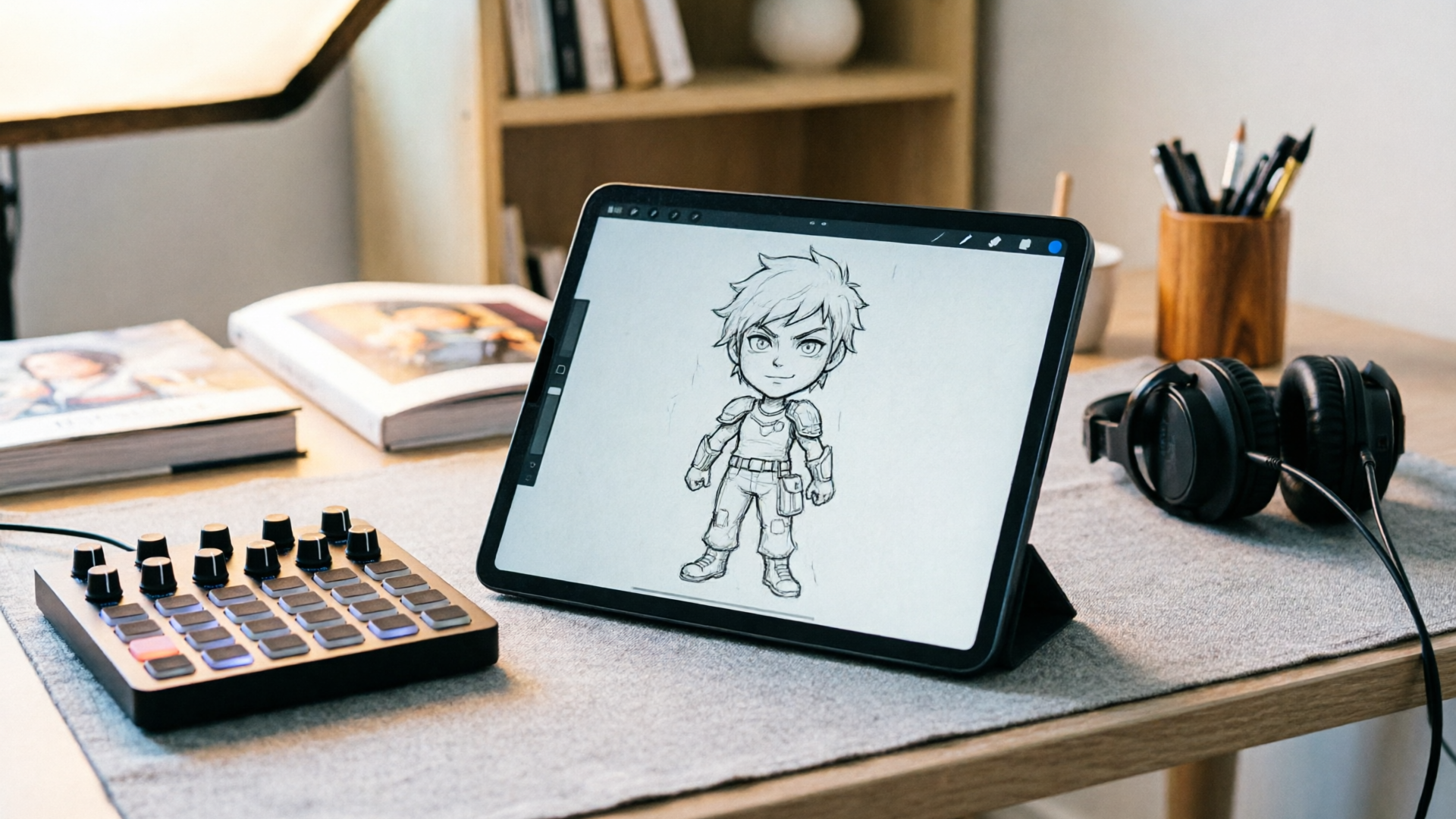
If you want to turn a single drawing or character image into a polished 9:16 avatar intro fast, the easiest route is an image-to-effect pipeline that skips manual rigging. WowMade AI Video Effects provides one-click avatar, lipsync, dance and AI singing presets that turn a photo or sketch into a finished social clip in minutes. This article walks creators through practical workflows for turning art into trend-ready intros using an AI avatar generator from drawing.
Why single-image-to-avatar workflows are the fastest way to scale character intros
Creators and small teams need repeatable, low-friction ways to ship content. Starting with a single image—whether a polished illustration, a character sketch, or a scanned inked drawing—lets you avoid complex 3D modelling or frame-by-frame animation. Instead you feed one visual into a tuned preset and get a social-ready clip: the core benefit WowMade AI Video Effects promises with its one-photo-in, finished vertical-clip-out flow.
There are three practical advantages to this approach:
- Speed: you can produce dozens of intros from one character in the time it takes to rig a single puppet. One-click avatar and lipsync presets remove manual rigging so creators can iterate rapidly.
- Consistency: presets enforce a consistent motion language and framing across variants, which helps when you need a set of brand-aligned openings for ads or series. This is essential for A/B testing thumbnails and the opening seconds of shorts.
- Lower skill floor: illustrators and indie studios can keep their creative focus on art and voice, not technical animation. Tools that accept a single image let you turn existing assets into dynamic content without hiring a motion team.
These benefits explain why marketers and trend-chasing creators are adopting single-image workflows to scale short-form character intros efficiently.
How the tech works: from sketch or illustration to an animatable avatar (what creators need to know)
The recent wave of image-guided video research makes single-image avatars possible. Systems such as VidSketch, MVP4D, and FaceCraft4D demonstrate how diffusion and neural rendering can extrapolate motion and facial articulation from a single view—while the industry continues to refine view consistency and expression transfer limitations. In practice, product teams bundle those models into tuned presets that compensate for technical gaps: constrained motion ranges, stabilized framing, and stylized expressions tailored to a single art style.
For creators, the technical takeaways are simple and actionable:
- Input quality matters: a clean, high-resolution scan or PNG with a neutral pose gives the best result. Clear facial features and separated subject/background help the system isolate the character.
- Expect tuned motion: preset animations (dance, lipsync, news anchor) are designed to work across many art styles by restricting extreme 3D rotations that single-image methods struggle to infer reliably.
- Use fallback edits: small manual edits—tightening the crop, cleaning stray pixels, or adding a simple alpha channel—improve consistency.
In real terms, WowMade AI Video Effects takes care of those engineering details for you: the presets are built to accept a single photo or drawing and output a 9:16 clip with stabilized framing and motion, removing the need for creators to rebuild the research pipeline themselves. For deeper context on the academic progress, see MVP4D and related work for how single-image methods evolved: https://doi.org/10.1145/3757377.3763889.
Related guide: Turn One Photo into a Vertical Dance Reel.
Hands-on: Turning a drawing into a 9:16 avatar intro — step‑by‑step workflow (upload, refine, apply preset)
Here’s a practical, repeatable 5-step workflow to convert a sketch into a vertical avatar intro using a one-click effects library.
- Prepare your image
- Scan or export your drawing at a high resolution (at least 1080 px on the short edge). Remove stray marks and save as PNG if you need transparency.
- Upload to the image stage
- Use an image tool to do small cleanup if needed. If you want to alter color or pose slightly, the WowMade AI Image Generator can create variations before animation. (See the internal link below for quick image edits.)
- Pick a preset in WowMade AI Video Effects
- Choose an effect designed for character intros: Avatar, Lipsync, AI Singing, or News Anchor. Each preset is tuned so you don’t need prompt engineering—select the motion and output as 9:16 vertical.
- Configure audio and timing
- Add a short script for a news-anchor or a lyric clip for singing. For non-speech intros, choose a dance or motion preset and add a 3–10 second music loop.
- Render and review
- Render a low‑quality proof, check lip alignment (if applicable), framing, and background treatment, then render the final 9:16 clip.
Mini worked example (quick walkthrough):
- Start: A scanned character sketch, 2000 × 3000 px, white background.
- Step A: Upload the PNG to the editor and crop to a head-and-shoulders 9:16 area.
- Step B: Open the AI Video Effects library, choose the “Avatar — News Anchor” preset, paste a 6‑second script (“Welcome to Kiko’s Tips”), and select 9:16 output.
- Step C: Add a short jingle from the AI Music Generator as background, preview, then render.
This pipeline—from image edit to effect preset to final render—is how illustrators can produce polished intros without frame-by-frame animation.
Hands-on: Making your character talk or sing — lipsync and AI singing workflow with example prompts
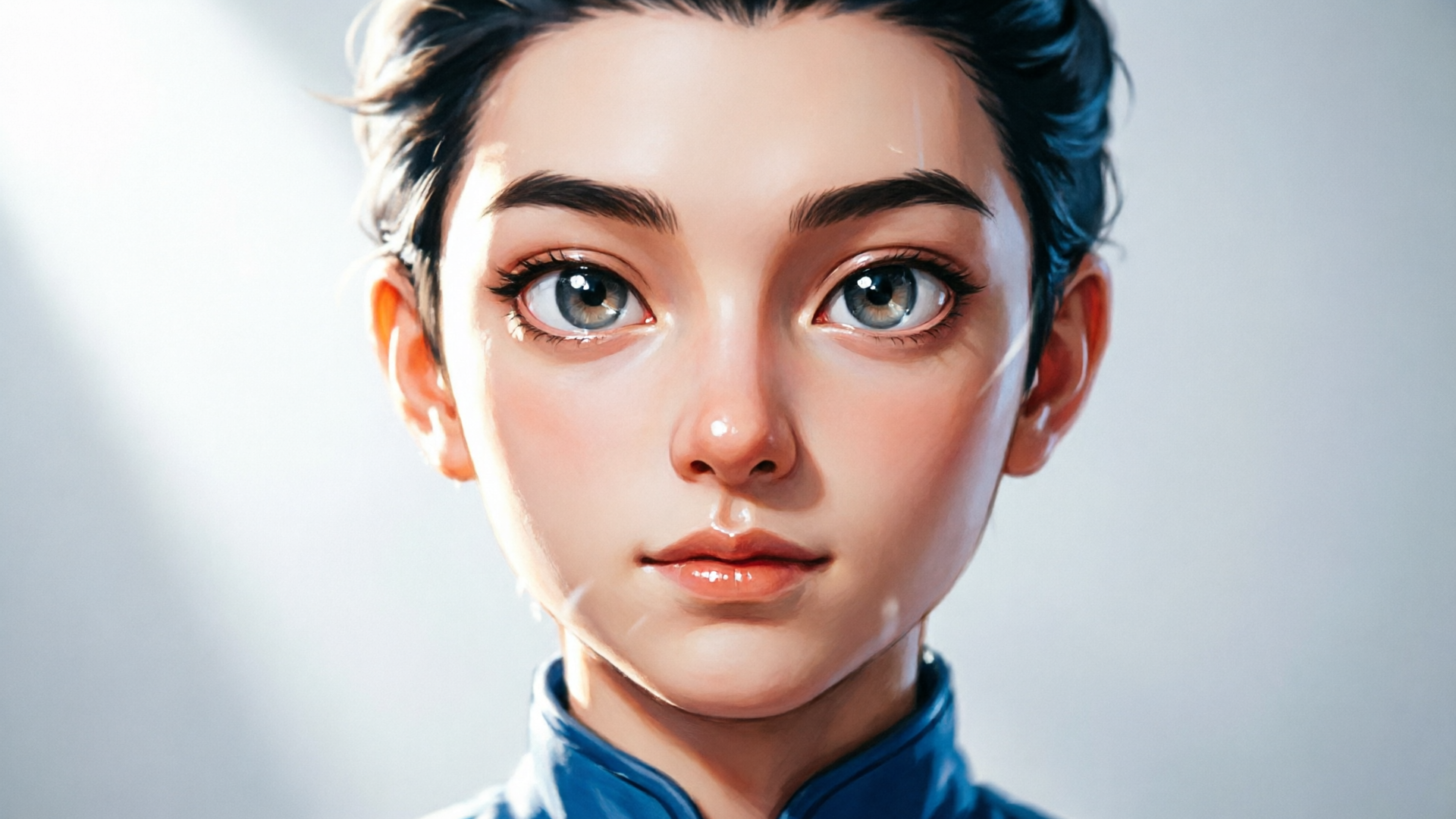
Lipsync and AI singing are often the most attention-grabbing avatar intros. The core trick: pair a tuned lipsync or singing preset with a clean script or lyric, and let the system map mouth shapes to the audio. WowMade AI Video Effects includes one-click lipsync and AI singing effects that convert a single photo into a talking or singing clip.
Workflow for lipsync and singing:
- Choose the lipsync preset: select a matching preset (casual talk, dramatic narration, singing) that controls mouth articulation intensity.
- Timing and pauses: enter the exact script with punctuation; brief pauses can be added using commas or parenthetical markers accepted by the editor.
Example prompts and setup:
- Singing clip (10s): Create a hook in AI Music Generator: "upbeat 10s jingle, xylophone lead, tight kick". Open AI Video Effects, select AI Singing preset, upload the jingle and optional lead vocal line, preview and tweak mouth intensity.
- In AI Video Effects, pick the Lipsync preset and upload the voice file or paste generated TTS output.
- Tweak lip intensity slider, set 9:16 framing, and render a proof.
Because the presets are tuned rather than fully general-purpose models, you don’t need to craft phoneme-level mappings—WowMade handles that mapping inside the tuned effect.
Styling tips: matching art style, framing, and sound to platform trends
A successful avatar intro is as much about styling as technical animation. Match the visual and audio choices to the platform and audience.
Visual tips:
- Preserve the art style: if the drawing has a distinct line weight or color palette, avoid aggressive filters that flatten the look. Use subtle background blurs or gradient plates to keep the character visually dominant.
- Framing: aim for a tight head-and-shoulders crop for TikTok/Reels thumbnails; let the preset keep consistent eye lines so the character reads as ‘‘looking at camera’’. Consider a small safe-area margin so captions won’t crowd the face.
- Motion intensity: dance presets work well for playful character brands, while a subdued news-anchor preset fits explanatory content.
Audio tips:
- Short music hooks: generate 6–12 second jingles with the AI Music Generator to pair cleanly with the intro. Keep stems short and punchy for the first 1–3 seconds—those opening beats determine whether viewers keep watching.
Platform alignment: match pacing to the platform—faster cuts and higher motion for TikTok; slightly slower intros for YouTube Shorts when the content is explanatory. Remember research that shows viewers sometimes prefer real people in certain contexts (TechSmith found many prefer real presenters), so choose avatars when a stylized or branded character is the better match for the message.
Production scale: batching multiple character intros (variants, A/B tests, and reusable presets)
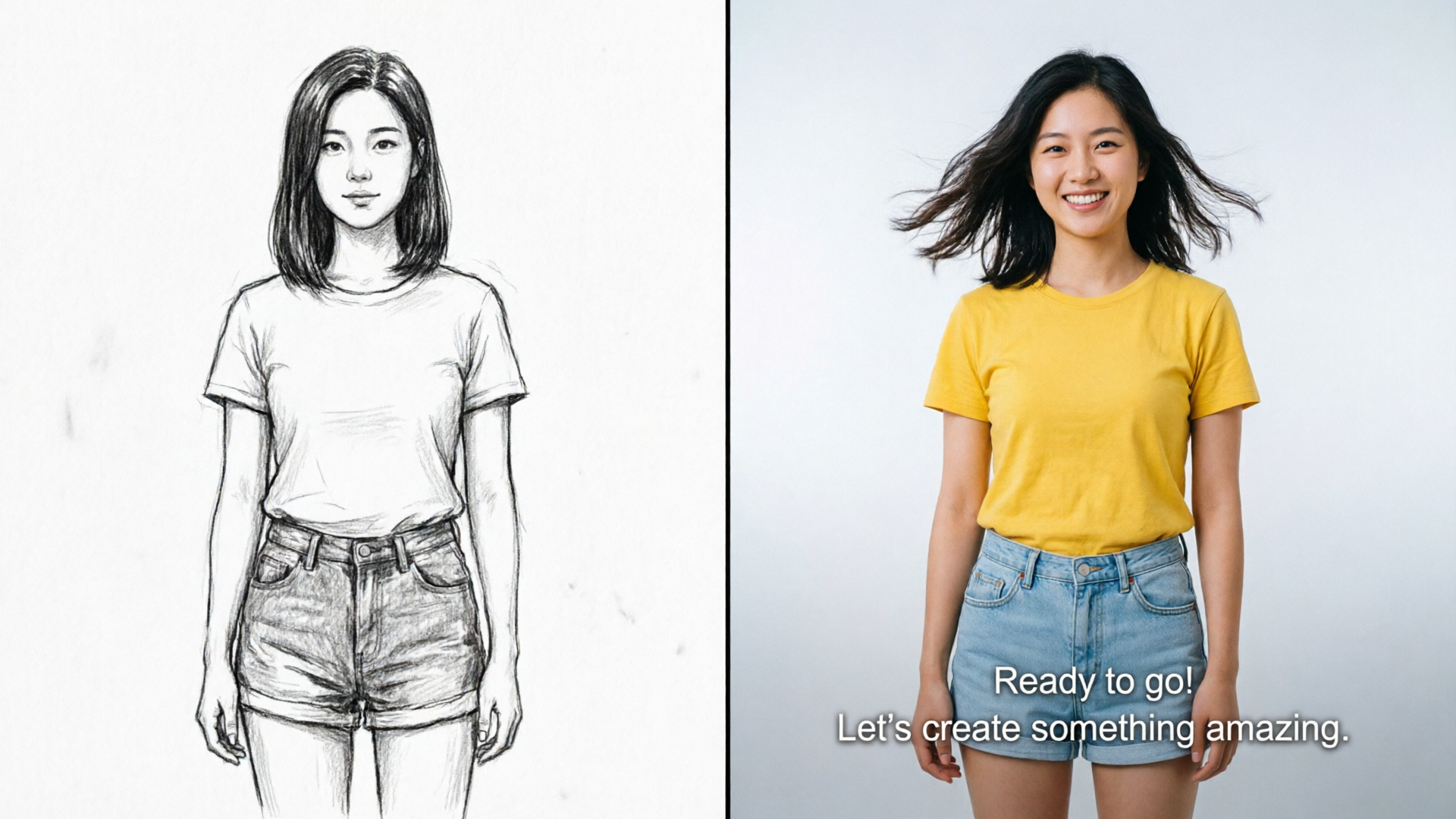
Once your pipeline is dialed in, batching is where the real efficiency appears. The recommended chain—image → effect preset → music/lipsync → 9:16 export—is designed for rapid variant generation. Here’s how to scale without losing creative control.
- Create base assets
- Start with a single high-quality image per character. Create 3–5 minor variations in the image stage (color swaps, alternate expressions using the AI Image Generator) to combat repetition.
- Build reusable presets
- Save favored parameter sets: lip intensity, motion intensity, and background plate selections. WowMade AI Video Effects presets are tuned but allow parameter tweaks that you can re‑apply across characters.
- Batch render strategy (example numbered steps):
- 1) For each character image, pick 3 effect presets (e.g., Dance, Lipsync, News Anchor).
- 2) For each effect, generate 2 audio variants (vocal A, instrumental B).
- 3) Queue renders and export a spreadsheet of filenames, captions, and target platforms.
- A/B testing
Best practices and disclosure: ethical, legal, and accessibility checks before publishing
Using avatars responsibly protects your brand and your audience. Follow these practical checks before you publish:
- Copyright clearance: verify that any artwork you animate is either owned by you, licensed for your use, or in the public domain. Don’t upload third-party copyrighted art without permission.
- Avoid misleading representations: don’t present an AI avatar as a real spokesperson if the goal is deceptive persuasion. Where necessary, include a short on-screen note or caption that marks the content as AI-assisted.
- Accessibility: add accurate captions and ensure contrast between the character and background so automated captioning and subtitle overlays remain legible. Short-form platforms emphasize caption-first viewing—make sure your first 1–3 seconds communicate the hook visually and with captions.
These checks are simple to fold into your pre-publish checklist and are consistent with product guidance from creative platforms. Ethical use reduces risk and builds audience trust while still letting you benefit from fast avatar workflows.
Frequently Asked Questions
Can I turn a black-and-white sketch into a colored avatar intro?
Yes. Start with a high-resolution scan, optionally use an image generator to colorize or refine the sketch, then apply an avatar or lipsync preset in AI Video Effects to render a 9:16 clip.
Do I need to rig the drawing before using a lipsync effect?
No. One-click lipsync and avatar presets are tuned to map mouth shapes from audio without manual rigging—though small cleanup and a neutral pose improve results.
Is it OK to imitate a celebrity or public figure with an avatar?
No. Avoid impersonation. If your avatar references a real person, get explicit permission and disclose synthetic content to comply with platform rules and ethical guidance.
How do I keep a consistent brand voice across multiple avatar videos?
Conclusion
Turning drawings and character art into short, platform-ready avatar intros is a practical workflow that scales: prepare a clean image, pick a tuned preset, add a short vocal or music hook, and render a vertical clip. For creators who want to skip rigging and ship trend-ready shorts fast, WowMade AI Video Effects provides the one-click avatar, lipsync, and AI singing presets you need. Open the AI Video Effects library and ship your first clip from a single photo today.