Animate Drawing Lipsync: Turn a Sketch into a Shareable Character Short
Step-by-step guide for indie creators to animate drawing lipsync using one‑click WowMade AI Video Effects. Prep art, pair voice, and ship vertical clips fast.
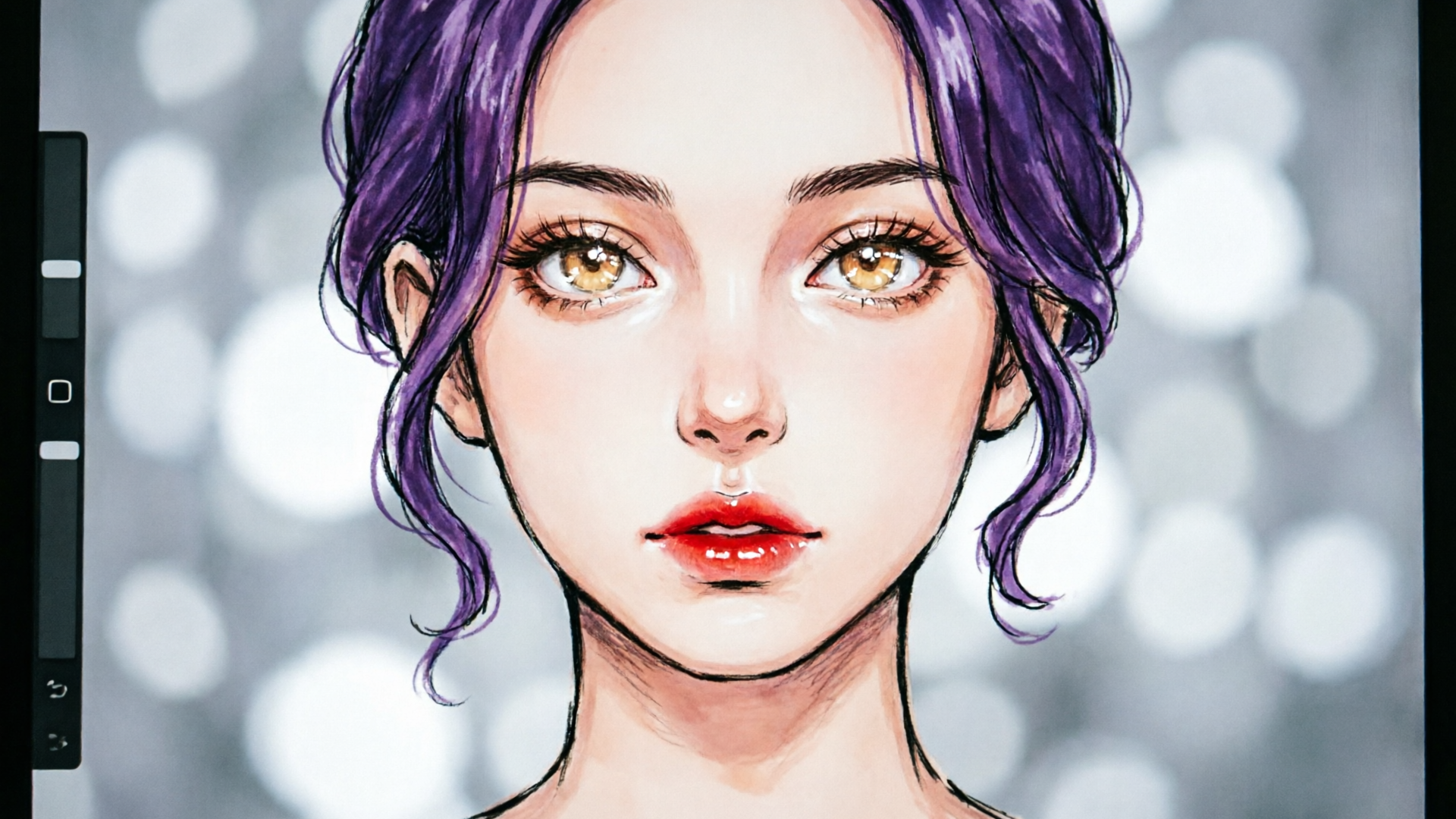
Creators are racing to turn single drawings and portraits into short, shareable character videos — and the fastest way to get there is often to pair a clean voice asset with a tuned, one‑click effect. In this guide you’ll learn practical workflows to animate drawing lipsync, from prepping art to pairing voice and exporting vertical clips for social.
Right away: WowMade AI Video Effects will be the tool we return to throughout the article. Its one‑click presets (lipsync, avatar, AI singing, dance, news anchor) let you skip rigging and generate a vertical, social-ready clip from a single photo. Below are clear steps, troubleshooting tips, and a short worked example that shows how to go from sketch to finished short in minutes.
Why creators are racing to turn drawings into short character videos (and where audience attention lives)
Short-form video drives attention and monetization for creators, and formats that put characters in the center—talking heads, lip‑synced songs, and quick dance trends—perform especially well. Video content accounted for roughly 23.8% of the creator-economy market share in 2024, making quick character shorts a direct path to audience growth and repeatable content. For indie animators and small studios, that means a smaller set of high-impact outputs: a vertical lip-synced short, a 15–30 second social ad, and a few alternate cuts for stories or feeds.
The practical result: creators need workflows that convert one drawing or a single portrait into several clips without rebuilding a rig for every take. This is where one‑click effects like WowMade AI Video Effects fit: they apply tuned presets that turn a photo into a talking, singing, or dancing clip and render 9:16 output ready for TikTok and Reels. Compared to building a pipeline from scratch or learning full CG rigs, the time-to-post drops from days to minutes—critical for trend-driven formats and marketing cycles.
How modern AI lip‑sync works: models, inputs, and what to expect from results
At a high level, modern lip‑sync systems analyze audio (waveform or phoneme transcript) and map temporal features to mouth shapes, head motion, and subtle facial movements. Approaches fall into two camps: waveform/phoneme mapping that directly predicts visemes from audio, and diffusion or motion‑space models that synthesize natural motion and higher‑order expressions. Recent research (for example SyncTalk and other CVPR papers) demonstrates that audio‑visual alignment is improving quickly, and diffusion-based talking‑head techniques produce smoother head turns and fewer hard cuts in mouth motion.
What to expect: automated tools that accept a single image and an audio file will usually produce convincing mouth motion and basic head movement for short clips. Differences between services come down to fidelity, control, and output constraints—some tools let you fine-tune mouth shapes or provide pose retargeting options; others prioritize speed and presets. WowMade AI Video Effects uses tuned presets for specific styles (lipsync, avatar, AI singing) so you get consistent, social-ready results without prompt engineering. For high precision or musical tracks, plan to provide a clean transcript and a high-quality audio file; community experience consistently shows that clean input audio reduces timing drift and improves lip-sync fidelity.
Related guide: How to Turn One Photo into a Believable AI Singing Portrait.
Choosing the right source art: preparing drawings, portraits, and character rigs for reliable lipsync
The better your source image, the fewer artifacts and retakes you'll need. Start with a clear subject and a high‑resolution, front-facing view where the mouth area is visible. For drawn characters, keep these points in mind:
- Face clarity: avoid extreme foreshortening and occlusion. A near‑frontal face yields more reliable mouth fits.
- Contrast and edges: clean line work or clearly defined lips help the model infer mouth boundaries. If your sketch is rough, flatten lines and refine the lip area in your image editor or with the WowMade AI Image Generator (/create-image) to produce a cleaner reference.
- Expression neutrality: a neutral or mild expression is easier to map to speech—extreme grins or open mouths can confuse automated viseme mapping.
If you have a multi‑frame rig or a set of mouth-shape drawings, you can still benefit from one‑click effects: some workflows let you upload alternate mouth shapes or use pose retargeting to increase fidelity (this is the path pros take when they need precise phoneme control). But for most creators, a single clean photo or polished digital drawing plus WowMade AI Video Effects will be enough to produce a believable talking short quickly.
Workflow 1 — From sketch to talking short: step‑by‑step (image prep, voice selection, lipsync render)
This walkthrough shows a rapid path to animate drawing lipsync using WowMade AI Video Effects.
Step 1 — Prepare the image:
- Export a 2048×2048 PNG or JPG with the character centered and the face unobstructed.
- If the lips are rough, use the WowMade AI Image Generator (/create-image) to clean edges or repaint the mouth area; small fixes here reduce artifacts later.
Step 2 — Choose or record audio:
Step 3 — Apply the effect:
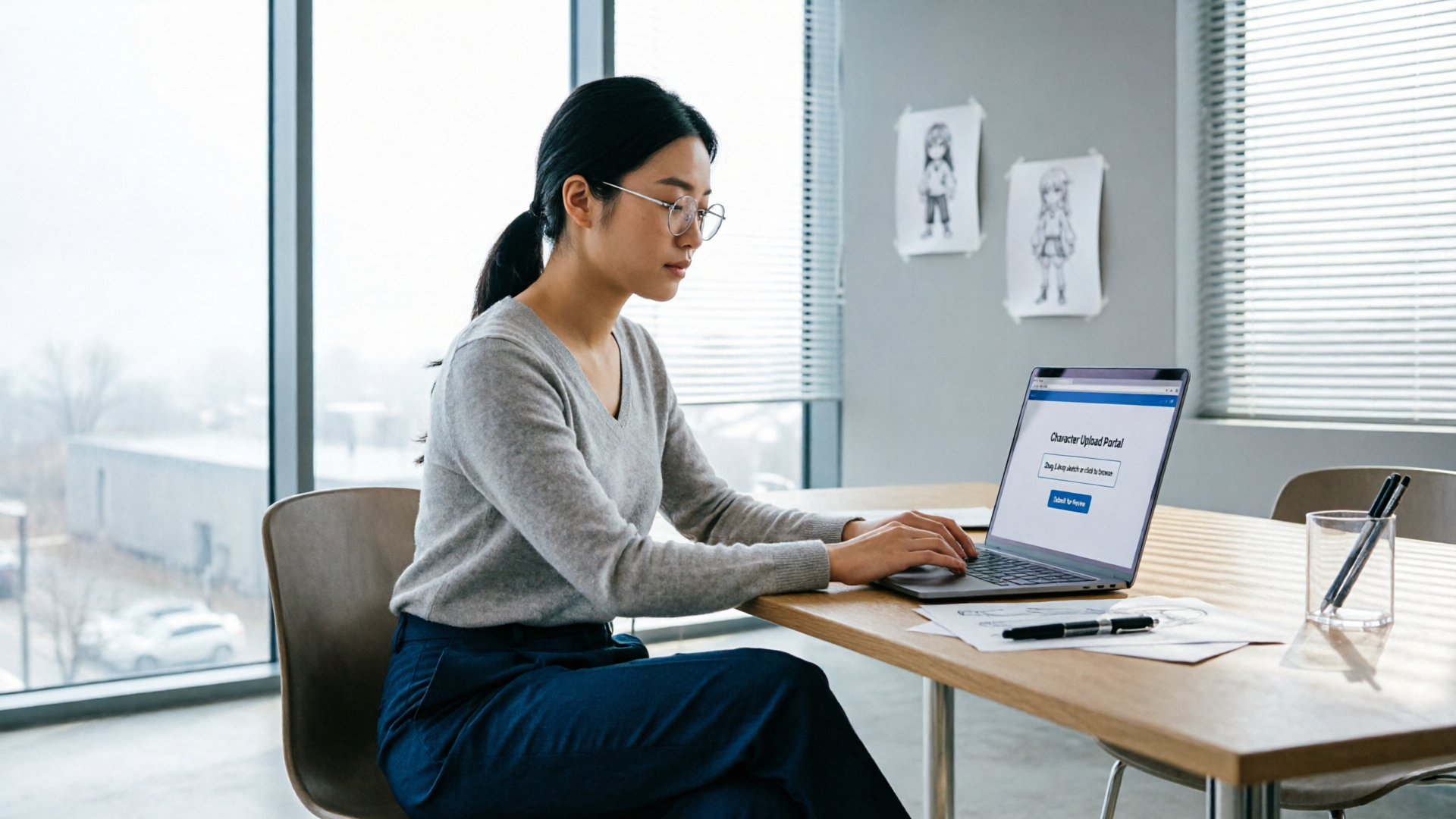
- Open WowMade AI Video Effects (/effects).
- Upload your image and your audio file, then pick the “lipsync” preset. Each preset is tuned, so you don’t need to tweak model prompts.
- Choose vertical 9:16 output for Reels/TikTok, set duration, and queue the job.
Step 4 — Review and iterate:
- Check mouth timing and head motion. If the lips look off, re-record a cleaner take or trim silent lead-in/out. For music, consider splitting vocals and instrumentals or using the AI Music Generator (/create-music) to create backing tracks that match the length precisely.
Worked example (15‑second comic strip promo):
- Image: a polished digital portrait of a character, exported 2048×2048.
- Audio: a 12-second recorded line, “Hey, I made a comic—swipe up for the latest strip.” Clean WAV file.
- Action: Upload image + audio to WowMade AI Video Effects, pick lipsync, select 9:16 and ‘news anchor’ cadence off, queue.
- Result: a finished vertical clip with synchronized mouth motion, slight head bob, and a share-ready MP4 in minutes.
This gives creators an immediate, repeatable flow for producing short talking clips without time-consuming rigging.
Workflow 2
Pairing the right voice to a drawn character is about tone, timing, and repeatability. For short-form content, keep scripts punchy and rhythmically clear. Typical lengths are 8–20 seconds for app hooks and 15–30 seconds for promotional spots.
Voice choices:
Scripting tips:
- Short sentences and clear enunciation map better to viseme prediction.
- Include a short lead-in (100–200ms) of silence so the effect engine can align the first phoneme.
- For singing or rhythmic lines, mark beats in the transcript and provide a clean isolated vocal; music complicates alignment if the model sees the full track.
Timing and editing:
- Trim dead air and normalize levels before upload. Clean audio prevents false mouth triggers.
- When you need exact syllable hits for comedic timing, generate several takes with minor tempo variations or use the voice tool to adjust pacing.
- Generate four short lines with slightly different cadences.
- Pick the best-timed take, upload to WowMade AI Video Effects (/effects) with your image, and render.
Styling and expression: using pre-built effects to sell motion (dance, news anchor, AI singing, avatar styles)
Styling choices turn a correct lip sync into a compelling short. Pre-built effects let you change energy, posture, and motion without rebuilding rigs. WowMade AI Video Effects includes tuned presets like dance, avatar, AI singing, and news anchor that apply a complete motion profile to your photo—head motion, upper-body sway, and expressive eye or brow movement—so creators can test formats quickly.
Use cases:
- Dance trend: apply a dance preset to a selfie or pet photo and produce a trend-ready clip from one image.
- News anchor: good for promo drops or announcements; the preset minimizes exaggerated motion and emphasizes lip clarity.
Practical tip: A/B test two styles for the same script—one with a subtle news-anchor preset and one with an energetic avatar or dance preset—to discover which works better for your audience. These presets are tuned to produce distinct motion languages, so switching is often faster than manual edit work.
If you need control beyond presets, consider deeper pipelines (pose-retargeting or multi-frame rigs) but reserve that for when a campaign requires bespoke expression. For most creators chasing viral formats, tuned presets deliver the best trade-off between speed and polish.
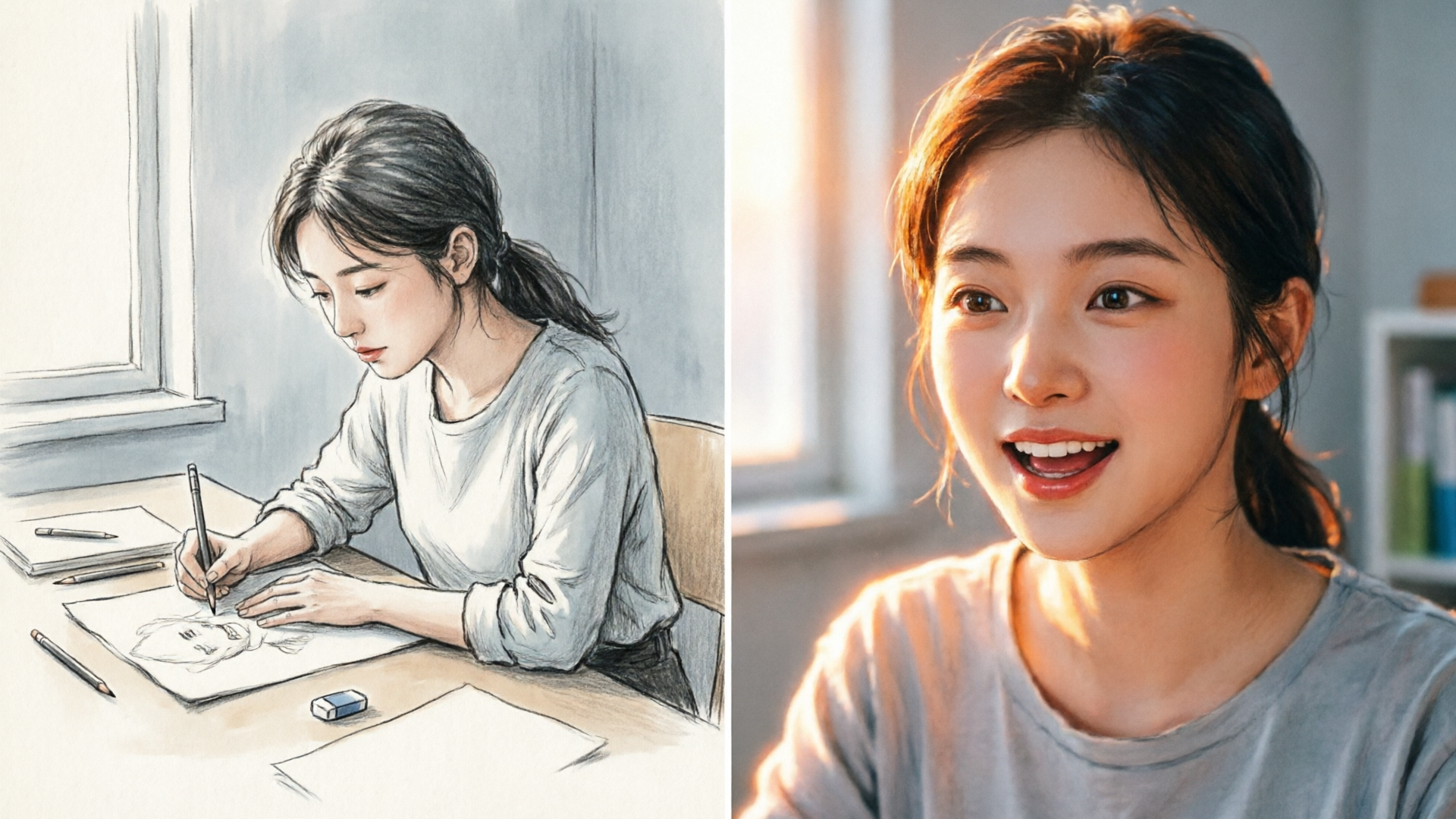
Quality pitfalls and how to fix them: mouth shapes, timing drift, uncanny artifacts, and quick retakes
Even with strong presets, expect a few common failure modes on first passes. Here’s how to diagnose and fix them quickly:
- Incorrect mouth shapes: often caused by low-resolution or obscured lip areas. Fix: repaint or refine the mouth using the WowMade AI Image Generator (/create-image) or crop for a closer framing and re-render.
- Timing drift: common with music or noisy audio. Fix: provide a clean vocal-only track, include a short silence lead-in, or split audio to vocals and music so the model can align the phonemes precisely.
- Uncanny or robotic motion: aggressive presets or extreme expressions can look synthetic. Fix: switch to a subtler preset (news‑anchor or avatar) or lower the motion intensity during render if the effect UI exposes that control.
- Background or edge artifacts: single-image transforms sometimes warp hair or clothing. Fix: mask and cleanup the background in an image editor, or upload a transparent PNG to preserve clean edges.
When automated fixes don’t help, iterate: small changes to the audio (re-record or normalize) plus minor image retouches usually resolve 80% of problems. If you frequently need frame‑perfect phoneme control, invest in a mouth-shape set and a retargeting pipeline as a second-stage upgrade.
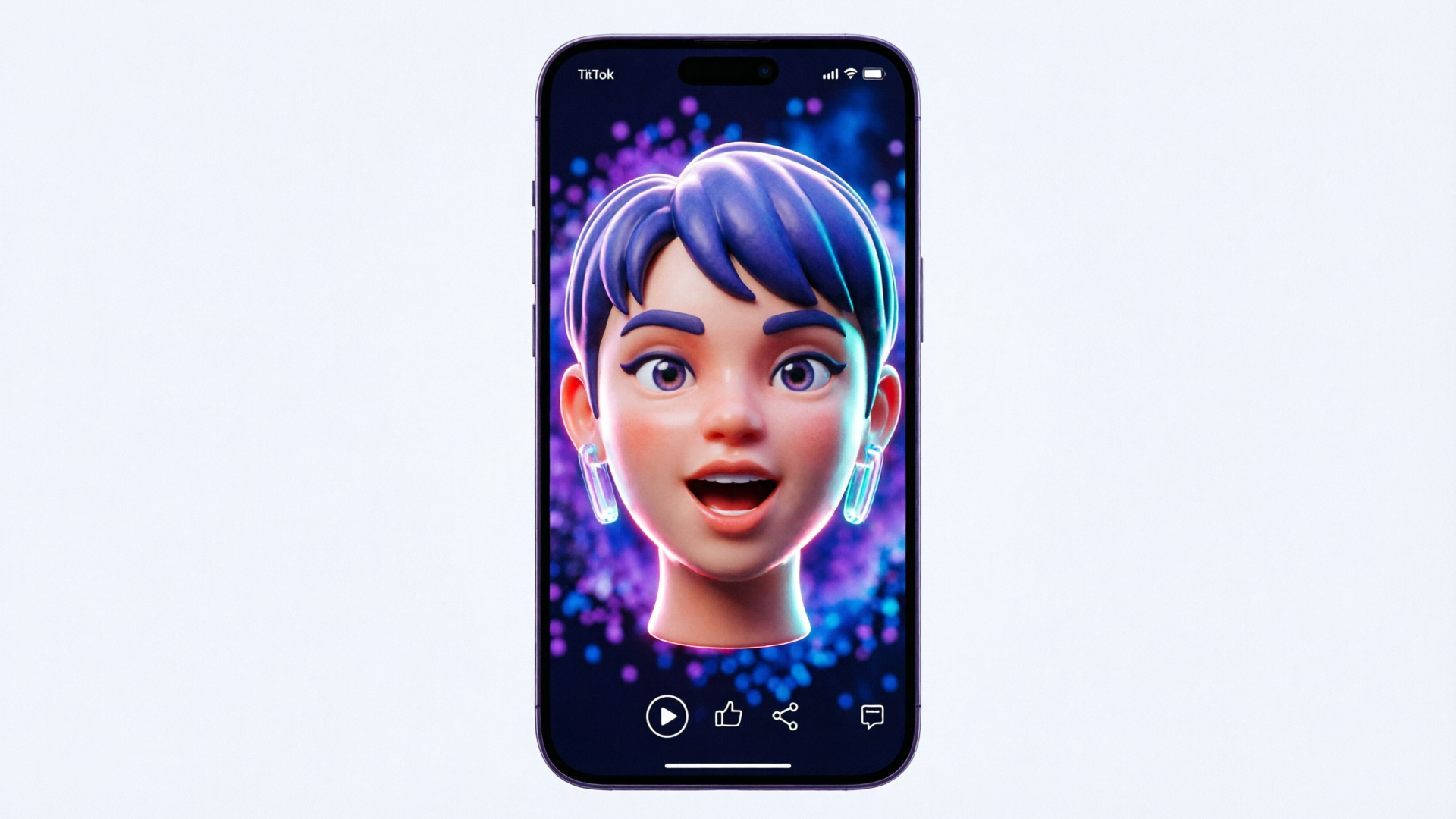
Distribution tips for character shorts: formats, captions, and platform optimizations for TikTok/Reels/Shorts
Once you have a polished short, distribution matters. For TikTok/Reels/YouTube Shorts, vertical 9:16 is the baseline; WowMade AI Video Effects renders 9:16 clips directly, removing a step from your export workflow. Beyond aspect ratio, consider these optimizations:
- Hook early: put the punchline or visual hook in the first 1–3 seconds.
- Keep it short: 9–20 seconds maximizes loopability and completion rate for many audiences.
- Add captions: many viewers watch without sound. Auto-generate captions or paste a cleaned transcript to ensure accessibility and retention.
- Multiple aspect cuts: create a vertical master; then use WowMade AI Video Generator (/create-video) or simple editors to produce 1:1 and 16:9 trims if you reuse the asset across platforms.
- Thumbnail and first frame: choose a visually striking frame with clear eyes and expression—platforms use this for previews and recommendations.
Finally, test creative variants quickly: change the preset (dance vs. news anchor), swap voices, or shorten lines. Fast iteration is the competitive advantage for creators chasing trends.
Why WowMade AI Video Effects is the fastest path from drawing to finished short — feature fit and practical examples
WowMade AI Video Effects is built around the core need described in this article: one photo in, finished vertical clip out. For indie creators and small studios who prioritize speed and repeatability, the feature’s tuned presets (lipsync, avatar, AI singing, dance, news anchor) are a practical alternative to building a bespoke rig. Key reasons it’s fastest:
- Preset library: each effect is a tuned preset—no prompt engineering required—so you can try multiple styles in minutes.
- Single-photo workflow: the system accepts one image and audio, then returns a polished 9:16 clip suitable for TikTok and Reels.
- Shared queue: effects share the same rendering queue as the rest of WowMade, so you can slot multiple renders and produce a pile of variants in one session.
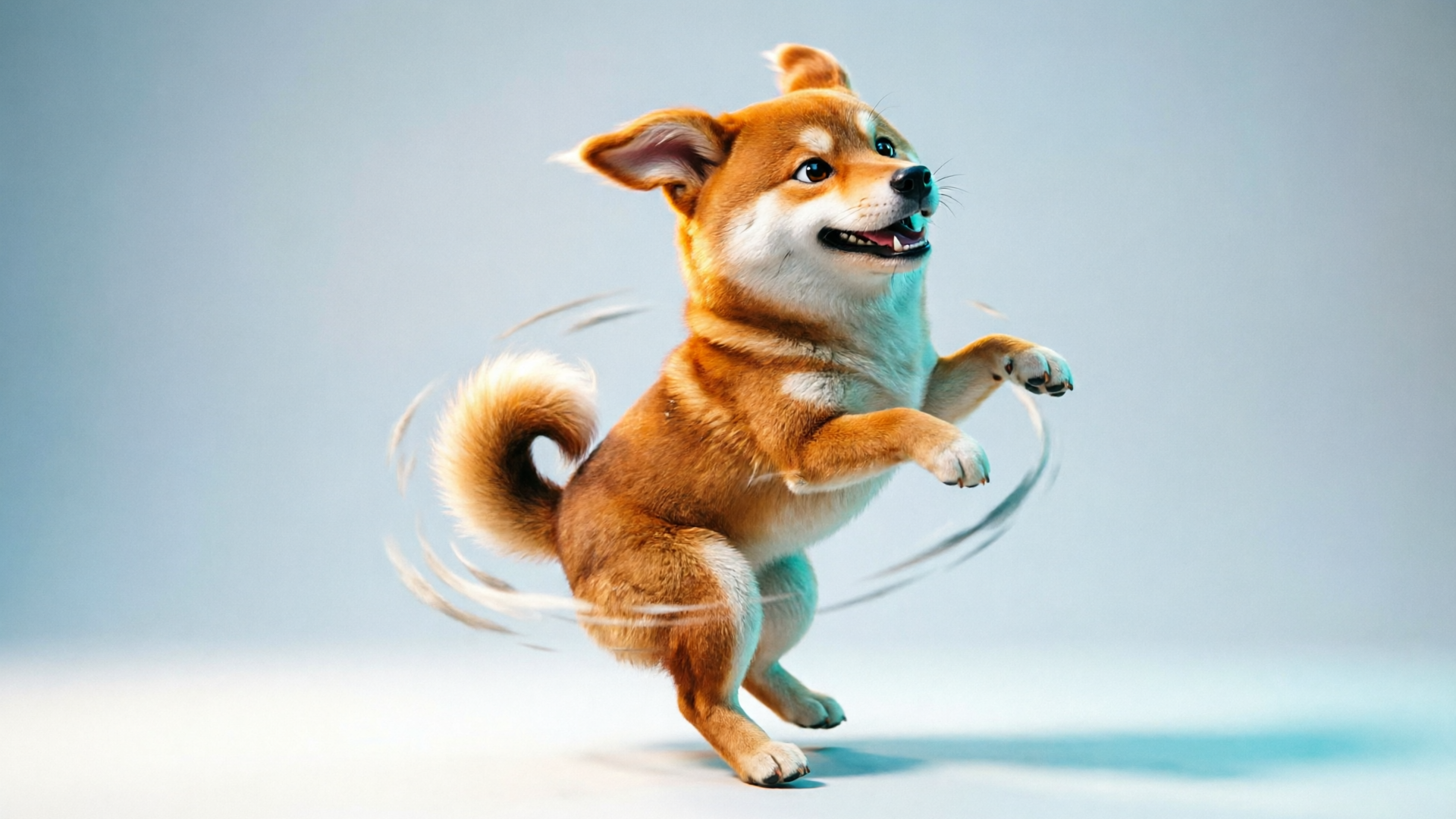
Practical example: turning a pet drawing into a dancing short
- Create or upload a pet sketch and clean the mouth/eye area with the AI Image Generator (/create-image).
- Pick a catchy 10–12 second loop-ready audio file from the AI Music Generator (/create-music) or upload a vocal hook.
- Apply the dance preset in WowMade AI Video Effects (/effects), select 9:16, and queue the job.
- Review output and export multiple cropped cuts for different platforms.
Because the presets produce complete motion profiles (head turns, squashes, and eye cues) you spend minutes testing concepts instead of days building a rig. This is why the feature is the most direct path from a sketch to a share-ready short for trend-chasing creators and marketers.
For reference on how contemporary lip-sync tools compare, see the Pika lip‑sync overview which highlights the landscape of image+audio systems and the differences creators should expect: https://pikaais.com/lip-sync/.
Frequently Asked Questions
Do I need separate mouth-shape drawings to use WowMade AI Video Effects?
No. The presets are designed to work from a single image. If you need frame‑perfect phoneme control, you can supply mouth-shape assets, but most creators get excellent results with one polished reference image.
What audio format gives the best lip‑sync results?
Use clean WAV or high‑quality MP3 at 44.1–48 kHz, with minimal background noise. For music or singing, provide an isolated vocal track when possible to reduce timing drift.
**
Yes.
Conclusion
If your goal is to animate drawing lipsync with speed and repeatability, start with presets that are tuned for the format you want. WowMade AI Video Effects turns a single photo and an audio file into a finished vertical clip (lipsync, avatar, AI singing, dance, news anchor), eliminating much of the manual rigging and mouth-shape work. Open the AI Video Effects library and ship your first vertical clip from one photo today.