Scale on‑brand episode art with AI podcast art generator and templates
Learn how to create repeatable, on‑brand episode artwork with AI-powered templates, multi-aspect exports, and a fast template workflow using WowMade AI Image Generator.
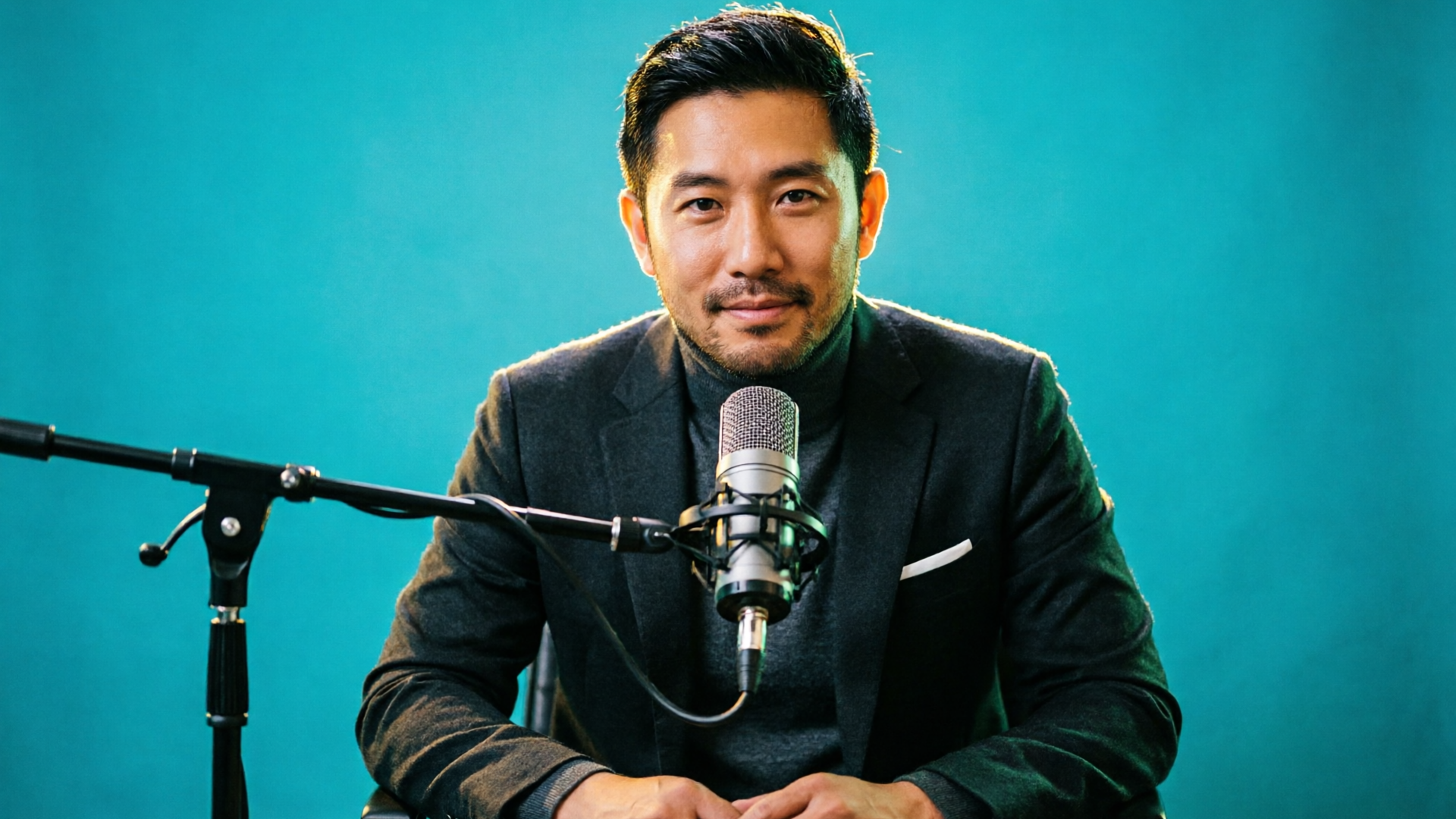
You open your feed and a dozen podcasts fire past — one small square stops you. It’s not the host’s name or a clever episode title; it’s the image: bold contrast, a legible headline, and a single dominant visual that reads even on a phone. That hit is what episode art buys you. For independent podcasters and small teams, the hard part isn’t designing a perfect cover once — it’s doing it fifty times a year, on-brand and fast.
This article walks through using an AI podcast art generator and editable episode templates to scale consistent, clickable artwork: why episode-specific art matters, the simple design rules that work for tiny thumbnails, a repeatable template workflow, a hands-on walkthrough using WowMade AI Image Generator to generate and remix images from prompts and photos, and practical testing/export steps so your art looks crisp in Apple Podcasts, YouTube, and socials. You’ll get concrete settings, a worked example that shows how to turn a host portrait into three export-ready assets, and A/B ideas you can try in a single afternoon. By the end you’ll know how to ship on-brand episode covers quickly without hiring a designer every time.
Why episode-specific art matters: attention, discoverability, and platform specs
Episode-level art does three jobs: it commands attention in discovery feeds, signals the episode’s hook, and adapts to platform requirements. A single podcast cover tells your show’s story; episode art lets you shout the episode’s angle — guest name, key quote, or a striking visual that ties to promotion copy. That specificity improves click-through rates on platforms where users scroll fast.
Platform specs matter when you scale. Apple’s guidance recommends cover artwork be at least 1400×1400 px with a suggested size of 3000×3000 px to guarantee sharp output across devices and stores (see Apple Podcasts Asset Specifications). Generating at higher resolutions up front saves you reworking assets for different stores and promo channels.
Distribution also requires multiple aspect ratios. YouTube thumbnails are 16:9, podcast directories expect square covers, and social promos often need vertical or story-friendly crops. Building a repeatable system that outputs multiple sizes from the same visual preserves brand consistency and removes friction from every episode cycle.
Finally, consider discovery interfaces: directories and podcast players reduce your artwork to small icons. The IAB’s Podcast Creative Best Practices emphasizes simple compositions, one dominant visual concept, and legible typography for small thumbnails. That’s why episode-specific art that follows a few strict rules reliably outperforms decorative, crowded designs when impressions are measured at mobile scale.
Design rules that actually work for podcast thumbnails and episode covers
Good thumbnail design for podcasts is less about visual density and more about clarity at small sizes. Follow these practical rules:
- One dominant visual concept. Pick a single subject — the host, guest headshot, or a symbolic prop — and make it the focal point. Busy collages collapse into noise at 80×80 px.
- High contrast and bold color blocks. Use background colors or gradients that make white or dark text pop. Contrast improves legibility on OLED phones and thumbnails shown in dark mode.
- Big, readable type. Keep titles short and use a single heavy type treatment for episode numbers or short hooks. The IAB guidance recommends typography that remains legible when scaled down.
- Limit text. Two lines max: a short hook and optionally a host or guest name. If your show name must appear, put it in a consistent corner or brand bar so it becomes predictable.
- Clear hierarchy. Episode number and hook first, then guest name, then show mark. Make the visual scale of each element consistent across episodes.
- Safe margins and center weight. Keep key content away from edges and make the subject slightly off-center toward the upper two-thirds — the area most often preserved in crops.
These rules are practical because they map to how thumbnails are consumed: tiny, fast, and often on distracted devices. Templates that bake these rules in guarantee each output meets discovery constraints without rethinking the layout for every episode.
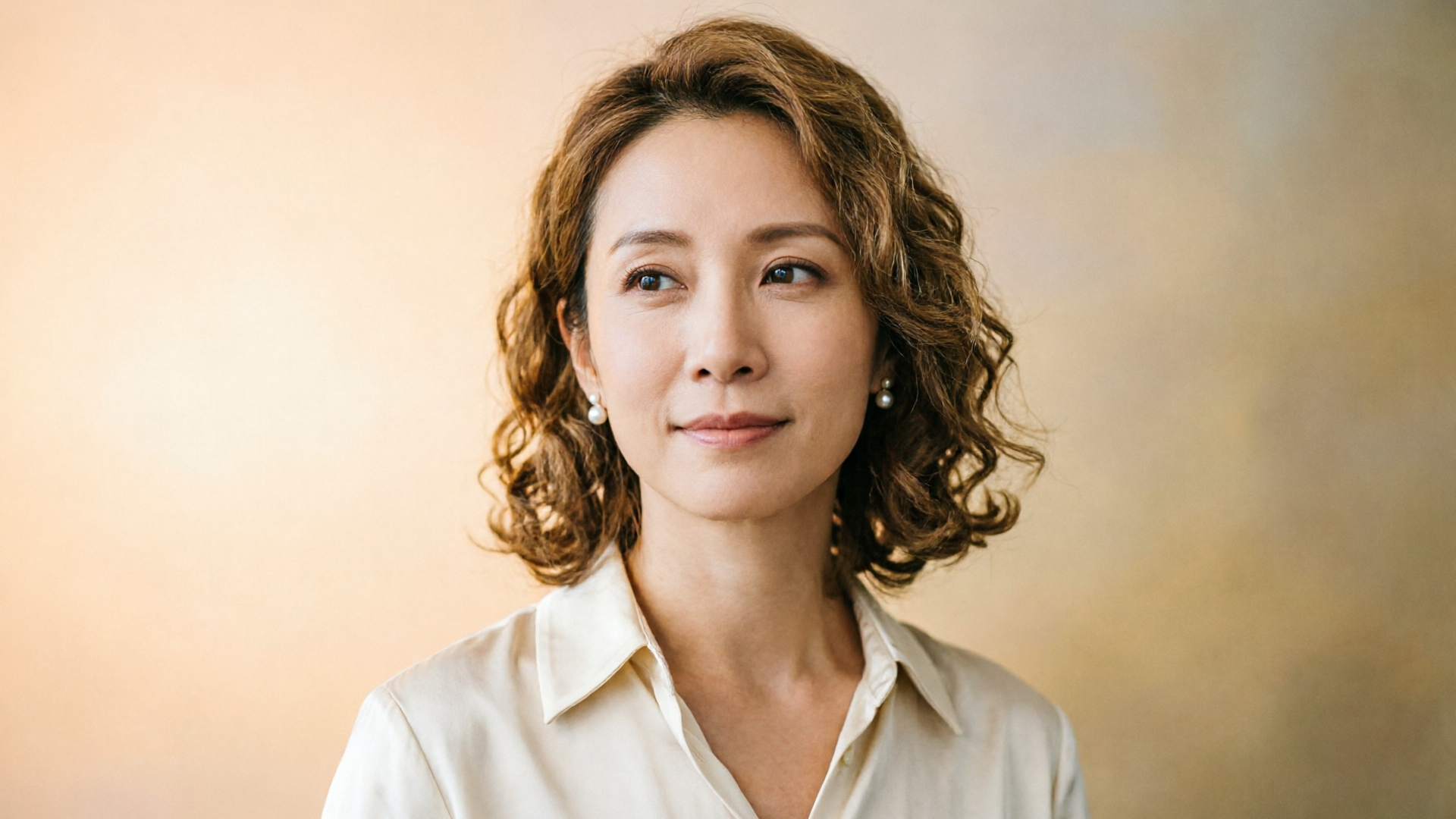
Workflow: Create consistent episode-series templates you can batch-populate with AI
Templates are the multiplier. Once you build a few repeatable layouts for your series you can produce new episode art in minutes. Industry tools advertise creating a new thumbnail in 2–5 minutes once templates are set up; that’s realistic with the right pipeline.
A recommended template workflow:
- Define 3 template types: Standard episode (host + hook), Interview (guest-focused), and Promo (event, highlight reel). Keep spacing, type, and brand bars consistent across templates.
- Lock brand variables: colors, logo placement, and primary typeface. Only change the hero image and headline per episode.
- Build master files that export multiple aspect ratios: square (3000×3000), 16:9 (1920×1080 or higher), and vertical story size. Export presets save manual resizing later.
- Use an AI podcast art generator to populate the hero slot. With text-to-image and photo-remix features you can produce stylistic variants without changing layout files.
- Save successful variants as template instances in a library for quick reuse.
This is where WowMade AI Image Generator earns its keep: it can generate images from a text prompt and edit or restyle an uploaded photo, output at platform aspect ratios, and save variations to a library for iteration. That means you can produce a set of 3 stylistic options from a single prompt, slot them into your template, and export all sizes in one pass. The time savings accumulate episode after episode — what used to take an hour becomes a few minutes.
Spread templates across your team (or collaborators) and assign simple roles: host uploads a photo, producer picks a prompt variant, and the editor finalizes type and exports. That division keeps creative control low-friction and scales without hiring extra designers.
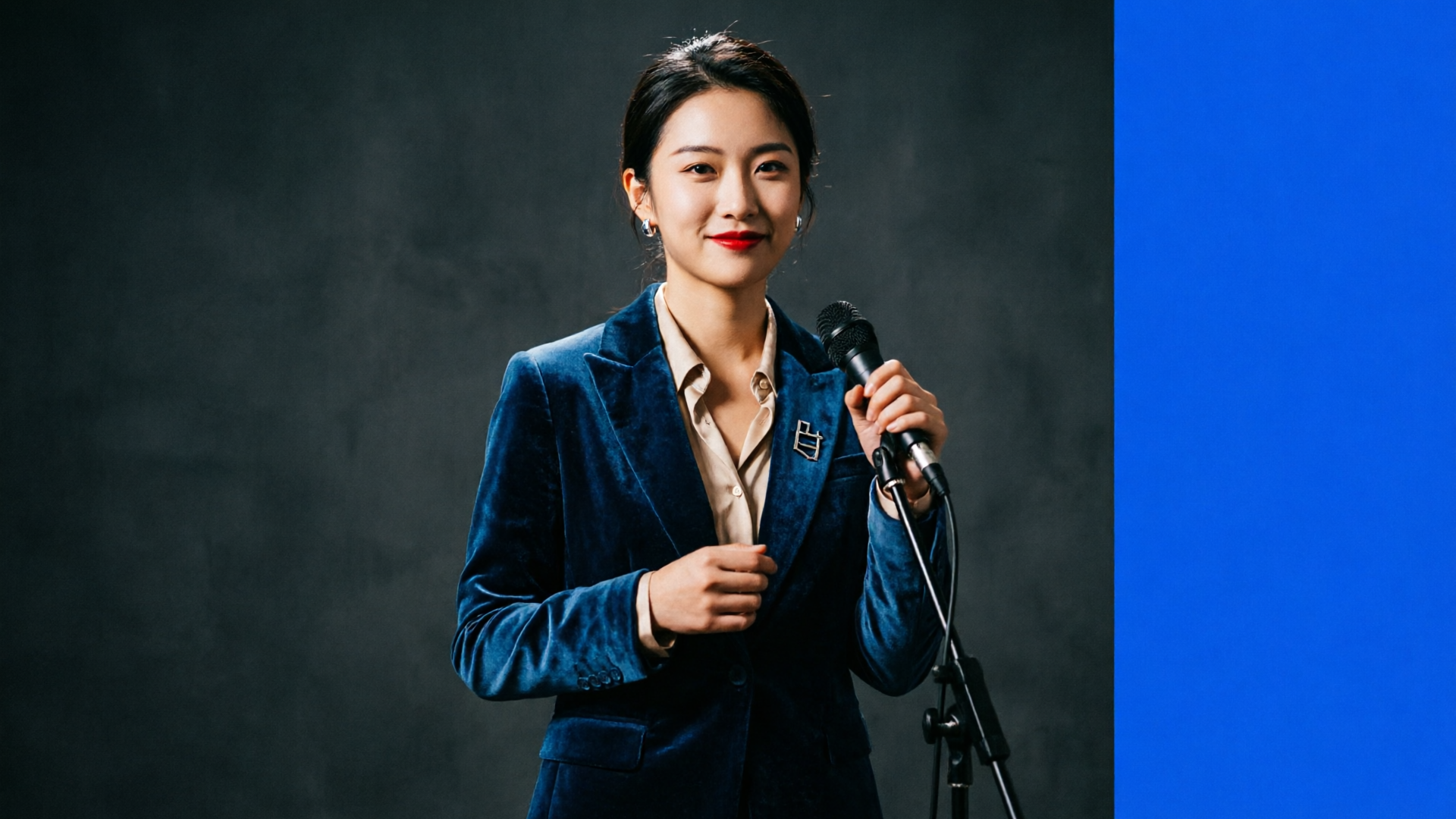
Hands-on: Using prompt-based image generation plus a reference photo to produce on-brand episode art
Here’s a concrete walkthrough using WowMade AI Image Generator to turn a host portrait into three export-ready assets (square cover, YouTube thumbnail, Instagram story). This mini workflow shows how to keep the look consistent while testing mood variants.
Step 1 — Prepare your inputs
- Choose a high-quality host photo at least 2000 px on the long edge. Higher resolution gives the generator more detail to work with.
- Choose your template layout: e.g., guest headshot left, headline on the right, brand bar on top.
Step 2 — Generate stylistic variants
- Open WowMade AI Image Generator (/create-image).
- Upload the host portrait and add a prompt that describes the mood and composition. Example prompt: “Close-up portrait of a smiling host, cinematic rim light, warm teal background, shallow depth of field, high contrast, bold negative space to the right for headline.”
- Select “Edit and restyle uploaded photo” mode so the tool remixes the portrait rather than replacing it. Choose 3 stylistic variants (e.g., Warm Teal, Monochrome Contrast, Film Grain Moody). The generator will produce matched images while preserving the face and composition.
Step 3 — Export multiple aspect ratios
- Use the generator’s multi-aspect output to export a 3000×3000 square, a 1920×1080 16:9 thumbnail, and a 1080×1920 story crop in one pass. That keeps subject framing consistent across crops (same prompt, multiple aspect ratios in one pass).
Step 4 — Finalize in template
- Import the three images into your template file. Add the episode hook in your preset type block; keep it to one short line with large type.
- Adjust safe margins and check legibility at small sizes by zooming out to 150 px width.
Proof points from this flow: WowMade AI Image Generator generates images from a text prompt, edits and restyles uploaded photos with a prompt, outputs at platform aspect ratios, and saves variations to your library so you can iterate. Those capabilities let you test visual directions quickly and keep the host recognizable while changing color, mood, and composition.
Worked example result: In one 15–20 minute session you can produce three distinct visual directions, slot them into templates, and export all deliverables — landing you ready-to-publish artwork for podcast feeds, YouTube, and social promos without a separate design pass.
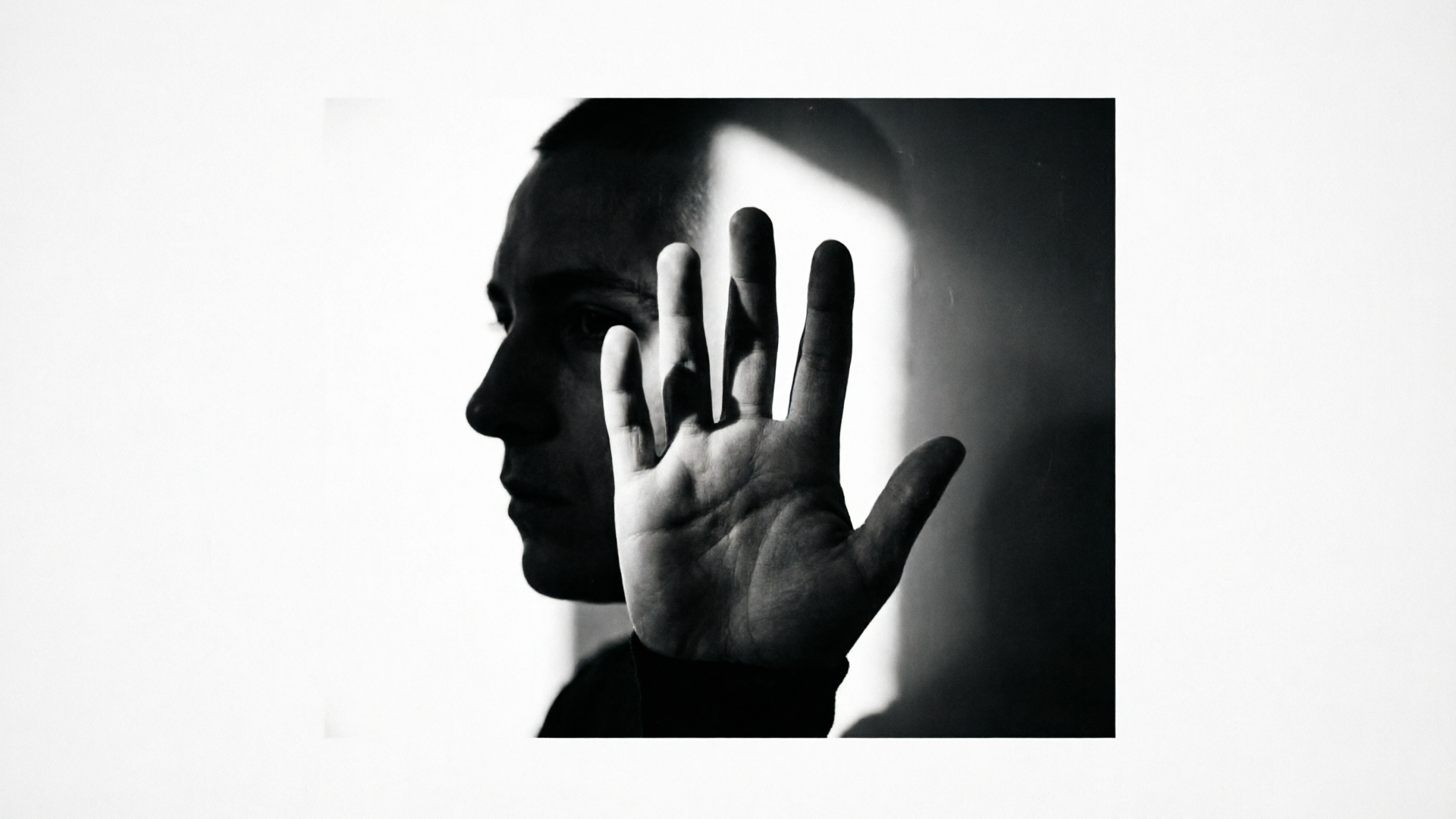
Optimizing, exporting, and testing episode art across platforms (A/B ideas and size presets)
Once you have assets, the last mile is optimization and lightweight testing.
Export checklist
- Master file at 3000×3000 px (square) as TIFF or max-quality PNG for Apple and store requirements.
- Web-optimized PNG/JPEG at 1400×1400 minimum for feeds that do not accept huge files.
- YouTube/Video thumbnail at 1920×1080 (or 1280×720 minimum) saved as high-quality JPEG.
- Social story/case at 1080×1920 for vertical placements.
A/B testing ideas that move the needle
- Color contrast test: keep the same composition, swap background color between brand blue and a complementary orange to measure CTR lift on YouTube.
- Text vs. no-text: run a short test on Instagram Stories with and without a one-line hook to see which drives taps.
- Headshot closeness: tight crop vs. half-body to test recognition vs. mood.
Measurement and experiment design
- Run short, focused tests (3–7 days) per episode promotion window. Use impressions-to-clicks as your primary metric for discovery art.
- Keep only one variable different between variants (color, headline, or crop) so you learn what changed results.
Automation and scale
- Use template export presets so every episode produces the same set of files automatically. WowMade’s image outputs can flow into the AI Video Generator if you want to turn a static frame into a short promo clip — ideal when you need an animated teaser built from the same artwork (/create-video).
Costs and planning
- If you’re planning frequent episode art generation, map expected monthly credits or plan tiers before you batch-create hundreds of images; check pricing for predictable budgeting and to decide whether to keep a local master archive. For plan details and credit options, see WowMade Pricing (/pricing).
A final practical note: keep a library of successful variants and the prompts that produced them. When a sponsor needs a quick co-branded asset, you can remix an existing winning prompt and export the full set of aspect ratios in minutes.
Frequently Asked Questions
What size should I generate for Apple Podcasts?
Apple recommends artwork be at least 1400×1400 px with a suggested 3000×3000 px for best quality across devices and stores.
Can I reuse the same prompt across episodes?
Yes — reuse a successful prompt for consistent look and then tweak color or mood to differentiate episodes without rebuilding your template.
How do I keep the host recognizable when restyling photos?
Use an edit-in-place mode that remixes the uploaded portrait rather than replacing it; maintain face detail and framing while adjusting background, lighting, and color.
Should I always include episode numbers?
If you publish many episodes, a small, consistent episode number helps regular listeners; keep it secondary to the hook and brand mark so it remains legible at thumbnail size.
Conclusion
If you want to stop reinventing thumbnail layouts and instead produce on‑brand episode art in minutes, start with a small set of templates and an image-first workflow. Use WowMade AI Image Generator to generate and restyle host photos, export multiple aspect ratios in one pass, and save variations to your library so you can iterate without starting over. For quick wins, build three template types, save prompt presets that matched past winners, and export a full deliverable set for each episode.
Open the AI Image Generator and spin up your first frame — you can keep refining the same prompt until the look is yours.