Scoring Paced Tutorials with AI: A Creator’s Guide to Tempo, Clarity, and Fast Results
A practical creator’s guide to scoring tutorials with AI: tempo rules, mixing tips, tests, and step-by-step use of WowMade AI Music Generator for copyright-safe tracks.
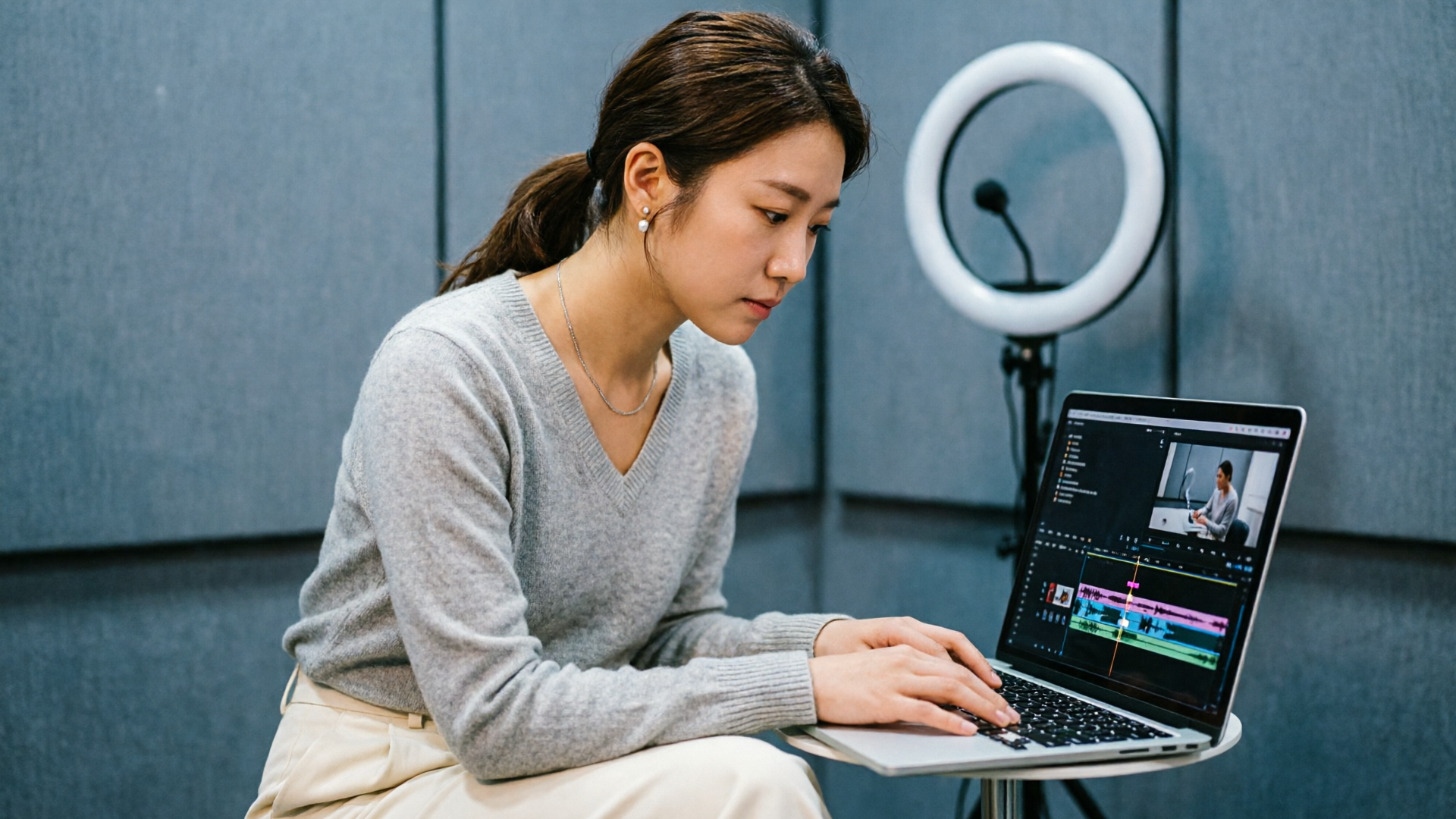
Imagine watching a 6-minute coding walkthrough where the narrator explains a tricky loop and the music suddenly swells—your attention drifts, you miss the line, and you rewind. Now imagine the same video with a calm, low-tempo instrumental that breathes around the voice: the explanations land, retention ticks up, and the edit feels intentional. This article is for creators who want reproducible control over that feeling. We’ll use the practical keyword AI background score for tutorials to walk through tempo rules, mixing, and a production workflow that saves hours.
Early on I’ll recommend WowMade AI Music Generator as the practical tool to get copyright-safe, tempo-accurate instrumentals you can slot into any timeline. You’ll get concrete BPM ranges backed by research, a hands-on energy-mapping workflow from picture lock to final mix, prompt templates tailored for paced tutorials, and four ready-to-run prompts and tempo settings you can paste into WowMade AI Music Generator. Expect step-by-step examples, a short worked walkthrough using the generator, and testing strategies to validate choices against retention metrics—so you can stop guessing and start shipping better tutorials fast.
Why music matters in tutorials and explainer videos — what research actually shows
Music in instructional content is not decoration; when used deliberately it can affect attention and retention. A 2023 meta-analysis found a small but positive average effect on learning outcomes (effect size d ≈ 0.31), with larger benefits when instrumental or classical textures accompanied learning and when music played before assessment (Efrén de la Mora Velasco et al., 2023). That’s not carte blanche to add any track and expect miracles—studies repeatedly show the effect is context-dependent.
Controlled research and practitioner reviews converge on two practical points: first, vocals and mismatched genres can distract rather than help; second, volume and alignment with visual pacing matter more than novelty. A City University study and instructional-video research both report that mismatches in genre, excessive loudness, or music that fights the voice reduce comprehension and engagement (see linked sources).
For creators the takeaway is straightforward: treat music as an instructional design variable. Think about cognitive load—simpler textures, predictable tempo, and careful ducking during speech will usually help. Later sections turn those research findings into actionable BPM ranges, mixing rules, and a concrete workflow you can replicate across lessons.
Tempo, energy and voice clarity: concrete BPM ranges and mixing rules for paced tutorials
Tempo maps to perceived energy and arousal. Multiple practitioner guides and classroom BPM reviews point to a practical sweet spot for sustained focus: roughly 60–90 BPM for many tutorial contexts, with some sources extending the working window to 50–120 BPM depending on desired arousal. Use slower tempos (50–70 BPM) for dense explanations and conceptual segments where you want listeners to process information slowly. Use the upper end (80–100 BPM) for quick demos, visual walkthroughs, or montage sections that require higher perceived energy.
Mixing rules for voice clarity
- Keep music level conservative: aim for -18 to -12 dBFS RMS relative to spoken narration peaks so the voice remains dominant. - Sidechain or automated ducking around speech to preserve intelligibility during dense moments.
- Reduce mid-range masking: de-emphasize 200–2,000 Hz in the music during narration with a gentle notch to free up the voice band.
- Use instrumentation that leaves space: pads, light arps, or soft plucks are less intrusive than dense guitars or aggressive synths.
Tempo adjustments as a tactical lever
Small tempo shifts (±5–10 BPM) effectively alter perceived energy without changing arrangement. If your tutorial has alternating dense explanation and brisk demos, set a base tempo near 70 BPM and nudge to ~80–85 BPM for demo sections, or use instrument swaps (pads → plucked arpeggio) while keeping tempo constant. These micro-adjustments are faster than re-scoring the entire piece and map directly to audience arousal.
Related guide: Tempo-Matched Music for Demo Videos.
Picking the right genre, instrumentation, and harmonic complexity for learning-focused content
Not all genres are equal for learning. Instrumental, minimal textures tend to outperform dense, lyrical, or highly syncopated styles in comprehension-sensitive videos. The meta-analysis cited earlier highlights benefits for instrumental/classical textures. For tutorials, prioritize genres and arrangements that reduce cognitive load:
- Ambient/soft electronic: warm pads and light rhythmic elements for long-form lessons.
- Acoustic minimalism: nylon guitars, soft piano, or bowed strings for concept-heavy content.
- Light funk or mellow grooves: reserve for energetic demos where motion matters.
Harmonic complexity
Keep progressions simple—diatonic motion or two-chord vamping provides a stable background without demanding processing resources. Avoid rapid harmonic changes during dense verbal explanations; save modulations or more complex harmonic events for recap sections or visual highlights.
Instrumentation choices and placement
- Low end: keep sub-bass minimal to prevent rumble competing with voice. High-pass music tracks around 50–80 Hz if needed.
- Midrange: sculpt away overlapping frequencies using mild EQ cuts, not harsh filters.
- Highs: retain air but avoid bright transient percussion during narration.
Think of music as a supportive texture: its role is to cue energy and emotion, not to fight the lesson. The right combinations make edits feel intentional; the wrong ones send viewers to the rewind button.
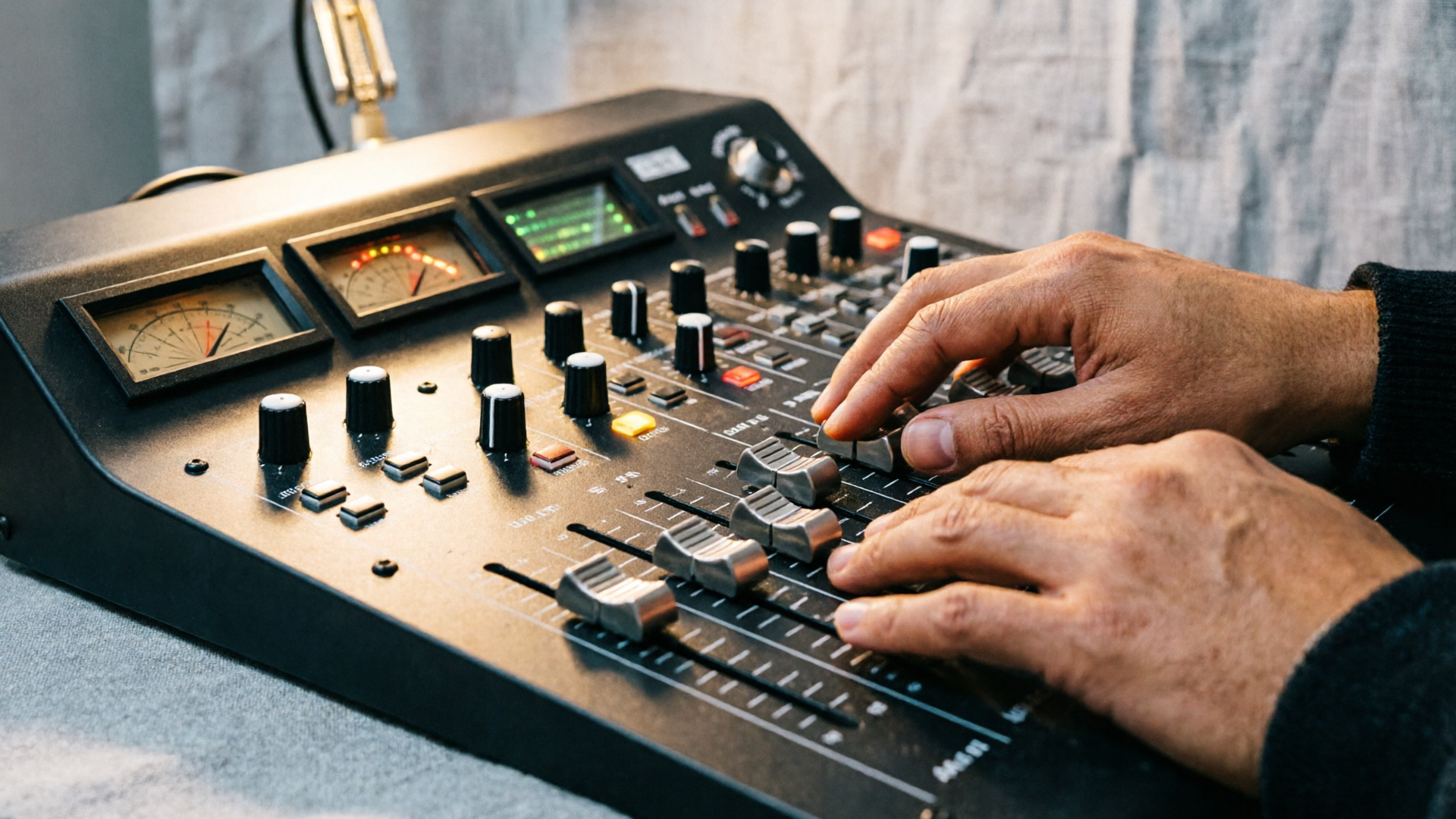
Timing the soundtrack to your edit: an energy-curve mapping workflow (hands-on)
A repeatable way to match music to a tutorial is to map an energy curve against your edit. This is a hands-on workflow you can do in any NLE in 10–20 minutes.
Step 1 — Picture lock and chunk the timeline
Lock picture and audio edits. Break the lesson into logical chunks: Hook (0–15s), Setup (explanation), Demonstration (step-by-step), Highlight/Callout, Recap/CTA.
Step 2 — Annotate energy levels
On a simple 0–10 scale, annotate the perceived energy for each chunk. Hook = 7–9, Dense explanation = 2–4, Demo = 6–8, Recap = 4–6.
Step 3 — Map target BPM and instrumentation
Convert energy scores to tempo ranges: low energy → 50–70 BPM, mid energy → 70–85 BPM, high energy → 85–100 BPM. Also pick instrumentation per chunk (pad, pluck, light drum loop) and note where you’ll duck music under speech.
Step 4 — Generate loops and build
Use the loop-first approach: create 8–16 bar loops for each chunk (see section on prompts). Test them against 10–30 second key moments—especially the hook and the densest explanation. Expand the chosen loop into a full-length piece and place transition markers at bar boundaries where possible.
This mapping has two benefits: it forces decisions before you generate music, and it gives you a clear specification to brief an AI music generator like WowMade AI Music Generator so the outputs align with your edit.
From picture lock to final mix: a step-by-step AI music scoring workflow that saves hours (hands-on)
This workflow compresses the common tasks editors face into repeatable steps and leverages AI to remove friction.
1) Picture lock and energy map (10–20 min) Finalize edits and create the energy map described above.
2) Shortlist target tempos and instruments (5–10 min) Pick 2–3 tempos and instrument palettes for testing—e.g., 65 BPM pad-based, 80 BPM light electro, 92 BPM mellow groove.
3) Generate 8–16 bar loops with an AI music tool Use short loop prompts to rapidly iterate (20–40 seconds per generation). This is where WowMade AI Music Generator shines: it generates original instrumentals from a prompt, lets you guide style, tempo, and mood, and exports tracks ready for import. Aim to produce 4–6 variants per chunk.
4) Quick blind test in the timeline (15–30 min) Drop loops into the NLE under the clip and audition with the voiceover. Timebox each variant and shortlist 1–2 winners.
5) Expand and arrange Generate the full-length version from your chosen loop, or use the generator to render extended sections. Add transitions and crossfades at edit markers.
6) Final mix and loudness check Automate ducking for speech, apply gentle EQ notches to reduce masking, and check overall LUFS for platform delivery (-14 LUFS is a good target for streaming).
Worked example: quick WowMade walk-through
- In WowMade AI Music Generator (/create-music) create a new project and paste a prompt: “calm instructional pad, 70 BPM, instrumental, warm synth pad, soft plucked arpeggio, 8-bar loop.”
- Generate 6 variants and import the top two into your NLE.
- Use sidechain or clip gain automation to duck during narration and export.
This process turns what used to take hours of library searching into a 60–90 minute scoring session with repeatable outputs and copyright-safe tracks.
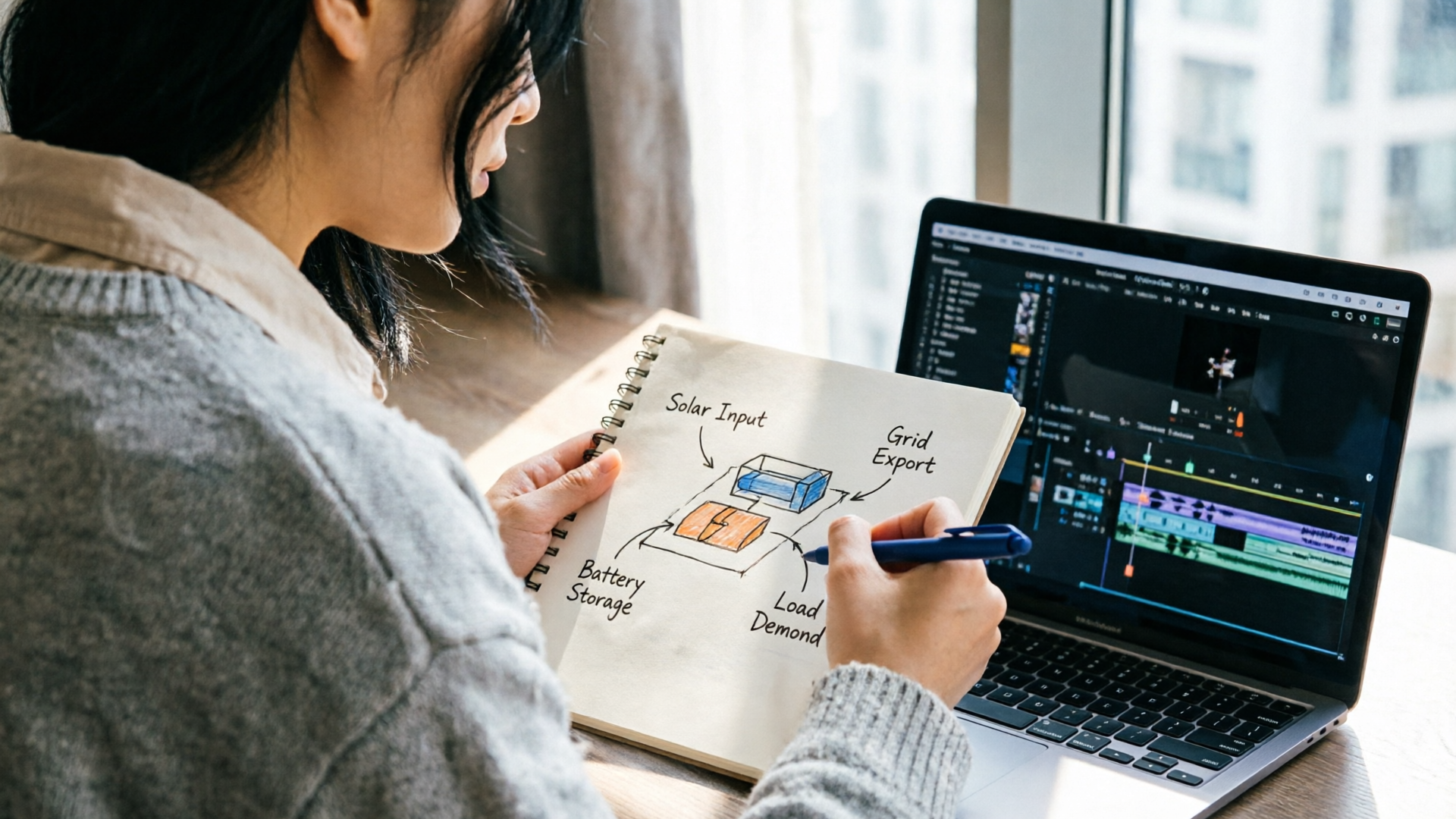
Prompt design for predictable results: how to brief an AI music generator for tempo, duration, and mood
Prompting a music generator is partly creative, partly specification work. For reliable results, include these fields in every prompt:
- Role and use: “background score for tutorial video — non-distracting”
- Tempo: exact BPM or a small range (e.g., 68 BPM or 70–75 BPM)
- Duration/loop length: “8-bar loop” or “full 3:00 instrumental”
- Instrumentation and texture: “warm synth pad, soft plucked arpeggio, light shaker, no vocals”
- Mood and energy: “calm, focused, steady”
- Output requirement: “export instrumental stems and stereo mix”
Example prompt templates
1) Dense explainer (slow) "Background score for tutorial video — instrumental, calm and focused, 60 BPM, 8-bar loop, warm pad, soft piano motif, no vocals, export stereo mix."
2) Demo section (mid tempo) "Background score for product demo — upbeat but not aggressive, 85 BPM, 16-bar loop, plucked guitar, light percussive hi-hats, keep midrange clear for voiceover."
3) Hook (short and punchy) "Attention hook for tutorial intro — 95 BPM, 10–12 second loop, staccato synth stab, minimal low end, energetic but short."
A best practice: iterate with short loops first and include explicit instructions about voice clarity. WowMade AI Music Generator supports guiding style, tempo, and mood and exports tracks you can use without licensing headaches—this makes it a practical fit for the templates above.
Avoiding copyright and Content ID headaches: policies and best practices for AI-generated music
Platforms and rights frameworks are evolving rapidly. Practical safeguards you should follow:
- Use music you control or that the generator explicitly licenses for commercial use. WowMade AI Music Generator produces original tracks and indicates outputs are ready to import without library licensing—this addresses a major pain point for creators on platforms like YouTube and TikTok.
- Keep records: save prompt text, export timestamps, and any license or terms screens from the generator—these help in disputes.
- Expect Content ID edge cases: platform systems may still flag audio; have a resolution plan and retain evidence of the generator’s licensing terms.
For policy context, consult the current guidance from YouTube and the U.S. Copyright Office about AI-created works and platform claims. YouTube’s help center recommends relying on public-domain or licensed tracks and warns creators to confirm rights before publishing. https://support.google.com/youtube/answer/15577610?hl=en
The practical step: pick an AI music tool that states commercial usability and gives you exportable assets. When your workflow and records are in order, you reduce friction and avoid costly takedowns.
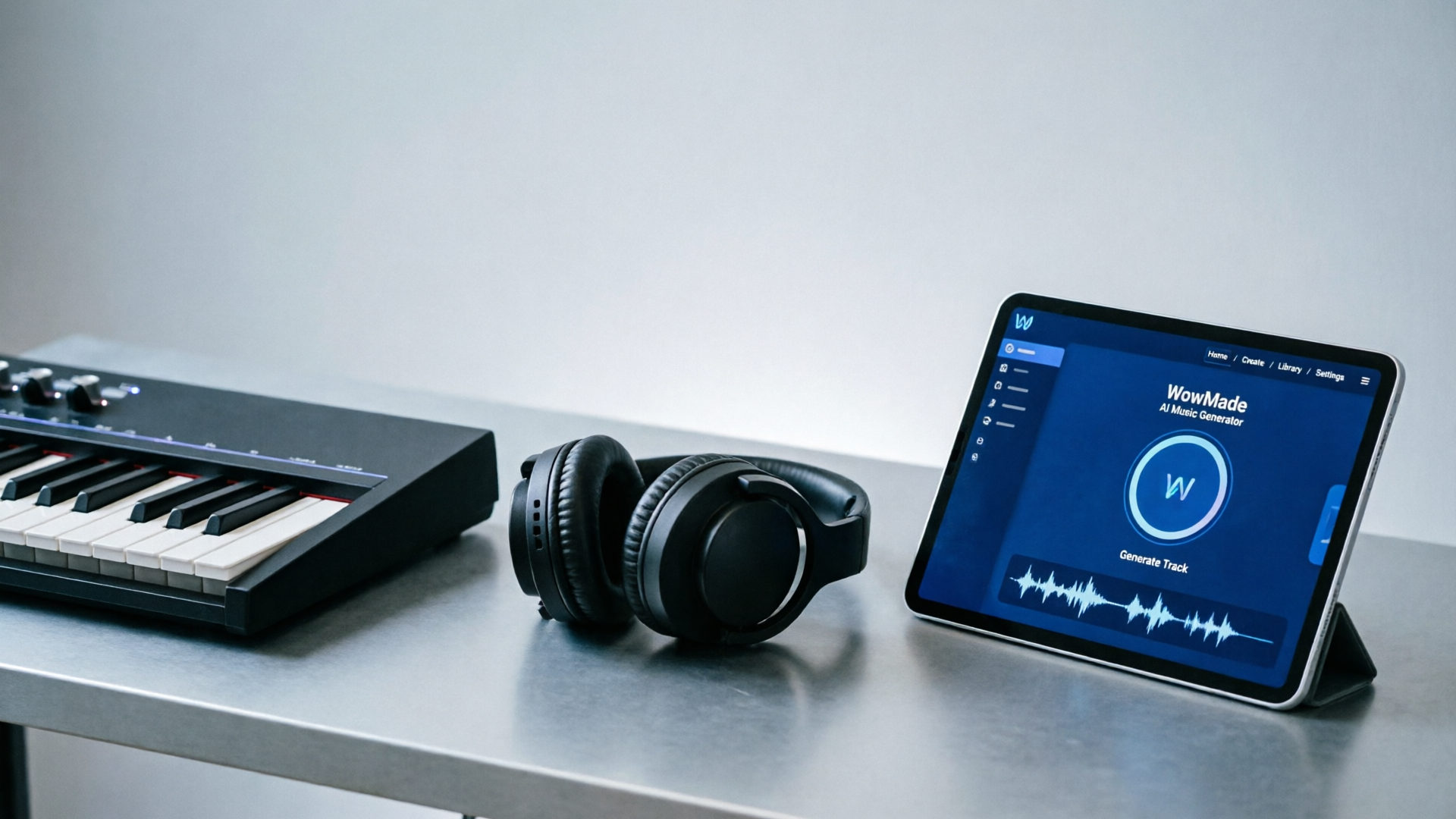
Measuring impact: simple A/B tests and metrics to validate your music choices
You can’t judge a soundtrack by gut alone—run small experiments that track the metrics that matter.
A/B testing framework
1) Create two identical edits that differ only in music strategy (e.g., slow pad vs. light groove) and publish them as similar videos or A/B within a single video using chapters. 2) Measure: CTR, view-through rate, retention at 15s and 30s, and watch-time. For education content, retention at 15–30s and rewinds during explanation are especially informative. 3) Add qualitative feedback: ask a small group of viewers whether the voice was easy to follow and whether the music felt distracting.
Interpreting results
Small increases in retention often reflect perceived pacing rather than simple loudness. If one variant drives better retention but receives complaints about clarity, fix your ducking and EQ and test again. The goal is to iterate quickly: generate new loops in minutes, not hours, and re-run the test.
A practical metric triage
- If CTR changes but retention does not, the hook needs work (music can help).
- If retention improves but signal-to-noise complaints rise, adjust mixing and midrange EQ.
- If watch-time increases, you’ve likely improved perceived pacing or perceived value—double down on that music approach.
Real creator examples and templates — 4 short prompts and tempo settings to use with WowMade AI Music Generator
Below are four tested prompt templates and tempo suggestions you can paste into WowMade AI Music Generator (/create-music). Each is tuned to a common tutorial segment and follows the loop-first rule.
1) Dense concept explanation — slow and unobtrusive Prompt: "Background score for tutorial video — instrumental, calm and focused, 65 BPM, 8-bar loop, warm synth pad, soft piano motif, no vocals, export stereo mix. Keep midrange recessed for voice clarity." When to use: Concept-heavy lessons, long-form explanation.
2) Step-by-step demo — clear rhythmic nudge Prompt: "Background score for product demo — steady groove, 85 BPM, 16-bar loop, plucked guitar, light shaker, optional soft bass, no vocals, export stems and mix. Slight transient feel for momentum." When to use: Screen demos, hands-on walkthroughs.
3) Hook / intro — short and punchy Prompt: "Intro hook for tutorial — energetic but short, 95 BPM, 10 second loop, staccato synth stab, minimal low end, bright transient, instrumental only." When to use: First 5–15 seconds to increase CTR and attention.
4) Recap / outro — warm wrap-up Prompt: "Recap music for tutorial — mellow, 72 BPM, 12–16 bar loop, warm acoustic pad, soft cello motif, no vocals, export stereo mix. Build slightly during final CTA." When to use: Summary, CTA, or brand bump.
Worked walkthrough (copy-and-paste example)
- Open WowMade AI Music Generator (/create-music) and create project "Tutorial Score — Lesson 1." Paste prompt #1 and set duration to 8 bars.
- Generate 6 variants, import top 2 into your NLE under the explanation segment, and apply a 4–6 dB duck during speech.
- Shortlist the better candidate, then ask the generator to render a 2:30 instrumental based on that loop.
These templates align tempo, instrumentation, and duration with the psychological demands of tutorial segments. Use them as starting points, then iterate with small tempo tweaks (±5–10 BPM) or instrument swaps to match your edit precisely.
Conclusion
Music can either amplify a tutorial’s clarity or bury it—your choices about tempo, texture, and mixing decide which happens. Follow the energy-mapping workflow, run short loop-first iterations, and measure outcomes with simple A/B tests. When you need copyright-safe, tempo-accurate tracks fast, WowMade AI Music Generator gives you control over style, tempo, and mood and exports original instrumentals ready for the edit. Pop a prompt into the AI Music Generator and score your next tutorial in minutes.