Scale consistent, copyright-safe AI background score for series and courses
How to batch-generate consistent, copyright-safe AI background score for multi-episode series and online courses using WowMade AI Music Generator.
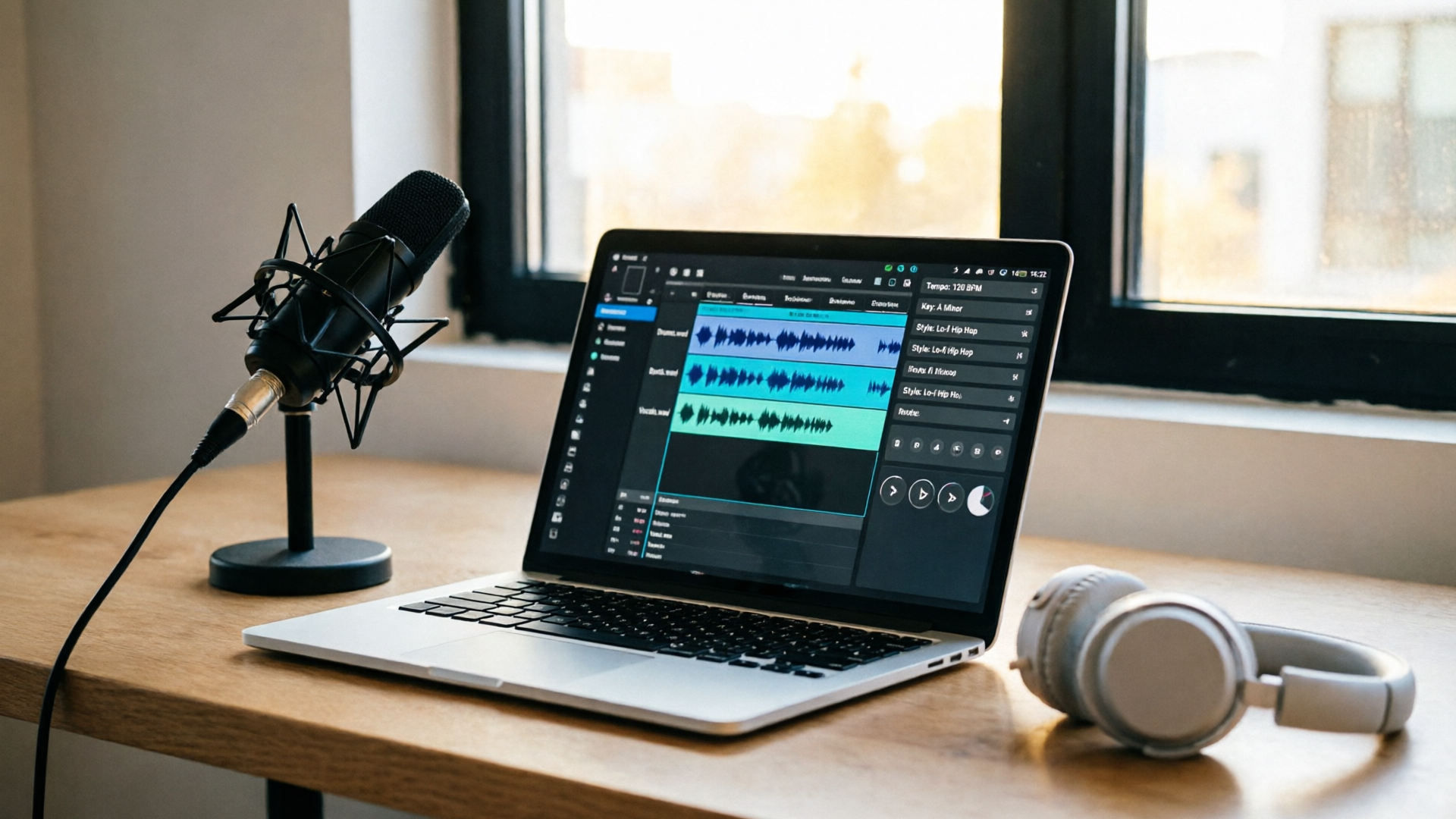
Consistent music across episodes and lessons isn't decoration — it’s part of your instructional interface. If you want learners to move smoothly between modules, retain information, and recognize your brand, a reproducible AI background score strategy is the fastest way to scale without licensing headaches. This guide shows how to plan, batch-generate, and operate a reusable music library using the WowMade AI Music Generator so you can ship uniform, copyright-safe tracks for entire series and courses.
You’ll get practical workflows for defining motifs and tempo ranges, a step-by-step batch generation walkthrough using WowMade AI Music Generator, advice on per-lesson tailoring (stems, tempo, voice hooks), and operations tips for naming, tagging, and integrating the output into an editing pipeline. Whether you’re a course creator, marketing team, or indie producer, the methods here will help you build a reliable library that reduces rework and keeps your edits consistent across episodes.
Why consistent background music matters for series and courses (psychology, branding, and learner outcomes)
Consistency in background music influences attention, memory, and brand recognition. A 2023 meta-analysis found a small but positive mean effect (d = 0.314) of background music on learning outcomes, with classical-style tracks often showing better results for factual retention. That means music choice is not neutral: the wrong track can distract, while a carefully matched score can support retention and signal continuity between lessons.
From a branding perspective, a recurring motif or theme becomes an audio logo: a short melodic idea or instrumentation palette that signals the course or channel immediately. That audio identity reduces cognitive friction — learners understand they’ve moved from theory to practice, or from module to recap, without explicit visual cues.
Operationally, consistent scoring reduces edit time. If every episode uses the same tempo range, loop points, and instrumentation, editors can re-use mixed stems and timecode cues across cuts. For creators worried about copyright or the hassle of clearing dozens of library tracks, an AI background score workflow that produces original, export-ready instrumentals solves licensing uncertainty while enabling the same level of consistency you'd expect from a human composer.
Legal primer: copyright, ownership, and commercial use of AI-generated music — what creators must know
Generative AI music sits in an evolving legal landscape. The U.S. Copyright Office has warned that when the traditional elements of authorship are fully AI-generated — for example when a human’s sole role was to input a prompt — there may be insufficient human authorship to warrant copyright protection. That doesn't mean you can't use AI music, but it does mean you should understand both the platform’s licensing terms and how much human creative input you documented when generating the work.
Rights-holders and major labels have opened litigation and regulatory challenges against some AI-music providers. Because of that, relying on a platform that explicitly offers commercial-use licensing and claims copyright-safe outputs is essential for monetized projects (ads, paid courses, monetized YouTube, and so on). Keep receipts: export logs, prompt snapshots, and brief notes on the creative choices you made for each track. That documentation is practical evidence of authorship and workflow intent if questions arise.
For large-scale projects, standardize a policy: only use tracks exported from a vetted provider and store the provider’s licensing statement with each library item. That approach minimizes downstream legal risk and speeds due diligence when a course is monetized or repackaged. For guidance from the U.S. Copyright Office, see their overview on AI and copyright: https://www.copyright.gov/ai/?LanguageId=1.
Planning your music system: defining motifs, moods, and rules for a reusable library
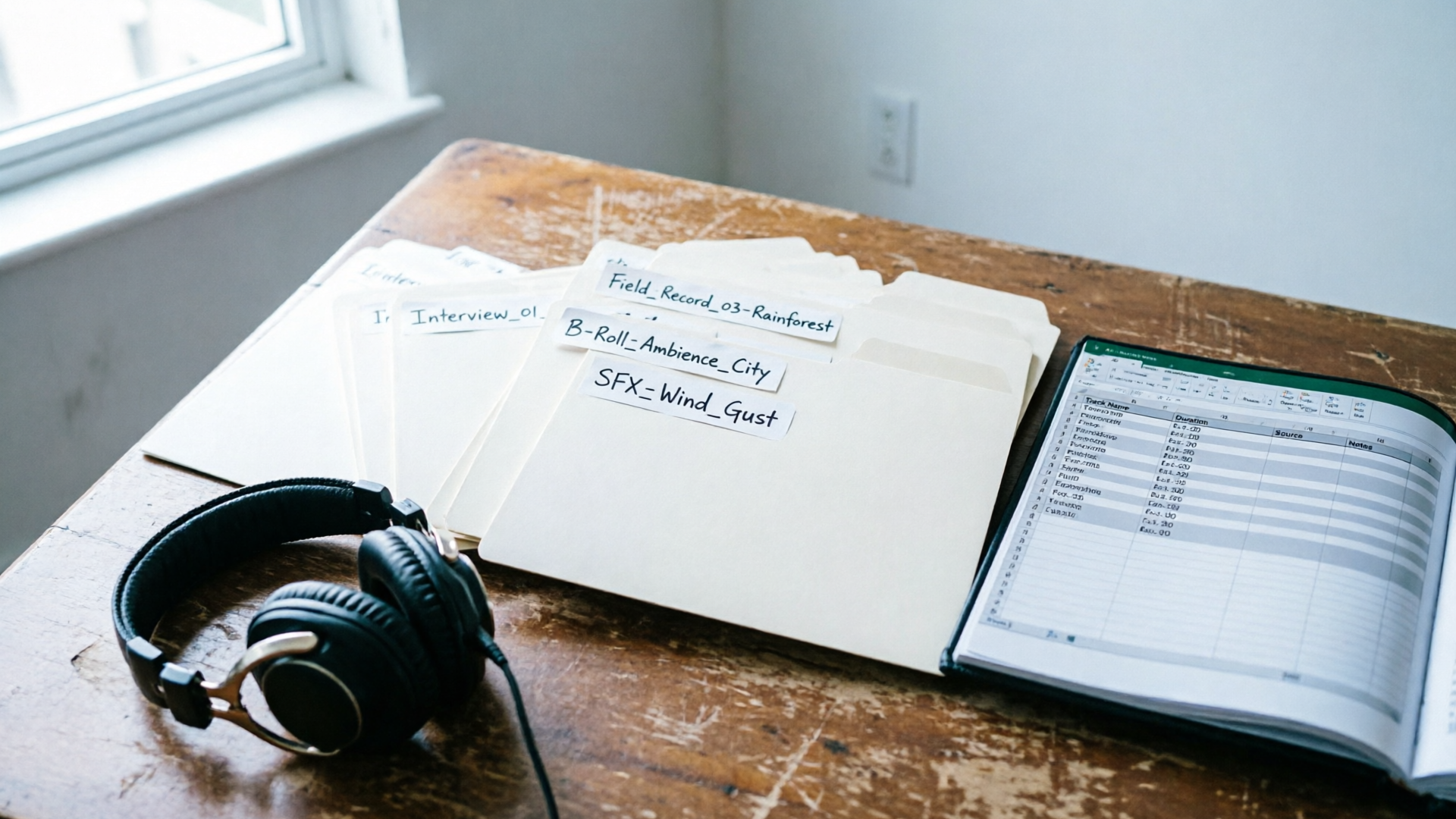
A reusable music library for a series or course should be engineered, not assembled ad-hoc. Start with an identity pack — a compact set of rules that every track in the series follows. Typical identity-pack elements:
- Motif or jingle: a 2–6 second melodic cell or hook that repeats across intro/outro and transitions.
- Tempo range: a locked BPM range for theme loops and another for pacing segments (e.g., 60–70 BPM for reflective lessons, 100–110 BPM for tutorial walkthroughs).
- Instrumentation palette: instruments that define the course’s sonic fingerprint: piano + soft strings for instructional courses, synth pads + plucked guitar for creative topics.
- Mood tags: primary mood (calm, focused), secondary mood (bright, urgent), and intensity levels (S1–S3) so editors can pick matches quickly.
- Export rules: provide stems (instrumental, drums, bass), instrumental-only versions for narration compatibility, and multiple lengths (15s, 30s, 60s, loopable).
Why these rules matter: they let you batch-generate tracks with predictable results, reduce the cognitive load for editors, and ensure your audio identity is consistent even as new episodes or seasons are added. Many AI-first production workflows use identity-driven pipelines where each series inherits a motif, tempo range, and instrumentation palette to guarantee cross-episode consistency and speed up editing. Capture the identity pack as a single JSON or spreadsheet row so it can be reused by anyone on the team.
Hands-on workflow: Batch-generate a consistent music library for a multi-episode series with WowMade AI Music Generator
Batch generation is where you move from concept to a usable catalog. WowMade AI Music Generator is designed to create original songs and instrumentals from text prompts and to export tracks ready for editing — a strong fit for building a series library because it supports style, tempo, and mood guidance and promises outputs you can use without licensing headaches.
Here’s a step-by-step example workflow for generating a 12-track starter library for a 6-episode course (two tracks per episode: a theme loop and a lesson bed):
- Create the identity pack. Define motif ("rising 3-note hook, piano"), tempo ranges (theme: 80 BPM; bed: 60–70 BPM), instrumentation (acoustic piano, warm pad, light percussion), and moods (calm, focused).
- Open WowMade AI Music Generator (/create-music) and prepare a batch spreadsheet with 12 prompt rows. For each prompt include: role (theme or bed), tempo, mood tag, and a short style prompt (e.g., "classical-influenced piano with warm pad, 80 BPM, calm focused").
- Use the generator’s style, tempo, and mood fields for each prompt so the engine receives structured constraints rather than a single line of free text. That increases repeatability.
- Generate a first pass for all 12 prompts. Flag the best two variants per prompt (the generator typically returns multiple variants).
- For themes, request loopable exports and a 15s and 30s version. For beds, request 60s and 120s versions plus instrumental stems.
- Download and tag each file with metadata from your identity pack (episode, mood, tempo, motif used). Store the prompt used alongside the exported audio.
Worked example: Generating a theme loop in WowMade AI Music Generator
- Prompt: "Short motif: rising 3-note piano hook; style: classical-infused modern, warm pad; tempo: 80 BPM; mood: calm, focused; loopable."
- Settings: choose Instrumental only, request 15s and 30s loopable versions, include stems.
- Generate, review two variants, pick variant A, export 15s loop and stems, and save the prompt and the exported files to your library folder.
This approach gives you a uniform set of tracks that share motif, tempo constraints, and instrumentation, making it trivial to replace or augment tracks later. Store every prompt and the generator’s variant IDs so you can reproduce or iterate on any piece.
Hands-on workflow: Tailor and version tracks per lesson — tempo, stems, vocal hooks, and export settings
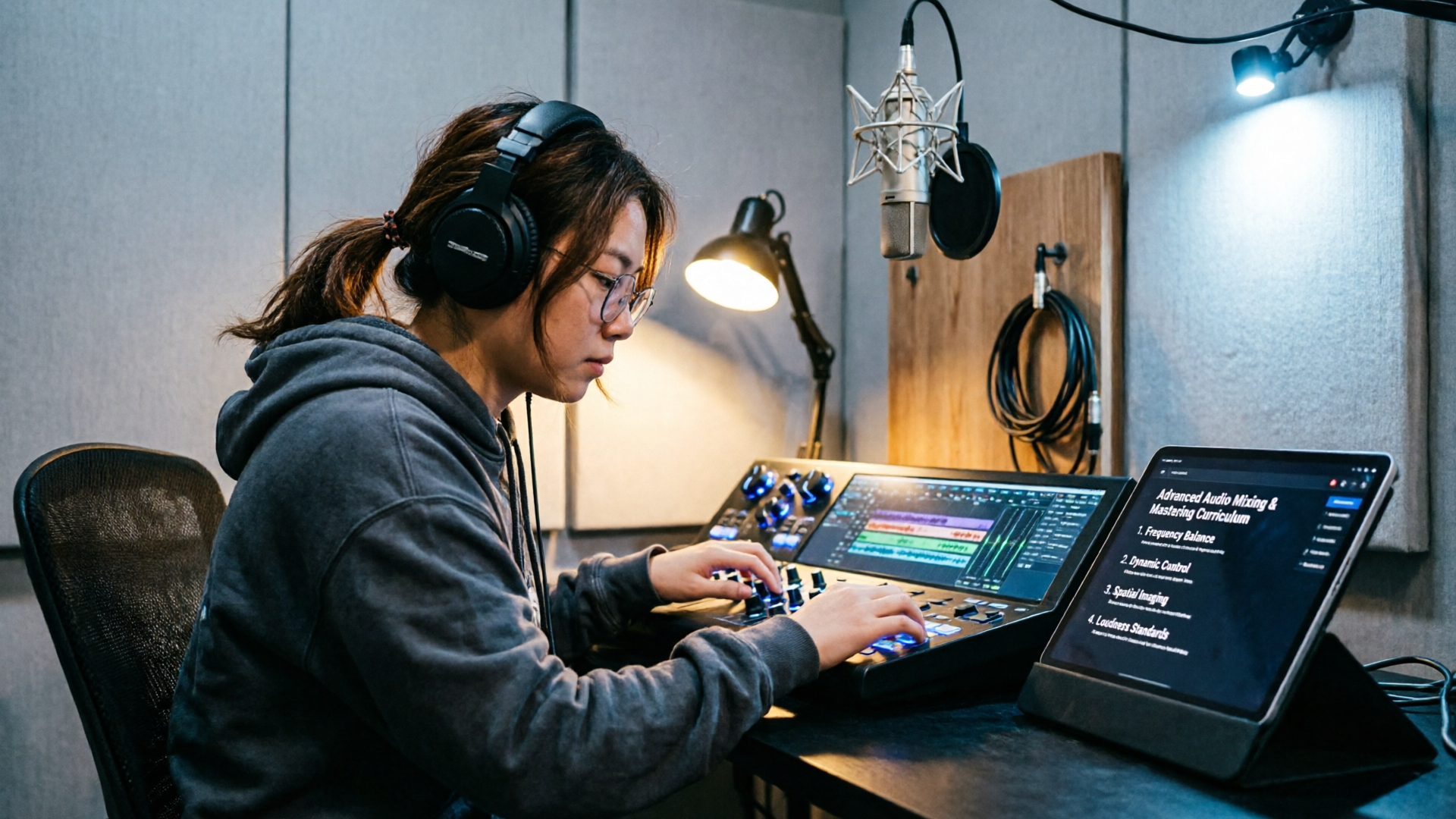
Once you have a starter library, you’ll need per-lesson tailoring to match pacing, narration, and learning objectives. These practical controls reduce rework in the edit bay.
Lock tempo and key when you need loopable intros or seamless chapter transitions. If a lesson has voiceover, export an instrumental-only bed and bring stems into your editor so you can duck music under narration without artifacts. If a lesson needs an emotional lift, generate a version with a vocal hook or light choir pad and keep a pure instrumental as a fallback.
A concrete tailoring sequence using WowMade AI Music Generator:
- Duplicate the base bed prompt, change tempo to match the lesson’s speaking rate (e.g., increase from 65 BPM to 75 BPM for faster-paced how-tos), and request stems plus an instrumental-only export.
- If you need a short vocal hook for a promo cut, set the generator to produce a 6–10s vocal phrase with minimal lyrics (a brand name or tagline) and export a dry stem for mixing.
- For loopability, ask the generator to produce a "beatless" tail or a crossfade-safe loop point; export both loopable and fixed-length versions.
Export settings checklist for course-ready tracks:
- High-quality WAV/48kHz for master stems.
- MP3/320 for quick editorial previews.
- Stems for drums, bass, harmony, lead, and vocals (if present).
- Instrumental-only version for narration compatibility.
- Short loopable cut (15s) for bumpers and transitions.
Keep every tailored version as a separate entry in your library but link it back to the original identity-pack rule and base prompt. That makes rollbacks and A/B testing straightforward.
Operational tips: tagging, naming conventions, and integrating your AI-generated library into an editing pipeline
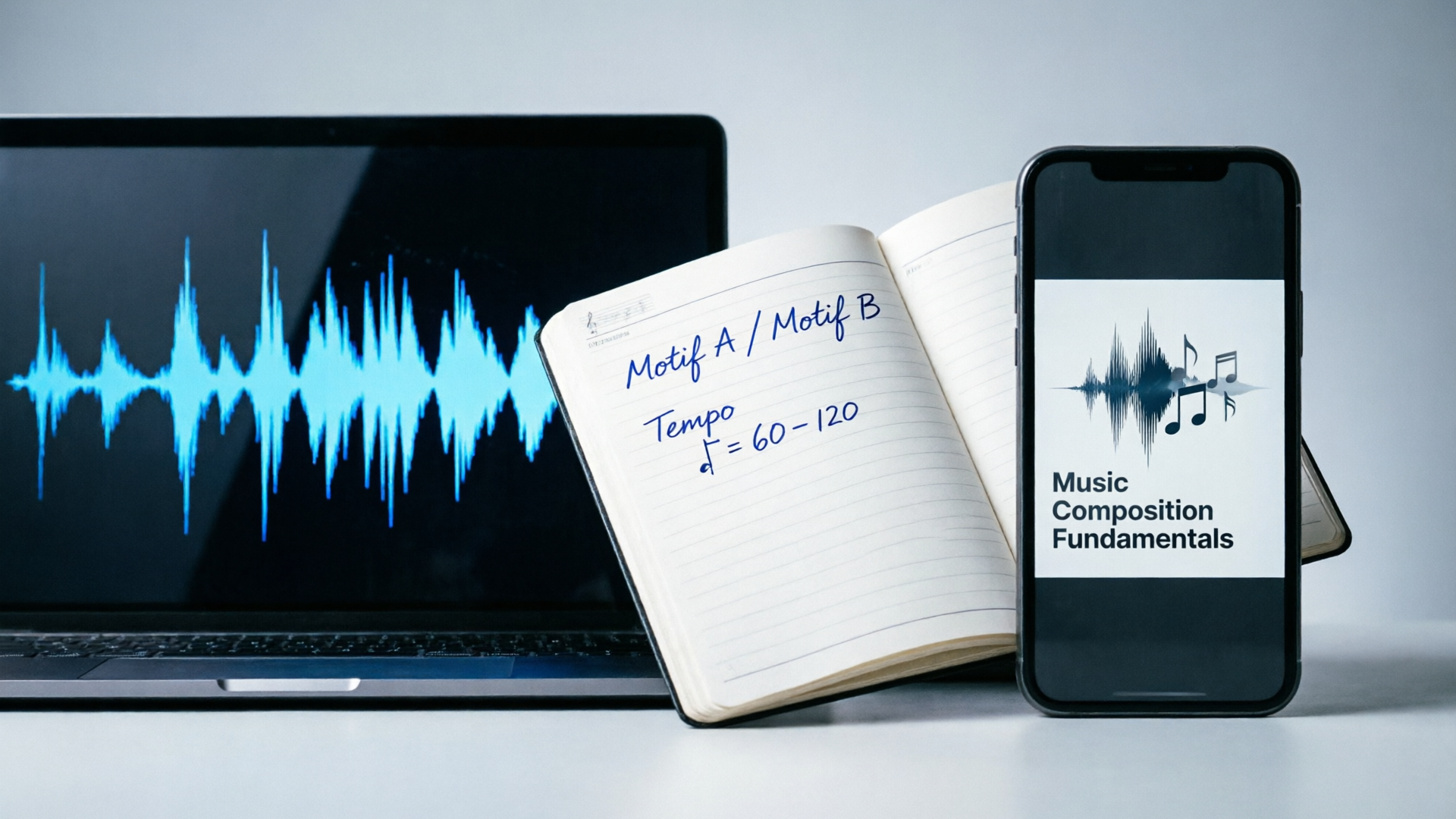
AI can produce huge volumes of music; without structure you’ll face content sprawl. Use strict naming and metadata conventions so editors can find exactly the file they need in seconds.
Naming convention example (single-line):
SeriesCodeEp##RoleTempoKeyMoodVersion.ext
Example: PROJ101EP03THEME080BPMCmajCALMv01.wav
Tagging fields to include in your asset manager or spreadsheet:
- Series, Episode, Role (theme/bed/bumper), Tempo, Key, Mood tag, Instrumentation, Prompt text, Generator Variant ID, Export formats, Date, Creator.
Version control: never overwrite an exported master. Use semantic versioning (v01, v01.1, v02) and keep a changelog for edits that notes what was changed (tempo, stem mix, vocal presence). That prevents accidental regressions and makes QA faster.
Integration into an editing pipeline
- Add a "music" track template in your NLE with pre-configured track ordering: stems on separate channels (lead, harmony, bass, percussion) so the mixer knows where to duck or EQ.
- Use the instrumental-only stems to create narration-safe templates where audio ducks automatically during speech markers.
- For cross-episode updates (for example, you decide to change the motif), export a "swap pack": the motif loop in all required tempos and lengths so editors can drop it in without re-syncing every cut.
Finally, periodic audits are important. Schedule a quarterly pass to remove redundant versions and consolidate your best-performing motifs and beds. With a small governance routine and the WowMade AI Music Generator to produce original tracks that are export-ready and licensable, teams keep libraries lean and practical.
Supportive features: when you need quick visual assets to match a new musical identity (channel art or episode thumbnails), use the AI Image Generator (/create-image) to keep visual branding aligned; for final promo cuts that require quick video renders, pair the music with the AI Video Generator (/create-video). These tools make it faster to ship complete episodes or course trailers with consistent audio and visuals.
Frequently Asked Questions
Is AI-generated music safe to use in paid courses and monetized videos?
It depends on the platform and its license. Use a provider that explicitly allows commercial use and keep records of prompts and exports. WowMade AI Music Generator’s outputs are intended to be export-ready and free from library licensing issues, but always store the provider’s license statement with each asset.
How do I make music that won’t compete with spoken narration?
Export instrumental-only stems and keep lead elements low in the frequency range where speech sits. Locking tempo and creating soft pads rather than bright, busy leads helps the music support rather than distract from narration.
How many versions should I create per track?
At minimum: a loopable 15s theme, 30–60s bed, and stems (instrumental). For courses, add a narration-safe instrumental and one vocal-hook variant if you use promos. Keep versions but avoid duplicates by naming and tagging clearly.
Conclusion
A repeatable, documented music system turns background scoring from a time sink into a production asset. Use an identity pack to define motifs, tempos, and export rules; batch-generate a starter library with WowMade AI Music Generator; and then tailor stems and tempo-locked versions for each lesson. Keep strict naming, metadata, and version control to avoid sprawl and make edits predictable.
Open the AI Music Generator and pop a vibe into the generator to score your next cut in minutes.