Music‑Synced Montage: A practical workflow for beat‑matched product edits
A creator-first guide to build product montages that lock cuts to music using beat mapping and WowMade AI Music Generator for copyright‑free, tempo‑accurate tracks.
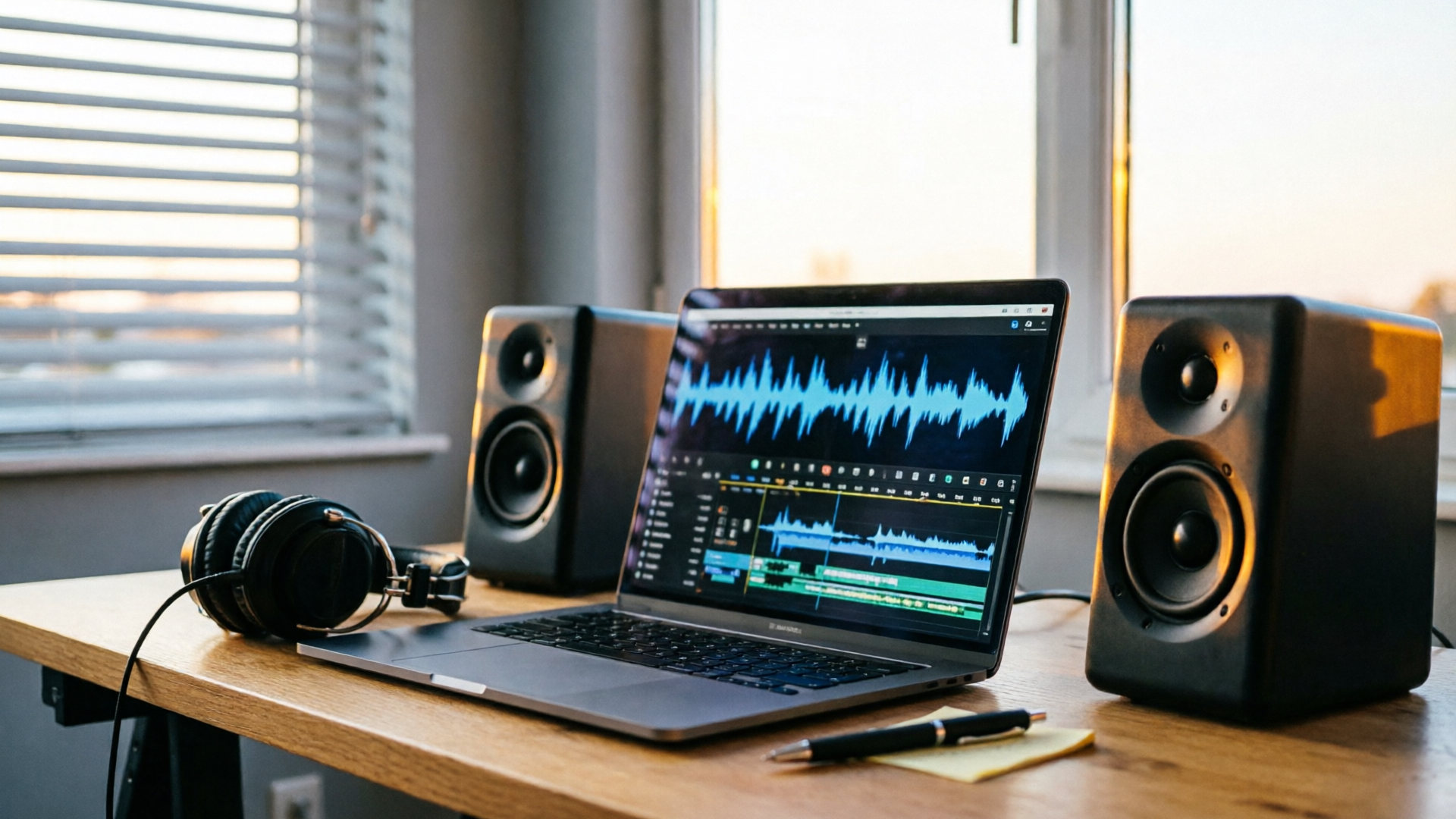
A tight product montage that feels effortless is rarely accidental — it’s the result of deliberate pacing, careful beat choices, and music that actually supports the brand moment. This guide shows you how to build a music synced montage from brief to export, blending classic editing craft (markers, downbeats, J/L cuts) with modern AI-assisted music so you can generate copyright‑free tracks that match your edit.
Early in the edit you should decide whether to fit the music to the footage or the footage to the music. For repeatable commercial work, generating a custom track with the WowMade AI Music Generator gives you precise control of tempo, arrangement, and instrumentation so your cuts land where they matter. Read on for step‑by‑step mapping, two hands‑on workflows (one focused on generating the track, one on matching clips), and finishing moves that make montages feel professional and platform‑ready.
Why syncing music to image matters for product montages (engagement, emotion, and pacing)
Music shapes how viewers perceive a product faster than visuals alone. In controlled studies, music changes persuasion, engagement, and emotional response in data‑driven videos — a well‑timed cue can raise attention and make features feel more heroic. For product montages, syncing visuals to music accomplishes three things:
- Engagement: rhythmic cuts aligned with strong transients keep short‑form viewers watching past the first 1–3 seconds.
- Emotion: instrumentation, harmonic choices, and loudness curves guide perceived value and mood.
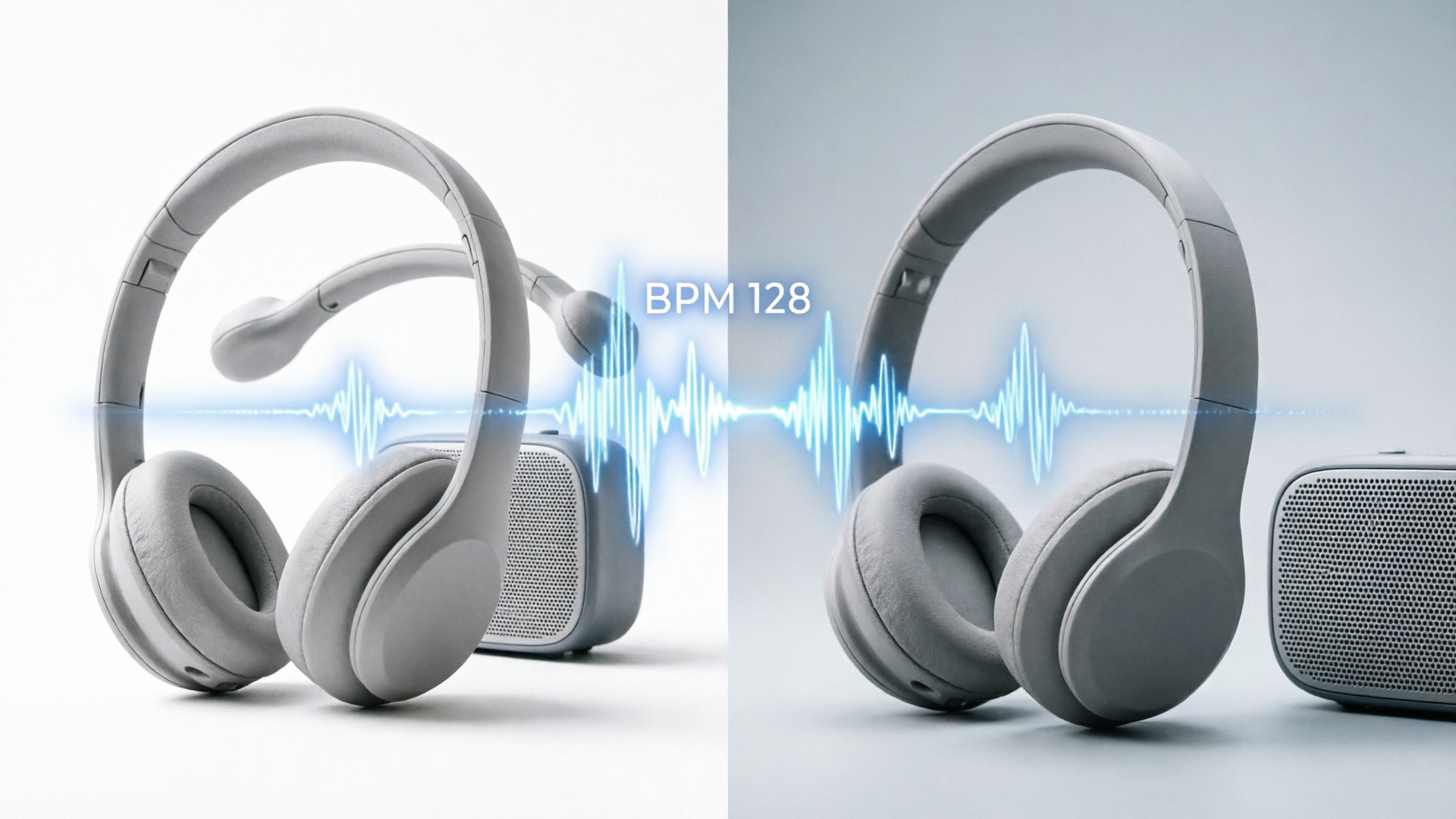
- Pacing: tempo sets the montage’s heartbeat; faster BPMs suit energetic unboxings, slower tempos suit premium reveals.
That last point matters: licensing obstacles and tempo mismatch are common friction points. Generating your own music removes licensing risk and lets you match BPM or export loops sized for 9:16 vertical ads. The WowMade AI Music Generator produces original tracks from a prompt and lets you guide style, tempo, and mood — meaning you can create a custom hook for a 15‑ or 30‑second spot that aligns with your cut timing.
Beyond mechanics, modern research into automatic alignment demonstrates that aligning motion keyframes with audio beats is technically possible and improves perceived synchronization. Still, human judgment stays critical. Automated tools find most onsets, but editors report they often miss "emotional beats" — the moments the brand wants emphasized — so you should treat auto detection as a starting point, not a final decision. (For more on music’s effect on persuasion, see the preprint on music and data videos.)
Internal link: Learn how an "AI music generator" can replace library searches by creating custom hooks for ads with precise BPM control: [/create-music].
How editors map a song: beat detection, markers, and choosing edit points
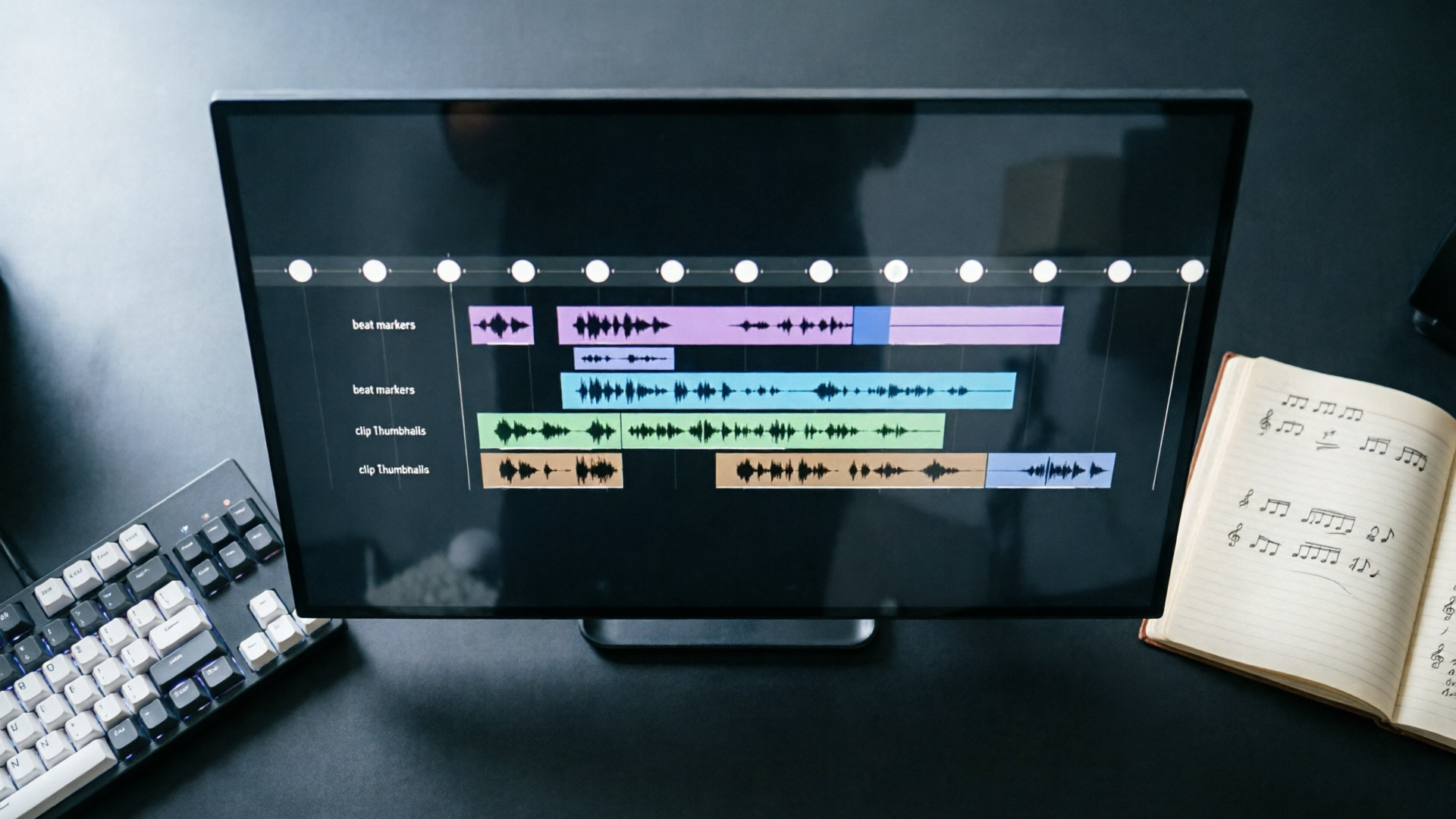
Mapping a song is the single most reliable way to make cuts feel intentional. Most professional guides recommend this sequence: detect tempo, place beat markers on downbeats and strong transients, then choose which beats become edit points. The goal is clarity — place markers that reflect musical hierarchy so your cuts follow the song’s phrasing rather than every transient.
Start by listening with a waveform view visible. Use either your DAW or NLE to auto‑detect BPM and onsets; many editors use built‑in detection in Premiere, Resolve, or a dedicated service to get an initial marker grid. Auto tools (Beat2Cut and others) speed up the first pass but often over‑mark; creators consistently report having to remove or nudge markers to respect emotional pacing.
Practical marker strategy:
- Downbeat markers: place on bar 1 of each phrase and on obvious chord changes.
- Strong transient markers: place on drum hits and vocal accents you might want to cut to.
- Secondary markers: use for tempo changes, fills, or instrumental drops.
Editing on downbeats creates a stable rhythm and prevents viewer fatigue. Reserve every‑beat cutting for high‑energy montages where micro‑cuts match a rapid synth or hi‑hat feel. Use different marker colors to separate structural beats (bars) from transient edits (sub‑beats) so you can toggle visibility while cutting.
Finally, remember not every cut needs to hit a beat. J‑cuts, L‑cuts, and occasional longer shots give the montage emotional contrast and protect narrative clarity. Treat the music map as a toolbox: pick the beats that support the story, then lean on classic editing rhythms to vary tempo and emotional density.
Related guide: How to generate mood-matched AI music for tempo-perfect video scoring.
Workflow 1 — From brief to beat: generate a custom track that fits montage pacing (hands-on with WowMade AI Music Generator)
When you need a track that matches a specific montage length and energy, generating one yourself is often the fastest solution. The WowMade AI Music Generator is purpose‑built for that use: it generates original songs and instrumentals from a text prompt, lets you set style, tempo, and mood, and exports tracks that are copyright‑free and ready to drop into any editor.
Concrete walkthrough — create a 15‑second high‑energy loop for a product reel:
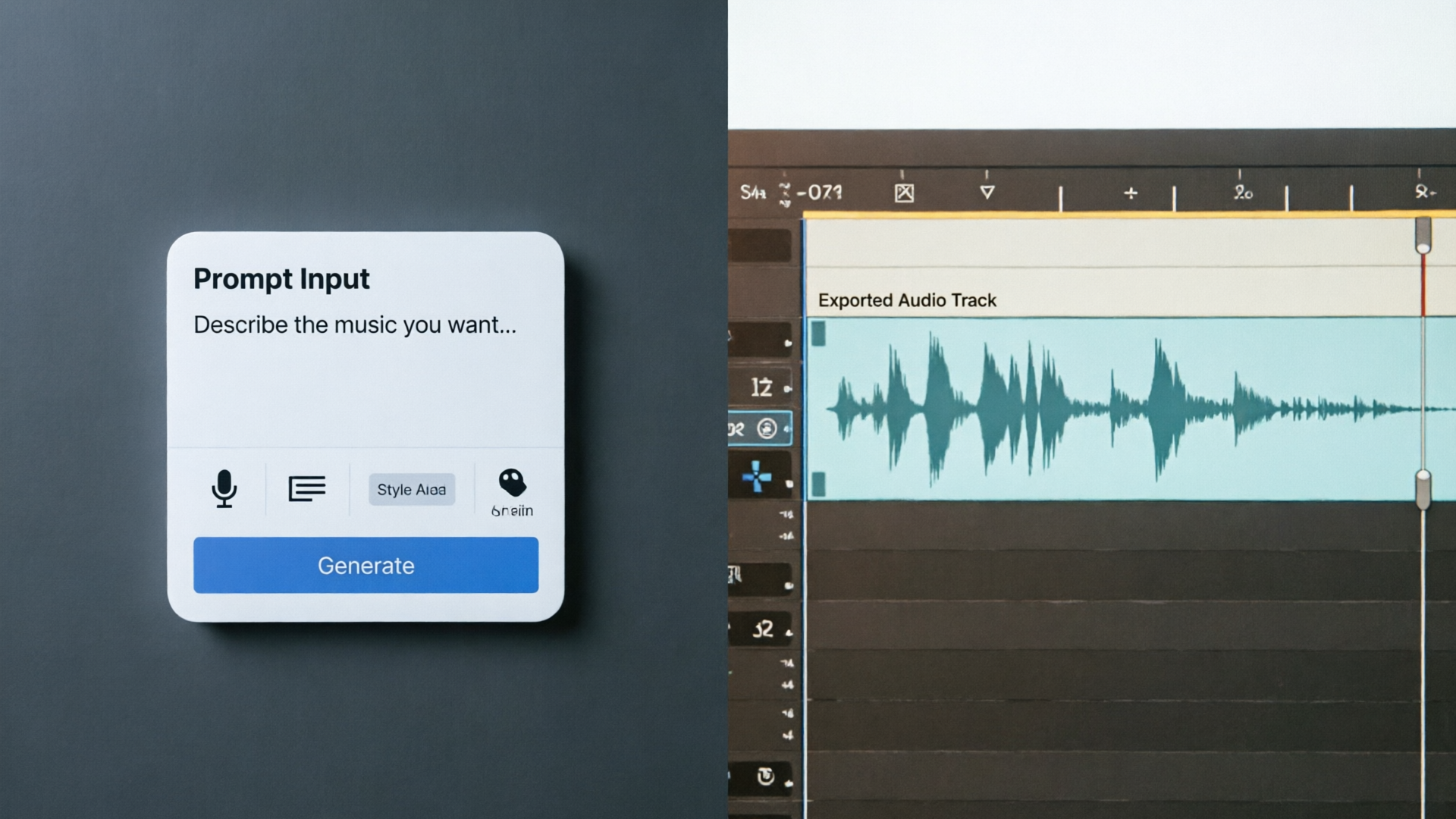
- Write a short prompt: "15s high‑energy electronic instrumental, 120 BPM, punchy kick, bright synth lead, brief buildup at 10s, no vocals." Include desired instrumentation and the exact length if you need a loop.
- Set tempo and mood in the generator controls: choose 120 BPM and "energetic" or the closest mood label. The UI accepts tempo guidance so the resulting transients align with your expected beat grid.
- Generate a few variations and audition them. The generator creates instrumentals you can export — pick the version with the cleanest transient profile for edit work.
- Export stems or the full track (if stems are available, split kick or percussion stems help precise beat matching). If you don’t need stems, the single exported instrumental still gives you a tight, license‑free background.
- Import the exported track into your NLE and run your beat detection or place markers manually.
Why this helps: by specifying tempo and arrangement in the prompt you reduce the fiddling phase where editors stretch or retime licensed music to fit cuts. Generating a track makes it straightforward to create a mix with clear downbeats and predictable fills that support your montage structure.
Use cases the generator solves well: creating a short custom jingle for the product hook, a loop for a vertical looped ad, or an instrumental bed that keeps vocals out of the mix so product sounds can sit on top cleanly. Because the output is original and license‑free, legal review cycles are shorter and you can confidently ship to platforms like TikTok or YouTube without chasing licenses.
Internal link: If you need visuals to match the new track later, the same project can pull assets from our "AI video generator" to test shot pacing quickly: [/create-video].
Workflow 2 — Beat‑matching clips: practical timelines, markers, and tempo‑aware trims in Premiere/Resolve/CapCut
With your track mapped or generated, the next step is matching clips to the beat map. The process is similar across Premiere, Resolve, or CapCut, though shortcuts differ. The principles below apply to any editor.
- Create a timeline sized for the target platform and drop the exported track on an audio track locked to measure zero. Enable waveform zoom until you can clearly see transients.
- Place markers on the downbeats and strong transients. Most NLEs let you press a key to drop a marker during playback — play the track and tap along to lay down a musical grid, then adjust marker placement to align precisely with waveform peaks.
- Assemble selects in a rough pass ignoring beats. This keeps story priorities clear: the product narrative (key features, hero moment) should guide which beats you plan to hit.
- Tempo‑aware trims:
- Snap trims to markers for hard hits. If a product action (opening, reveal) should land on a downbeat, move the cut point to the nearest downbeat marker.
- Use J‑ and L‑cuts for voice or ambient continuity. If narration explains a feature, let audio carry over while the cut waits for the next strong beat.
- Use tempo ramps and speed‑ramping sparingly. Slight speed changes (±5–10%) can move a clip to a stronger transient without sounding obvious.
- Check phrasing across the sequence. Avoid cutting on every beat — it flattens hierarchy. Instead, hit primary beats for major changes and secondary beats for texture.
- Polish transitions: add micro crossfades or sound design hits to mask any timing slips, and consider keeping a tiny gap (2–6 frames) on some cuts to let the beat breathe.
CapCut and some browser tools have automated beat align features that will snap cuts to beats. Use them to accelerate assemblies, but follow the common wisdom: automatic tools are fast but often miss emotional beats, so manual refinement is needed. For a deeper reference on beat editing techniques, Hollyland and other pro guides walk through Premiere‑specific keystrokes and shortcuts.
Internal link: If you want to create a vertical hero image to use as the opening frame, generate the artwork with the "text‑to‑image" tool and export the still for the edit: [/create-image].
Finishing moves: layering sound design, transitions, and exporting platform‑ready montages
The final stage is about detail: sound design, transition timing, and export settings that preserve your carefully synced pacing across platforms.
Sound design: add subtle percussive hits, whooshes, and foley that reinforce visual moves. Where a visual snap coincides with a musical transient, layering a soft transient or branded sound effect can make the moment feel tactile. If you exported stems from the WowMade AI Music Generator, lower the percussion stem briefly to make space for a Foley hit; if you only have a full mix, use a quick transient effect mixed at low volume.
Transitions and dynamic contrast: alternate tight beat‑synced cuts with longer, emotive shots. Use tempo ramps to stretch a clip across a bar change and place a cymbal swell or reverse reverb as a bridge. Keep an ear on loudness: platform encoders will normalize audio differently, so mix to a safe LUFS target for your destination (e.g., -14 LUFS for streaming when required).
Export checklist for platform readiness:
- Frame size and aspect locked to the platform (9:16 for Reels/TikTok, 16:9 for YouTube).
- Audio sample rate and bit depth matching platform specs (48 kHz is standard for video).
- Final render with a short color‑grade pass to keep product color accurate.
Why final checks matter: small timing inconsistencies often appear after re‑rendering or when platform transcoding shortens or pads frames. Always preview the uploaded file on the actual platform if you can, because autoplay behavior and initial volume can change perceived timing.
External citation: For experimental evidence that music affects engagement and persuasion in video, see the arXiv preprint on music and data videos: https://arxiv.org/abs/2601.17893
Frequently Asked Questions
Can I generate a track at an exact BPM with the WowMade AI Music Generator?
Yes — the generator allows you to guide tempo in the prompt or interface, so you can create tracks at a target BPM that match your montage pacing.
Do I still need to manually nudge markers after auto beat detection?
Usually yes. Auto detection speeds up the mapping pass but editors commonly refine markers to respect emotional beats and narrative priorities.
Is music generated by WowMade safe to publish on TikTok and YouTube?
Tracks generated by the WowMade AI Music Generator are original and exported for use without library licensing, making them suitable for platform publishing without additional license clearance.
Conclusion
A repeatable music‑synced montage workflow blends clear marker mapping with intentional music choices. If licensing or tempo mismatch slows you down, generating a custom instrumental with the WowMade AI Music Generator gives you control over BPM, arrangement, and mood so your edits land where they need to. Start by mapping the song, decide which beats serve the story, assemble with tempo‑aware trims, and finish with focused sound design and platform checks. Open the AI Music Generator and generate a beat‑matched track to score your next product montage.