Tempo-Matched Music for Demo Videos: A Practical Creator’s Guide
Learn how to generate tempo matched music for demo videos with WowMade AI Music Generator. Step-by-step prompts, BPM tips, syncing workflows, and legal guidance.
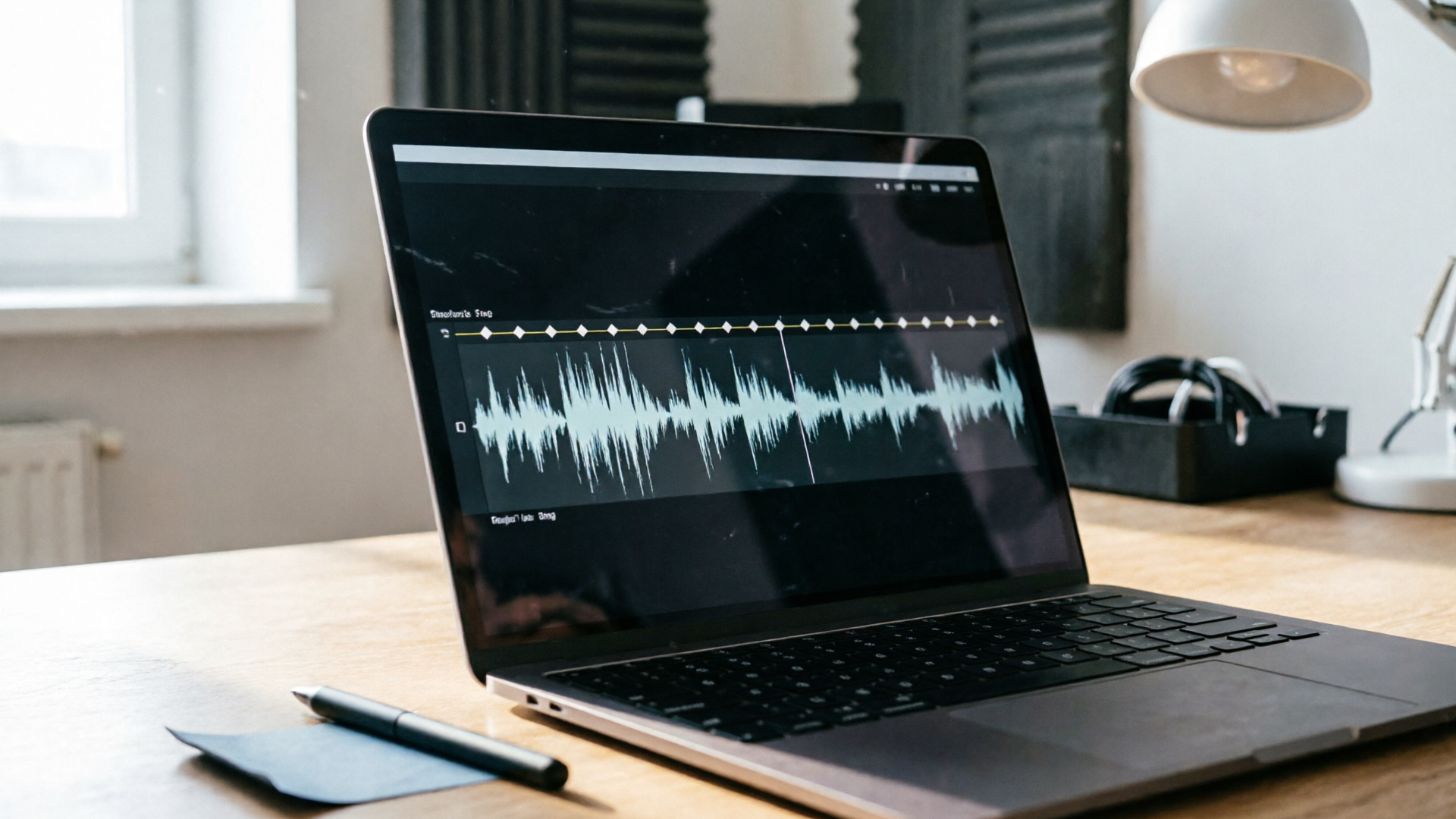
Picture a product walkthrough where the demo’s voiceover explains a feature just as a soft piano chord resolves — the viewer’s eyes trace the UI, comprehension clicks, and the conversion metric ticks up. That effect isn’t magic; it’s deliberate audio design. This guide shows product marketers and creators how to pick BPM, craft instrumentation, and produce copyright-safe, tempo matched music that makes demos clearer and more persuasive. Early on we’ll use the WowMade AI Music Generator to generate full instrumental tracks from prompts, customize tempo and mood, and export mixing-ready stems.
You’ll learn why tempo matters (and the viewer research behind it), how to choose BPM ranges for different demo formats, step-by-step prompts and exact settings to use in WowMade AI Music Generator, and practical syncing techniques inside your NLE so musical phrases land on scene changes. I’ll also cover legal guardrails for generative music and include 30 ready-to-use prompt templates and quick workflows so you can iterate fast. Follow the walkthroughs and you’ll replace slapped-on stock music with bespoke, tempo-accurate background scores that sound intentional and keep attention on your product.
Why tempo-matched music boosts viewer comprehension and conversion for demo videos
Audio drives comprehension. Recent research notes that “auditory features… affect key message transmission and improve viewers’ emotional connection.” When music and edit pace align, viewers expend less effort reconciling what they see and hear; cognitive load drops and the message lands more cleanly.
Tempo is the most direct lever you have. A track whose BPM follows the cut rate makes motion feel natural — clicks, micro-interactions, and animated overlays appear to belong in the same rhythmic world. Conversely, a track that conflicts with edit pacing introduces friction: viewers may sense mismatch as subtle dissonance and disengage.
Beyond basic alignment, tempo and arrangement shape perceived energy and trust. Lower tempos communicate calm and focus, encouraging careful inspection of UI details; mid-range tempos support friendly walkthroughs; higher tempos pump energy for montages or promotional clips. When your music nudges the viewer toward the intended emotional posture — calm scrutiny or excited discovery — conversion metrics often follow.
WowMade AI Music Generator is designed to make this practical: it generates original instrumental tracks where you explicitly set tempo and mood, so you can produce copyright-free music that supports comprehension and conversion without legal headaches.
How to choose the right BPM and rhythmic character for different demo types (product walkthrough, feature highlight, fast cut montage)
Choosing BPM is a creative and tactical decision. Use a simple mapping as your starting point and then tune instrumentation and rhythmic feel to match your demo’s intent.
- Product walkthroughs (60–90 BPM): These demos require attention. Lower BPMs let viewers parse details without rushing. Use sparse instrumentation (piano, warm pads, light brushed drums) and longer musical phrases that won’t compete with voiceover.
- Conversational feature highlights (90–120 BPM): This range feels natural and conversational — good for explainer voiceover without becoming intrusive. Add a steady kick/snare or light percussion to keep momentum; short melodic motifs can emphasize key moments.
- Fast cut montages and trailers (120–140+ BPM): High energy and urgency live here. Percussive elements, rhythmic arps, and shorter phrase lengths match rapid cuts and build excitement quickly.
Rhythmic character matters as much as BPM. Syncopation can draw attention to specific UI events; straight 4/4 feels stable and dependable. Consider phrase length too: align musical 4-bar or 8-bar phrases with your scene structure so transitions fall on phrase boundaries.
These ranges are grounded in creator guidance and BPM resources: lower BPMs tend to read as calm, mid BPMs as conversational, and higher BPMs as energetic. Start with the BPM mapping above and then iterate using short variations — it’s fast with an AI instrument generator.
Related guide: Build a Distinct Sonic Brand Fast.
Hands-on: Generate a tempo-matched instrumental track with WowMade AI Music Generator (step-by-step prompts and settings)
This walkthrough shows a concrete example: produce a 95 BPM instrumental for a feature walkthrough with a warm acoustic vibe.
Step 1 — project brief: Write a short prompt. Example: "95 BPM warm acoustic background for a product walkthrough — piano, soft nylon guitar, light brushed drums, ambient pad, 3-minute instrumental, subtle low-mids, no vocals." Keep style, tempo, mood and length explicit.
Step 2 — open the WowMade AI Music Generator (/create-music) and paste the prompt. Choose “Instrumental / No Vocals” if available. Set Tempo/BPM to 95 and choose "Warm Acoustic" or similar mood option. If the UI offers a length slider, set ~2:30–3:00 to cover most walkthroughs.
Step 3 — select arrangement and stems: If the generator supports stems, request separate tracks (drums, bass, keys, pad). Exporting stems makes later edits and level adjustments far easier in an NLE or DAW.
Step 4 — generate 3 variations. Use the generator’s variation or remix control to produce alternate takes at the same BPM with different instrumentation emphasis (one with more guitar, one with a light synth pad, one with tighter percussion).
Step 5 — audition and pick. Listen for clarity around the downbeats and whether the phrase boundaries fit typical scene lengths (4–8 bars). Export the chosen track and stems at your project sample rate as WAV files.
Why this works: WowMade AI Music Generator produces original tracks with explicit tempo control and exports ready for use in editors — that means you can generate multiple tempo-accurate options quickly and avoid library licensing headaches. Use the mid-creation variations to test which rhythmic character best suits your edit before committing to a full mix.
Hands-on: Syncing the generated track to your edit — matching beats, phrases and transitions in your NLE
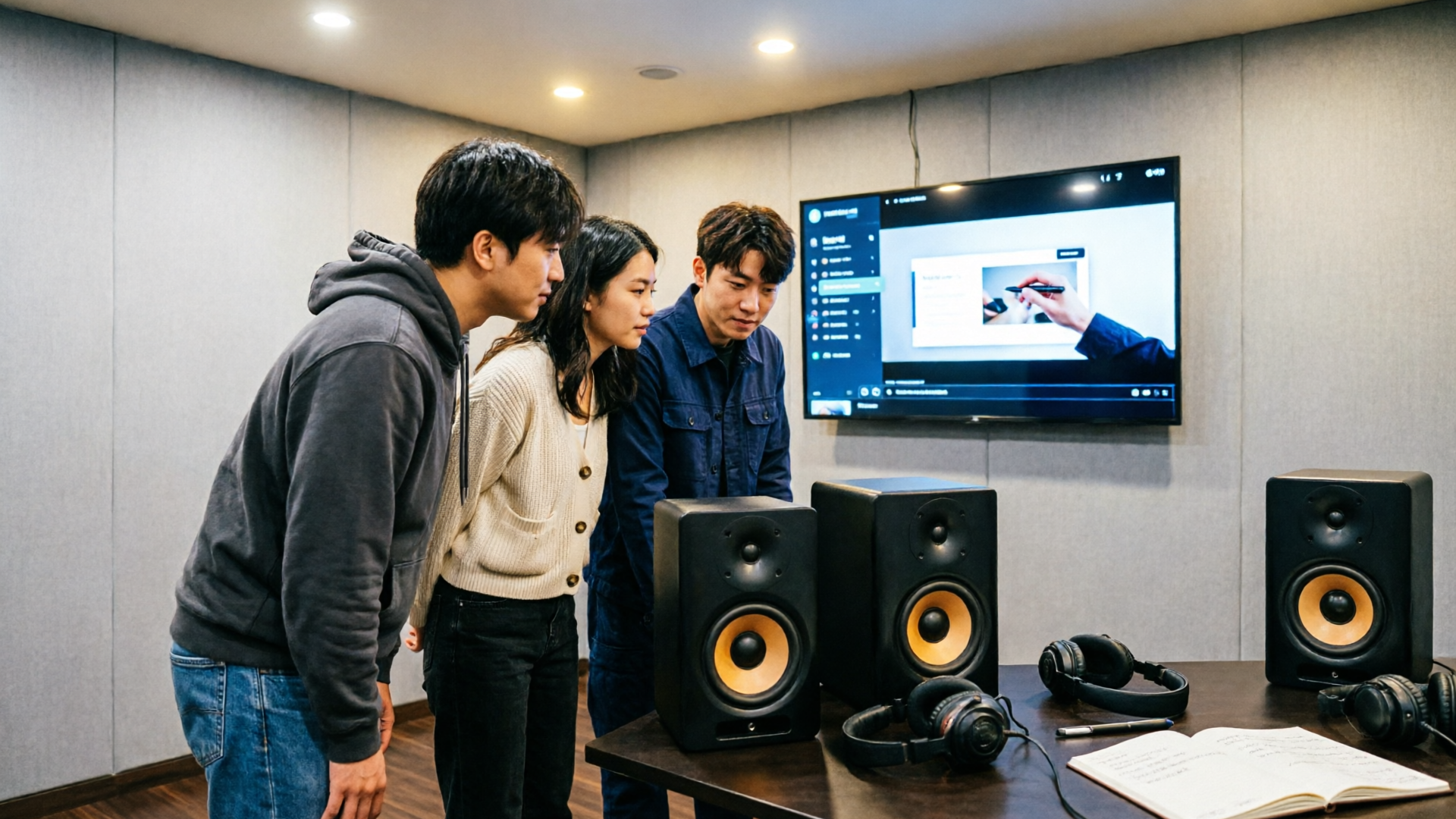
Once you have a tempo-matched track, syncing it tightly to your cut is the next step. Here’s a practical NLE-focused workflow that works in Premiere, Final Cut, DaVinci, or any editor with a tempo grid or beat markers.
Step 1 — import the exported WAV or stems and set your project frame-rate and timeline. If you exported at the project BPM, drop the track into the timeline and use your NLE’s beat detection or waveform to find the downbeat.
Step 2 — overlay a bar/beat grid or place markers on the downbeats. Many editors let you create a custom marker pattern (every downbeat or every bar). If your NLE supports tempo mapping, map the audio tempo to the timeline using the track tempo tool.
Step 3 — align scene cuts to phrase boundaries. Prefer cuts on strong beats or at phrase starts (bars 1 or 5 of 8-bar phrases). If a cut falls mid-phrase, consider adding a subtle hit or riser to bridge that gap.
Step 4 — use stems to duck or highlight. Keep the background stem low during explanatory voiceover; bring up the hook or guitar motif for feature highlight shots. Ducking by hand or using sidechain compression preserves intelligibility.
Step 5 — loop and extend with stems. For longer videos, loop short phrase-accurate stems. Export the portion you’ll repeat, keeping the phrase intact (e.g., full 4-bar or 8-bar blocks) so loops don’t click or feel disjointed.
Editor tip: export the generated track at the project BPM and use the editor’s beat/grid overlay to snap cuts to downbeats — this reduces friction and produces a more natural-feeling result. For a detailed walk-through of timeline syncing concepts, see this guide: "How to use the BPM Tempo to loop and extend Music for Videos" (https://www.baumannmusic.com/2019/how-to-use-the-bpm-tempo-to-loop-and-extend-music-for-videos/).
Writing prompts and instrumentation choices to craft a custom jingle or theme loop for your brand
Jingles and theme loops are short, repeatable, and must be instantly identifiable. When you need a two- to eight-second hook or a 15–30 second theme, prompt precision and instrumentation choices are essential.
Prompt structure: Start with a compact creative brief in one line, then add constraints.
- One-line brief: "15s brand theme, 100 BPM, bright, optimistic, memorable hook, subtle synth pluck, electric piano comp, no vocals."
- Constraints: "Make loopable, 2-bar hook, strong downbeat on bar 1, export 3 variations, stems for percussion and hook only."
Instrumentation tips:
- Hook instrument: pick a bright, mid-range voice — plucked synth, marimba, or muted trumpet for clarity.
- Rhythm bed: light percussion (shaker, soft claps) keeps it moving without crowding the hook.
- Pads/bass: low, warm sub-bass and soft pad to glue the mix; keep these low during voiceover.
Creating the loop in WowMade AI Music Generator: request "loopable" or "2-bar loop" and explicitly ask for precise downbeat placement. Generate multiple hook variations and export each as stems. Use these as your channel intro, end-card theme, or a recurring sonic identifier across videos.
Worked example: "Create a 10s loop at 100 BPM, upbeat tech-brand jingle, synth pluck hook on beat 1, tight sub-bass, light rimshot on 3, loopable without gap." Generate 4 variations, pick the catchiest, and export the hook stem. Drop the stem into your timeline and use it as the channel intro — it’s short, repeatable, and aligns with your pacing.
Copyright, licensing, and risk management for AI-generated music — what creators must know
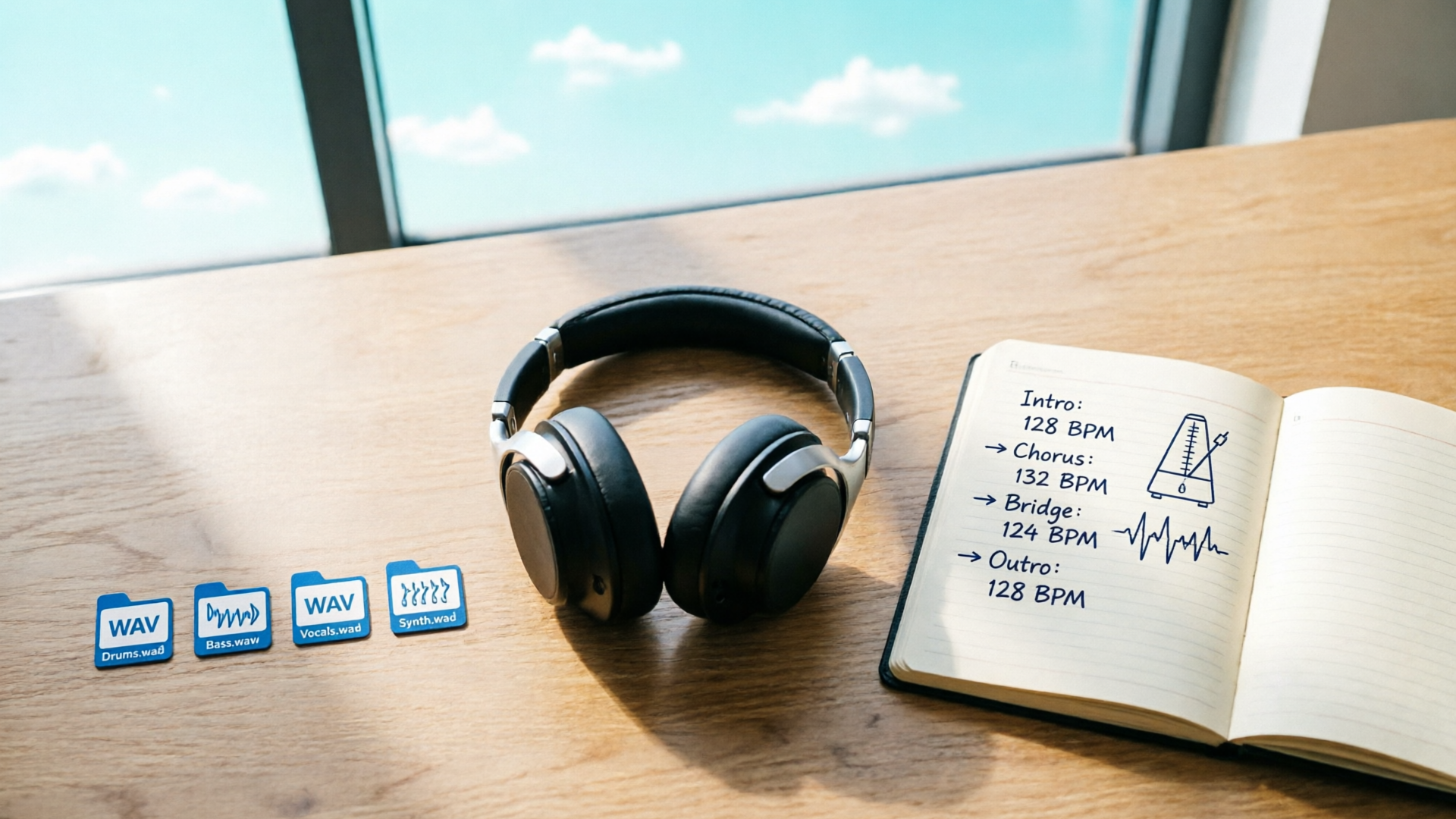
Generative music has become powerful, but the legal landscape is active. Academic and legal analyses show questions about training datasets and downstream rights remain unresolved. For creators, the practical takeaway is to prefer platforms that provide clear, commercial-use licenses and copyright guarantees.
What to check on any AI music platform:
- License terms: can you use generated tracks commercially, in ads, and on monetized channels? Look for explicit permissions.
- Ownership and attribution: does the platform grant you a commercial license or ownership, and are there required credits?
- Export and reuse rights: can you edit, loop, and rebroadcast the track without restrictions?
WowMade AI Music Generator positions itself for creators: it generates original tracks with outputs you can export and use without library licensing. That removes a frequent blocker for TikTok and YouTube creators who otherwise wrestle with copyright claims.
Risk-management tips:
- Keep records: store the prompt, generation timestamp, and export files (metadata matters if a claim arises).
- Create variations: small prompt tweaks produce different outputs; if you’re concerned about similarity, use a variation and regenerate.
- Prefer stems and shorter loops when using third-party assets in the same project — stems make it easier to prove how you combined material.
If you want a deeper legal read, see recent analyses on copyright and AI models (SSRN and law reviews). The landscape will evolve, but choosing a generator that provides clear commercial export rights reduces practical risk today.
30 ready-to-use prompt templates and quick workflows: demo soundtrack recipes (BPM ranges, moods, instrumentation)
Below are compact, copy-ready prompts and quick workflows organized by demo type. Each entry lists BPM range, mood, instrumentation, and a one-line prompt you can paste into WowMade AI Music Generator.
Product walkthroughs (60–90 BPM)
- Calm explanatory — 70 BPM — piano, warm pad, brushed snare: "70 BPM calm explanatory track, piano lead with warm pad bed, brushed snare, instrumental, 2:30, loopable phrases, no vocals."
- Focused UI tour — 80 BPM — nylon guitar, soft pluck, ambient synth: "80 BPM focused UI tour, nylon guitar comp, subtle pluck arpeggio, ambient synth pad, stems for guitar and pad."
- Slow-motion demo — 60 BPM — ambient pad, deep sub, minimal percussion: "60 BPM ambient demo, long pad swells, deep sub, minimal clicks for UI hits, 3-minute instrumental."
Feature highlights (90–120 BPM)
- Conversational highlight — 100 BPM — light drums, electric piano: "100 BPM conversational feature highlight, electric piano comp, soft kick-snare, warm bass, 1:45 instrumental."
- Clean product hook — 95 BPM — piano motif, soft guitar, tight percussion: "95 BPM clean hook for product demo, piano motif, soft guitar fills, tight percussion, stems: motif/drums/pad."
- Friendly onboarding clip — 110 BPM — marimba, bright synth, hand claps: "110 BPM friendly onboarding, marimba hook, bright synth pad, hand-clap backbeat, 90s warmth."
Fast cut montages (120–140+ BPM)
- Energetic montage — 130 BPM — driving drums, arpeggiated synths: "130 BPM energetic montage, driving electronic drums, arpeggiated synth, short 30s trailer, punchy low mids."
- Viral feature clip — 140 BPM — rhythmic plucks, staccato bass: "140 BPM viral product clip, rhythmic pluck hook, staccato bass, aggressive transient shaping, 0:45 explosive mix."
- Launch teaser — 125 BPM — cinematic percussion, risers, hook loop: "125 BPM cinematic launch teaser, big percussive hits, risers, 15s loopable hook, export stems."
Jingles & theme loops
- Brand intro loop — 100 BPM — synth pluck hook, sub bass: "100 BPM 10s loopable brand intro, synth pluck hook on beat 1, warm sub bass, light percussion, loopable without gap."
- Notification sting — 85 BPM — short marimba motif: "85 BPM 3s notification sting, marimba motif, clean transient, no reverb, export high-quality WAV."
- Channel theme — 110 BPM — bright guitar, playful bass: "110 BPM channel theme, bright electric guitar hook, playful bass, 20s loop, stems for lead and rhythm."
Quick workflows
- Rapid iteration: generate 4 variations at target BPM, export stems, test each against the first minute of your edit. Pick the best downbeat alignment.
- Stem-first mixing: request stems for percussion, hook, pads, bass — keep hook stem for highlights and low pads for voiceover.
- Loop-safe edits: export 4-bar loops with clean fade-ins/outs; place loops on the timeline with crossfades under 10 ms.
These prompt recipes are designed to get you producing usable, tempo matched music in minutes with WowMade AI Music Generator. Build a small library of stems and loops for each product series so your sound remains consistent across videos.
Frequently Asked Questions
Can I use WowMade-generated music in paid ads and monetized videos?
Yes — WowMade AI Music Generator outputs are intended for commercial use without library licensing; always check current terms in your account for specifics.
How precise does BPM need to be to feel synced?
Within ±1–2 BPM is usually fine for background music; for tight rhythm edits or lip-synced hooks, export at the exact project BPM and use bar/beat markers.
Should I generate stems or a single mixed track?
Generate stems when possible — they give control for ducking and looping. Use a single mix for quick exports or final deliverables when no further edits are needed.
Conclusion
Tempo-matched music turns a good demo into one that feels intentional, readable, and persuasive. Use BPM mapping as your guide, prefer phrase-aligned loops, and work with stems so you can duck, loop, and highlight precisely. The fastest path from brief to final mix is to iterate with an AI-driven tool: generate variations at your target BPM, export stems, and snap those stems to your timeline using beat markers.
If you want to ship a demo soundtrack fast, open the AI Music Generator and generate a tempo-matched instrumental you can drop into your edit in minutes. For pricing and plans to scale this approach, check WowMade’s pricing. If you need visuals to match the same aesthetic, consider creating supporting shots with the AI Video Generator. Open the AI Music Generator and score your next demo in one sitting.
Make this with WowMade
Mentioned in
- Best AI Music Generator in 2026: a creator-first decision guideCompare vocals, stem export, and commercial licences to choose the best AI music generator for creators. Practical WowMade workflows and export checklists.
- Scoring Paced Tutorials with AI: A Creator’s Guide to Tempo, Clarity, and Fast ResultsA practical creator’s guide to scoring tutorials with AI: tempo rules, mixing tips, tests, and step-by-step use of WowMade AI Music Generator for copyright-safe tracks.
- How to Create Music‑Driven Videos with an AI Music Generator for VideosPractical workflows to score, beat‑sync, and iterate music‑driven videos using WowMade AI Music Generator. Beat sync, stems, and export tips for higher retention.
- How to generate mood-matched AI music for tempo-perfect video scoringPractical guide to creating tempo- and mood-matched, copyright-safe background music with AI. Workflows, prompts, licensing checks, and WowMade AI Music Generator steps.