Image to B-roll: Turn One Product Photo into Cinematic Clips That Convert
Learn how to turn a single product photo into cinematic B‑roll for TikTok, Reels, and landing pages using image to b-roll workflows and the WowMade AI Video Generator.
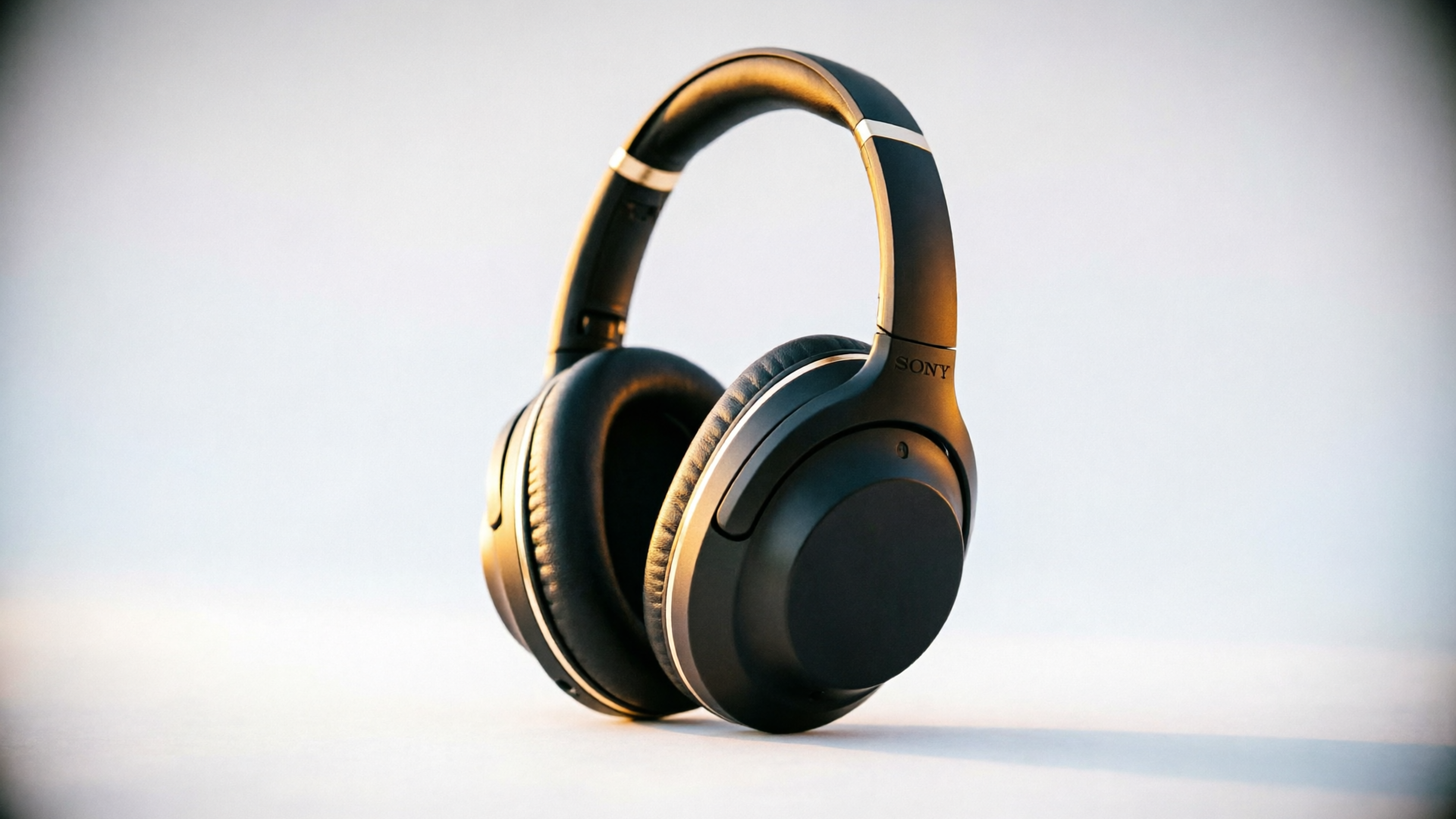
For e‑commerce teams and creators, learning how to turn an image to b-roll is a superpower: one product photo can become multiple short clips for ads, social hooks, and landing‑page loops. In this guide I’ll show practical workflows, prompt patterns, and two step‑by‑step demos using the WowMade AI Video Generator so you can ship social‑first clips without a camera or an editor.
You’ll learn which photos animate well, the exact preflight checklist that reduces artifacts, motion and timing prompt patterns that sell, and two hands‑on workflows — a single 6–10s TikTok hook and a batch method for 20 landing loops — both using the WowMade AI Video Generator. By the end you’ll have templates and a mini playbook to cut production time and keep every clip on‑brand.
Why B‑roll from stills matters now: attention, cost, and platform signals
Short‑form discovery channels are reshaping how products get discovered and bought. Platforms push video in feeds and search: YouTube Shorts reported roughly 70 billion daily views, and video‑first shopping influences purchase behavior—iQuanti found about 70% of users say they’ve purchased after seeing a brand on YouTube. These platform signals favor short, eye‑catching clips over static images.
For small teams and indie makers, the economics are simple: setting up a dedicated shoot for every SKU is slow and expensive. Image‑to‑B‑roll workflows replace repetitive shoots and stock hunting with fast, iterative clips. Modern tools—including the WowMade AI Video Generator—render cinematic 5–15 second clips (camera orbits, hero zooms, parallax) from a single still in minutes, not hours. That speed means you can A/B test multiple hooks, localize creatives, and keep CPAs down.
Finally, platform ranking favors native motion—feeds reward engagement patterns triggered by dynamic thumbnails and movement. Animating your hero photo into a 9:16 hook or a landing‑page loop gives you the same brand continuity as a studio shoot, but with far lower marginal cost and faster iteration.
Key creative types of image‑to‑B‑roll (hero loops, lifestyle cutaways, animated product reveal)
There are a few repeatable creative formats that work for product marketing. Each solves a different brief and maps to a specific motion vocabulary.
- Hero loops: Short, endlessly looping 2–8s clips that show the product cleanly (rotating, floating, slow zoom). These are ideal for landing pages and product galleries where you want a polished, non‑distracting motion. Keep movement subtle and predictable so viewers can inspect details.
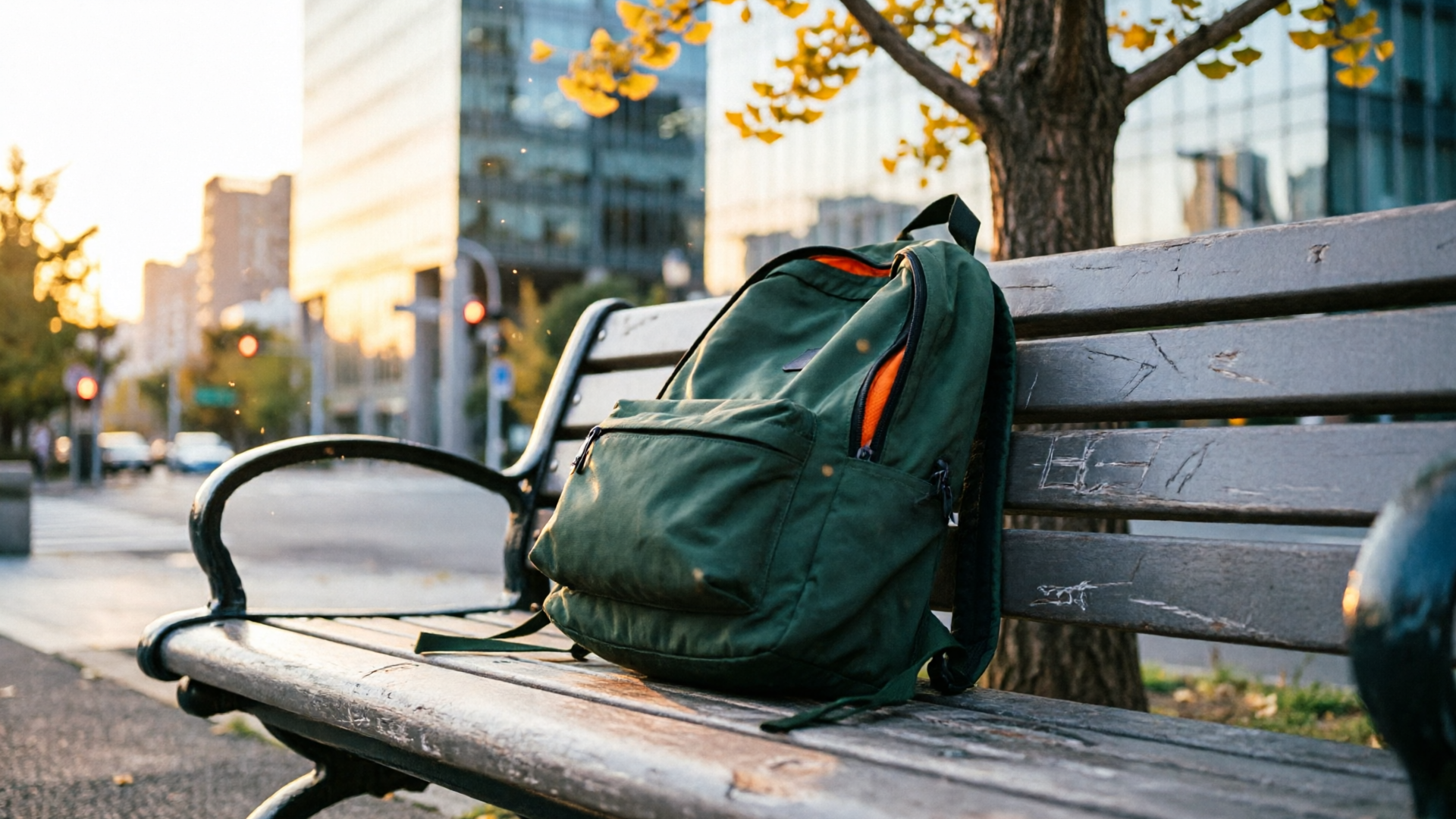
- Lifestyle cutaways: Add contextual motion to a product‑in‑use still (a backpack on a bench, headphones on a desk). Use parallax and foreground blur to recreate depth; these clips function as cutaways in social edits to sell context and aspiration.
- Animated product reveal: Dramatic camera orbits, spotlight reveals, and layer‑based transitions that pull focus onto features. Use these for paid ads and hook openings where you have 1–3 seconds to earn attention.
Each type benefits from different pacing and sound. Hero loops need minimal motion and a subtle ambient soundtrack (or no audio if used as a looping landing asset). Lifestyle cutaways work best with rhythmic edits to match music. Animated reveals demand sharper camera moves and often a combination of impact sounds and a short vocal line. The WowMade AI Video Generator outputs vertical, square, and horizontal framings from the same prompt, which makes it easy to repurpose a single creative across placements without re‑shooting.
What makes a still image easy—or hard—to animate (composition, background, subject separation)
Not every product photo turns into clean B‑roll. The images that animate well share a few technical and compositional traits.
Easier to animate:
- Strong subject separation: clear foreground subject with distinct edges against the background. This helps parallax, isolated lighting, and accurate subject motion.
- High resolution and detail: 2k+ images let the generator preserve texture during zooms and crops.
- Clean background or mask: plain or gently graduated backgrounds reduce artefacts when the tool extrapolates motion.
Harder to animate:
- Busy or patterned backgrounds that confuse depth estimation.
- Overlapping objects and complex occlusion (hands, props crossing the subject edge).
- Low resolution or heavy compression that introduces blockiness when the frame is repanned.
If your photo has a person or model, confirm model release rights before publishing. Many tools and docs stress this: watermarking and rights checks are part of responsible production. When you recognize a problematic photo, a quick fix is to export a masked PNG or run a background remove pass in an image editor or the WowMade AI Image Generator, then feed the cleaned image into the WowMade AI Video Generator for better results.
Quick technical checklist before you generate: file types, aspect ratios, resolution, and brand kit
A short preflight saves revision cycles. Follow this checklist before you upload images to any image‑to‑B‑roll tool:
- File type: Prefer high‑quality JPG for photos or PNG if you need transparency. Generators handle JPG/PNG best; avoid heavy WebP compression if you can.
- Resolution: Use the highest resolution available. 2,000 px on the long edge is a practical minimum for clean 9:16 zooms.
- Subject isolation: If the background is busy, provide a masked PNG (alpha) or a companion transparency layer.
- Aspect ratios: Decide outputs up front—vertical 9:16 for TikTok/Reels, 1:1 for Instagram feed ads, 16:9 for YouTube. The WowMade AI Video Generator can output 9:16, 1:1, and 16:9 from the same prompt, letting you generate variants without redoing the creative.
- Brand kit: Upload logo SVGs, color hexes, and preferred fonts where the tool supports overlays. This reduces manual corrections and ensures thumbnails and loops match your site.
Creators who follow this preflight report fewer visible artifacts and faster approvals. Editorial tool docs like Kapwing and ngram advise the same steps—upload high‑resolution JPG/PNG and declare the target aspect ratio to avoid surprising crops.
Prompt patterns and motion styles that work for product photos (camera moves, timing, and mood)
Prompts control the camera language and emotion of the clip. Use concise, repeatable patterns to get consistent outputs across SKUs.
Basic motion building blocks:
- Camera orbit (slow): "gentle 30° camera orbit around product, 3s" — good for hero loops.
- Hero zoom: "cinematic 1.5x push‑in, easing out, 2s" — highlights logos or texture.
- Parallax depth: "foreground blur, subtle parallax, 4s" — best for lifestyle cutaways.
- Reveal wipe: "spotlight reveal from top, quick 0.8s impact" — useful for paid hooks.
Combine motion with timing and mood markers:
- Timing: use short numeric cues in the prompt: "6s total, first 1.5s slow, last 0.5s snap".
- Mood and lighting: "golden hour rim light, soft shadows, cinematic contrast".
- Camera lens: "50mm portrait lens bokeh" or "wide 24mm slight distortion" to suggest focal behavior.
Prompt examples you can adapt:
- Hero loop: "High‑res product on white, gentle 360 orbit, soft shadow, 6s loopable, cinematic lighting, neutral color grade."
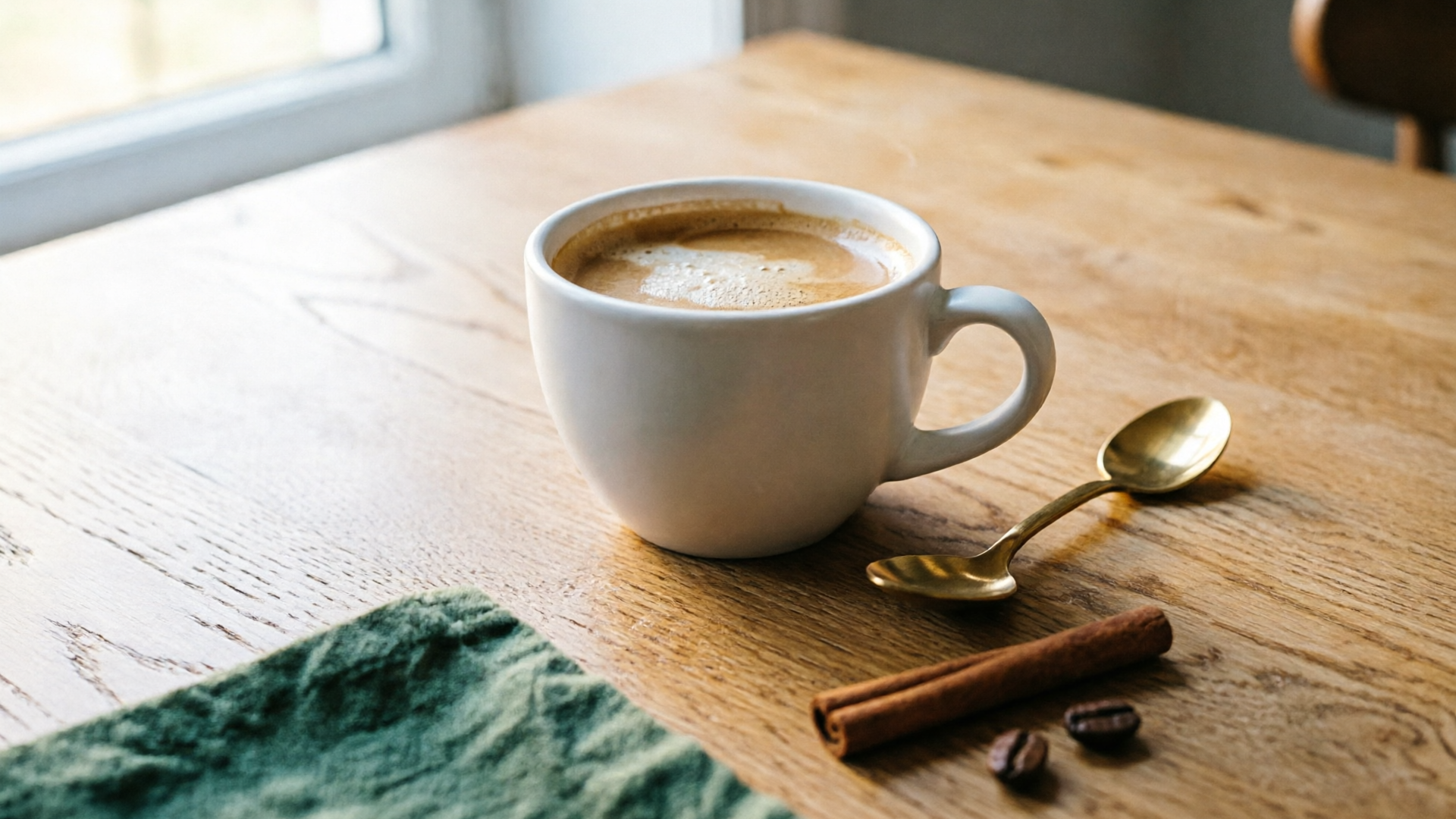
- Lifestyle cutaway: "Product on wooden table, shallow depth, parallax foreground objects, slow left pan, 6s, warm mood."
Use the WowMade AI Video Generator to iterate: start with one clear seed prompt, generate the vertical output, then tweak the timing or camera angle and re‑render. Because it keeps the subject on‑model, you can keep iterating until the motion matches your brand.
Hands‑on workflow: turn one product photo into a 6–10s TikTok hook using WowMade AI Video Generator (/create-video)
This walkthrough uses a single hero photo and produces a TikTok‑ready 9:16 clip in about 5–10 minutes.
Step‑by‑step:
- Preflight the photo: export a high‑res JPG (long edge ≥2000px). If the background is busy, export a masked PNG. Confirm you own commercial rights for the image.
- Open the WowMade AI Video Generator (/create-video) and choose "image to video" mode.
- Upload your photo and choose vertical 9:16 framing. Select "keep subject on‑model" (default behavior) to preserve product proportion.
- Enter a seed prompt. Example prompt:
"6s cinematic product hook: slow 1.2x push in 0–3s, 0.6s snap reveal with rim light, gentle camera orbit 10°, soft film grain, warm color grade. Loopable end."
- Add tag lines or logo overlay in the brand kit pane; set safe margins for text to avoid platform cropping.
- Render the clip. The WowMade AI Video Generator typically renders short clips in minutes. Review the result and note if the subject edge shows artifacts.
- Iterate: adjust timing or motion by +/‑ 0.5s and re‑render. Use the same prompt to produce 1:1 and 16:9 variants without changing the image.
Concrete tips: aim for a hook in the first 1–2 seconds — a quick snap or highlight that draws attention. This workflow gives you a social‑native asset without a camera crew.
Hands‑on workflow: batch producing 20 landing‑page product loops from a single shoot using WowMade AI Video Generator
If you photographed 20 SKUs on a consistent background, you can batch produce landing‑page loops rapidly.
Workflow overview:
- Standardize images: export all 20 photos at the same resolution and background treatment (mask if needed). Consistency reduces variable artifacts during batch generation.
- Create a master prompt template that includes camera move, loop instruction, and brand kit commands. Example template:
"5s product loop, gentle 360 orbit 0–4s, soft ambient rim light, neutral color grade, loop seamlessly. Include logo bottom right small, safe margins."
- In the WowMade AI Video Generator (/create-video), use the batch mode: upload the 20 files and paste the master prompt. Set output to square (1:1) for landing thumbnails or 9:16 if you want to reuse for social.
- Render in groups (5–10 at a time) to monitor quality. Because WowMade renders multiple aspect ratios from the same prompt, you can produce 1:1 and 16:9 variants in the same job without re‑uploading.
- Quick quality pass: look for edge artifacts, haloing, or unexpected background fills. If several files show similar issues, tweak the prompt to include "clean white background" or upload masked PNGs for those problem files.
- Export naming convention: SKUloop11.mp4, SKUloop19.mp4 to keep uploads organized.
This approach shortens what used to be days of retouching into a few hours. Creator communities and vendor docs report that batching with a clean, consistent photo set reduces manual fixes dramatically. Use A/B tests (next section) to surface the highest‑performing loop layout per product.
Measuring impact and repurposing B‑roll across channels (A/B tests, KPIs, and export formats)
Track simple, actionable KPIs to know whether your image‑to‑B‑roll assets move the business:
- Engagement: CTR and view‑through rate on paid placements and organic impressions for social.
- Conversion lift: add‑to‑cart rate and landing‑page conversion for product pages using animated loops vs static images.
- Cost metrics: cost per click (CPC) and cost per acquisition (CPA) when running paid campaigns.
A/B test basics:
- Test one variable at a time: motion intensity (subtle vs bold), loop length (3s vs 6s), or audio (music vs muted).
- Run tests for a minimum of several thousand impressions or a pre‑defined time window to gather stable signals.
Repurposing strategy:
- Generate multiple aspect ratios from the same prompt in the WowMade AI Video Generator to avoid re‑editing.
- Use hero loops on product pages, vertical edits as TikTok/Reels hooks, and horizontal clips for product demos or YouTube Short openers.
- For paid campaigns, layer short captions or sticker CTA in the vertical edit to increase clarity when sound is off.
Export formats: deliver MP4 H.264 for broad compatibility; include a GIF or APNG for small looping thumbnails if the platform supports it. Track which format drives the best page performance and standardize that format across SKUs for faster publishing.
Best practices and ethical considerations for AI‑generated B‑roll (brand safety, rights, and quality control)
AI‑generated B‑roll is powerful, but it carries responsibilities.
Rights and releases:
- Confirm you hold commercial rights to every photo you animate. If a photo includes people, keep model releases on file.
- Check the generator’s policy for logos and trademarked elements; some providers restrict brand usage.
Quality control:
- Run a visual QA pass for edge artifacts, inconsistent lighting, and unintended hallucinations (extra shadows, phantom props).
- Keep a "reject criteria" checklist: visible haloing >1% of frame, incorrect product colors, or misrendered text mean rework. Use masked PNGs or a cleaned source image to fix most issues.
Brand safety:
- Use your brand kit to anchor colors and safe type placements so automated outputs don’t place critical text outside safe zones.
- Avoid prompting for content that could imply endorsements or misrepresent live demonstrations.
Transparency and attribution:
- If required by your jurisdiction or platform, note that creative assets were AI‑assisted. This builds trust and reduces compliance risk.
Across vendor docs and community feedback, these checks reduce downstream legal and operational headaches. Tools like the WowMade AI Video Generator support brand kits, output aspect variants, and iterative rendering — all helpful safeguards when you scale.
Frequently Asked Questions
Can I animate photos with transparent backgrounds?
Yes. Providing a PNG with transparency usually improves subject isolation and reduces background artefacts during parallax or orbit motions.
How long does a typical render take?
Short clips (5–10s) commonly render in minutes with modern image‑to‑video tools; expect faster iteration when you keep prompts concise and use preflighted images.
Will the AI change my product color or design?
Well‑written prompts and high‑quality source images keep the subject on‑model. If color shifts appear, include explicit color instructions in the prompt (e.g., "true white product color, no hue shift").
Can I generate multiple aspect ratios from one prompt?
Yes. The WowMade AI Video Generator outputs 9:16, 1:1, and 16:9 from the same prompt so you can repurpose a single generation across platforms.
Conclusion
Image to b-roll is a pragmatic way for creators and e‑commerce teams to scale visual content without multiplying shoots. Start with good source photos, use repeatable prompt patterns, and run quick QA to keep brand standards high. For hands‑on speed and repeatability, use the WowMade AI Video Generator to animate a still into vertical, square, and horizontal clips, iterate on the same prompt, and render social‑ready B‑roll in minutes. Open the AI Video Generator, drop in a photo and a short prompt, and ship your first clip during your next break.
Make this with WowMade
Mentioned in
- ai real estate video: turn listing photos into 30–45s walkthroughsA compliance-first how-to for agents: turn listing photos into 30–45s AI real estate video walkthroughs, with step-by-step production, disclosure rules, templates and WowMade.
- How to animate old photos: a preservation-first workflowStep-by-step, preservation-first workflow for how to animate old photos: archival scanning, restoration, animation approach, and delivery tips to keep detail intact.
- Image to cinematic video: turn one product photo into a looping landing-page heroTurn one product photo into a cinematic looping hero video that boosts attention and loads fast — step-by-step workflow using the WowMade AI Video Generator.
- Image to Video Ads: Turn One Product Photo into High-Converting TikTok & Landing-Page LoopsPractical playbook to convert a single product image or mockup into TikTok/Reels ads and landing-page loops using the WowMade AI Video Generator.