From Still to Scroll-Stopping: Turn One Image into a Vertical Teaser
Turn a single image or concept art into a high-performing vertical teaser. Practical workflows, examples, and a step-by-step with WowMade AI Video Generator.
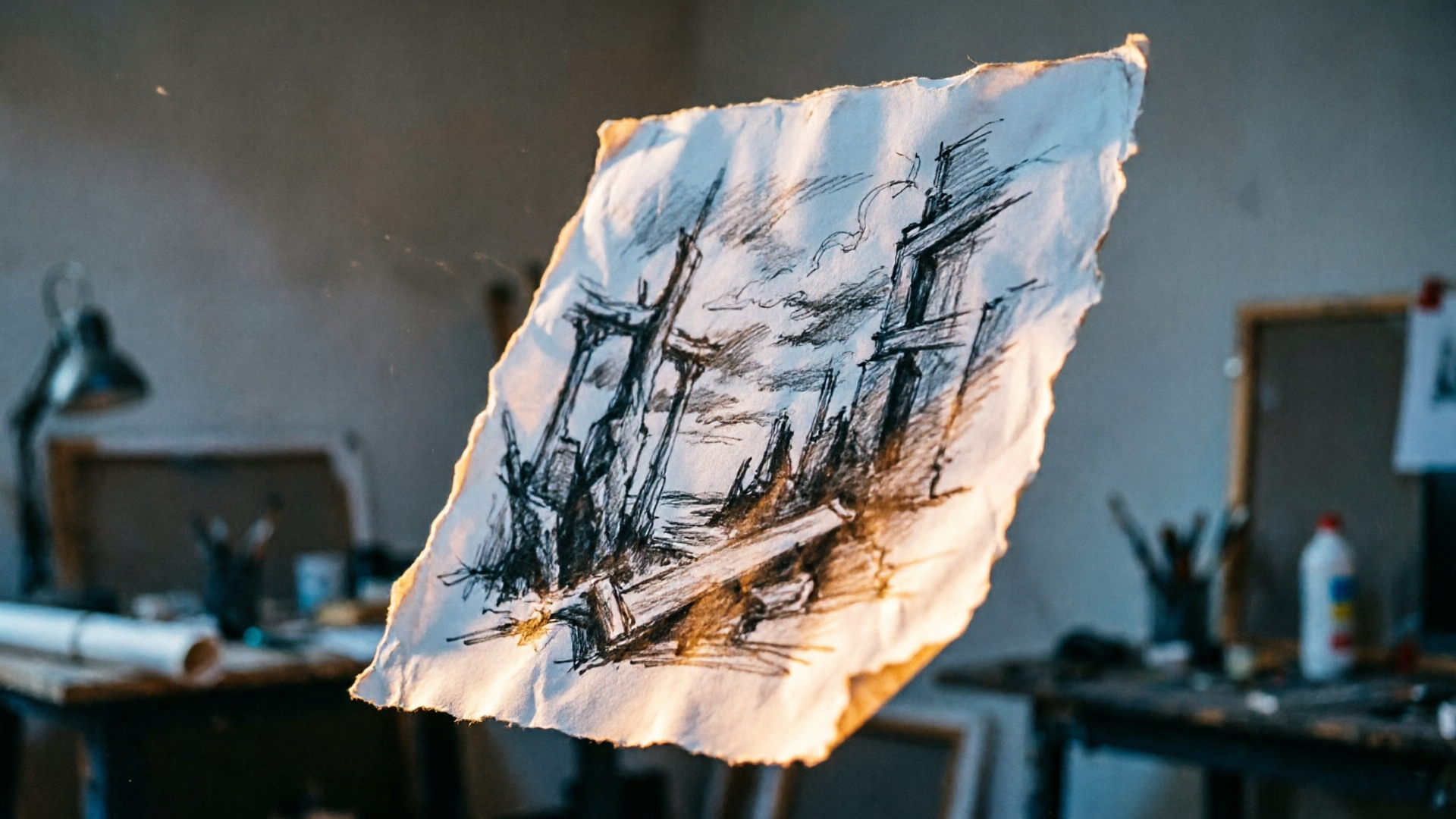
You open your portfolio or product photos folder and spot one perfect image — a product flatlay, a piece of concept art, or a single frame that screams "hook." Now imagine that still turning into a 6‑second vertical opener with a cinematic camera push, subtle parallax, and a rising sound cue — ready for TikTok, Reels, or Shorts without opening After Effects. That’s the promise behind converting an image to an "image to video teaser" and why WowMade AI Video Generator is our recommended fast path: it animates single stills, accepts text prompts, and exports 9:16 verticals in minutes.
This article walks creators and small teams through the why and how: the attention economics that make vertical teasers essential, the creative principles that make motion feel cinematic, two hands-on workflows (one for product demo loops, one for concept art story openers) using the WowMade AI Video Generator, and a practical distribution blueprint for thumbnails, captions, and A/B tests. Expect concrete prompt examples, a short step-by-step you can try during a coffee break, and notes on when to pair the video with AI-generated music or voice. If you need to move from a single image to a publishable short without learning complex video tools, these workflows are built to get you there quickly.
Why vertical, short-form teasers now win: attention, watch-rate, and platform economics
If you’re deciding where to spend scarce creative time and budget, short-form vertical video is the answer. Marketers plan to keep investing heavily in short clips through 2026, and many now treat these videos as primary brand touchpoints rather than lower-tier content. HubSpot’s video marketing roundup documents this shift and lists short-form formats as a top area for investment. Platforms reward native portrait creative: studies comparing TikTok, Reels, and Shorts show that TikTok often posts higher per-video engagement rates, with industry analyses reporting average engagement around 2.34% in cross-platform comparisons.
Beyond engagement metrics, the practical impact is simple: vertical-first creative gets more views, higher watch-completion, and better mobile retention than repurposed horizontal assets. Industry roundups show portrait-first videos can deliver severalx higher completion rates compared with un-optimized footage. For creators and marketers with limited time, that density of attention matters — producing dozens of short teasers that reliably perform beats one long-form asset that rarely lands.
That’s why the image to video teaser workflow is powerful: you already own the visual asset (a product shot, fan art, or concept illustration). By turning one still into many short variations — different camera crops, beats, and sound design — you multiply your publishing options while staying on-brand. The tools to do this are now accessible: AI-first image→video tools let creators produce cinematic 3–8 second clips from a single file, and a growing technical trend toward controllable image-to-video methods adds predictable camera control and realism. The result: faster iteration, more native vertical content, and a clearer path to consistent engagement on TikTok, Reels, and Shorts.
From still to motion — the creative principles (2.5D, camera moves, and story beats) that make a teaser feel cinematic
Making a still image feel alive relies on a few repeatable techniques. You don’t need particle systems or complex compositing; you need rhythm, depth, and a controlled camera. The three principles that reliably sell motion are 2.5D parallax, micro-animations, and camera push/pull.
2.5D parallax separates the image into layers (foreground, subject, background) and moves them at different speeds. The result is convincing depth from a flat image. Tutorials and industry writeups define this as the core of photo-to-motion work: when the foreground moves slightly faster than the background during a camera push, the brain reads depth and drama even in a single 2D frame.
Micro-animations are subtle: a vignette of dust drifting, a character’s scarf fluttering, or a product reflection shifting. These small, looping motions add life without distracting from the product. In short teasers, subtlety wins — viewers notice movement but the shot still reads instantly.
The camera move ties the sequence together. A slow push toward the subject creates intimacy and urgency; a quick whip or parallax-synced slide sets tempo for flashier hooks. Use a clear story beat structure for 3–8 second clips: Hook (0–1s) — Visual reveal (1–3s) — Reaction or payoff (3–6s). That beats listing features; it gives tension and release that drives completion rates.
When working with AI tools, the goal is to translate these principles into prompts and parameter choices: define the camera path, indicate which elements should parallax, and specify micro-animated details. That’s why tools that support image-to-video and prompt iteration become valuable — you can test a camera push vs. a zoom and measure which generates better retention.
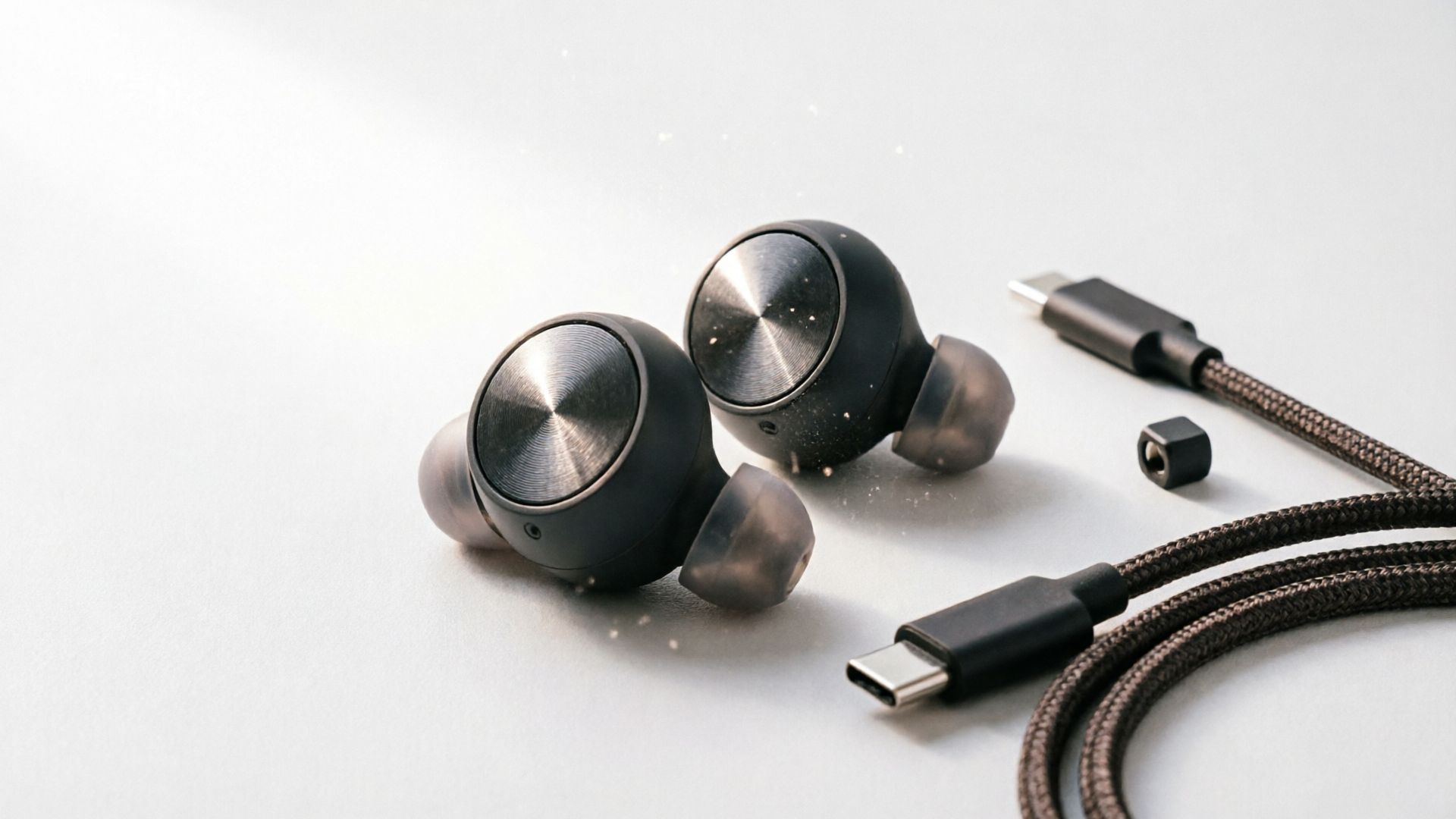
Workflow 1 — Turn a product photo into a 9:16 demo loop (hands-on with WowMade AI Video Generator)
This workflow converts a single product photo into a vertical demo loop you can use as a TikTok or Reels hero clip. We’ll use the WowMade AI Video Generator for concrete steps because it specializes in image-to-video and exports 9:16 output quickly.
Why this works: a short, repeating demo loop emphasizes product motion and function without needing a multi-shot shoot. Use it for landing page hero videos or as a paid-social creative.
Step-by-step example (try this in 5–10 minutes):
1) Prepare the image: choose a clean product photo with negative space. Export at high resolution (ideally square or wider so the generator can crop for 9:16).
2) Open the WowMade AI Video Generator (/create-video) and select "image-to-video" mode. Upload the product photo and set output orientation to 9:16 (vertical). Use the built-in framing option to keep the subject centered on model during the crop.
3) Prompt the motion: use a concise natural-language prompt covering camera move and micro-animations. Example prompt: "Slow cinematic push-in from top-left, 6 second loop. 2.5D parallax layers: foreground soft blur, product stays on-model, subtle specular highlight sweep across the logo, gentle dust particles. Warm studio lighting, shallow depth of field." The generator accepts both the image and this prompt to produce an animated clip.
4) Iterate on timing and crop: WowMade AI Video Generator renders short clips in minutes. Keep the same prompt and tweak speed or camera distance between runs; credits let you iterate until the demo loop sits at the right tempo.
5) Add sound: pair the clip with a 3–6s music bed. For a cohesive workflow, generate a loopable cue from the WowMade AI Music Generator (/create-music) or re-purpose a short riser.
6) Export and test: export as 9:16 MP4 and upload to a draft post. Check the first-second hook — if completion is low, try a slightly faster push or a brighter specular highlight.
Proof points using the WowMade AI Video Generator: it renders short clips in minutes, offers 9:16 outputs alongside 1:1 and 16:9 from the same prompt, and preserves the subject on-model when animating a photo. That makes rapid A/B testing realistic: swap music, change camera speed, or try a different crop without new photo shoots.
Mini A/B ideas for this workflow: a slow 6s push vs. a 3s snap zoom; background blur vs. visible environment; natural product motion (reflection sweep) vs. added micro-particles. Track watch-completion and CTR; small tweaks often deliver outsized lift.
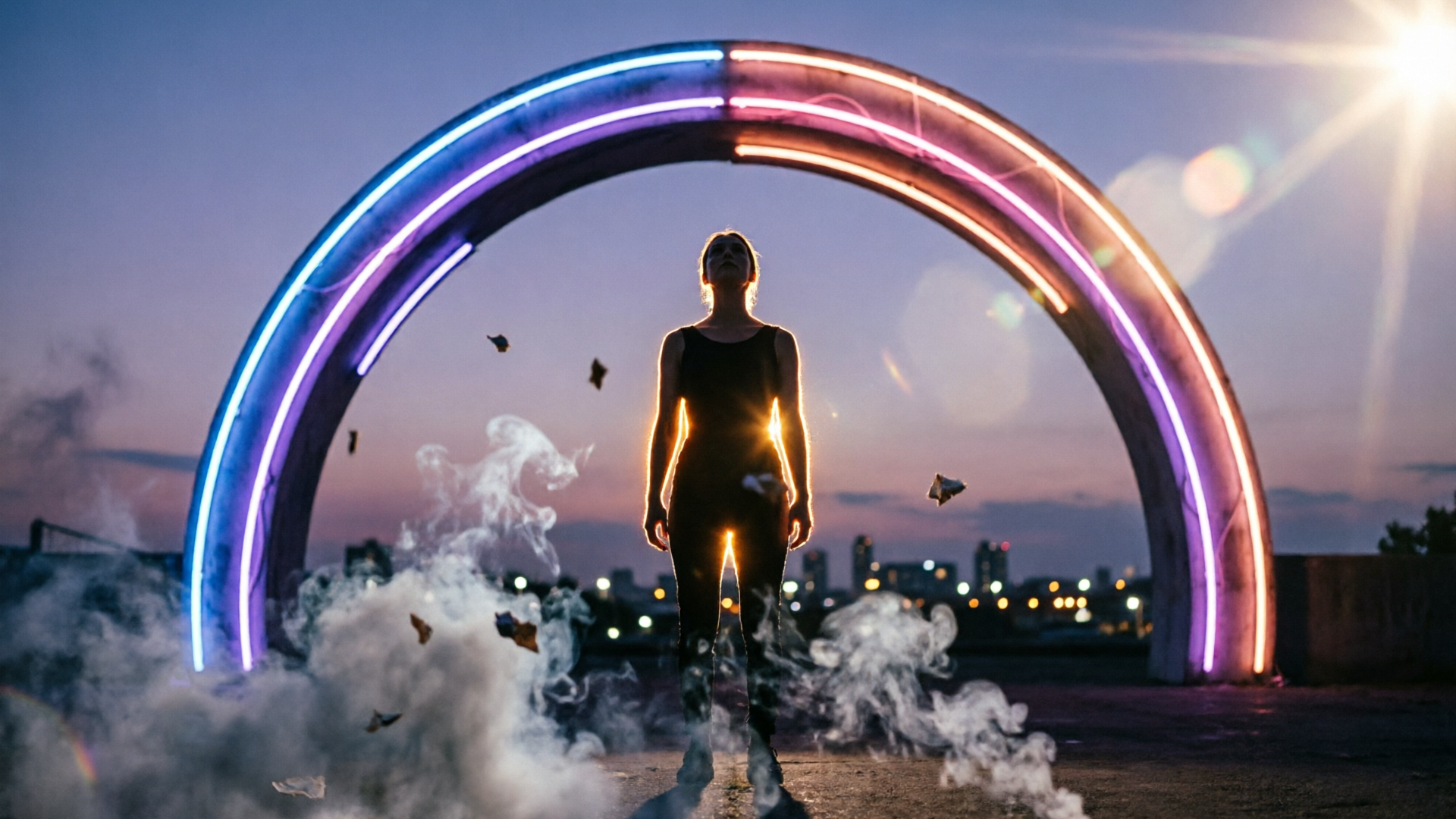
Workflow 2 — Animate concept art into a story-mode opener for YouTube Shorts (hands-on, prompt and staging examples)
Concept art is a goldmine for story-mode openers: dramatic silhouettes, moody lighting, and strong composition translate well into short cinematic beats. This second workflow shows how to turn one piece of art into a 6–8 second narrative opener suitable for YouTube Shorts or TikTok story mode, again using WowMade AI Video Generator as the core tool.
Staging principles: pick the narrative beat you want to sell — arrival, reveal, or threat. For a story opener, choose a beat that implies continuation: a character steps into frame, a gateway opens, or a machine powers on. Keep the shot scope small; short-form needs a single readable action.
Prompt example and settings (copy-paste and adapt):
- Input: concept art JPG (high-res)
- Orientation: 9:16 vertical crop
- Prompt: "Cinematic story-mode opener, 7s. Start wide at doorway, slow dolly in to character silhouette, 2.5D parallax: foreground debris, midground character on-model, deep background city lights. Subtle smoke and lens flare, warm rim light, film grain. Maintain color palette of original art. Soft camera stabilization, dramatic reveal at 4s when character turns toward camera."
How to stage micro-animations: specify which parts of the art should have motion. If the art has a cape, request a gentle cape sway. For environment, ask for drifting smoke or glints on metallic surfaces. The WowMade AI Video Generator supports animating single stills into motion while keeping the subject on-model, so your character or hero object retains the same proportions and design while the scene shifts.
Worked example: imagine a sci‑fi concept panel of a lone figure before a neon gateway. Upload the panel, set the orientation to 9:16, and use the prompt above. Render a first pass, then tweak: make the dolly slightly faster to increase urgency, or add a short ignition flare at 3.5s for a clearer payoff. Export the clip and add a one-line caption over the bottom third in your upload platform to tease the viewer: "She returned for the last key." Keep captions large and readable on mobile.
When to add voice or music: for story openers, a short, recognizable sting or a whisper voice-over can increase retention. These supporting tools speed up iteration: swap a music bed or an alternate voice in minutes without re-rendering visuals.
Why this approach scales: a single concept art piece can produce multiple openers by changing camera pacing, adding or removing micro-animations, or altering color grading. Each version is effectively a distinct creative for platform testing.

Distribution blueprint — sizing, captions, thumbnails, and A/B ideas to make vertical teasers convert
A great teaser still needs distribution discipline. Vertical platforms favor native sizing, readable captions, and thumbnails that perform under a small mobile viewport. Here’s a compact blueprint to maximize conversion from your image-to-video teasers.
Sizing and export: always export native vertical 9:16 for TikTok and Reels. The WowMade AI Video Generator outputs 9:16, 1:1, and 16:9 from the same prompt; export the primary 9:16 file and a 1:1 variant for in-app preview placements or paid ad units. Keep the focal subject within a 10% "safe zone" centered vertically — this prevents UI overlays from hiding key elements.
Captions and text overlays: mobile viewers often watch with sound off. Use bold, short captions or a single-hook line displayed for the first 2–4 seconds and then again at the end. Make text large and high-contrast; test white vs. color-tinted backgrounds depending on your scene. For story openers, a teaser caption like "What’s behind the gate?" creates curiosity and increases completion.
Thumbnails and first-frame hooks: for Shorts and TikTok, the first frame often acts as the thumbnail. Choose a frame with strong composition — a silhouette, a logo reveal, or a bright specular highlight. If the platform allows a custom thumbnail, export a high-contrast still from your original image or a stylized variant created with the WowMade AI Image Generator (/create-image).
A/B test ideas (prioritize these in order):
- Hook speed: 3s vs. 6s camera push
- Music energy: ambient bed vs. rhythmic riser
- Text treatment: no caption vs. single-line caption
- Crop: center-subject vs. top-aligned crop
Track simple KPIs: impressions, 2s views, watch-completion, and CTR to landing page. Use the shortest test windows — a few hundred impressions are enough to see directional lift. Small adjustments to camera speed, the presence of text, or the first-second audio cue often shift completion and CTR significantly.
Finally, remember that the marginal cost of another variant is now low: because the WowMade AI Video Generator lets you iterate on the same prompt and re-render multiple outputs quickly, you can test three or four variants in the time it used to take to set up one edit. That rapid iteration is how small teams compete with bigger studios — more variants, faster learning, and better-performing art in the feed.
Conclusion
You don’t need complex editing skills to turn a single still into a publishable vertical teaser. By applying 2.5D parallax, micro-animations, and clear camera beats, and by running quick iterations, you can produce hooks that beat repurposed horizontal clips on watch-completion and engagement. For the fastest path from prompt or image to a 9:16 clip that’s ready for upload, use the WowMade AI Video Generator: upload your photo or paste a prompt, pick 9:16, and iterate until the timing and motion land. Open the AI Video Generator and ship your first clip in your next break.