Scale on‑brand image systems with AI: batch templates and repeatable prompts
Practical workflows to batch-generate consistent image variants with templates, reusable prompts, and WowMade AI Image Generator for thumbnails and hero images.
If you need dozens of on‑brand thumbnails, hero images, or ad visuals each week, a repeatable system is your only scalable option. This guide shows how to build a compact template + prompt library and run an AI image batch generator for brand templates using the WowMade AI Image Generator. You’ll learn a practical batch workflow, QC rules, automated exports, and a worked remix example you can follow start-to-finish.
Design a compact brand template and prompt library for repeatable AI image outputs
Start small: a compact template and a narrow prompt library beat a sprawling style guide when you’re trying to scale. Practitioners recommend one clear style guide, one or two reference images, and a handful of reusable prompt templates as a minimal operational system to cut visual drift (this mirrors guidance in CapCut and VOVV.AI). The goal is not to document every corner case — it’s to lock down the variables you will not change.
What to include in your compact brand template
- Brand constraints (primary color palette, two type scales for headlines and captions).
- One or two reference photos that show correct framing, lighting, and subject treatment.
- Prompt templates: short prompt shells with placeholders (e.g., "primary subject, background treatment, color overlay, headline area: [TEXT]").
Why this works
Templates + reference images force the model back toward a narrow visual target. When you pair these with reusable prompt templates you reduce visual drift and speed iteration. Lucidpress summaries and other brand consistency research find consistent presentation correlates with measurable revenue uplift — aggregated reports cite about a ~23% average revenue increase for brands that maintain consistent visuals and messaging.
How to translate the template into prompts
- Create a small set of prompt slots: subject, mood, color treatment, layout note, text space.
- Write 3–5 prompt variants that change only one variable at a time (for testing interpretability).
- Keep an internal file with a short example: "subject: smiling founder; mood: bright, minimal; overlay: 30% teal gradient; layout: subject left, 30% right negative space for headline."
Where WowMade fits
The WowMade AI Image Generator accepts text prompts and uploaded photos and outputs multiple aspect ratios in a single pass — exactly the capabilities you need to apply this compact system quickly. Because it can edit and restyle an uploaded photo, you can treat your reference images as living assets (edit-in-place) rather than starting over each time. Save each prompt and variation to your library so reviewers and ad ops can pull the same seed later.
Build a batch workflow: generate 50 consistent image variants from one concept (step-by-step)
A practical batch strategy is simple: pick one concept and change a single variable per run. That keeps experiments interpretable and helps you identify what moves performance. The strategy below produces 50 usable variants from one concept in a predictable way.
Step-by-step batch workflow (generate ~50 variants)
- Define the core concept and template (5 minutes). Use your compact template: subject, background treatment, headline area, color overlay.
- Prepare 5 base prompts that only change color or background treatment (use the prompt slots from the previous section).
- Upload 1 reference photo (if you have one) into the WowMade AI Image Generator and select edit-in-place. This anchors composition and lighting.
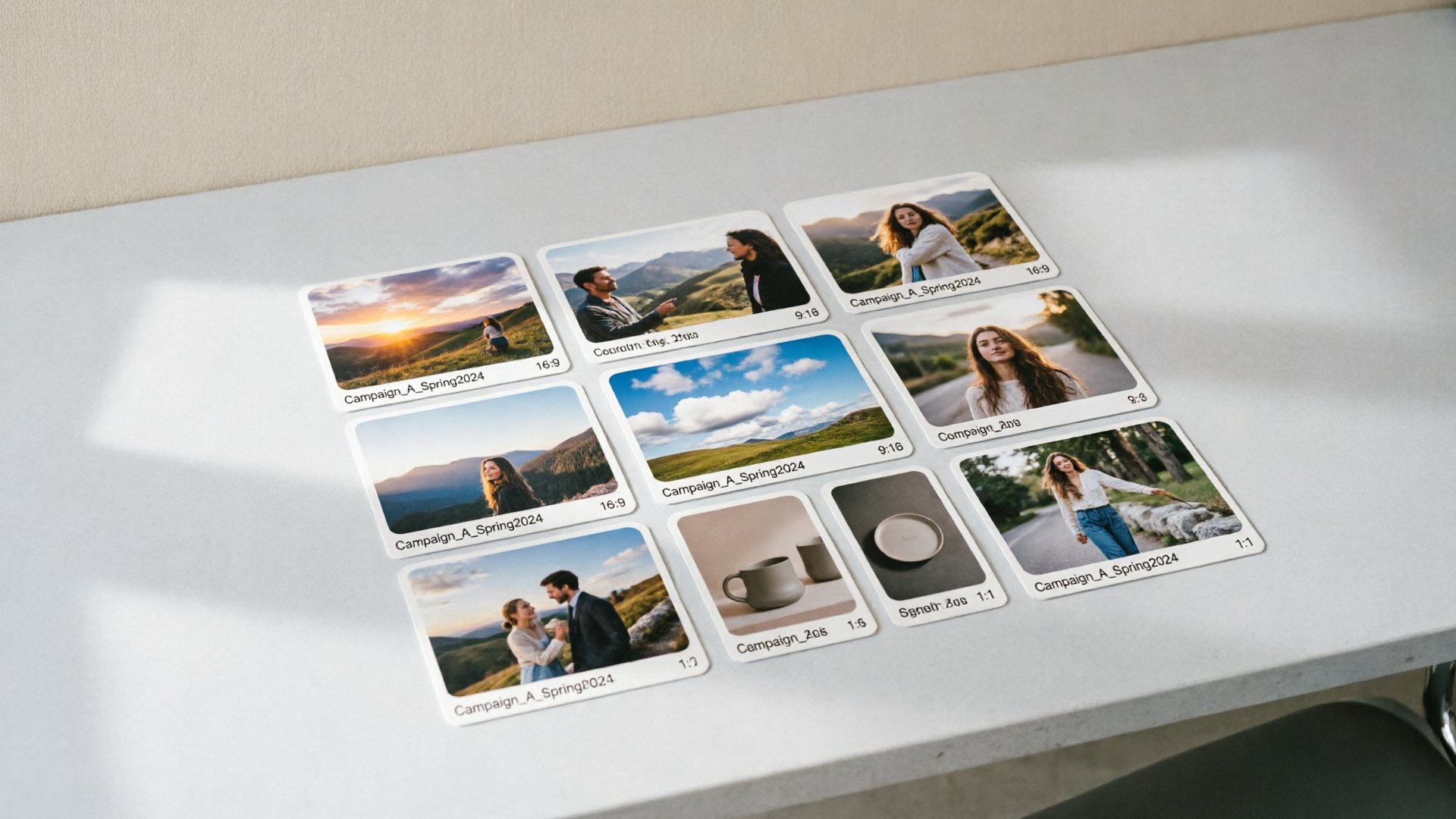
- For each base prompt, output 3 aspect ratios in one pass (e.g., 16:9 for YouTube, 4:5 for Instagram feed, 1.91:1 for ads). WowMade can produce multiple aspect ratios from the same prompt — that speeds the batch step immensely.
- For each aspect ratio, generate 3 strength/variation levels (mild, medium, strong stylization).
- Repeat steps 4–5 for each of the 5 base prompts. That yields 45 variants; add 5 manual micro-variants (small text weight changes or icon placement) to round to 50.
Why this is efficient
- You’ve limited the search space by changing one variable at a time.
- Generating multiple aspect ratios in one pass avoids re-prompting and re-framing work.
- Producing mild/medium/strong stylizations helps you quickly find the sweet spot between brand fidelity and novelty.
Quick checklist before you hit generate
- Confirm reference image is flagged as the look anchor.
- Lock headline safe area in the template.
- Save the prompt template to your WowMade library so each variation is reproducible.
Mini worked example using WowMade AI Image Generator
- Open the WowMade AI Image Generator and upload "founderheadshotv1.jpg".
- Paste prompt template: "clean portrait of a smiling founder, soft studio light, teal gradient overlay, left-aligned subject, right 30% negative space for headline — minimal type, high contrast".
- Choose aspect ratios: 16:9, 4:5, 1.91:1 and enable "save variations to library".
- Generate three strength presets: +low, +mid, +high.
- Export the batch and tag the set "Q3-product-launch / hero-concept-A".
This single workflow maps to typical creator and ad ops needs: rapid iteration, consistent composition, and ready-to-publish sizes. For a video-centric campaign you can drop the winning frames directly into the AI Video Generator to make short motion variants.
Related guide: AI thumbnail variations.
Quality control and acceptance criteria: how to review, tag, and select winners at scale
When you have dozens of variants, consistent QC rules are the only way to avoid arbitrary selection. A short acceptance rubric lets junior editors and ad ops make decisions that align with brand goals.
Suggested review categories (binary pass/fail plus confidence score)
- Composition: subject placement within safe area (pass/fail).
- Readability: headline area free of busy texture (pass/fail).
- Brand color accuracy: primary colors within ±10% of target.
- Photo artifacts: no unnatural eyes, warped hands, or typography glitches (pass/fail).
- Emotion/mood: matches brief (score 1–5).
How to run reviews at scale
- Batch import generated images into a review tool or shared folder.
- Apply automated metadata tags during export: size/crop, campaign, prompt variant ID, and a confidence score if your workflow captures model confidence.
- Have two reviewers independently mark pass/fail for Composition and Readability; a single creative lead resolves conflicts.
Numbered acceptance flow
- Automated filter removes images that fail a face-detection or text-area detection check.
- Human reviewers inspect remaining images and tag them with the rubric above.
- Top 10% move to quick A/B tests; next 20% become backup assets for rotation.
Why single-variable changes matter here
If you alter only one variable per test (for example, change color but keep composition identical), your A/B results are interpretable. PlayVideo.ai and other creators recommend this method for thumbnail and hero-image experiments. You’ll find that small changes to overlay opacity or headline weight often produce the biggest lift — but they’re only measurable if you keep other variables constant.
Where tagging and export help
Operational scale depends on smart exports: tag each variant with size/crop, campaign, and prompt ID so ad ops can filter asset pools automatically. This reduces manual resizing and the errors that come from mismatched crops.
Automate export, platform sizing, and A/B testing for thumbnails and hero images
Manual resizing kills throughput. Your batch system must output platform-ready sizes and metadata so creatives and ad ops can plug assets directly into campaigns.
Practical automation steps
- Export presets: set up three export presets to cover the common destinations — 16:9 (YouTube), 1.91:1 (Facebook/LinkedIn ad), and 4:5 (Instagram feed). The WowMade AI Image Generator produces multiple aspect ratios from one prompt, so create presets that match your ad platforms and save them as defaults.
- Metadata schema: include prompt ID, campaign tag, size/crop, and a simple confidence flag. Store this as asset metadata or in a CSV manifest next to the exports.
- File naming convention: [campaign][concept][promptID][ratio][variant#].jpg. This makes bulk uploads and feed rules predictable.
A/B testing setup
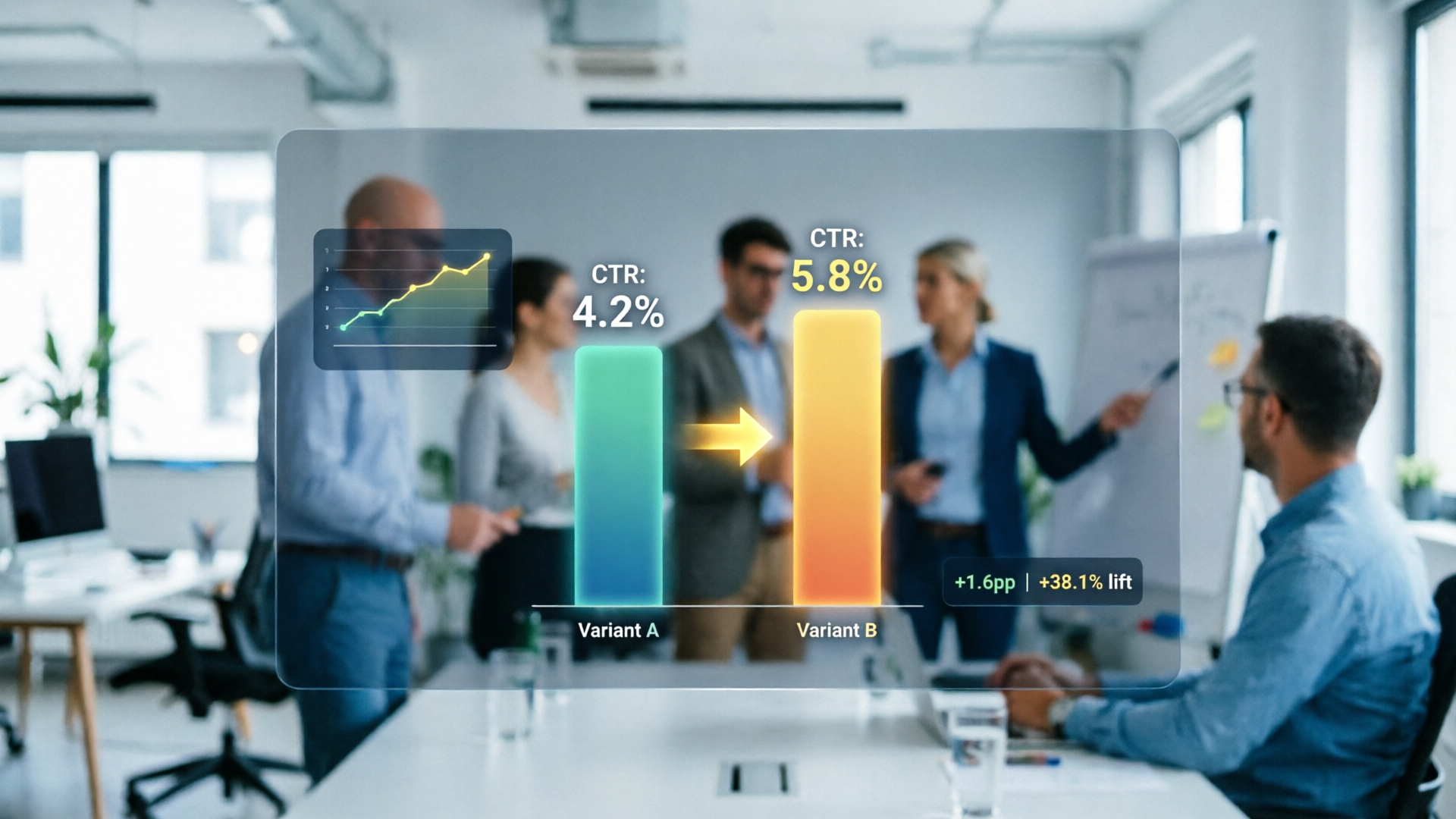
- Pick the hypothesis: e.g., "teal overlay vs white overlay increases click-through by X%".
- Use the single-variable batch approach to create the two sets.
- Upload both sets to your ad platform with identical targeting and budgets; rotate evenly.
- Measure CTR and conversion rate for each creative set.
Automating the loop
Use simple scripts or an asset manager to: (a) rename files per convention, (b) push assets to your ad platform or DAM via API, and (c) write a small manifest file that maps promptID to variant details.
Why this reduces friction
With presized exports and consistent metadata, ad ops no longer resizes or rejects assets. That saves hours per campaign launch and keeps creative throughput high. This mirrors operational best-practices called out by PlayVideo.ai and DesignKit/Adobe Express guides: automate resizing and tagging so editors receive production-ready assets.
Hands-on: Remix an existing photo into on-brand variants using WowMade AI Image Generator
This section is a short hands-on walkthrough you can follow in 10–15 minutes. The goal: take one product or founder photo and produce 12 on-brand variants ready for thumbnail and hero tests.
Prep (2 minutes)
- Choose a high-resolution reference photo with clean subject isolation.
- Open your compact template so you know headline safe-area and color constraints.
Remix steps (worked example)
- Upload the reference photo into the WowMade AI Image Generator and select "edit and restyle uploaded photo".
- Use this base prompt (example): "restyle uploaded photo: bright studio lighting, soft shadow, apply 30% teal gradient overlay at bottom, left-aligned subject, 30% right negative space for headline; maintain natural skin tones; minimal grain".
- Select three aspect ratios in one pass: 16:9, 4:5, 1.91:1.
- Under variations, choose three strength levels: low (minor color shift), medium (more pronounced overlay), strong (graphic posterized treatment).
- Generate and save variations to your library; label the batch "founder-remix-Q3".
Create micro-variants (4 minutes)
- Open the top three outputs and tweak only the headline weight or overlay opacity by editing the prompt: e.g., "same as previous but headline safe area: reduce texture, bolder type weight". Generate two variants per chosen frame.
Export and tag (2 minutes)
- Use export preset for each platform, and attach metadata: campaign=Q3, promptID=FR-01, tags=thumbnail,hero.
Why this process works
You used the WowMade AI Image Generator’s ability to edit-in-place and output multiple aspect ratios in one pass. That keeps composition consistent while you test color and typographic changes. Saving variations to the library preserves the exact prompt and seed so you can reproduce or iterate later. If you want to animate a winning still, you can export the frame straight into the AI Video Generator as a starting frame for quick motion variants.
If you’d like inspiration on keeping variations interpretable, see this practical guide from PlayVideo.ai: https://playvideo.ai/blog/ai-image-variations-thumbnails-hero.
Frequently Asked Questions
How many reference images do I need to avoid visual drift?
Start with one or two strong reference images that show correct framing and lighting; paired with a compact template and prompt library, this drastically reduces drift.
Can I produce multiple aspect ratios in one generation run?
Yes — the WowMade AI Image Generator outputs multiple aspect ratios from the same prompt, saving time and preserving composition.
What’s a good rule for running A/B tests with AI variants?
Change only one variable per test (color, overlay opacity, or headline weight). That keeps results interpretable and actionable.
Conclusion
Scaling on‑brand image systems comes down to constraints, repeatability, and automation: a compact template, a small prompt library, single-variable batch tests, and automated exports. The WowMade AI Image Generator makes those steps practical — edit-in-place to keep framing, generate multiple aspect ratios in one pass, and save variations to your library for iteration. Open the AI Image Generator and spin up your first on-brand batch now.
Make this with WowMade
Mentioned in
- Caption-Template-First: Scale Short-Form Video with an Auto Caption Generator and Subtitle Styling AIAdopt a caption-template-first workflow using an auto caption generator and subtitle-styling AI to publish 5–10 captioned clips/hour with consistent, high-performing captions.
- How to Use an AI Music Video Generator to Create Beat‑Synced VisualsPractical guide to AI music video generators: how they sync visuals to audio, tool comparisons, step‑by‑step workflows, and distribution tips for social platforms.