Batching on-brand podcast episode art with AI: moodboards, templates, and scale
Produce consistent, on-brand episode art at scale — use moodboards, a single template, and the WowMade AI Image Generator to batch-create covers that convert listeners.
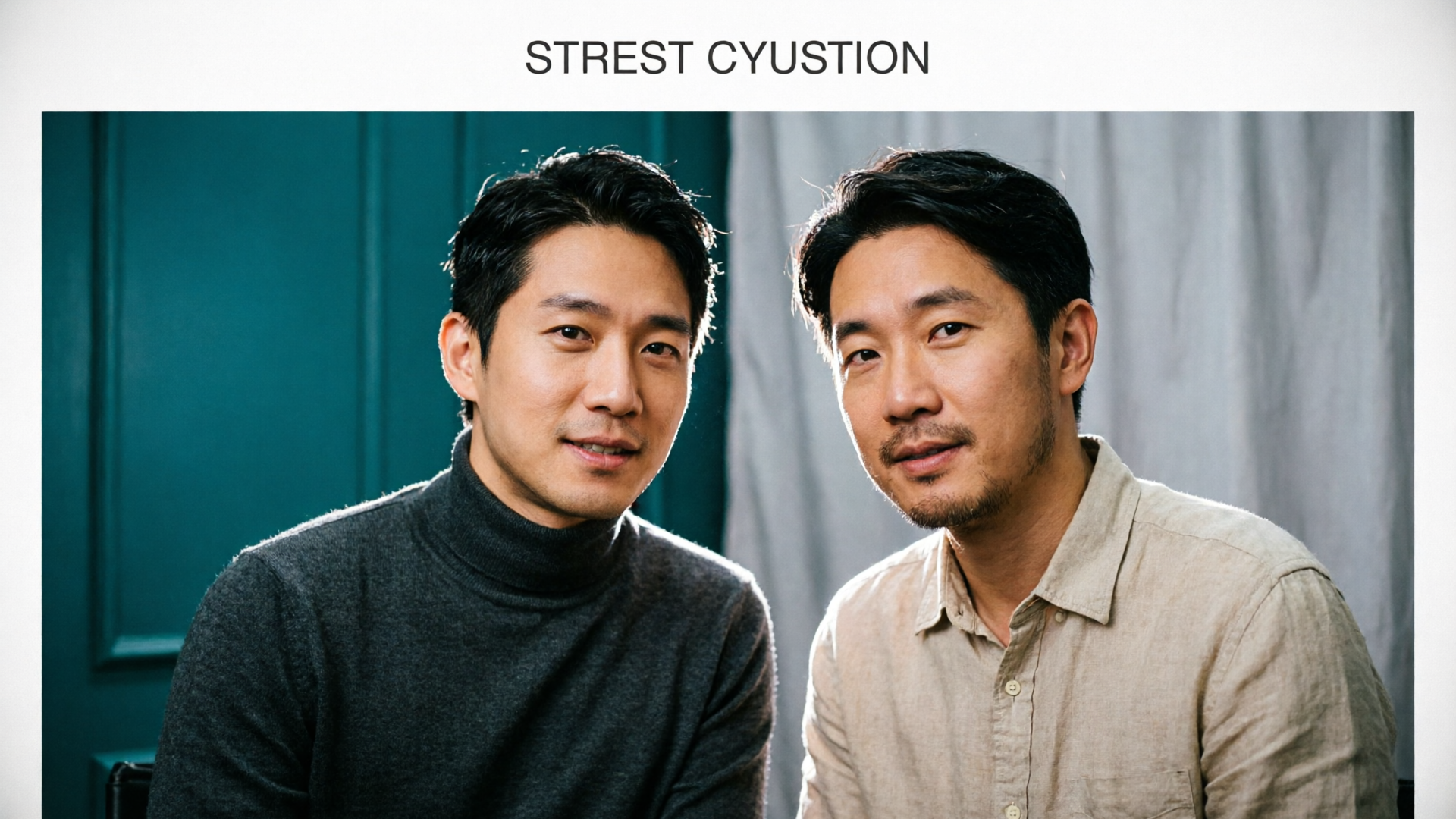
Creating consistent, on-brand episode art quickly is a solved production problem when you combine a tight visual system with automation and an AI image tool. This guide shows podcast producers and solo hosts how to build a moodboard, lock a master template, and batch-generate episode covers so every episode looks like it belongs in your feed — using the WowMade AI Image Generator as the central creation and editing tool.
Define a visual system: building an on-brand moodboard and episode template
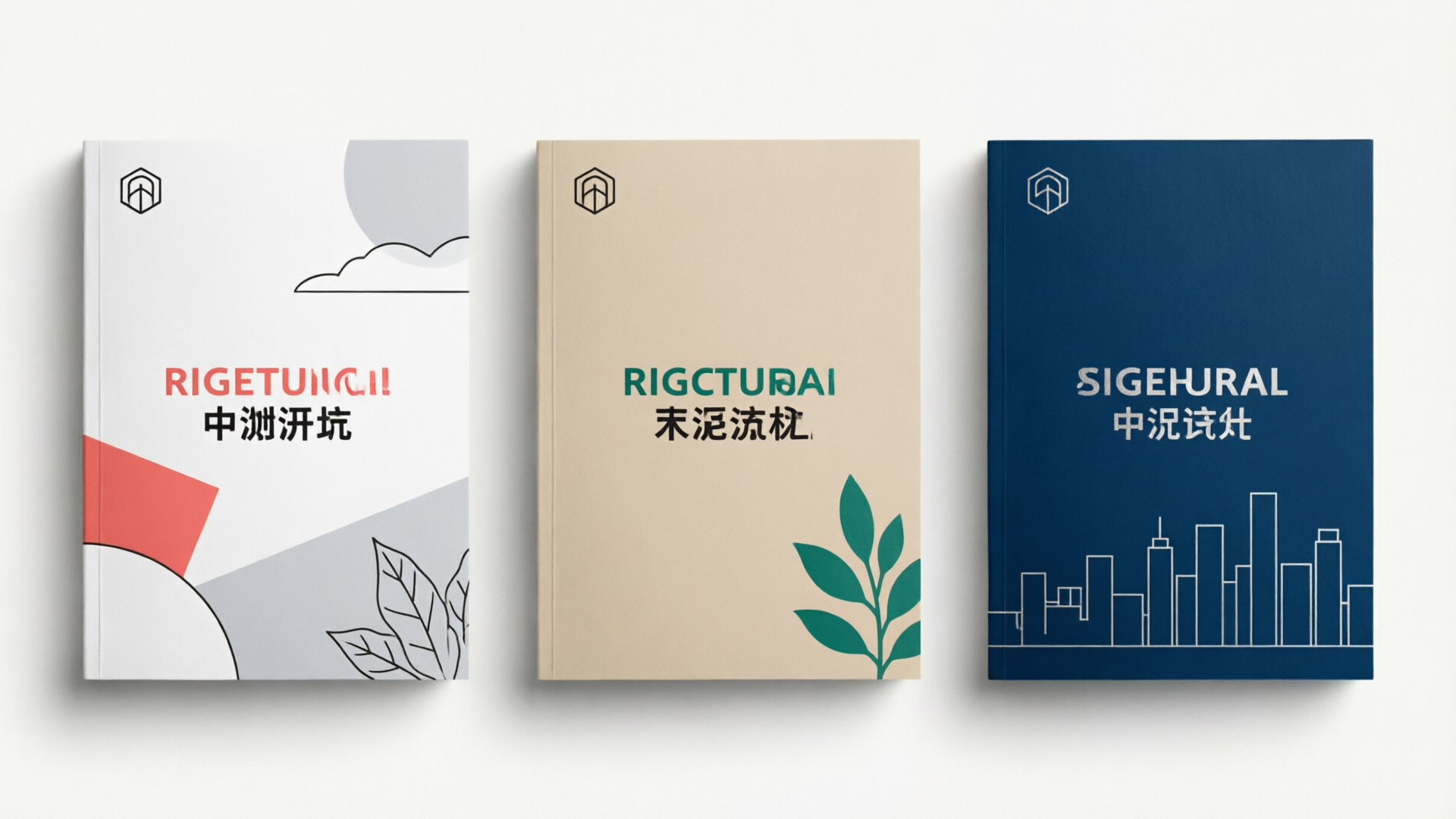
Start by defining the repeatable parts of your episode art. A visual system is simply a set of rules designers follow so each episode reads as part of the same show. For podcasts that need to publish frequently, the fastest way to keep visual cohesion is to limit variation: choose one layout, one type treatment for titles, and 1–2 accent colors. Make a moodboard that collects:
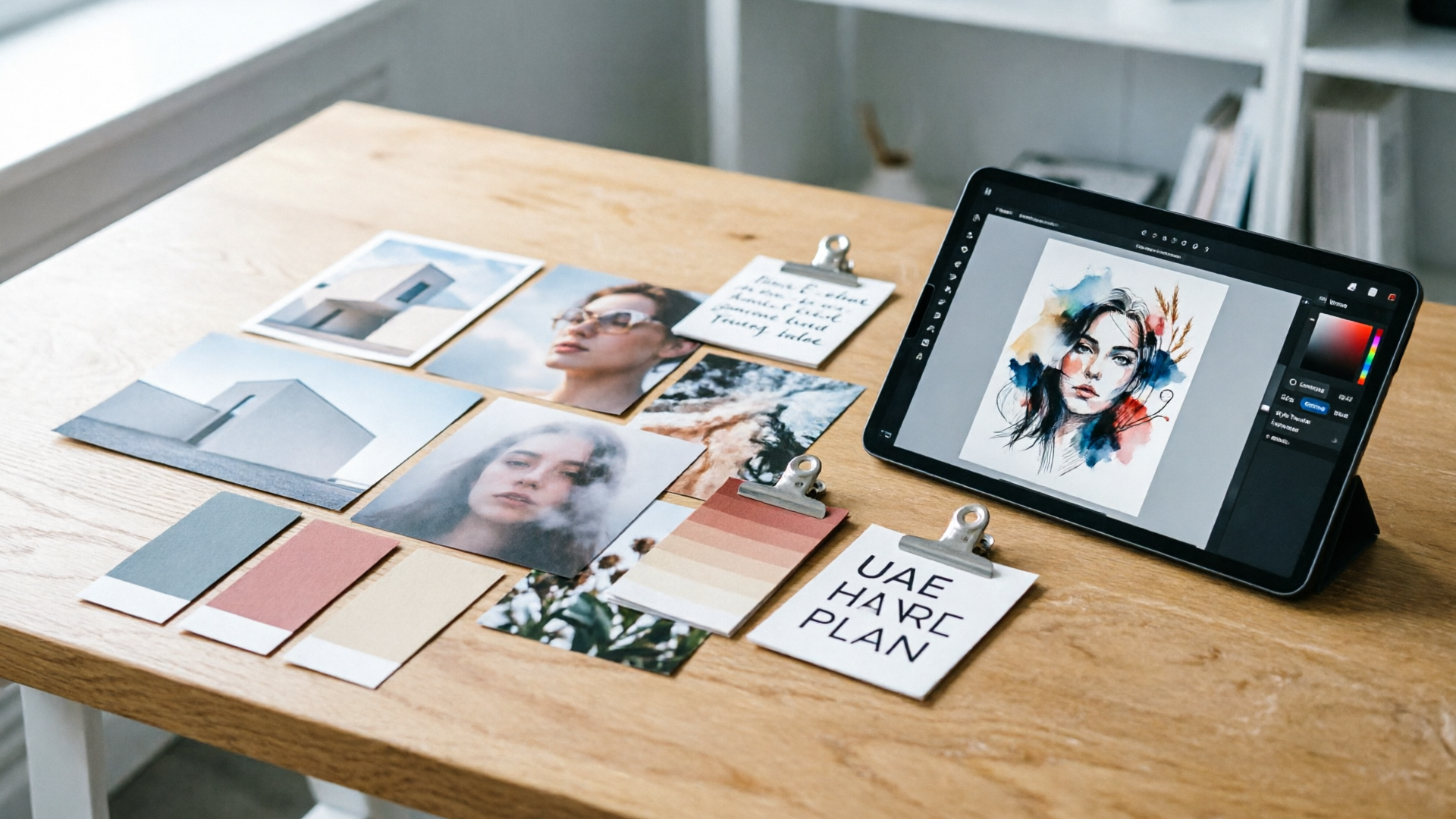
- 6–10 reference images showing lighting, color palettes, and compositional rhythm (close-up portraits, negative-space covers, minimal type treatments).
- Logo lockups and exact safe-zone placement for the podcast mark.
- A primary headline style (font, size, weight) and a secondary metadata style for episode numbers or guest names.
Practically, moodboards serve two purposes: they speed creative decisions and they become the seed prompts you feed into an AI image tool. Use the moodboard to define which single element changes between episodes — for example, swapping the guest photo and an accent color while keeping layout, typography, and logo position constant. Industry guides recommend this approach: a single master template with small, consistent swaps preserves brand cohesion and reduces cognitive load when scanning podcast directories. This is the exact workflow the WowMade AI Image Generator is built to accelerate — generate base concepts from the moodboard, then edit-in-place to swap guest photos or switch colors without rebuilding the art from scratch.
When assembling your moodboard, capture real examples at size: include screenshots of how your cover looks at thumbnail scale in podcast apps. That forces decisions about legibility and word count early, and makes the later automation step more reliable.
Episode art specs and accessibility: ensure your images display crisply across platforms
Technical specs and accessibility are non-negotiable. Apple Podcasts supports optional episode-level artwork and provides templates and best-practice notes you should follow to avoid cropping or platform compression (Apple episode art template). Across publishing guides, common best practices repeat: keep type legible at small sizes, limit words to 3–4 on the image, and preserve consistent visual DNA across episodes.
Recommended file specs you should use for master images: 3000×3000 px, RGB, and target a file size under ~500 KB so stores don’t re-compress aggressively. Also test thumbnails at 140–300 px square because most directory views show covers quite small. Accessibility considerations: use high contrast between text and background and avoid tiny condensed fonts. Descript emphasizes legibility as a top factor that increases clicks and discoverability — make your title and logo readable in a single glance.
When you set up your master template, include a safe margin that keeps critical elements away from edges so they aren’t clipped on store previews. Save an export profile that outputs both the square master and the platform aspect ratios you’ll need (social thumbnails, YouTube, story formats). The WowMade AI Image Generator can output multiple aspect ratios in one pass, which means you can generate the 1:1 podcast master and the widescreen or vertical variants you need for promotional assets without creating separate files from scratch. This reduces mistakes and keeps all assets derived from the same visual DNA.
Batch workflows that scale: from CSV to 100 episode covers (automation blueprint)
A repeatable batch process minimizes manual work and enforces consistency. Here’s a practical automation blueprint you can adopt for producing dozens or hundreds of episode covers:
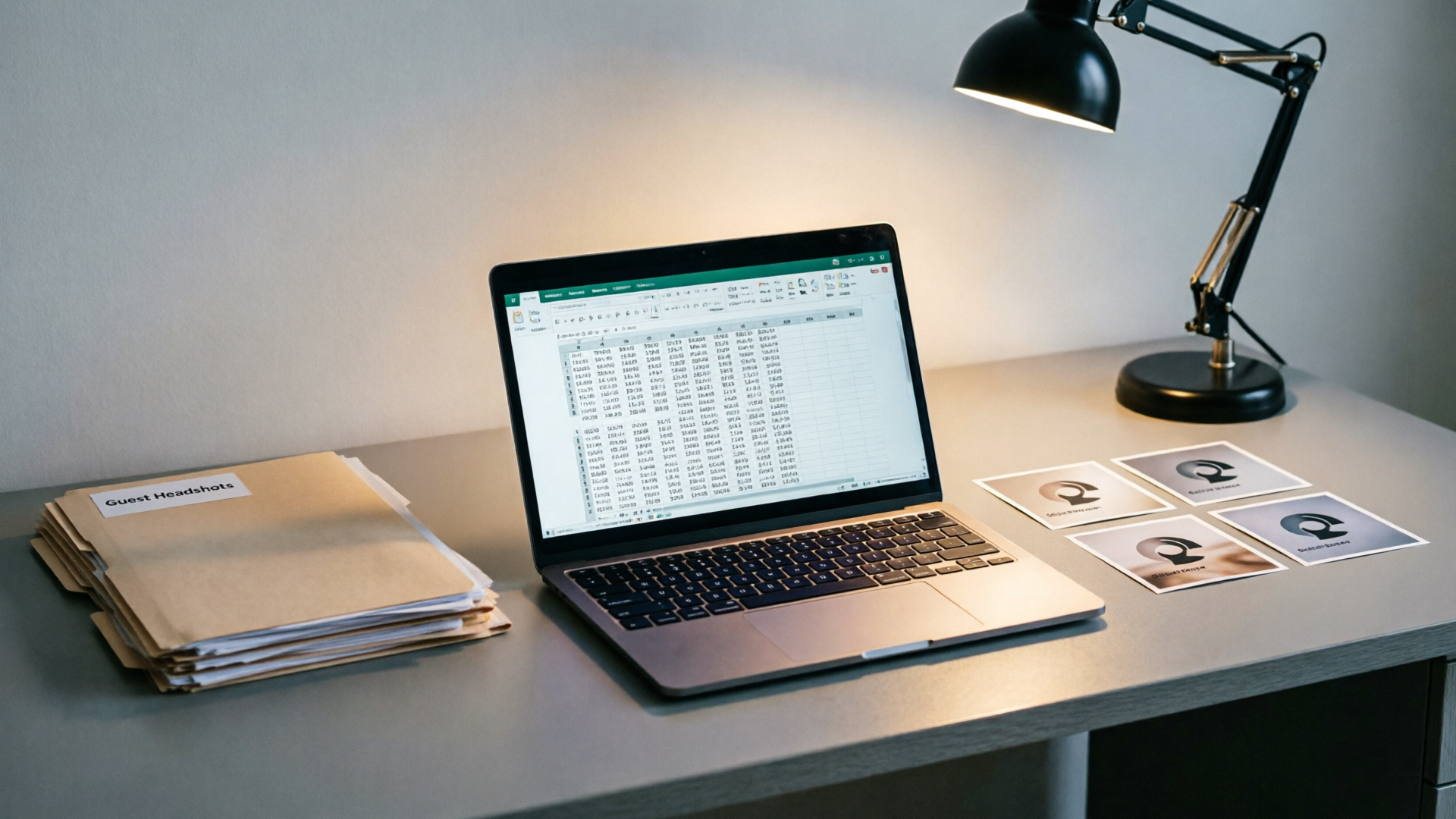
1) Create the master template in your design system and define the variable fields: guest photo, episode title, episode number, accent color or icon. 2) Build a CSV with one row per episode. Columns should mirror the variable fields: episodeid, episodetitle, guestname, guestphotourl (or local asset), accenthex, publish_date. 3) Prepare a prompt library from your moodboard. Each prompt includes the compositional rules and a short style tag (e.g., “high-contrast portrait, cinematic rim light, muted teal accent, sans-serif bold headline”). 4) Use an image-generation API or no-code automation to iterate over the CSV: fetch the guest photo, pass the prompt and the photo into an image tool, request the exact output dimensions, and save the result into an organized folder structure.
This pipeline is how teams remove manual repetition and keep assets consistent — Gold Penguin’s automation guide shows the same pattern using API + no-code tools to scale production. If you don’t have engineering resources, many AI image platforms (including WowMade AI Image Generator) provide edit-in-place and batch export features that let you run the same prompt against multiple photos and produce variations without scripting.
Practical tips for scale: run a small pilot of 10 episodes to confirm legibility and metadata placement; include QC checks that verify text contrast and file size limits; and keep generated variations in a library so designers or producers can revert to earlier choices if a batch needs rework. Storing metadata in your naming convention (podcastepisode001guestnameaccentteal.jpg) makes downstream repurposing for video and social trivial.
Hands-on: using moodboards to generate consistent cover variations with an AI image generator
Here’s a concrete walkthrough using the WowMade AI Image Generator to turn a moodboard and CSV into on-brand episode art. This example assumes you have a moodboard with a clear visual direction and a CSV with variable fields.
Walkthrough (short steps):
- Step 1 — Prepare your prompt: Pull two sentences from the moodboard that describe the look: “Close-up portrait with cinematic rim light, deep-teal accent panel on the left, minimal typography, high contrast, shallow depth of field.” Save this as your base prompt.
- Step 2 — Upload the master template and one guest photo into the WowMade AI Image Generator. Use the edit-and-restyle feature to place the guest inside the template frame and apply the moodboard lighting keywords. The generator supports edit-in-place so you don’t need to recreate the composition from scratch.
- Step 3 — Generate variations: for every CSV row, swap the guest photo and change only the accent_hex value in the prompt (e.g., "accent color #1abc9c"). Request outputs at the podcast master square (3000×3000) and a widescreen crop for social in the same generation pass — the generator can output multiple aspect ratios in one run.
- Step 4 — Quality control and save: review generated images in the WowMade library, save approved variations, and tag them with episode metadata. The library preserves prompts and variations so you can iterate later rather than starting over.
Why this works: the WowMade AI Image Generator’s strengths — text-to-image generation, edit-and-restyle of uploaded photos, and multi-aspect outputs — match the exact needs of episode art batching. You keep a single template and change only the fields that matter, and you get consistent results faster than manual design. Use case proof points include thumbnail-ready outputs and library-saved variations that accelerate future edits.
Hands-on: remixes and edits — refine and localize generated images for thumbnails and platforms
Generated images are rarely perfect on the first pass. Plan a lightweight remix step so each cover is polished and tailored for where it will appear. Edits fall into two categories: cosmetic touch-ups and localization.
Cosmetic touch-ups include tightening contrast, lifting shadows on faces, or slightly increasing headline weight so it reads at small sizes. Because the WowMade AI Image Generator allows edit-in-place, you can take a generated cover back into the tool, apply only the changes you need (for example, "brighten face by 15% and increase headline contrast"), and export a new variant. This avoids full-regeneration and preserves the approved composition.
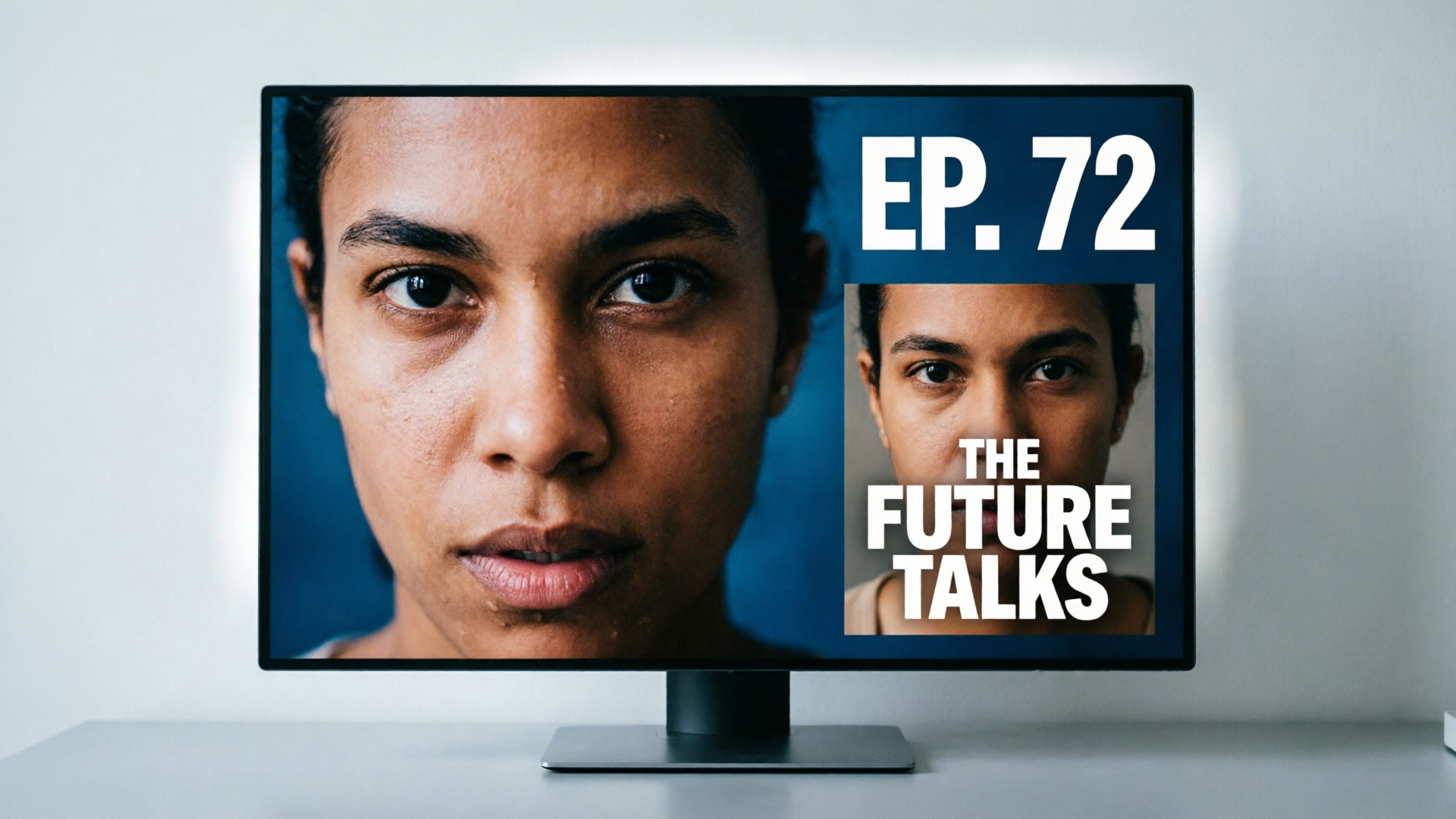
Localization matters when you distribute the same episode image across channels. For YouTube thumbnails, you might want a wider crop with the guest slightly off-center and a bold 1–2 word hook. For Instagram, a vertical story crop with the episode number in a corner performs better. Create these variants from the same source prompt so they feel unified. The generator’s multi-aspect export helps here: produce a 16:9 YouTube frame and a 9:16 vertical crop alongside the 1:1 master.
When doing remixes for language or regional markets, swap the headline language and adjust font choices to preserve legibility. Keep word counts minimal — most guides recommend no more than 3–4 words in the visual, which also simplifies localization. If you need title narration or short promo clips, the generated stills are a perfect starting frame for the WowMade AI Video Generator, which accepts stills as starting frames for short clips. That way, your episode art can double as a video thumbnail and a motion promo asset without rebuilding assets from scratch.
Deployment and measurement: A/B test episode art, repurpose for YouTube and social
Treat episode art as an experiment. Small changes in contrast, headline wording, or the presence of a guest photo can affect click-through. Set up A/B tests where possible: rotate two cover versions for similar episodes and measure downloads or click-to-play rates in the first 72 hours. Track creative variables in your CSV so you can correlate performance with visual changes.
When repurposing for YouTube and social, follow platform-specific best practices: YouTube favors large faces and short text overlaid near the eye-line; Instagram benefits from vertical framing and simple captions; podcast directories require the square master. Export all required sizes from your single workflow to preserve visual cohesion. The WowMade AI Image Generator’s ability to output multiple aspect ratios in one pass simplifies this step and ensures the thumbnails and banners remain consistent with the podcast brand.
Finally, measure the results and iterate. Keep a small dashboard that logs episode art version, publish date, and early performance metrics (click rate, streams day 1–7). If a visual treatment consistently outperforms others — for example, a bold accent color vs. muted tones — fold that preference into your template and batch-produce future covers with that variant. Use the WowMade library to duplicate and re-run prompts at scale to capitalize on winning designs.
Frequently Asked Questions
Is episode art required by podcast platforms?
Episode art is optional for many platforms but supported by Apple Podcasts; following Apple’s episode art template helps avoid cropping and gives you a crisp presentation in the directory.
How many words should I put on an episode cover?
Keep words minimal — 3–4 words max for the main visual. Short titles and prominent guest names work best for legibility at thumbnail sizes.
Can I automate batch generation without coding?
Yes. Many AI tools (including WowMade’s generator) offer batch export and edit-in-place features that work with CSV-driven workflows or no-code automation platforms.
What file specs should I export for podcast platforms?
Export a high-resolution master (3000×3000 px, RGB) and keep file size under ~500 KB. Also export thumbnail-sized tests to verify legibility.
Conclusion
If your goal is consistent, on-brand episode art without hiring a full-time designer, start by locking a moodboard and a single master template, then automate the parts that change. The WowMade AI Image Generator is built for this exact flow: generate images from moodboard prompts, edit-in-place to swap guest photos or colors, and export multiple aspect ratios in one pass. Run a small pilot, measure the results, and scale the winning design across episodes and platforms. Open the AI Image Generator and create your first batch of episode covers in a single session.