Tempo‑Matched Scoring for Videos: Faster, Better Background Music with AI
Use tempo- and mood-matched AI music to boost retention and speed scoring. Hands-on workflows show how to create copyright-free tracks with WowMade AI Music Generator.
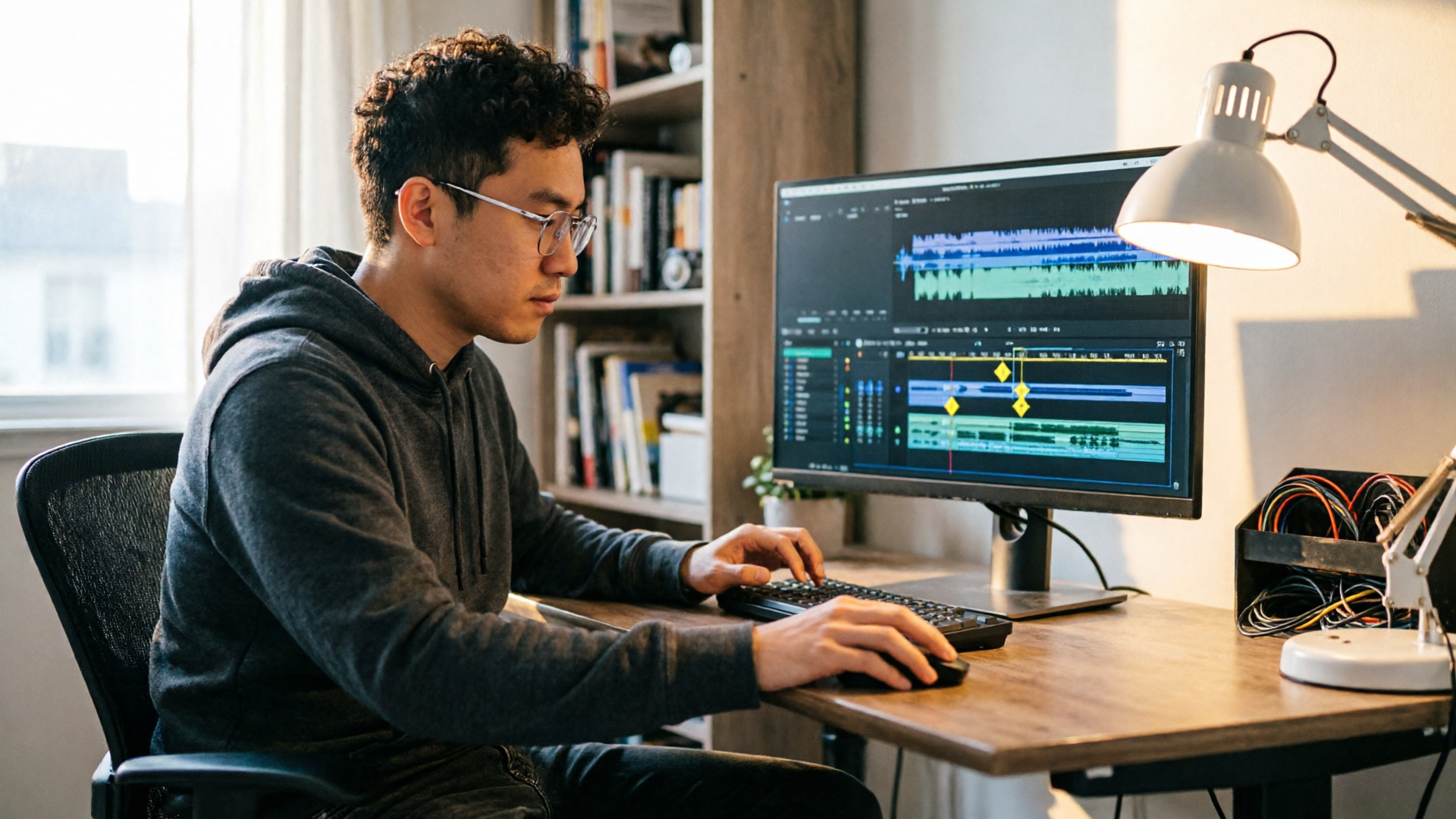
The first 10 seconds of your explainer or vlog are a pressure test. Viewers decide to stay or swipe, and nothing signals professional pacing faster than well‑scored audio that locks to the edit. Tempo matched scoring for videos is the practice of aligning a track's BPM and rhythmic hits to your visual cuts and hit‑points — and it's a fast route to smoother pacing, clearer messaging, and higher retention. In this guide you'll learn the psychology behind mood‑matched scoring, practical steps editors use to mark beats and hit‑points, and two hands‑on workflows that use the WowMade AI Music Generator to produce copyright‑free, tempo‑matched background tracks and compact brand jingles.
I'll show specific, repeatable steps: how to prepare your timeline, choose a target BPM, generate an instrumental track from a prompt, and tune a short jingle for channel intros. You'll also get advanced tips on stems and ducking, plus which engagement metrics to watch after you ship the new score. If you want to stop hunting for clearance-free music and start scoring edits in minutes, the WowMade AI Music Generator will be the practical tool you return to—I'll include clear walkthroughs so you can try it on your next edit.
Why music choice matters: retention, pacing, and the psychology behind mood‑matched scoring
Music is not decoration—it's a structural element that sets the viewer's cognitive frame. When music matches the edit's tempo and mood, viewers perceive the sequence as more fluent, easier to follow, and emotionally consistent. In advertising research, synchronization between audio and video correlates with higher subjective evaluations and measurable retention lifts; viewers respond when beats and cuts reinforce each other (see the empirical study linked later).
Two cognitive mechanisms explain much of this effect. First, predictable rhythmic phrasing lowers cognitive load for passive viewers: the brain can predict the next musical event, leaving more processing capacity for the visual message. Industry analyses and streamer case reports from 2023–2025 found that consistent timbral texture and steady rhythmic patterns increase dwell time in streaming contexts. Second, mood congruence matters: minor‑mode, low‑tempo beds cue seriousness; bright major modes and higher tempo cue energy. Aligning mood to your message reduces emotional dissonance and increases persuasive clarity.
Practical takeaway: choose music that both matches the intended mood and provides a predictable rhythmic canvas. That is the promise of tempo matched scoring for videos—control tempo and hit‑points to make your edits feel like a single, fluid piece rather than stitched fragments. The WowMade AI Music Generator can produce tracks guided by both tempo and mood, giving you that predictable canvas without licensing headaches.
Tempo‑matched scoring explained: BPM, hit‑points, and why 'cutting on the beat' improves flow
Tempo‑matched scoring is the deliberate alignment of your edit's visual cuts and key moments to a track's beats per minute (BPM) and musical downbeats. The simplest approach is to pick a target BPM that approximates the average pace of your cut and then place cuts on downbeats or strong subdivisions (quarter notes, eighths). This creates a perceptual reinforcement: each visual change is anchored by an auditory event.
Hit‑points are moments in the edit (a line of dialogue, a title card, a product reveal) you want to emphasize. By aligning hit‑points with musical accents—snare hits, bass thumps, or melodic stabs—you create emphasis without adding extra motion or visual noise. Small tempo nudges (±3–6%) are often enough to make downbeats land on planned cuts without sacrificing musicality; BPM analysis tools and studio practice support this approach.
"Cutting on the beat" improves perceived flow because it synchronizes multisensory expectation. Viewers subconsciously predict when the next change will arrive; when sight and sound arrive together, editing seams feel invisible. Community reports and creator guidance routinely advise: put the music first and tighten edits to beat markers when you want higher short‑term retention. Use a consistent meter and avoid unpredictable tempo swings in background beds for explainer videos—predictability is the underlying benefit.
When to use instrumental background tracks vs. full songs in explainers and vlogs
Choosing between instrumentals and full songs is a question of attention and message clarity. Instrumental background tracks are ideal when the audio mix must foreground voiceover or on‑screen dialogue. They occupy the stereo and frequency space while leaving room for speech intelligibility; predictable textures and restrained arrangements reduce competition with vocal content.
Full songs, especially with vocals, work when the voice is graphic (e.g., music‑led promos, trend‑style clips) or when the vocal content is itself the hook. But when you need to explain, educate, or narrate, instrumentals are usually safer—especially for platform algorithms that reward watch time driven by clear messaging in the first 10–30 seconds.
For channel intros and brand spots you can use short vocal hooks or jingles, but keep them short (3–8 seconds) and loopable. The WowMade AI Music Generator is built to produce both instrumentals for background scoring and short jingles or theme loops you can export and loop cleanly. That flexibility lets creators assemble a library of stems: instrumental beds for longform content and compact sung hooks for promos and intros.
Preparing your edit for AI scoring: how to mark sections, key moments, and target BPM
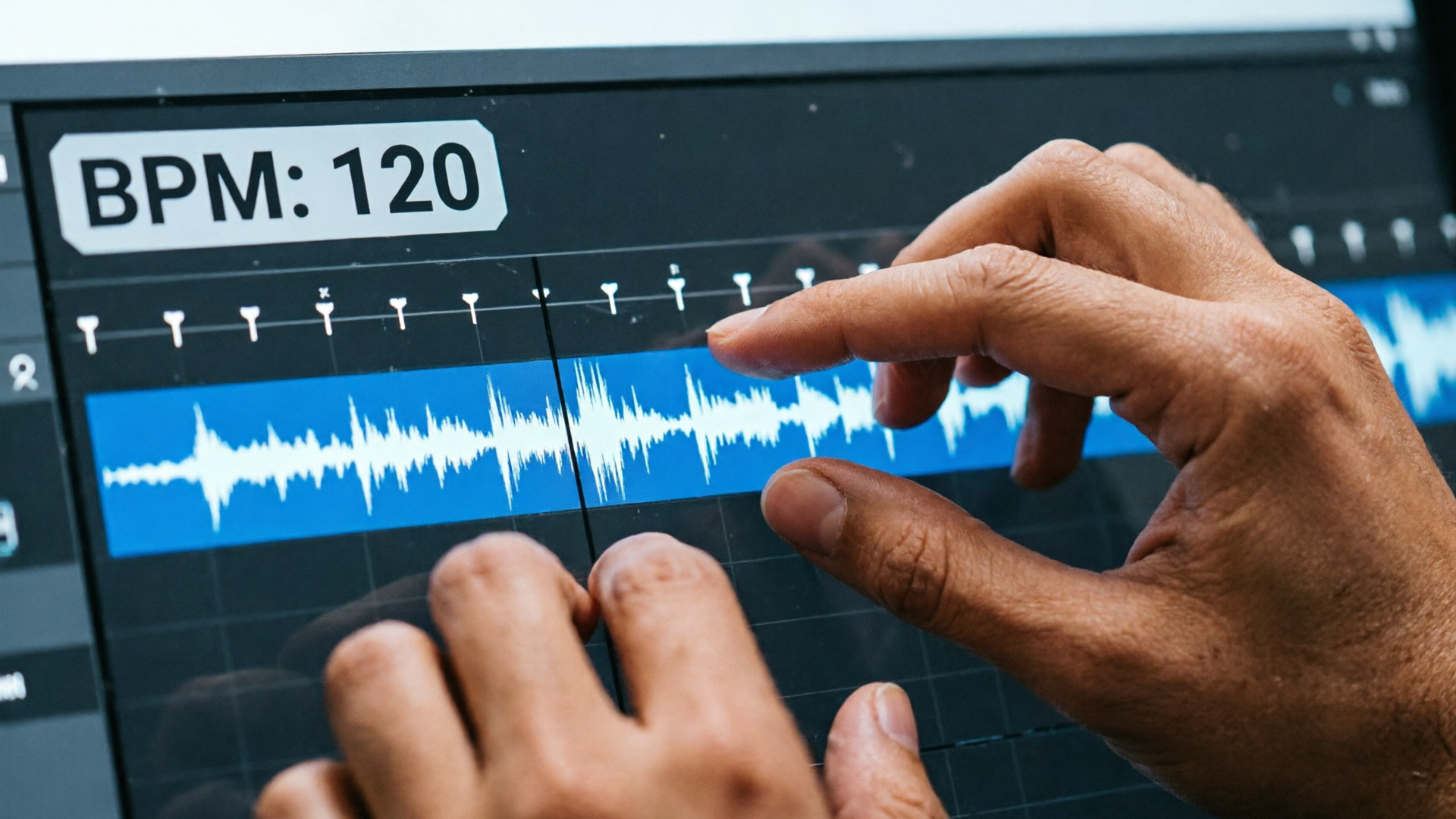
Good AI scoring starts with a good timeline. Before you generate a track, mark the sections in your edit where musical emphasis is needed: opening hook (0–10s), transitions, product reveals, and the call to action. Use markers to note exact timecodes and whether each marker is a subtle underscore or a strong hit‑point.
Next decide your target BPM. A quick method: play the edit and tap the approximate beat for 15–30 seconds to find a comfortable BPM range. Many explainer videos sit between 80–110 BPM for conversational pacing; high‑energy promos often sit 120–140 BPM. Mark hit‑points that must align on downbeats—these will guide the AI's tempo choice.
Label each section with mood descriptors (e.g., "warm, confident, 95 BPM, light percussion") and upload any reference tracks or stems if your tool supports it. With the WowMade AI Music Generator you can guide style, tempo, and mood directly from the prompt, so prepping clear, short instructions in your project file yields more predictable outputs. The clearer your markers and BPM targets, the less time you'll spend fine‑tuning the track later.
Workflow: generate a tempo‑matched background track with PlayVideo.AI AI Music Generator (step‑by‑step)
Here is a simple, repeatable workflow to produce a tempo‑matched instrumental background with the WowMade AI Music Generator.
1) Prepare your timeline: place markers for opening hook, two transition points, and a CTA. Note the target BPM (e.g., 95 BPM) and desired mood ("calm, confident, warm pad, light percussion").
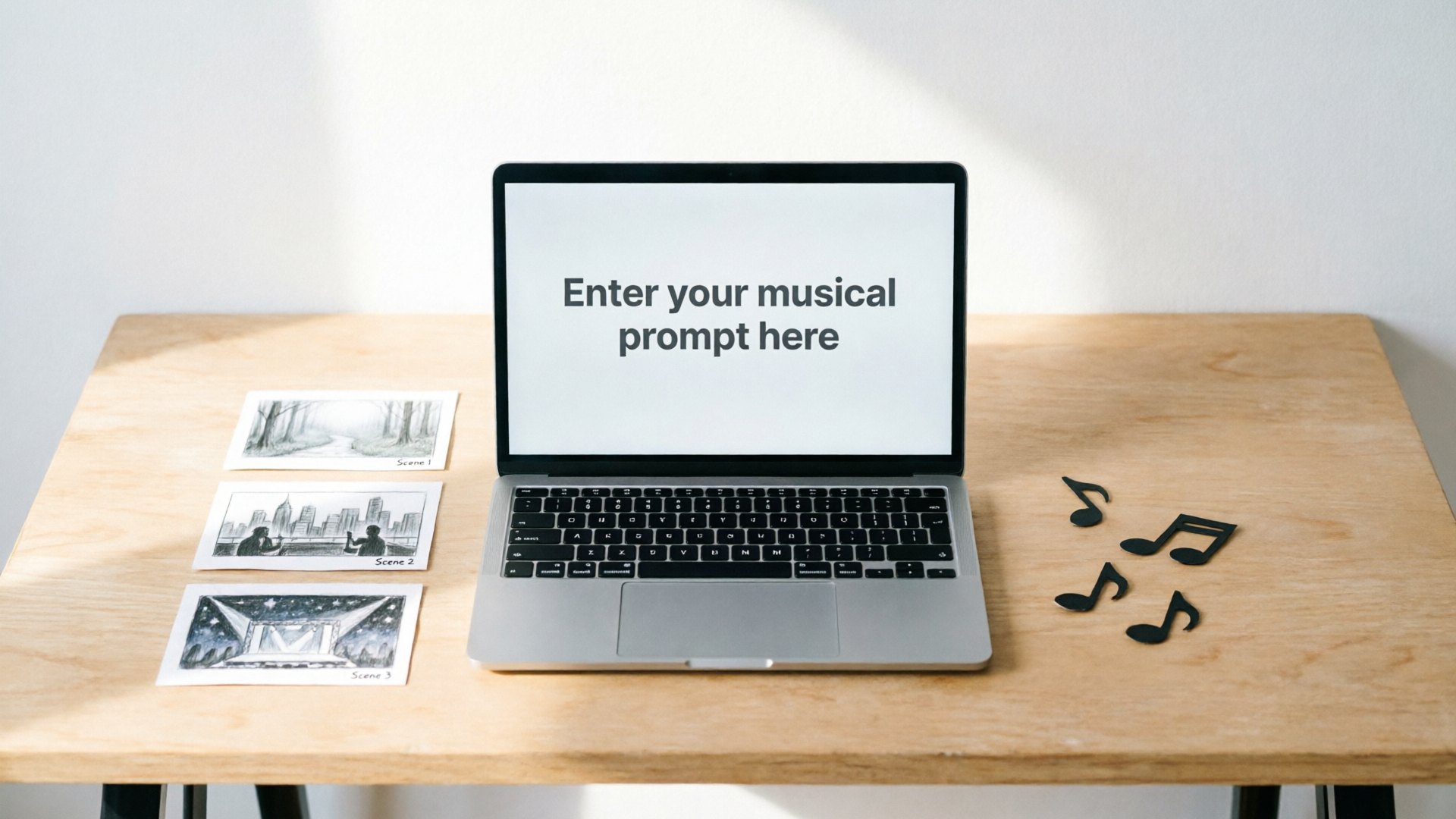
2) Open the WowMade AI Music Generator (/create-music). In the prompt box, write a concise instruction: "Instrumental background for an explainer video, warm, confident, 95 BPM, soft electronic pad, light acoustic percussion, 1:30 length, loopable intro." Select "export instrumentals" if you want stems.
3) Generate and listen to 2–3 variants. The generator produces original tracks guided by your tempo and mood; pick the version with the strongest downbeat alignment to your markers.
4) Import the exported track into your DAW or video editor. Use your markers to nudge the audio by frame or adjust tempo by a small percentage so downbeats match hit‑points. If you exported stems, mute or adjust percussion stems to taste for clarity under dialogue.
5) Finalize: apply gentle sidechain ducking under voice, set fade‑ins for transitions, and export.
Worked example: I had a 90‑second explainer with a 95 BPM target and three hit‑points. My prompt specified "95 BPM" and "soft electronic percussion with warm pad." The WowMade AI Music Generator produced a clean instrumental where the snare hit landed on my marked hit‑points. I nudged the audio by +12 frames to perfectly align the first downbeat and exported stems to reduce percussion during dense dialogue sections. Total time from prompt to locked audio: about 18 minutes.
This workflow demonstrates how tempo and mood prompts save time: instead of searching libraries and editing to fit, you generate a track designed for your edit and spend your energy on fine details.
Workflow: create a mood‑matched theme/jingle for brand spots and intros using PlayVideo.AI
Short brand hooks need to be memorable and loopable. Use the WowMade AI Music Generator to produce compact themes that reflect your brand's tonal identity.
1) Define the brief: write a one‑line concept (e.g., "Energetic brand hook, 4‑bar loop, 120 BPM, bright synth lead, 4 seconds"). Decide whether you need a vocal syllable or an instrumental stab.
2) Prompt the AI: in the generator include style, tempo, length, and use case. Example prompt: "4‑bar loop for YouTube intro, 120 BPM, bright synth lead, snappy percussion, export as loopable stem, no vocals." Generate 4 variants.
3) Choose and fine‑tune: pick the strongest melodic hook and export stems. If you want a humable line with vocals, add "short vocal syllable: 'hey'" to the prompt and generate a second pass.
4) Testing: drop the loop over your intro sequence and test a 3‑second rise into the video. Confirm the loop is seamless by listening on repeat; trim tails if needed.
Worked example: For a brand spot I needed a 5‑second intro at 118 BPM. The prompt specified a "bright pluck lead, snare on 2 and 4, loopable." The WowMade AI Music Generator returned a hook with a clear downbeat and a 1‑bar melody I could repeat. After exporting stems, I reduced the percussion and layered a soft riser under the video bump—total time to a production‑ready intro was under 10 minutes.
This method scales: once you have a few loops at brand BPMs, you can reuse them across episodes and ads, preserving sonic identity and speeding future episodes.
Advanced tips: blending stems, ducking for dialogue, and loop‑friendly theme construction
Once you have AI tracks, use stems and simple mixing techniques to build a professional mix without a full mixing session.
- Blend stems for clarity: export percussion, bass, and melodic stems separately. Reduce percussion level during dense dialogue and raise melodic pads slightly during quiet sections. This keeps the mix clean and avoids masking speech frequencies.
- Sidechain ducking: set a low ratio duck triggered by the dialogue bus so the music breathes when someone speaks. Conservative settings (2:1 ratio, 20–40 ms attack) preserve musical energy without chopping the bed.
- Loop construction: design themes with clear start and end points—avoid long reverb tails and tempo modulation across the loop boundary. When prompting the WowMade AI Music Generator, request "short reverb tails" and "loop end clean" to get tighter exports.
- Crossfades and micro‑edits: where hits must be perfect, slice the audio on the beat and nudge by frames rather than stretching the whole track. Small frame nudges preserve tempo while letting downbeats fall on visual cuts.
- Matching spectral texture: keep timbral consistency across episodes. Use similar instrument families and reverb settings so viewers unconsciously link episodes via sound. If you want a visual asset to match, consider generating an on‑brand thumbnail with the AI Image Generator for a cohesive visual–audio identity. For narrated pieces, pair the music with a consistent voice using WowMade AI Voices to keep the aural brand consistent across platforms.
Measuring impact: what retention and engagement metrics to track after changing music
After you update music, don't guess—measure. Focus on these metrics:
- Audience retention curve: watch the first 10–30 seconds specifically. If tempo matched scoring is working, you should see a higher retention baseline in that window, and smoother retention dropoffs around your marked hit‑points.
- Average view duration and percentage viewed: both indicate whether pacing is helping viewers stay longer. Short‑form creators often see the biggest gains when the hook and the first cut are reinforced by a musical downbeat.
- Click‑through rate (for thumbnails with intro bump) and watch time per session: musical hooks can increase the chance viewers continue to another video.
- Engagement events (likes, comments, shares) on content with new scoring: emotional congruence can drive more social reactions.
When possible, A/B test two identical edits with different scoring approaches (instrumental vs. vocal hook, slightly different BPMs). Platform analytics and creator guidance emphasize shaping the critical early seconds; many algorithmic recommendations are based on improved watch time in the opening 10–30 seconds. Use your analytics flagship (e.g., YouTube Studio) and compare cohorts across multiple uploads to control for thumbnail and title factors. For deeper reading on synchronization effects, see this empirical study: "Rushing or dragging?" https://www.researchgate.net/publication/364345116Rushingordragging-Aquantitativeandqualitativeempiricalstudyintoaudioandvideosynchronization%27seffectonviewerretentionAnadvertisingcontext.
Legal and practical benefits: copyright‑free AI music, speed gains, and scaling sound for series and campaigns
Copyright clearance is a frequent bottleneck for creators. AI music generators that output original tracks with clear usage rights remove that blocker—allowing creators to publish without library licensing headaches. The WowMade AI Music Generator specifically produces original songs and instrumentals you can export and use without licensing concerns, which speeds turnaround for episodic series and campaign rolls.
Practically, AI scoring trims several parts of the traditional workflow: no more searching dozens of library tracks, no manual tempo mapping for each candidate, and fewer negotiations for sync licenses. Creators can generate a bed keyed to a target BPM and mood in minutes, then spend focused time on placement and mix.
For scaling across series or campaigns, generate a small set of tempo/mood variants (e.g., 90 BPM calm bed, 110 BPM upbeat bed, 120 BPM promo hook) and store them as stems. Reuse these across multiple edits for brand consistency and speed. Combine this with the WowMade AI Voices for consistent narration, or use the AI Image Generator to maintain visual style across thumbnails and social cards. The net result: faster production, fewer legal headaches, and a sonic identity that helps retention over time.
Tip: Keep a simple catalog—2‑3 beds per target BPM and one 4‑second jingle per campaign. It’s easier to rotate a small library than manage dozens of unique one‑offs.
Conclusion
Tempo matched scoring for videos is a fast, measurable way to make edits feel professional and keep viewers watching. By preparing your timeline, selecting target BPMs, and using mood cues, you eliminate guesswork and let the music reinforce your story. The WowMade AI Music Generator gives you practical control—style, tempo, and mood prompts produce exportable, copyright‑free tracks and stems so you can lock a score into your edit in minutes. Start small: generate a single 60–90 second instrumental bed for your next explainer, align a few hit‑points, and watch the retention curve for the first 30 seconds.
Open the AI Music Generator and create a tempo‑matched track to score your next cut in under 20 minutes.