One-photo avatar video: turn a single portrait into scroll-stopping shorts
Practical workflows to turn a single photo into vertical, lipsync, dance, or news-anchor shorts using WowMade AI Video Effects — step‑by‑step and safety checks.
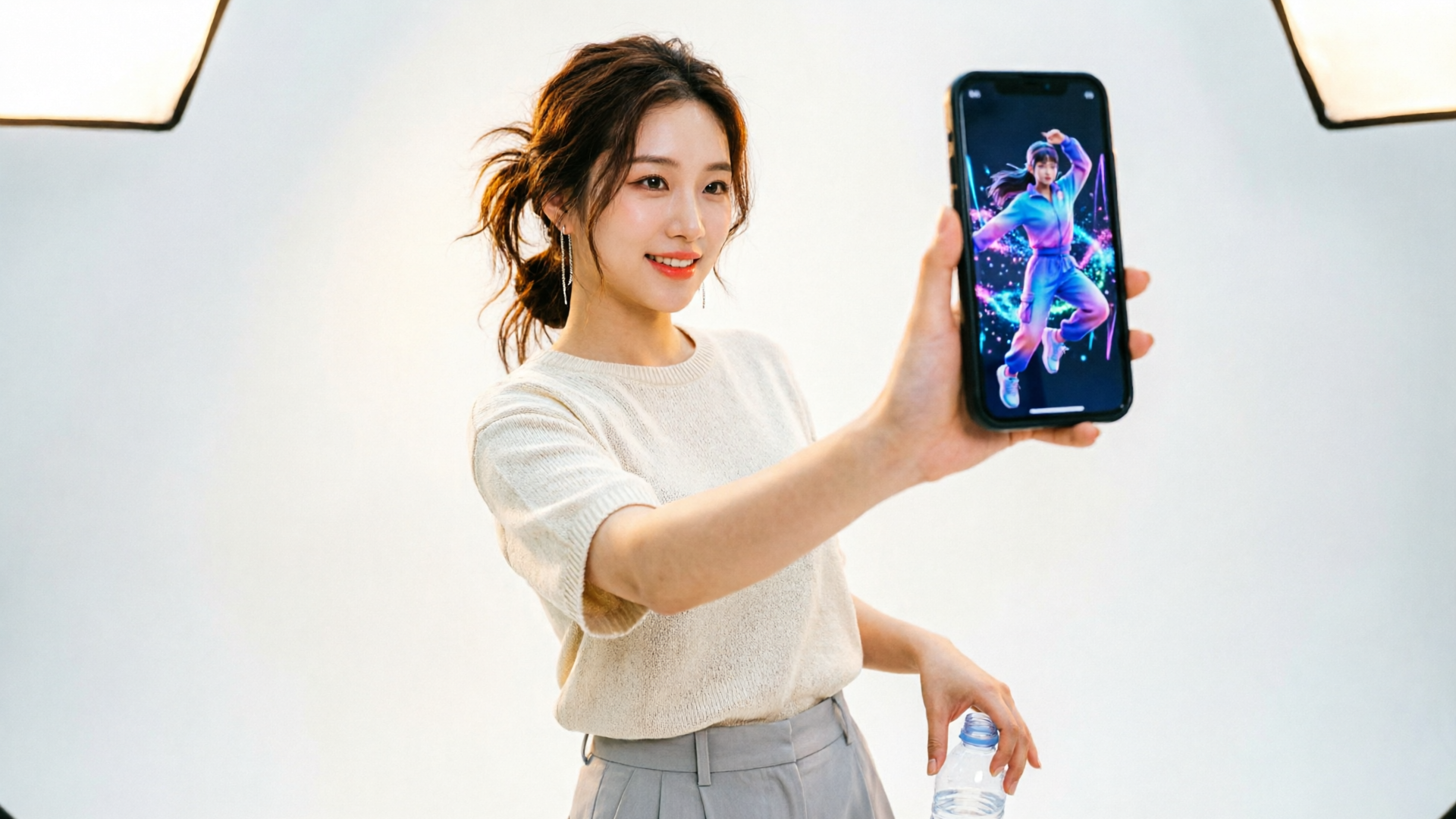
Creators want fast, repeatable ways to turn one selfie, pet photo, or illustration into scroll-stopping shorts — that’s the promise of a one-photo avatar video. WowMade AI Video Effects appears in the first 150 words because it’s the fastest path from a single portrait to a polished vertical clip: tuned presets for lipsync, dance, news-anchor, and AI singing that render 9:16 output ready for TikTok and Reels. Below are practical workflows, quality trade-offs, and step-by-step examples creators can use today.
Why single-photo avatars and lipsync videos still win on short-form platforms (data and creative reasons)
Short-form platforms reward immediate visual-audio hooks. Research shows visual-audio features — pacing, music or speech rate, and vertical framing — materially influence viewer retention and distribution (see a short-form engagement study). That reality makes single-photo avatar videos powerful: they combine an instantly readable subject (a face, pet, or stylized portrait) with tight lipsync or rhythmic motion that syncs to music or dialogue.
Creatively, one-photo formats are low-friction. Instead of building full 3D rigs or shooting a multi-camera set, creators supply one high-quality portrait and select an effect that matches the trend — a dance preset, a news-anchor template, or a lip-synced chorus. Tools that advertise one-photo workflows let creators iterate faster than a traditional shoot: change the audio, swap the template, and queue new renders. That speed converts directly into more experiments and higher chance of hitting a trend.
Platforms also prioritize short, repeatable formats. Music-driven and lipsync clips are particularly sticky because they map to discoverability patterns (hooks in the first 1–3 seconds, rhythmic edits, and recognizable sounds). For creators who want ad-ready assets or a stack of variants, a single-photo approach reduces production overhead while preserving the elements platforms reward: strong vertical framing, quick pacing, and clear audio.
How modern one-photo avatar systems work: the tech behind lipsync, motion transfer, and talking heads
At a high level, current one-photo avatar pipelines blend three technical building blocks: face reconstruction, motion mapping, and rendering for target format.
- Face reconstruction: systems extract a neutral 3D-aware representation from a single image. When the photo is frontal and high-quality, reconstruction yields more reliable mouth and eye shapes. State-of-the-art lipsync models then map speech phonemes to trained mouth-shape clusters.
- Motion mapping: there are two common approaches. Reference-driven motion transfer copies motion from a short video onto the reconstructed portrait. Prompt- or generative-driven motion synthesizes movement from a style descriptor ("energetic dance", "calm news anchor"). Reference-driven methods typically deliver more faithful, temporally coherent motion; generative modes trade control for speed.
- Rendering and format output: once motion is applied, the system composites textures, simulates lighting adjustments, and renders a final frame sequence optimized for vertical 9:16 output.
Practical differences creators will notice: lipsync quality heavily depends on mouth visibility and input resolution; dance fidelity benefits from short, well-matched reference clips; and template-based pipelines (like tuned presets) reduce the need for prompt engineering. These points explain why preset effect libraries are popular for creators who want consistent results without technical tuning.
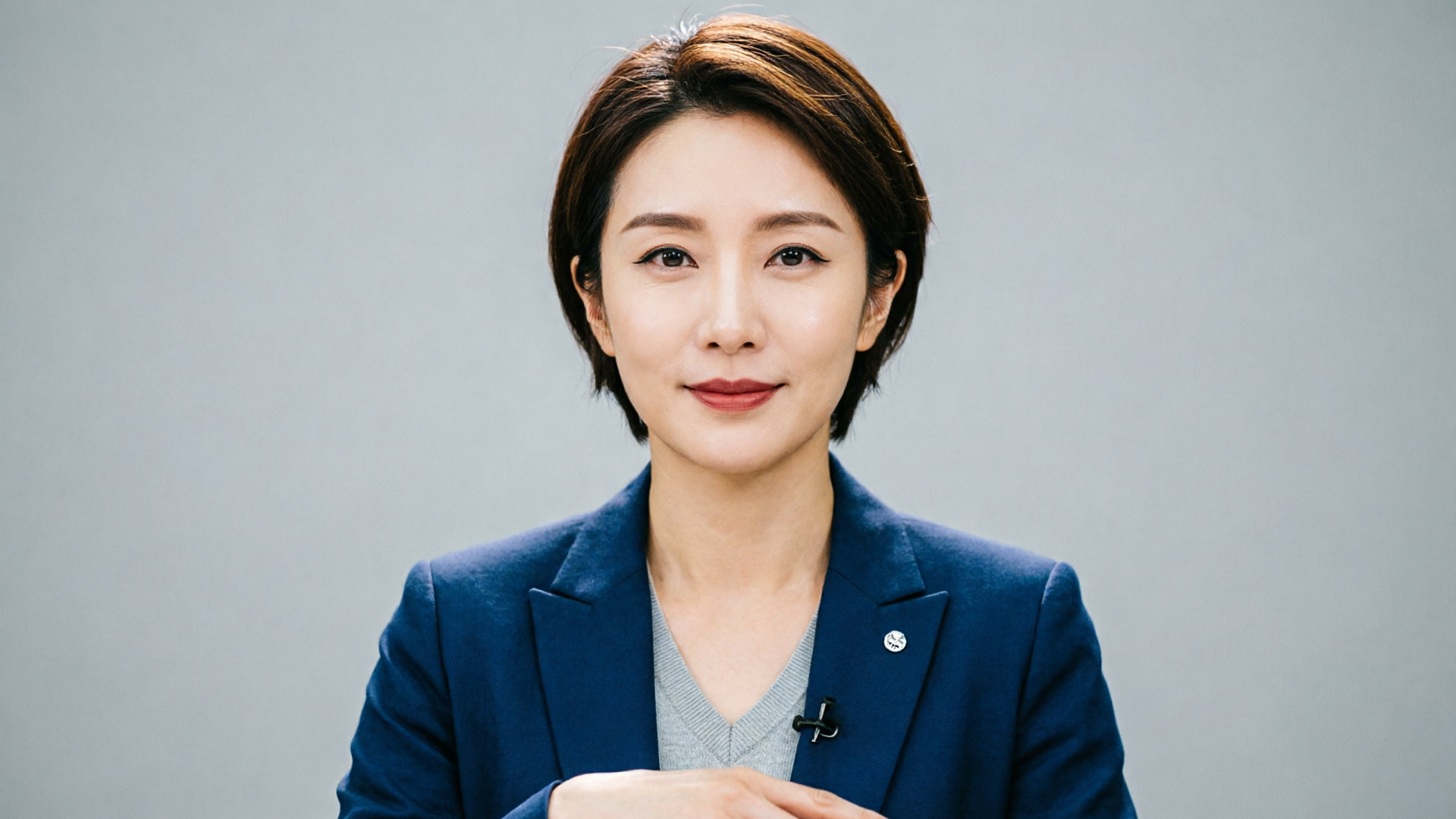
Hands-on workflow A — Turn one selfie into a 15–30s lipsync clip (step‑by‑step, inputs that matter)
This workflow is the fastest route to a talking‑head or sung chorus clip that works on TikTok and Reels. It assumes you’re using a preset-driven effects tool like WowMade AI Video Effects to avoid deep configuration.
Step 1 — Pick the right photo:
- Use a high-resolution, frontal portrait with a neutral or slightly open mouth. Clear eyes and unobstructed teeth/lips improve phoneme mapping.
Step 2 — Choose the effect:
- Select a lipsync or AI singing preset in the effects library. Presets are tuned to map speech to mouth shapes, so you don’t need to map phonemes manually.
Step 3 — Prepare audio:
- Use a clean vocal track or your recorded script. Keep audio 15–30 seconds for a single clip; louder, less noisy files yield better mouth motion.
Step 4 — Upload and preview:
- Upload the selfie and the audio to WowMade AI Video Effects. Pick vertical 9:16 output. Preview multiple renditions and choose the best thumbnail frame (first 1–2 seconds matter).
Step 5 — Iterate and export:
- If mouth shapes look off, try a second photo with a slightly open mouth or supply a short reference video of you speaking for better motion capture. Export the final clip and pair it with either a trending sound or original music.
Why this works: a tuned lipsync preset already maps common phonemes to mouth shapes; a quality input photo and clean audio reduce artifacts. For creators who want more control over background or assets, consider generating or editing the source photo with an image tool first — see the AI Image Generator for quick touch-ups.
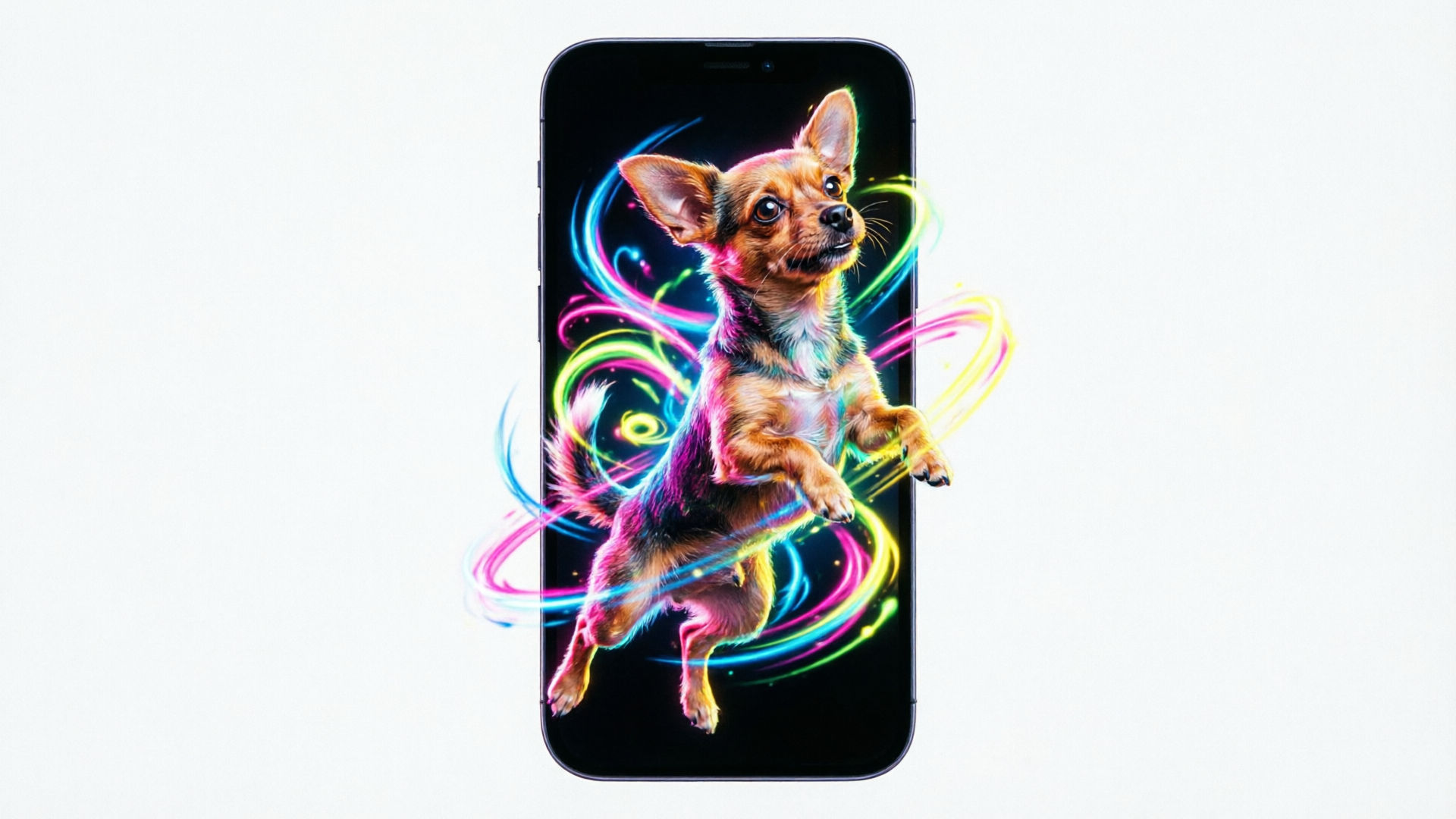
Hands-on workflow B — Make a one-photo dance or pet-dance short using reference motion or prompt mode
Dance clips are high-engagement formats, but they require believable motion. Creators can choose between reference-driven transfer (more reliable) or prompt-driven motion modes (faster, less predictable). Both are available across modern effects libraries.
Reference-driven transfer (recommended for fidelity):
- Pick a 5–12s vertical dance reference that matches the energy and framing you want.
- Upload your portrait (selfie or pet photo) and the reference clip to WowMade AI Video Effects and select a dance preset.
- The engine maps body and head motion from the reference onto the portrait, preserving face identity while transferring rhythm and gestures.
Prompt-driven mode (faster experimentation):
- Supply the portrait and a short style prompt ("pop dance move, bouncy, 120 BPM").
- Let the effect generate motion from the style descriptor. Expect more variation; use this mode to quickly test multiple creative directions.
Practical tips:
- For pets, choose a reference where the pet’s pose aligns with the source photo. Pet fur and eye reflections can create artifacts; pick a simple background.
- Always render a short preview at full vertical resolution before committing to the final export.
Worked example — pet-dance clip:
- Select a clear pet portrait (front-facing, ears visible).
- Pick a 6s energetic dog-dance reference from a royalty-free motion clip.
- Upload both to WowMade AI Video Effects and choose the pet-dance preset.
- Preview, adjust the timing to match a 9:16 crop, and export for TikTok.
Reference-driven transfers usually beat generative prompts for dance fidelity because the motion originates from real video timing and rhythm.
Quality checklist: choosing input images, audio, and templates so your avatar looks believable
A single-photo pipeline can produce very convincing clips — but only when inputs and template choices match. Use this checklist before you render:
Image
- Resolution: use the highest available. Low-res images blur mouth detail and break lipsync mapping.
- Pose: frontal or slightly 3/4 works best. Profiles reduce reliable mouth shape reconstruction.
- Expression: relaxed or slightly open mouth improves phoneme mapping.
- Background: simple backgrounds reduce compositing artifacts.
Audio
- Clean source: remove background noise and normalize levels.
- Length: keep to 15–30s for single shorts; long monologues need pacing edits.
- Tempo: if you plan a dance, pick a reference clip with BPM similar to target music.
Template choices
- Match pose: pick a template whose head tilt and framing align with your portrait.
- Match energy: a calm news-anchor preset versus an energetic dance preset requires different mouth and head motion intensity.
- Thumbnail and first frame: pick a preview frame with a clear expression; platforms use that frame to decide clicks.
Preview strategy
- Render two or three variants with small changes (different template intensity, slightly altered audio timing) and compare retention potential in your analytics.
These practical checks are distilled from tool docs and creator tutorials; they reduce re-render cycles and improve the viewer-first result.
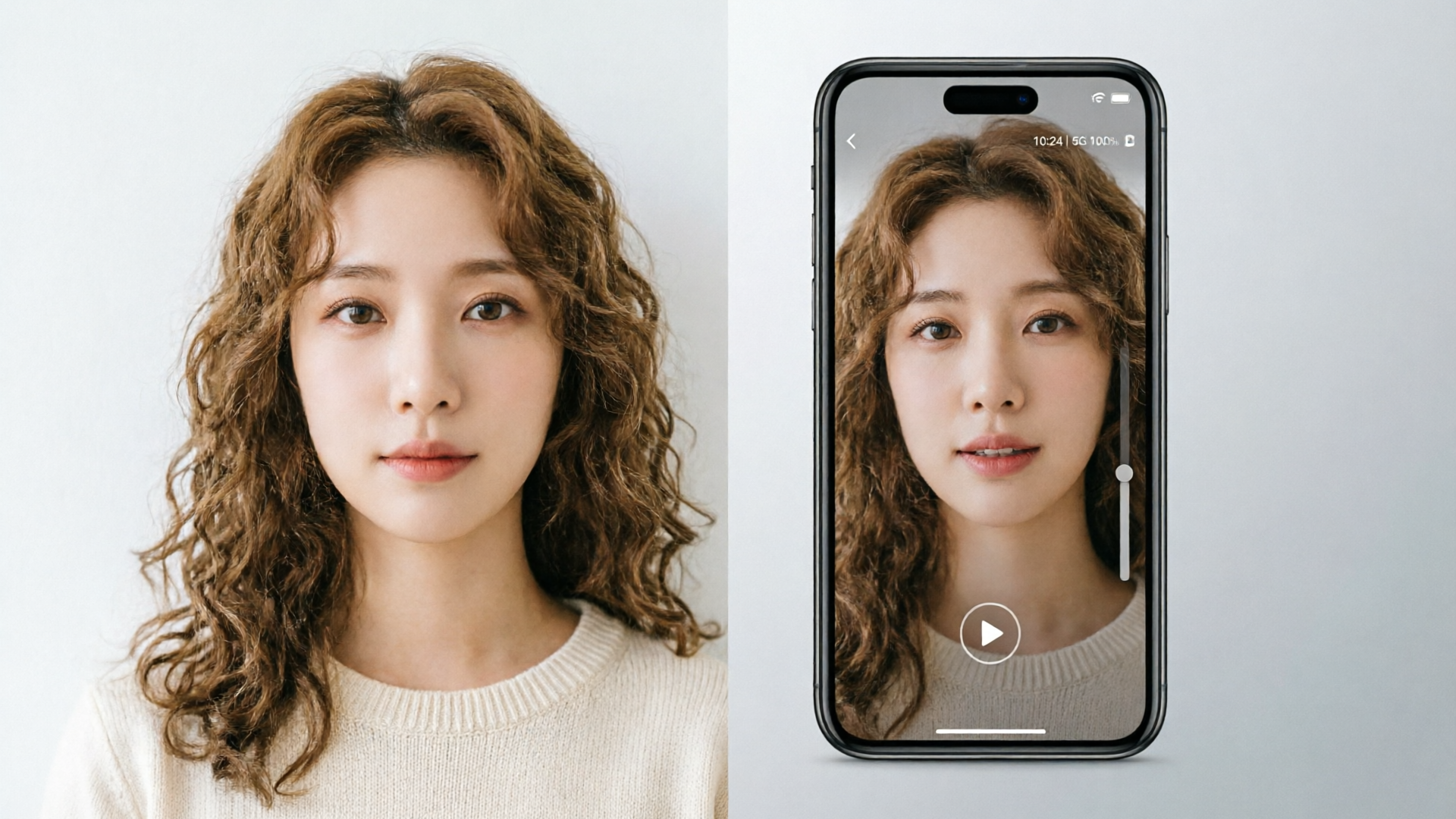
Safety, rights, and disclosure: legal and ethical checks before you animate someone’s face or a public figure
Before animating a face, verify you have the right to use the photo. Rights and consent are non-negotiable when creating likeness-based content.
- Consent: if the image is another person (not a public domain asset), obtain explicit permission. For commissioned portraits or influencer assets, written consent prevents disputes.
- Public figures and parody: local laws and platform policies vary. Animating public figures can trigger takedowns or legal risk; consult platform rules and be transparent.
- Copyrighted imagery: illustrations and fan art may have copyright limitations. Confirm the image license allows derivative synthetic works.
- Disclosure: many platforms and regions require disclosure when content is synthetic or uses AI to alter a real person’s voice or likeness. Label your post or include an on-screen disclosure when appropriate.
- Safety filters: use the tool’s moderation features where available, and avoid generating content that impersonates real people for deceptive purposes.
These checks protect creators and their brands while keeping content within platform and legal expectations. When in doubt, choose original portraits or consult a legal advisor for commercial campaigns.
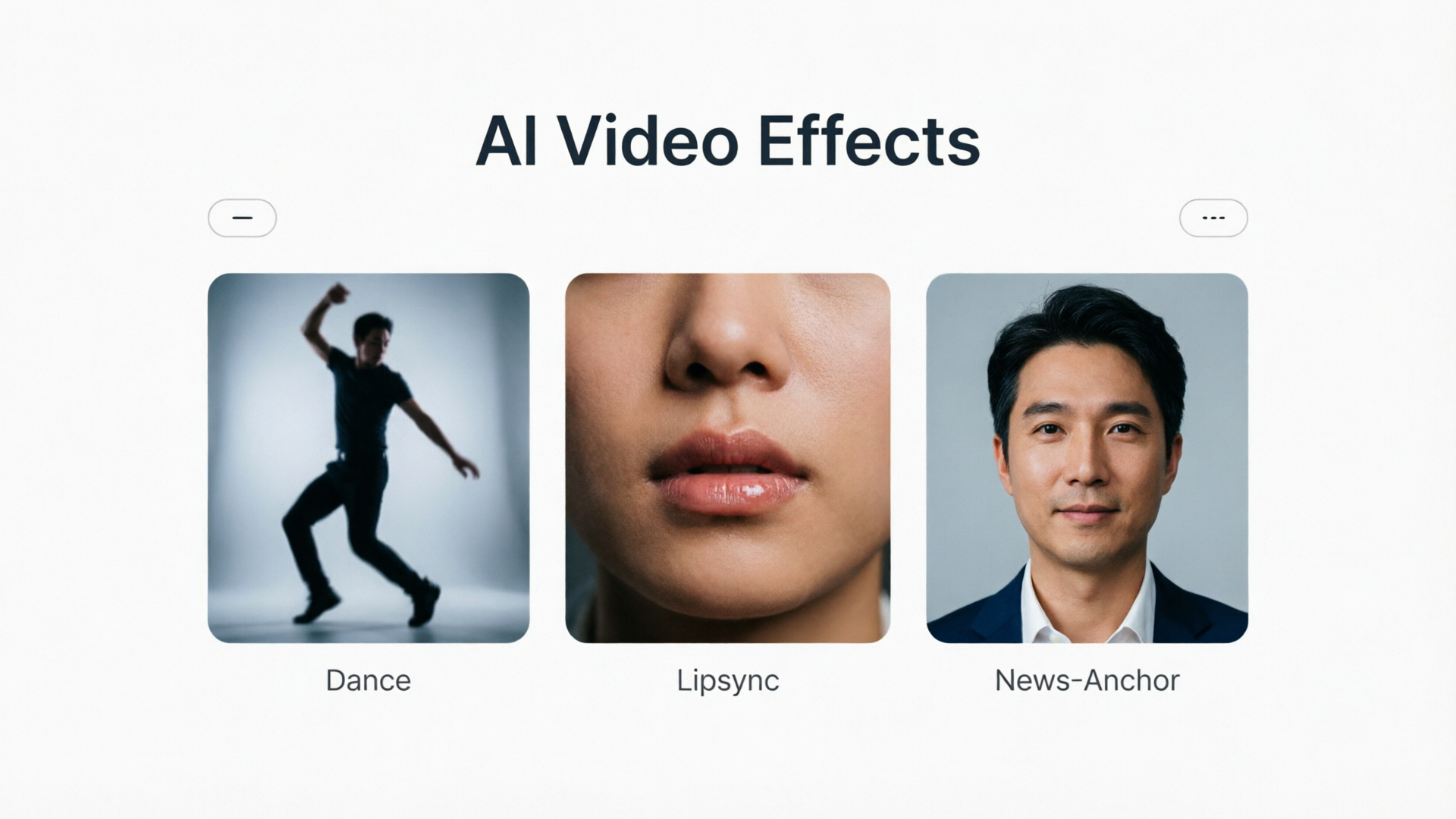
Where WowMade AI Video Effects fits in your toolkit (feature-led workflow and examples)
WowMade AI Video Effects is designed as the quick-launch layer in a creator’s short-form stack. The product applies AI dance, avatar, and lipsync effects to a single photo and renders a finished 9:16 vertical clip — one photo in, finished vertical clip out. Because each effect is a tuned preset, creators skip prompt-engineering and get consistent results across multiple variants.
Typical workflows where AI Video Effects speeds production:
- Trend-chasing spin: drop a selfie into a dance preset and render multiple music variants to test which sound gains traction.
- Ad variants for marketing: produce a suite of 6–8 short clips from one image using different presets (lipsync, news-anchor, product demo) and stitch them into ad rotations.
- Character voices and narration: pair an exported clip with WowMade AI Voices for localized dubbing or character narration.
Concrete walkthrough — from selfie to TikTok ad in under 10 minutes:
- Start with a high-res selfie. If needed, run quick edits in the AI Image Generator to remove background or adjust lighting.
- Open WowMade AI Video Effects and choose a vertical lipsync or dance preset. Upload the selfie.
- Select audio: either a short song chorus (from your library) or a script recorded and cleaned. Optionally use AI Music Generator to produce a backing track.
- Queue the render; preview the 9:16 file. If you need different vocals, swap to AI Voices and re-render only audio.
- Export and post. The whole cycle is optimized for rapid iteration.
Why this is a practical choice: the effects library covers dance trend videos from selfies, lipsync of songs, pet dance videos, and news-anchor templates. Renders are vertical and tuned for social platforms, which lets creators focus on creative selection rather than technical reconstruction.
If you want more control over cinematic results or generative text-to-video scenes, pair AI Video Effects with the WowMade AI Video Generator (/create-video). For quick image touch-ups before animating, use the AI Image Generator (/create-image). For soundtrack needs, consider generating loopable stems with the AI Music Generator (/create-music).
For an external primer on why lipsync and short-form formats perform, see the short-form engagement study: https://www.sciencedirect.com/org/science/article/abs/pii/S1066224324000595
WowMade AI Video Effects is best for creators who want predictable, fast outputs without prompt-engineering. Its tuned presets and single-photo workflow minimize setup, so you can produce more variants and test discoverability faster.
Frequently Asked Questions
Can I animate any photo with one click?
You can animate many frontal, high-quality portraits with preset effects, but results vary—profiles, low-res images, or obstructed mouths reduce fidelity. Use a clear, front-facing photo for best results.
Do I need to record special audio for lipsync?
Clean, noise-free audio with clear speech or vocals works best. For music, align tempo and length to the preset; you can also use AI-generated music to match the clip’s mood.
Are there legal risks animating public figures?
Yes. Animating public figures can trigger platform or legal issues—always verify rights and consider on-screen disclosure or legal guidance for commercial use.
Conclusion
Single-photo avatar video workflows are a practical way to produce more short-form content with less production overhead. For creators who want tuned, repeatable results — from lipsync and AI singing to pet-dance or news-anchor clips — WowMade AI Video Effects turns a single portrait into a finished 9:16 clip without prompt engineering. Open the AI Video Effects library and ship a vertical clip from one photo today.