AI Pet Dance Video: Fast workflows to make viral vertical pet reels
Turn one pet photo into a ready-to-post vertical pet reel. Step-by-step workflows for dance, lipsync, and singing using WowMade AI Video Effects.
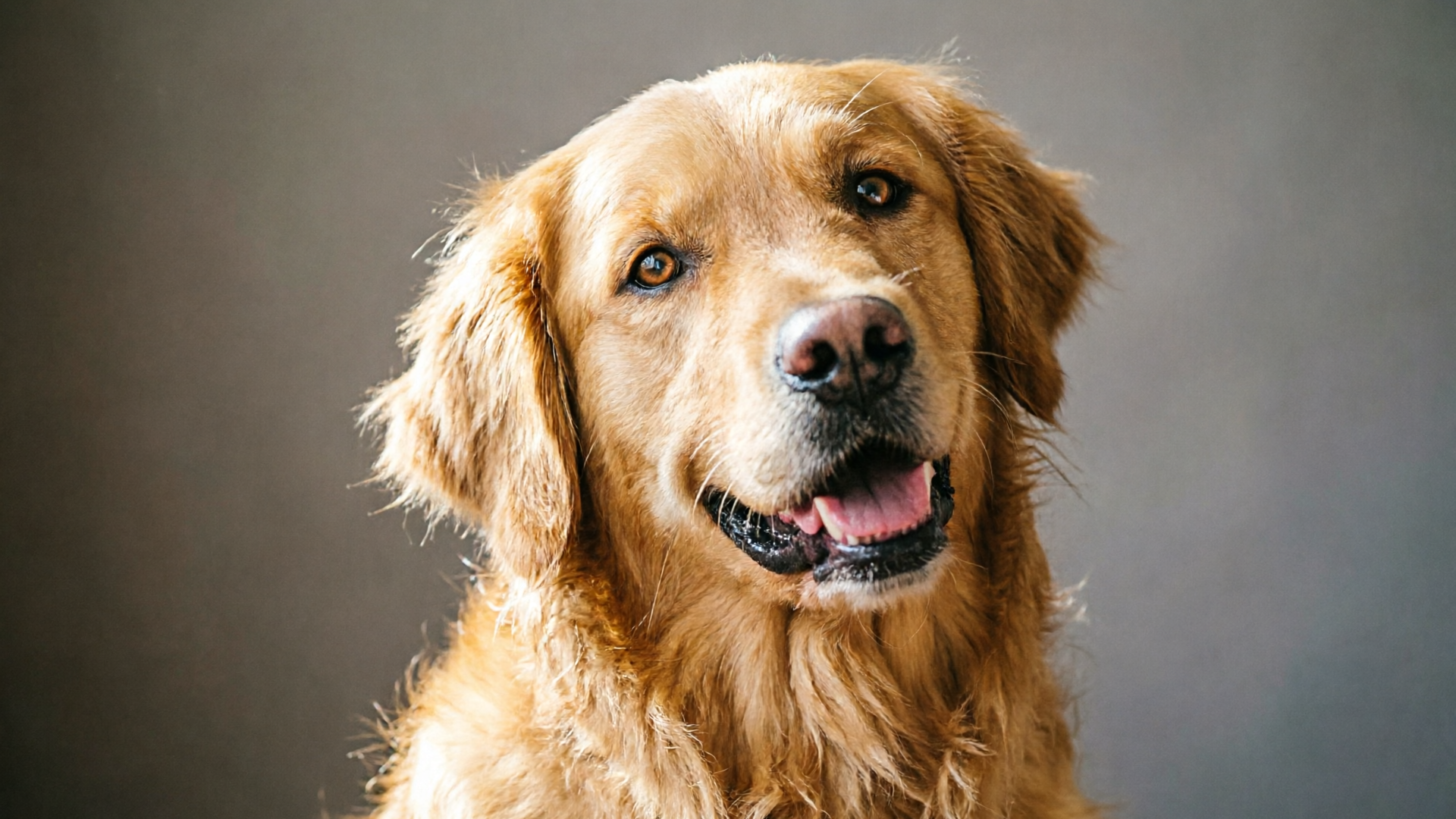
Short-form vertical pet content is a predictable engagement engine — and the fastest way to own a scroll-stopping moment is an AI pet dance video that looks native to Reels and TikTok. In this guide I’ll show creators and small teams how to move from one photo to a polished 15–30s vertical clip using WowMade AI Video Effects, with concrete workflows for dance, lipsync, and singing formats.
You’ll learn why vertical pet clips perform so well, which creative hooks work in the first two seconds, and exact step-by-step recipes for turning a single pet photo into shareable content — plus distribution tactics and safety notes so your videos stay delightful (not uncanny). The main tool throughout is WowMade AI Video Effects — the one-click presets that render 9:16 output ready for Reels and TikTok.
Why pet content performs so well on short-form vertical platforms (data-backed)
Pet content has a long, demonstrable track record for high engagement — and that pattern becomes amplified on vertical-first platforms. Industry trend reports show short-form vertical output surged in 2024 and became the dominant format, with vertical video output nearly doubling recently. Platforms’ playbooks emphasize that vertical creative accounts for a major portion of creators’ views and engagement gains in 2024–2025 (see the H1 2025 Content Trends Report for context).
There are three simple reasons pets win on vertical: immediacy, relatability, and strong visual contrast. A well-framed animal immediately communicates emotion and a narrative in a single frame; because smartphones are the primary consumption device, a centered pet with bold foreground contrast increases watch time and completion rates. Platform guides from TikTok and ad playbooks back this up — native vertical framing and an early hook materially improve engagement benchmarks.
Practical takeaway: treat the first two seconds as your headline. If the pet is visually clear and doing something unexpected (a dance move, a human-like glance, a lipsync mouth-shape), viewers decide to keep watching within that window. That’s why formats like dance, lipsync, and AI singing are ideal for pet creators: they compress an amusing, repeatable action into a short, rewatchable loop. For a quick industry example of the vertical surge, see the WSC Sports report: https://lp.wsc-sports.com/hubfs/H1%202025%20Content%20Trends%20Report_%20Fan-First%20Formats%2C%20Real-Time%20Growth%2C%20and%20the%20Vertical%20Surge%20%283%29.pdf
What AI pet video effects can do today: dance, lipsync, singing and avatars (examples from the field)
The category for converting a single pet photo into motion has matured fast. Multiple consumer tools — PetGroove, WigglePet, Zance, and PhotoDance — illustrate the demand: creators want one-click motion that’s fast and shareable. These apps and generators typically transfer motion from a reference clip onto a still image to produce an MP4 optimized for vertical platforms.
WowMade AI Video Effects fits squarely in this category but with production-focused proof points: each effect is a tuned preset, so you don’t need prompt-engineering; one photo in, finished vertical clip out; and the effects render 9:16 output ready for TikTok and Reels. The effects cover dance, avatar, lipsync, AI singing, and even news-anchor formats — useful when a pet becomes a branded mascot delivering a short message.
Examples you’ll see in the field:
- Dance trend videos: a single pet photo animated to match a trending choreography or rhythm. This is the classic "pet dance" clip that loops well in the feed.
- Lipsync shorts: subtle mouth and head movements timed to a popular sound or audio bite so the pet appears to "sing" or react.
- AI singing clips: longer takes that use melody-aware motion to make a pet look like it’s performing a line of a song or a jingle.
- Pet avatars and news-anchor clips: the pet becomes a branded presenter delivering short copy; these work well for product drops or announcements.
These formats are fast because the heavy lifting—motion mapping, face/feature retargeting, vertical framing and render queuing—is handled by the effect presets. If you want to explore related creative assets, WowMade’s AI Image Generator can help polish the base photo before animation (/create-image).
Planning a vertical pet reel that hooks in the first 2 seconds — creative patterns that work
Map your short around the first two seconds. That’s the rule of thumb the top-performing vertical playbooks recommend. There are repeatable creative patterns you can use to guarantee an immediate hook:
- Surprise + Familiar audio: start with a recognizable sound or beat drop, then reveal the pet in the second frame doing an unexpected move. The contrast between the audio cue and the visual surprise boosts retention.
- Big face, tight crop: vertical phones reward a centered subject. Use a close crop so the pet’s expression fills the frame — that close-up alone can increase completion.
- Movement-first cut: begin with motion. Even a blink, head tilt, or a single paw lift in frame one signals activity and entices watchers to stay.
- Text-driven tease: use one line of bold on-screen text for context ("Watch the cat sing"); keep it legible for small screens and remove after 2–3 seconds to avoid clutter.
When planning, pick an effect that matches the hook. A high-energy audio cue calls for a dance effect; a comedic spoken line pairs with lipsync. WowMade AI Video Effects makes this easy because each effect is designed as a tuned preset: you pick the effect, upload one photo, and the preset applies motion and framing that match the format (dance vs. lipsync vs. avatar). This removes guesswork and keeps your planning focused on audio and timing rather than technical setup.
Pull-quote:
"Hook in two seconds — then let the preset carry the rest."
Practical checklist before you animate:
- Choose your vertical aspect ratio (9:16) and crop the photo so the pet’s face is centered.
- Pick audio first — trends move fast; lock the sound before rendering.
- Decide the shot length (15–30s). Shorter loops often rewatch better; longer clips work when you need a narrative beat.
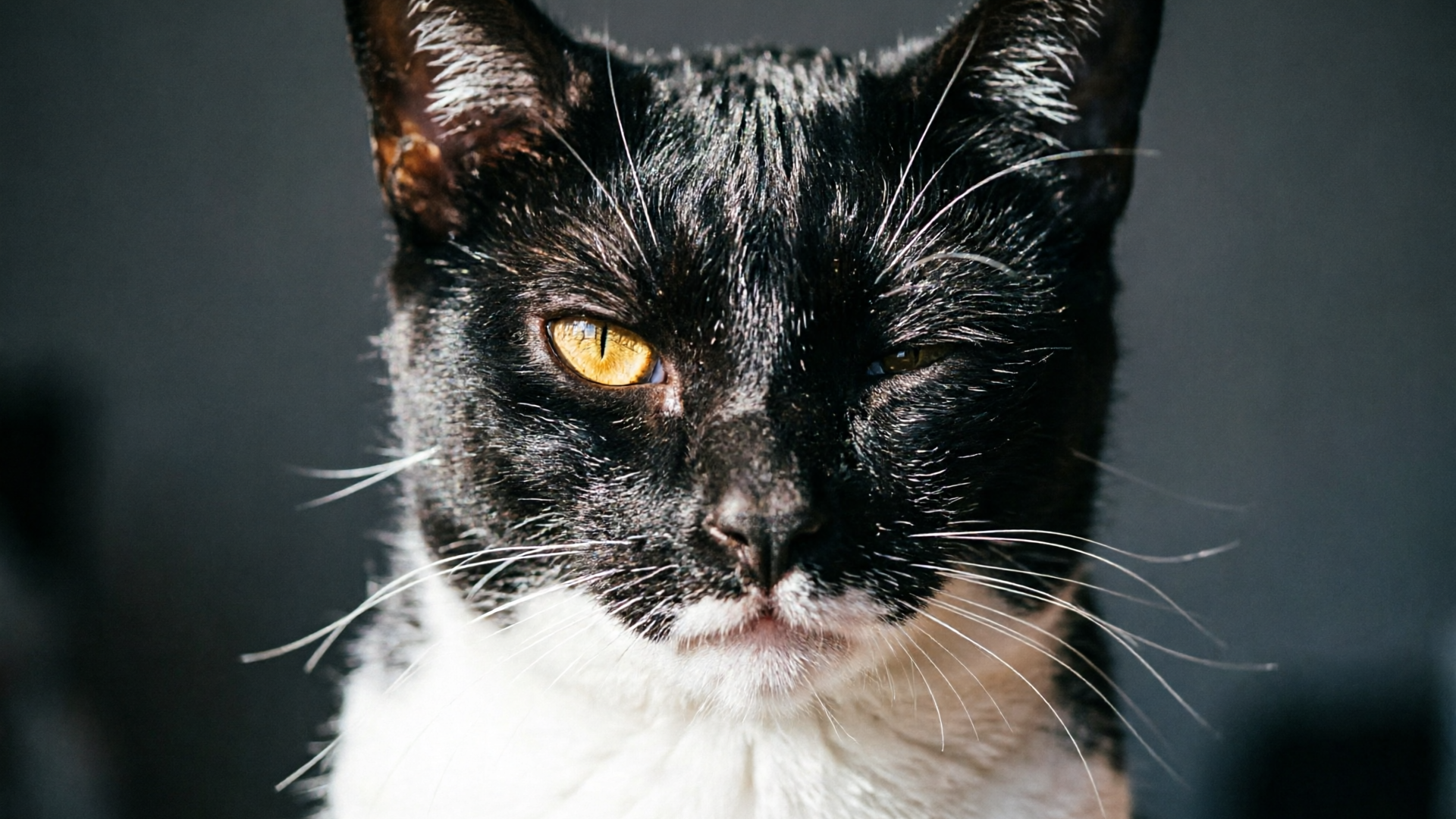
Hands-on workflow: From a single pet photo to a 15–30s dance reel (step-by-step with WowMade AI Video Effects)
This is a concrete walkthrough that converts one pet photo into a 15–30s vertical dance reel using WowMade AI Video Effects.
Step-by-step example (dance reel):
- Prepare the source photo. Use a clean, high-contrast image with the pet’s face centered. If you need quick touch-ups, run it through the AI Image Generator to remove background noise or brighten the subject (/create-image).
- Open WowMade and choose the WowMade AI Video Effects library (/effects). Select the "Dance" effect preset.
- Upload the single pet photo. The effect will analyze keypoints and map motion from the preset choreography to your pet’s face and torso.
- Select your vertical output settings: 9:16, 1080 x 1920. Pick 15 or 30 seconds depending on the trend length.
- Choose the audio track. Pick a trending beat or upload your sound. For best results, choose a loopable section or a clear beat drop at 1–2s to match the hook.
- Preview and tweak. The preset gives a near-finished clip. If you want a stronger expression, use the micro-adjust sliders to increase head turn or eye openness (no deep prompt work required — these are tuned controls).
- Render and queue. The effect renders a ready-to-post MP4 in vertical format; WowMade places it in your render queue for later edits or immediate download.
Why this is faster than manual animation: WowMade AI Video Effects bundles motion transfer, vertical framing, and a tuned choreography into one click. Where traditional pipelines require rigging and rotoscoping, the preset handles it automatically so you can focus on audio selection and captions.
Mini-tip: if you need custom music or a jingle for the dance, generate a loop in the AI Music Generator and import it into the effect to keep the clip copyright-safe (/create-music).
Hands-on workflow: Create a pet lipsync or AI singing clip that feels native to TikTok/Reels (timing, sound selection, and WowMade tips)
Lipsync and AI singing work when timing is tight and the mouth/face motion feels connected to the audio. Here’s a workflow to make those clips feel native and not artificial.
- Pick the sound first. Trends and remixes matter — choose a 6–12s hook or a conversational line that matches the pet’s perceived personality.
- Select the "Lipsync" or "AI Singing" preset in WowMade AI Video Effects (/effects). The lipsync preset targets mouth and jaw motion, while the singing preset includes broader body and head gestures matched to melodic phrases.
- Upload the photo and align timing. The tool will let you set beat markers or phoneme anchors so the mouth movement snaps to syllables. This is the crucial step—good lipsync hinges on tight alignment between audio and micro-expressions.
- Tone down extremes. Avoid exaggerated lip shapes; subtlety sells funnier and more believable results. Use the intensity slider to find a middle ground where the pet looks expressive but not uncanny.
- Add performance gestures. The preset can layer small head tilts, ear flicks, or eye squints to sell the reaction. Keep these short and punchy for vertical feeds.
- Render a test clip and watch it on a phone. Observe whether the mouth movements read clearly at small scale; if not, increase contrast or reframe the crop so the pet’s face fills more of the 9:16 frame.
Worked example: a 12s comedic lip-sync.
- Choose a 12s audio clip (e.g., a short punchline). In WowMade, pick Lipsync, upload your photo, and set phoneme anchors at 0s, 2.5s, and 9s to match syllable peaks.
- Set intensity to 0.6 and enable a subtle head nod at beat 2. Render a 12s vertical MP4 ready for Reels.
If you want a custom singing line or jingle, use the AI Music Generator to create a short loop and then apply the AI Singing preset so motion follows the melody (/create-music). For voice lines or cloning, WowMade AI Voices can provide a short vocal line you own the rights to (/ai-voices).
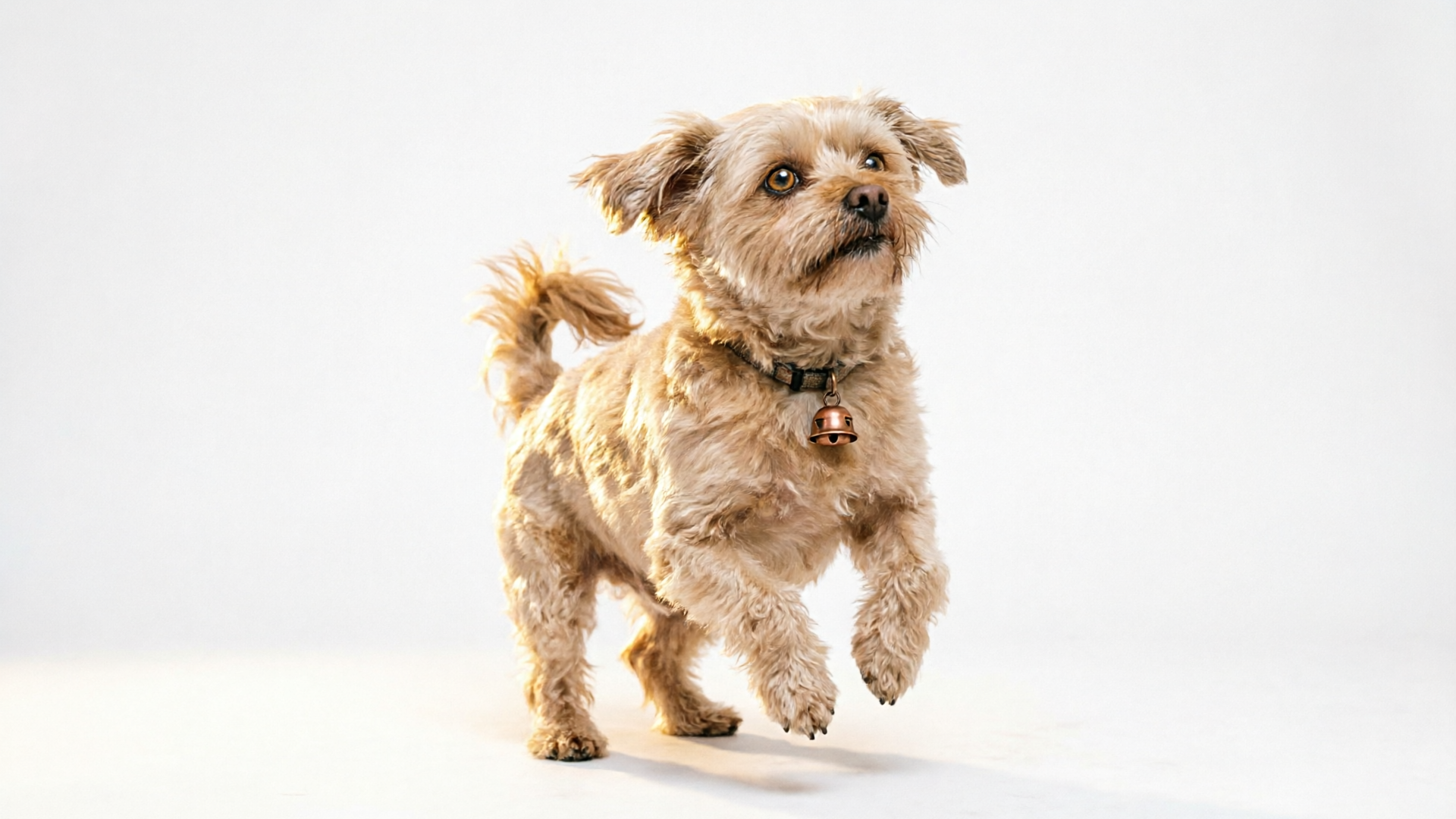
Optimizing for distribution: captions, hashtags, vertical framing, and A/B test ideas to scale pet clips
A good animation is only half the battle — distribution strategy multiplies reach. Use these practical tactics to scale a batch of pet clips.
Captions and text: keep captions short and curiosity-driven. Use an early CTA in the caption like "Wait for the dance at 2s" only if it adds context. On-screen text should be large, high-contrast, and disappear after the first 2–3 seconds so it doesn’t block the action.
Hashtags and sound strategy: pair a niche hashtag (your pet’s name or breed) with 2–3 trending tags. Using trending audio is often the single biggest distribution lever. Because you can render many variations from one photo with WowMade AI Video Effects, create 3–5 versions that test different sounds and small timing changes.
A/B test ideas:
- Sound test: same animation, three different trending audios.
- Hook test: crop A is tight face, crop B is half body — measure completion rate.
- Text test: with and without teaser text in the first 2s.
Batching workflow with WowMade: upload a single photo, then queue the Dance, Lipsync, and Avatar presets in succession to produce a suite of vertical clips. This is efficient for marketers who need several ad variations from one asset and aligns with the product’s use case of generating AI video ads in seconds.
Cost and scale: if you’re planning dozens of clips, evaluate plan options on WowMade Pricing (/pricing). The combination of one-photo input and tuned presets reduces production time and cost compared with hiring motion artists.
Distribution reminder: always preview on a phone and trim to the platform’s best length. Shorter loops (10–15s) often get higher rewatch rates; longer (20–30s) can work when you’re telling a slightly longer joke or using an avatar format.
Safety, consent & ethics for AI pet content — avoiding uncanny valley and platform policy pitfalls
Ethics and safety are practical considerations, not optional extras. Pet-driven AI clips raise a few predictable issues: uncanny motion, misattributed audio, and platform policy concerns around synthetic media.
Avoiding uncanny valley: the single best defence is subtlety. Use lower intensity settings for mouth and eye motion, favor small head tilts and blinks, and test at phone scale. Over-exaggeration makes a pet look unnatural and can trigger negative engagement. WowMade AI Video Effects includes tuned presets designed to produce natural-looking motion from a single photo, which reduces the need to push extreme parameters.
Audio ownership and misattribution: use licensed audio or original music when possible. If you generate music or jingles, the AI Music Generator provides copyright-safe tracks you can own (/create-music). For voice lines, consider a short original recording or an AI voice you control via WowMade AI Voices (/ai-voices) rather than reusing someone else’s audio without permission.
Platform policy: review the specific short-form platform rules for synthetic media. While pets aren’t typically a restricted class, avoid implying false endorsements or political messaging. If you’re animating a pet as a "news anchor" delivering branded claims, include clear disclosure in the caption.
Transparency with followers: short, friendly disclosure lines like "Made with AI" or a sticker noting "Animated" keep your content trustworthy and prevent backlash. This is especially important for branded campaigns or when the pet represents a business.
Final ethical checklist:
- Test at phone scale to check for uncanny motion.
- Use copyright-safe music or original sounds.
- Disclose synthetic creation when the clip is used for promotion or claims.
- Keep gestures subtle and celebratory rather than aggressive or misleading.
Conclusion
If you want the fastest, repeatable path from one photo to a ready-to-post vertical pet reel, start with WowMade AI Video Effects. The presets do the heavy lifting—motion transfer, tuned choreography, and 9:16 renders—so you can focus on sound choice, captions, and distribution. Try batching a dance, a lipsync, and an avatar variation from the same photo to test what resonates, and use the AI Music Generator or AI Voices when you need original audio. Open the AI Video Effects library and ship a viral-format clip from a single photo today.