AI Moodboard Images: Turn Briefs into Repeatable Brand Visuals
Use AI moodboard images to turn briefs into cohesive brand visuals fast. Practical steps with the WowMade AI Image Generator for iteration and assets.
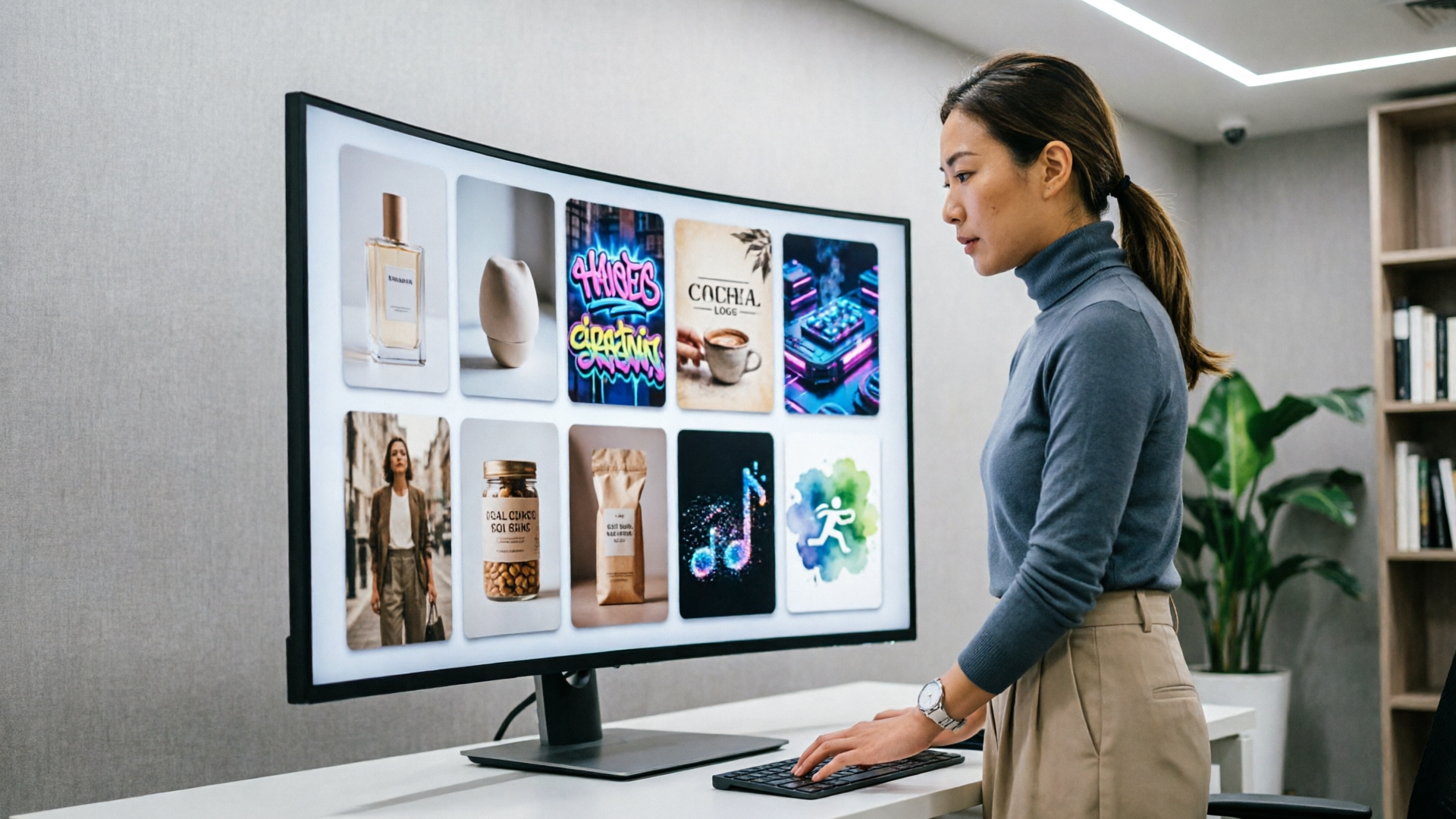
AI moodboard images let teams move from fuzzy briefs to concrete visual directions in minutes. For brand designers and marketing teams the question isn’t whether to try AI — it’s how to use it without losing control. This guide shows a practical workflow for turning briefing assets into cohesive boards and rapid visual iterations using the WowMade AI Image Generator.
You’ll learn how to translate a short brand brief into strict visual constraints (color, tone, composition), build a first-pass moodboard inside the WowMade AI Image Generator, and iterate reliably so outputs scale into thumbnails, hero images, and concept frames for video. Along the way we’ll point out common pitfalls and show exactly how to save variant metadata and export assets you can hand off to teams and tools like Figma or an AI video pipeline.
Why AI moodboards are now part of the brand design toolkit
AI moodboard images are not a gimmick — they solve a real, repeatable problem in early-stage visual work. Modern moodboard and visual-first platforms (Figma, Miro, Venngage) have added model-driven generation so teams can go from text or a handful of references to dozens of coherent visuals in seconds. That speed matters: scouting reference photos and compositing them manually eats time and produces inconsistent visual language.
For brand teams, the benefit is twofold. First, a specialized generator like the WowMade AI Image Generator can enforce the visual constraints you define (color palette, lighting, composition) while producing multiple aspect ratios and variants in one pass. That lets you seed a board with on-brand images instead of random inspiration. Second, generators make it simple to iterate—edit-in-place functions let you restyle an uploaded photo or re-run the same prompt to get controlled variation, which is essential when you want repeatable outputs for thumbnails, hero frames, and concept art.
This shift isn’t just product marketing: platforms advertising “moodboards in seconds” reflect a workflow change. Teams that adopt AI moodboards reduce time spent hunting for references and increase alignment early in a project, which shortens feedback cycles and gives creatives more time to refine concepts rather than assemble assets.
How to translate a brand brief into visual constraints (color, tone, composition)
Good AI moodboards start from constraints, not lists of adjectives. The single best trick is to translate a two- or three-paragraph brief into a tiny set of concrete variables: three words for tone, 1–3 hex color values, and a primary subject and composition. That discipline keeps generations on-brand and repeatable.
Example constraint set from a brief:
- Tone: confident, warm, modern
- Colors: #0F4C81 (deep blue), #F2B705 (warm gold), #FFFFFF (neutral)
- Subject: close-up product hero with shallow depth-of-field, left-justified composition
Why this matters: model-driven moodboard tools and generators perform best when fed clear constraints. Open-ended prompts tend to produce noise and force more manual curation. Using the three-word tone rule and explicit hex colors mirrors guidance used in Miro and Imagine.art tutorials for reliable outputs, and it makes prompts transferable across tools and teams. It also helps reduce design fixation: when every generated image adheres to the same color and compositional rules, teams can focus critique on concept and mood rather than unrelated variables.
Keep an audit trail. Save the prompt text, the hex values, any uploaded references, and tags for each variant. This metadata becomes the source of truth when you need to reproduce or scale visuals later, and it supports legal and compliance reviews that often require tracing creative inputs.
Hands-on: Build a first-pass moodboard with the WowMade AI Image Generator
Start by collecting your briefing assets: a brand one-pager, three reference images (textures, product shots, or portraits), and your constraint set. The WowMade AI Image Generator accepts both text prompts and uploaded photos for edit-in-place workflows, so you can switch between generating new frames and restyling an existing reference.
Step-by-step walkthrough:
- Open the WowMade AI Image Generator and choose “Create from prompt.”
- Paste a short controlled prompt using your constraints: “Confident, warm, modern close-up product hero, deep blue and warm gold accents, left-justified composition, shallow depth-of-field, studio rim light.” Include the three hex codes in the prompt if you want precise color matching.
- Request multiple aspect ratios in one pass (social 1:1, hero 16:9, story 9:16). WowMade supports outputting several ratios together so you can populate a moodboard with camera-ready crops.
- Review the grid of outputs and save the strongest variants to your library. Add tags (tone, color, composition) and store the prompt text as metadata.
- If you have an existing photo that’s close to the brief, use the edit-in-place option: upload the photo, add the prompt to restyle the lighting or palette, then export variations directly.
This approach produces a first-pass moodboard in 10–20 minutes rather than hours. Save each variant and the prompt metadata so designers can import them into Figma or Miro for annotation. If you need inspiration for how AI moodboard generators are positioned in design workflows, see Figma’s AI moodboard materials for additional context: https://www.figma.com/solutions/ai-moodboard-generator/.
Hands-on: Rapid visual iteration — remix, refine, and lock an on-brand image
Iteration is where AI moodboards deliver value — but only if you iterate deliberately. The trick is to alternate between divergent exploration and convergent refinement.
Divergent pass: start with broad prompt pivots to explore directions. Change one variable at a time: swap a tone word (warm -> moody), flip color accents (gold -> copper), or try a different focal length (close-up -> medium shot). Save 6–12 distinct variants to the library with clear tags.
Convergent pass: pick the strongest direction and lock the constraints. Use the WowMade AI Image Generator’s edit-in-place to make targeted changes without redoing the whole prompt: adjust lighting, tighten composition, or request mild restyles. Because WowMade can output multiple aspect ratios in one run, you can lock a look and produce ready crops for thumbnails and hero images simultaneously.
Worked example — locking a thumbnail look:
- Divergent prompt A produced a warm-closeup style you like. Save the best image.
- Upload the saved image into WowMade, choose edit, and prompt: “Refine for thumbnail: increase contrast, crop tighter to subject, emphasize warm gold accent #F2B705, maintain studio rim light.”
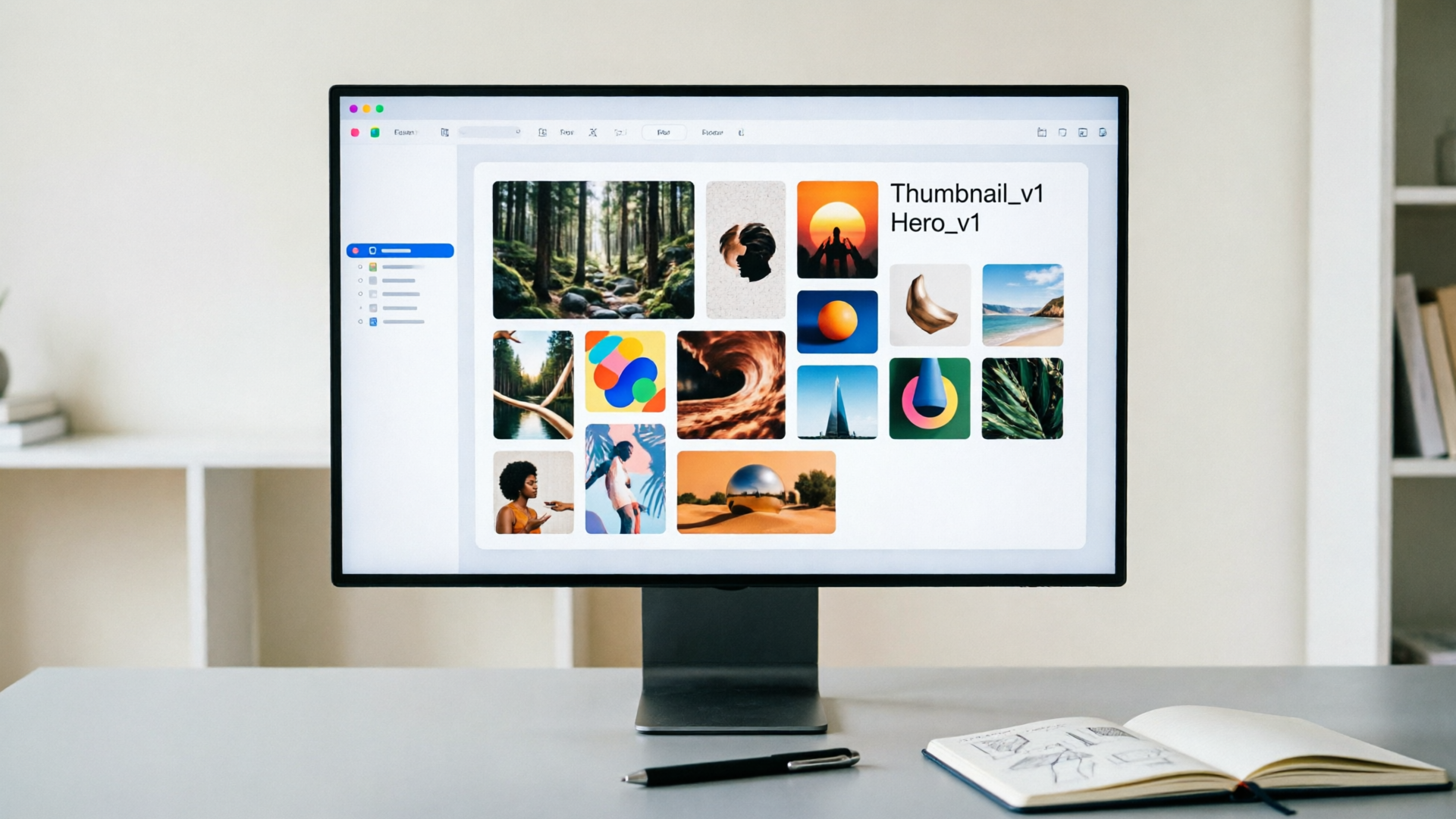
- Output 1:1 and 16:9 crops in one pass and save as two named variants (Thumbnailv1, Herov1).
Maintain variant metadata and prompt history so you or another team member can reproduce the same look later. Academic work on generative AI and design fixation recommends this pattern: iterate widely first, then converge. That helps avoid anchoring on the very first image while still letting you reach a consistent brand aesthetic.
Turning moodboards into assets: thumbnails, hero images, and concept frames
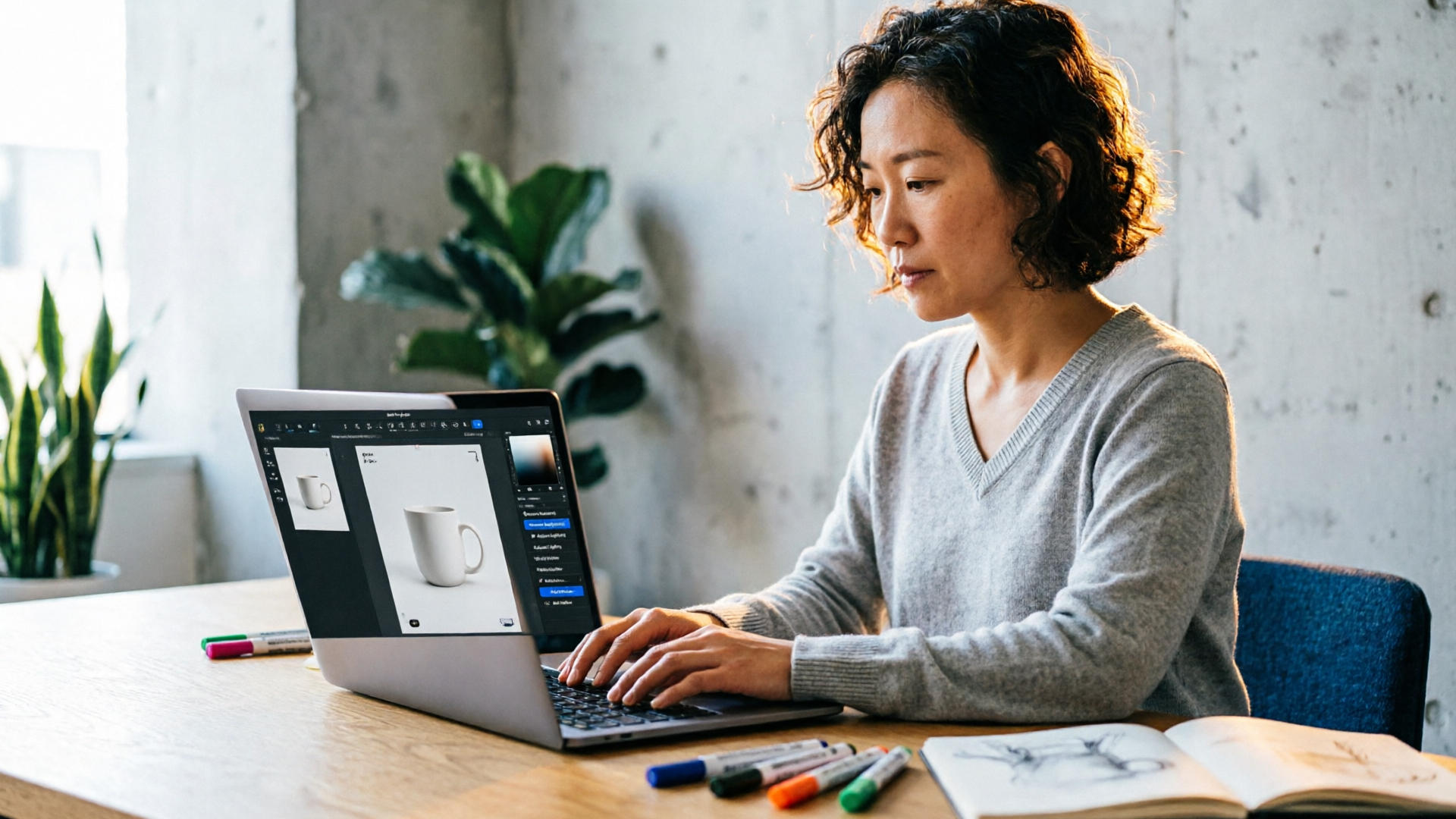
A moodboard is only useful if it becomes assets. With the constraints locked, the WowMade AI Image Generator can output multiple aspect ratios and crops, which means a single prompt run produces ready-to-publish images for thumbnails, hero banners, and concept frames used in storyboards.
Practical asset checklist:
- Thumbnails: export a high-contrast 1:1 crop with image-safe room for overlays and text.
- Hero images: export 16:9 at web-optimized resolution and provide alternate 4:1 or 3:1 crops as needed for responsive headers.
- Concept frames: generate a short set of stills (3–5 frames) that illustrate different moments or treatments; these become seeds for video generation.
Because WowMade saves variations to your library, you now have a versioned catalog: Thumbnailv1, Thumbnailv2, Hero_v1, ConceptFrameA. That versioning lets you A/B test quickly and hand assets to a video team. If you plan to create short video promos from the moodboard frames, export the chosen still as a reference frame and import it into the AI Video Generator to generate motion that preserves the look. For background music and quick scoring, consider pairing assets with tracks from the AI Music Generator to prototype edits fast.
Avoiding common pitfalls: design fixation, copyright, and brand drift
AI moodboards speed work but introduce three common risks: fixation on early outputs, unclear copyright provenance, and brand drift across teams.
Design fixation: researchers found that AI-generated images can increase fixation on the initial examples provided. To counter that, adopt an explicit iteration schedule: two divergent passes followed by one convergent pass, and require at least one human sketch or photo reference per direction. Tagging variants with prompt changes helps teams avoid silently re-using a single favored output.
Copyright and provenance: always record source prompts, uploaded references, and any third-party images used for edit-in-place. Maintain an audit trail inside your project library so legal and compliance can verify inputs. Specialized brand-first tools (MoodyBoards, Pixy, Moodbook) emphasize on-brand analysis of uploaded references; you can mirror that practice by saving color palettes and texture references alongside each generated variant.
Brand drift: to prevent inconsistent visuals, define an official visual spec document that contains tone words, approved hexes, allowed subjects, and composition rules. Use the WowMade AI Image Generator to enforce the spec by including those constraints as part of every prompt. Regularly export a small set of canonical images from your library as the style guide’s living examples so new collaborators can match the look without guesswork.
Workflow: From moodboard to campaign — handoff, versioning, and feed-forward to video
A repeatable workflow turns exploratory moodboards into campaign deliverables. Treat the WowMade AI Image Generator outputs as the canonical visual seeds and follow these handoff steps:
- Version and tag: save each final variant with a standard naming convention (projectcomponentvariant), include prompt text, color hexes, and usage notes.
- Annotate in a design board: import chosen images into Figma or Miro for annotations—calls-to-action, overlay copy, or cropping guides—so engineers and marketers know exact requirements.
- Export production-ready crops: use WowMade to output all required aspect ratios in one pass and upload those assets to your DAM or campaign folder.
- Feed-forward to video: pick one or two reference frames and import into the AI Video Generator to produce short social clips that preserve the same lighting and palette. The WowMade workflow supports sending stills directly into the video pipeline so you don’t have to recreate the look from scratch.
Keep the audit trail accessible. When campaigns scale, version control and prompt history let you reproduce successful variants and comply with review processes. For audio-first deliverables, match assets to tracks generated in the AI Music Generator so music and visuals are prototyped together, reducing last-minute mismatches between mood and tempo.
Frequently Asked Questions
How specific should my prompt color instructions be?
Include 1–3 hex codes when color fidelity matters. Generators respond more reliably to explicit hex values than vague color names.
Can I use copyrighted photos for edit-in-place?
You can edit photos you own or have rights to. Keep records of licenses and avoid uploading images without permission to prevent legal risk.
Will AI moodboards replace designers?
No. AI accelerates early exploration and iteration; designers still define constraints, curate concepts, and make final compositional decisions.
Conclusion
Move from concept to campaign by treating the WowMade AI Image Generator as the canonical visual engine for your moodboards. Start with strict constraints, save prompt and variant metadata, and use the generator’s edit-in-place and multi-aspect outputs to create thumbnails, hero images, and reference frames that scale. Save named variants and export all required crops before moving to handoff and video.
Open the AI Image Generator and ship a first set of on-brand frames this afternoon.