AI Image Batch Generator: Scale On‑Brand Visuals with Image Variants
Create consistent, on‑brand image variants at scale. Learn workflows, CSV/template batching, QC, and a hands‑on walkthrough with WowMade AI Image Generator.
Marketing teams and creators need predictable, on‑brand image variants faster than ever — thumbnails, hero shots, ad kits, and localized banners. The fastest way to get there is an AI image batch generator that can take a prompt, a template, or a CSV and output multiple aspect ratios and variations in one run. In this article I’ll show why that matters and how to build repeatable workflows using the WowMade AI Image Generator.
You’ll get clear definitions (variants, remixes, templates), workflow patterns top teams use, and two practical hands‑on walkthroughs: one that turns a single hero shot into nine social‑ready variants and another that uses CSVs and templates for personalized outreach and ad testing. Expect concrete steps you can try today with WowMade AI Image Generator.
Why modern marketing needs image variants: speed, personalization, and testing
Marketers no longer need one hero image; they need a dozen tailored for platform, audience, and test hypotheses. HubSpot’s 2026 State of Marketing reported that 86.4% of marketers now use AI across marketing areas, which signals image generation and media automation are mainstream tools for scaling creative. When campaigns require multiple aspect ratios, colorways, or localized text, manual design becomes a bottleneck.
Image variants solve three common constraints: speed, personalization, and testing. Speed: batch generation lets teams produce tens or hundreds of assets in a single session instead of repeating manual edits for each format. Personalization: template + CSV systems create individualized images for outreach and ads without building each file by hand. Testing: having on‑brand variants ready removes the friction of A/B experiments — you can swap thumbnails, color palettes, and copy to test engagement within a single campaign window.
The WowMade AI Image Generator addresses all three pain points: it generates from prompts, edits uploaded photos in place, and outputs multiple aspect ratios in one pass. That combination reduces handoffs and keeps results consistent across social kits and ad sets. For teams concerned about cost or throughput, batching reduces per-variant overhead compared to single‑file workflows; check pricing on WowMade’s plans to align generation volume with budget by visiting the WowMade Pricing page.
Key concepts: variants, remixes, templates, and on‑brand scaling explained
Before you batch, be intentional about terminology and constraints. A variant is a derived image that preserves core brand elements (logo placement, product geometry, color family) while changing non‑essential parts (background, copy, mood). A remix is a looser edit — the subject or composition may be reinterpreted. Templates are the repeatable frames and rules you use to guarantee brand fidelity when you scale.
On‑brand scaling requires three constraints: color, composition, and typography. Color: use a limited palette and describe it in prompts ("brand teal #0AB3A3, warm gray accents"); composition: lock logo and product placement in templates so the AI respects negative space for overlay copy; typography: export variants without text when possible and add system fonts or overlays in batch post‑processing to keep text crisp. Tools like EspicAI and other e‑commerce solutions emphasize locking geometry while varying scene or light — that’s the same principle applied to marketing visuals.
The WowMade AI Image Generator makes template-based constraints practical: it edits and restyles uploaded photos in place (so you iterate from the same asset rather than starting over) and can output the aspect ratios social platforms need in a single job. Use templates for repeatable hero frames and remixes for exploratory creative directions; save successful variants to your WowMade library so future jobs inherit brand context.
How top teams batch‑create social image sets (workflow patterns and tools) — a step‑by‑step example
Teams that excel at batch image production adopt a repeatable pipeline: define, generate, review, QA, and deliver. Here’s a concise workflow pattern adopted by agencies and in‑house creative ops teams.
1) Define constraints: collect brand colors, logo assets (SVG/PNG), safe zones, and aspect ratio requirements (16:9, 4:5, 1:1, 9:16). Write a short prompt template that includes mood, subject, and required constraints. 2) Seed assets: upload a hero photo or baseline product frame that contains the correct geometry. 3) Batch generate: use a batch-capable tool to create variants across multiple aspect ratios in one run — this is where you get scale. 4) Rapid review: pull outputs into a shared review board or folder and flag top performers. 5) QA and final touches: run automated checks for logo placement, color deviation, or low resolution; export to web‑optimized formats.
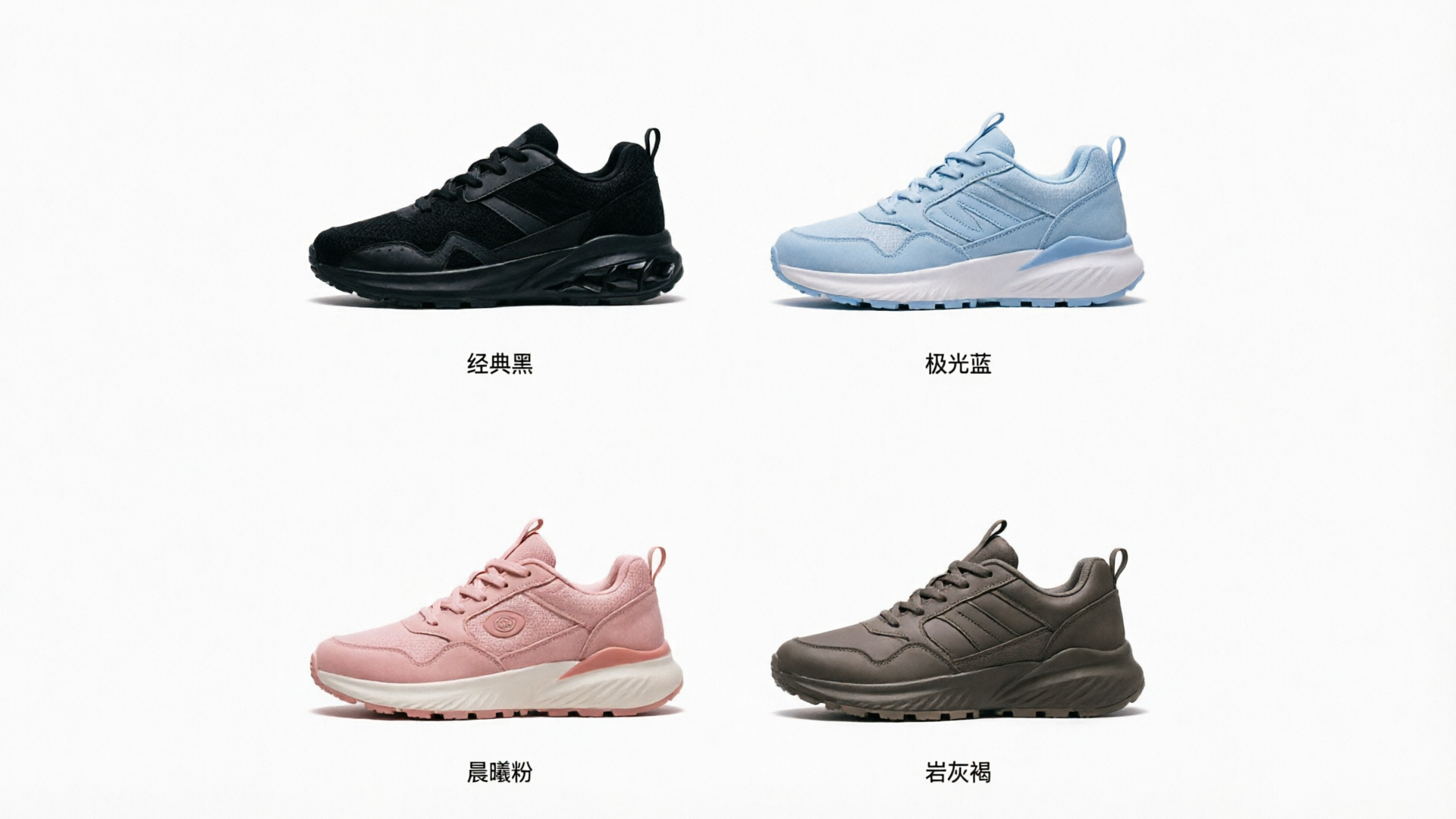
Example pattern in practice: an e‑commerce team needs 120 images for a seasonal launch—10 SKUs × 4 colorways × 3 aspect ratios. They create a template that locks product placement, upload one clean product frame, then queue a batch job that produces fills for colorway and background variants. Many services now support queuing dozens or hundreds of images per job and exporting PNG/JPG/WebP/PSD — this mirrors workflows used by BulkImageGenerator and others. WowMade AI Image Generator fits into this pattern by letting you generate from prompt or edit an uploaded photo, and output the multiple aspect ratios you need in a single session. When work needs to flow into video, those same frames can be used as starting frames for the AI Video Generator.
Hands‑on: From single hero shot to 9 social variants using the WowMade AI Image Generator
This walkthrough turns one hero photo into a nine‑image social kit (16:9, 4:5, 1:1, 9:16 variants) while preserving brand placement and color harmony.
Step 1 — Prepare assets: export a high‑resolution hero photo (PNG) with the product centered and a clear background. Collect your logo (transparent PNG) and note primary hex colors. Step 2 — Create a prompt: write a reusable prompt that includes mood, color constraints, and composition rules. Example: "Clean product hero, studio lighting, brand teal #0AB3A3 accent, warm gray background, keep product centered with 20% top margin for headline." Step 3 — Upload and edit in WowMade: open the WowMade AI Image Generator (/create-image), upload the hero photo, and choose the edit option. Paste the prompt and select "multi‑ratio output" with the presets you need (16:9, 4:5, 1:1, 9:16). Step 4 — Generate variants: request three variant styles in the same job (minimal, lifestyle, high‑contrast) to produce nine outputs total. Because WowMade edits in place, each variant keeps the original product geometry while changing background, lighting, and mood. Step 5 — Review and save: save the best variants to your WowMade library for iteration or export them as PNGs and WebPs.
Why this works: you preserve the product’s geometry (critical for ads and thumbnails), get multiple aspect ratios in one run, and produce a coherent kit without repeating the upload-and-edit loop. The WowMade workflow also keeps iterations attached to the same prompt so you can refine color or lighting across the entire kit rather than adjusting each file manually.
Hands‑on: CSV/template-driven batch generation for personalized outreach and ad testing (practical checklist)
CSV-driven generation is the fastest way to create thousands of personalized images. Use it for dynamic outreach (name badges, localized offers) or ad testing (headline variants per region). The checklist below keeps the job predictable and minimizes errors.
Checklist before you run a CSV job: - Template readiness: Build a template with locked elements (logo, product placement, safe zones) and placeholder areas for dynamic text or imagery. - CSV shape: Include columns for variable fields (firstname, city, colorway, headlinevariation) and a reference to any per-row image to be edited. - Asset naming: Use consistent file names and a simple folder structure so the generator can map CSV rows to uploaded assets. - Prompt variables: Create a prompt template with placeholders such as {{colorway}} and {{headline}} — keep prompts short and consistent. - Aspect ratio presets: Decide which ratios you need and include them as job options so every row outputs multiple sizes.
Running the job: upload the template and CSV to your batch tool, map CSV columns to template placeholders, and queue the job. Tools like NPCGen and others explicitly offer CSV→image pipelines; WowMade supports prompt-driven edits and template reuse, which makes CSV-driven workflows practical: upload your template and map variables, then generate. After generation, sample a handful of rows for visual QA before exporting the full set.
Post‑generation tips: automate filename standardization, batch‑optimize images for web (WebP for social, PNG for logos), and keep a change log mapping CSV rows to generated filenames in case you need to re‑generate a subset. If you plan to run large personalized outreach campaigns, pilot with 50–100 rows and measure deliverability and engagement before scaling to thousands.
Quality control at scale: keeping brand consistency (color, logo, composition, typography) and automated QA
At scale, human review alone won’t stop brand drift. Set up automated QA checks and clear pass/fail rules so variations are consistent with brand standards.
Core QC checks to automate: 1) Color delta: compare dominant colors in generated assets to brand hex values and flag deviations beyond a threshold. 2) Logo placement: detect logo bounding boxes and ensure they sit inside the safe zone. 3) Composition lock: verify the subject’s centroid stays within expected coordinates (use simple image‑analysis heuristics). 4) Resolution and format checks: confirm pixel dimensions, DPI, and output format (PNG/JPG/WebP) match deliverable specs. 5) Text legibility: run OCR or contrast checks where titles or CTAs are present to ensure compliance.
Tools and tactics: many batch solutions export presets that help enforce format and size at export time; others allow you to pipeline assets into a QA script. EspicAI and similar providers highlight agents or locked-geometry techniques to preserve product shape across edits—adopt the same concept by using the WowMade AI Image Generator’s edit-in-place workflow so you’re altering the same frame rather than creating new subject positions. Add a final human spot check on 5–10% of outputs and keep the saved variants in your WowMade library as reference frames for future jobs.
Measuring impact and optimizing workflows: A/B testing image variants, throughput, and cost per variant
The value of an AI image batch generator is proven through measurable improvements: higher CTRs, faster turnaround, and lower cost per asset. Start with simple A/B tests: swap thumbnails, colorways, or headline placement across ad groups and measure CTR and conversion delta. Track time to delivery and per‑variant cost to quantify efficiency gains.
Throughput metrics to track: - Variants per hour: how many usable assets your pipeline produces. - Review time per asset: how long review and minor edits take. - Cost per variant: generation credits plus time and downstream editing. Many bulk services advertise queueing dozens–hundreds of images per job to increase throughput; benchmark your fastest workflows against those figures to find bottlenecks.
Optimization levers: automate CSV-driven jobs for personalization, reduce review time with stricter templates and automated QA, and reuse saved library variants as starting frames to reduce prompt drift. If you move assets into short video, use the WowMade AI Video Generator to turn successful frames into short clips — that shortens campaign production for social videos.
Finally, set a rolling experiment cadence: run a 2‑week test where each ad set contains three visual variants, measure uplift, then promote winning variants to a broader batch run. Track conversion lift relative to baseline creative and calculate ROI on generation credits and hours saved.
Conclusion
AI image batching is not a niche trick — it’s how modern teams scale consistent creative without exploding headcount. If you need predictable, on‑brand variants across social and ad formats, start by building templates, use CSV jobs for personalization, and enforce automated QC. For hands‑on experiments and fast iteration, open the WowMade AI Image Generator (/create-image) and generate a 3‑style, multi‑ratio kit from a single hero photo — refine the prompt until the look is right and save your best variants to the library. Open the AI Image Generator and spin up your first set of on‑brand image variants.