From Moodboard to Frames: An Image-First AI Workflow for On-Brand Concept Art
Turn brand moodboards into polished concept frames using an image-first AI workflow and WowMade AI Image Generator for on-brand, production-ready visuals.
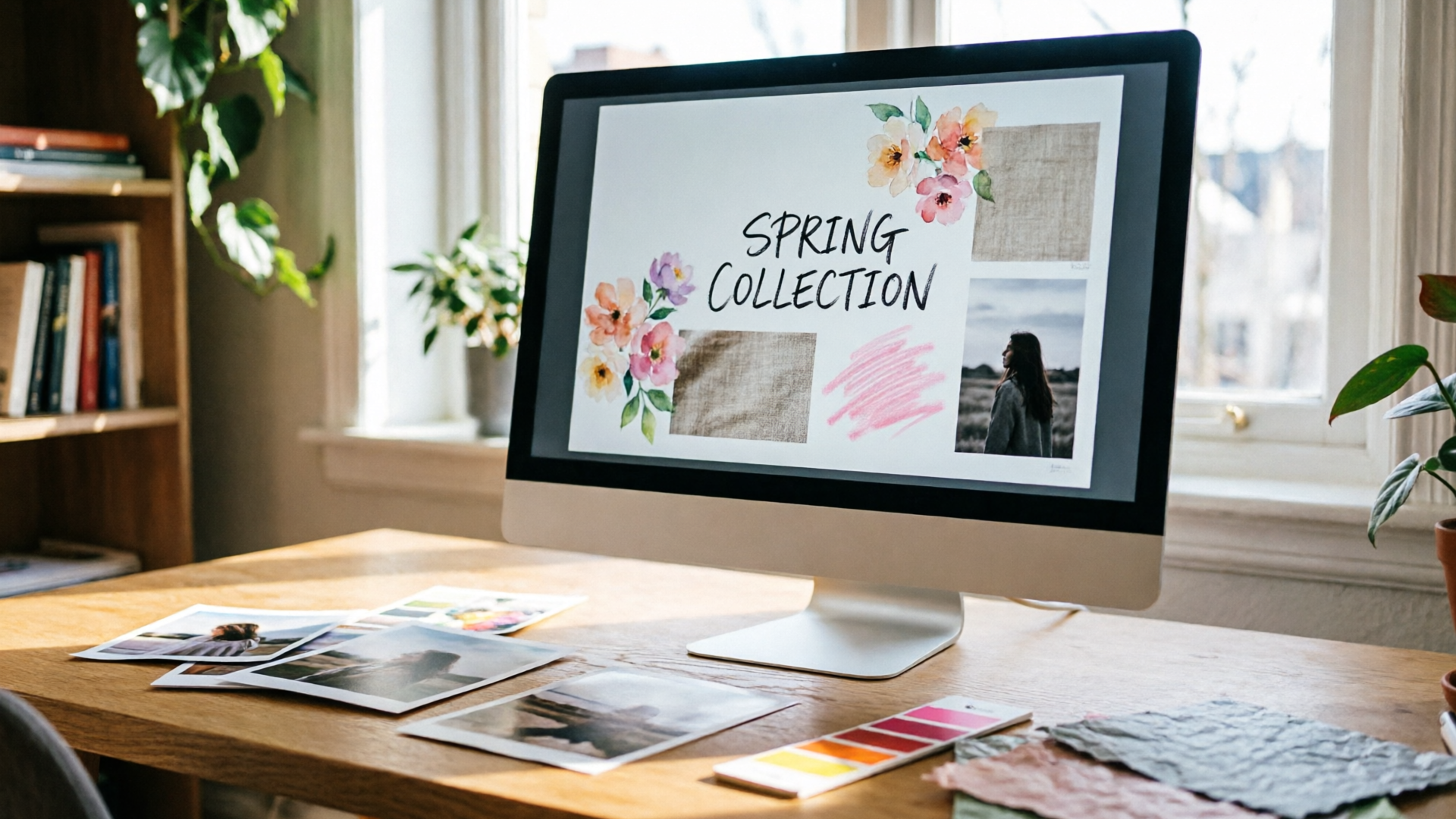
A designer stares at a collage of screenshots, fabric swatches, and color chips pinned to a virtual board. The brief reads ‘cinematic, warm, minimal’ — but turning that collage into six usable concept frames for a video treatment still feels like a black box. This is where a repeatable image-first workflow closes the gap. In this guide you’ll learn how to move from a brand moodboard to frames that are ready for thumbnails, storyboards, or direct import into video — using WowMade AI Image Generator as the production engine.
We’ll cover why moodboards are the single best source of consistent concept frames, what modern text-to-image and image-to-image tools changed about concept art, and a practical method for extracting prompts, palettes, and composition seeds. You’ll get two hands-on walkthroughs: one showing how to convert a moodboard collage into six initial concept frames with image-to-image, and a second showing how to iterate them (upscaling, color-locking, retiming) for thumbnails and hero images. Along the way we’ll note legal and ethical checkpoints and explain how to pipeline final frames into animatics or the WowMade video tool. Expect concrete steps, a mini prompt template, and a short worked example that uses WowMade AI Image Generator to create on-brand frames you can actually use.
Why moodboards are the single best source for consistent concept frames
Moodboards are compact, high-signal packages of brand intent: color palettes, texture samples, reference poses, and cultural cues. Because they bundle visual constraints and aspirations in one place, they let you extract repeatable rules — the exact thing you need when your goal is consistent concept frames across multiple assets.
When teams rely on a moodboard rather than freeform prompts, you reduce ambiguity: everyone references the same silhouettes, the same lighting notes, and the same material cues. That consistency matters across formats: a thumbnail, a hero banner, and a storyboard frame should read like they belong to the same visual family even if they run at different aspect ratios.
Practically, a well-assembled moodboard becomes a source of seeds for image-to-image generation (composition and texture), and for text prompts (mood, camera lens, time of day). WowMade AI Image Generator is built for that image-first approach — it accepts uploaded photos to edit and restyle while producing outputs in the aspect ratios social and ads platforms need. For creators who need dozens of variations during ideation, pulling seeds from one moodboard ensures the variations stay anchored to brand choices rather than drifting into unrelated styles.
How modern AI (text-to-image and image-to-image) changed concept art and frame production
Text-to-image models made it possible to describe high-level visual direction quickly, but image-to-image (img2img) workflows changed the game for designers who already have visual references. Image-to-image lets you preserve composition, silhouette, and texture while changing style, lighting, or palette — the opposite of starting from a blank canvas.
This hybrid approach shortens the loop between idea and usable output. Instead of iterating dozens of rough sketches, teams generate many variations (industry workflows report 5–10x more design variations), then select a smaller set for refinement. The refinement stage typically includes targeted edits, upscaling, and sometimes paint-over. Research into interactive texture painting shows generative systems are effective at targeted edits — useful when you need a specific fabric grain or metal sheen carried across frames.
Modern tools also support repeatable controls — seed, aspect ratio, and pose guidance — which brings predictability to creative exploration. WowMade AI Image Generator provides the practical controls teams need: it edits and restyles uploaded photos with a prompt, saves variations to a library for iteration, and outputs multiple aspect ratios in one pass, so a single frame can become a thumbnail, a hero image, and a 9:16 social cut without recreating the look from scratch.
Related guide: AI image variations for thumbnails and hero images.
Preparing a brand moodboard for AI: what to include (images, swatches, notes, constraints)
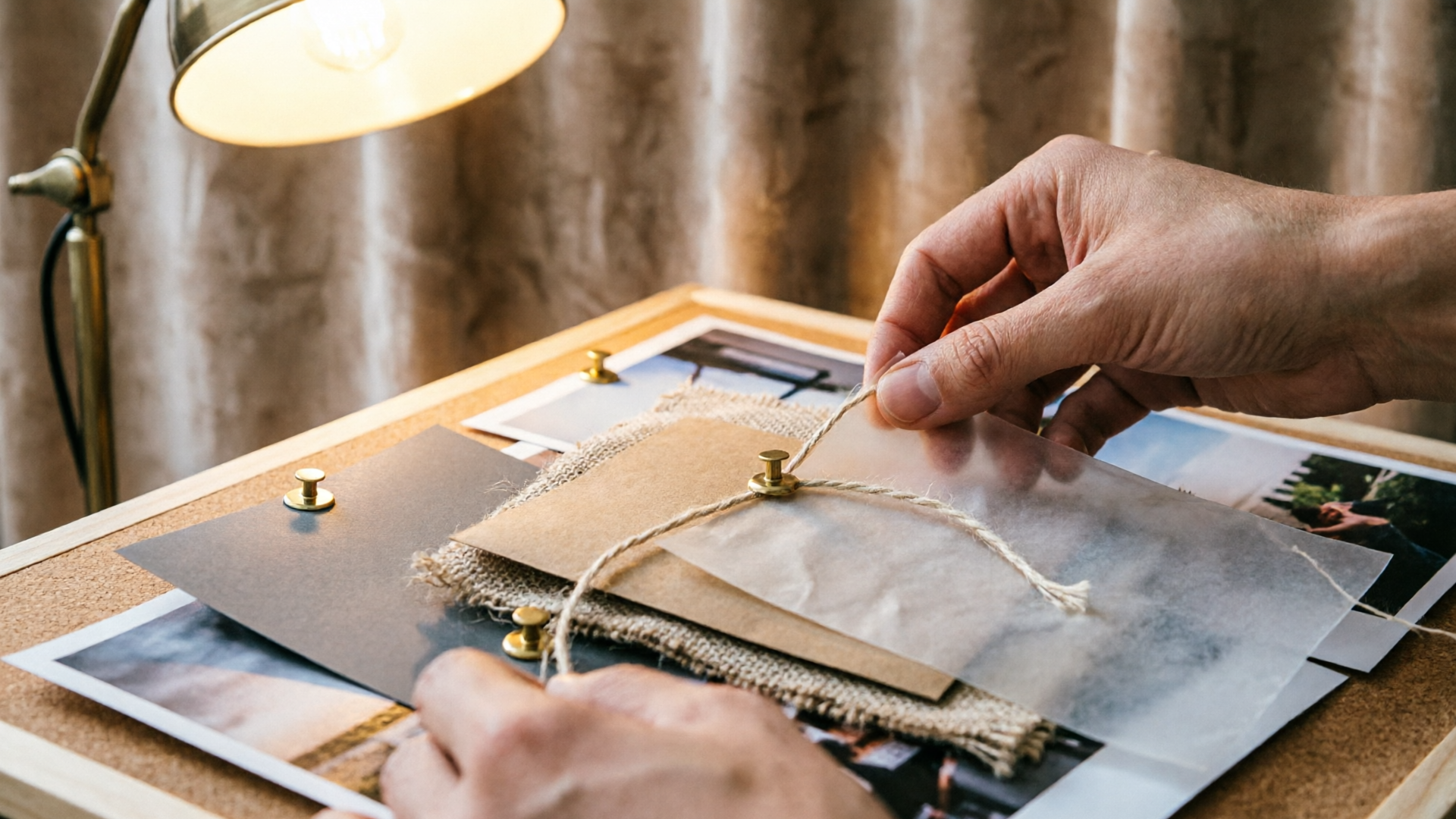
Assemble an input set that balances breadth and specificity. Aim for 12–20 reference images: silhouettes, texture close-ups, lighting examples, hero shots for facial expressions or body language, and cultural cues that define tone. Include the brand logo (if allowed), type samples, and an official palette swatch so the generator can lock to brand colors when needed.
Add short annotations: one-line composition notes ("low-angle, subject left, negative space right"), lighting directives ("golden hour backlight, soft shadows"), and usage constraints ("no text over face; exclude product labels"). Those constraints are as important as the images — they become guardrails during generation and post-edit.
Save a small library of ‘problem images’ too: a low-res photo you must use, a product shot with reflections, or a location that anchors the narrative. These images work as img2img sources when you need strict composition preservation. If you plan to use logos or proprietary assets, check the tool’s allowance and document the provenance of each upload for the ethical/legal checkpoint later.
From moodboard to seeds: extracting prompts, palettes, and composition notes (practical method)
Turn the moodboard into a compact recipe you can reuse. Use this three-part seed extraction method:
- Palette seed: Pull 5 prominent hex swatches and name them (primary, accent1, accent2, neutral, highlight). Write a short color-lock phrase: "color-lock: #1E2A3C,#F2C377" to reuse in prompts.
- Composition seed: Describe the dominant composition patterns across images in one sentence: "low-angle medium shot, subject left, negative space right, cinematic 50mm with shallow depth". Keep it short so you can paste it into a prompt template.
- Texture & material seed: List three textures and their desired treatment: "matte paper, warm wood grain, soft fabric with visible weave". These inform texture-focused edits or in-painting.
Combine them into a single, stable prompt template you reuse across variations. Example template:
"[subject] in [composition seed], mood: [one-word mood], color-lock: [palette hexes], textures: [texture list], lighting: [lighting note], style: [reference artist/treatment], --ar [aspect] --seed [number]"
Using a template enforces consistency. Keep a short list of seeds for poses, props, or cultural cues so you can swap just one variable and generate systematic variations for selection.
Hands-on: Using image-to-image to convert a moodboard collage into 6 concept frames (step-by-step)
This walkthrough converts a collage into six coherent frames using an image-first img2img flow and WowMade AI Image Generator.
Step 1 — Pick your source images: From the moodboard, select three strong reference images: a hero pose, a location shot, and a texture close-up. Also export your palette swatches and one logo file if needed.
Step 2 — Create six seeds: Using the seed extraction method above, assemble six prompt variations by swapping mood, camera focal length, or subject pose. Keep the palette and composition seeds constant.
Step 3 — Upload to WowMade AI Image Generator: For each of the six seeds, use the hero pose or collage as the img2img source. Use the prompt template and set the aspect ratio you want (e.g., 16:9 for frames).
Step 4 — Apply image edit parameters: Lock the color palette with the "color-lock" phrase in the prompt. Choose a consistent seed value for predictable variation or change it to explore randomness. Use the edit-in-place option so you’re restyling the same photo rather than starting over.
Step 5 — Render and save variations: The generator will produce several variations; save the best two or three per seed to your library. WowMade’s ability to output multiple aspect ratios in one pass speeds this step: export 16:9 for storyboard frames and 4:5 or 1:1 for social previews without re-running the prompt.
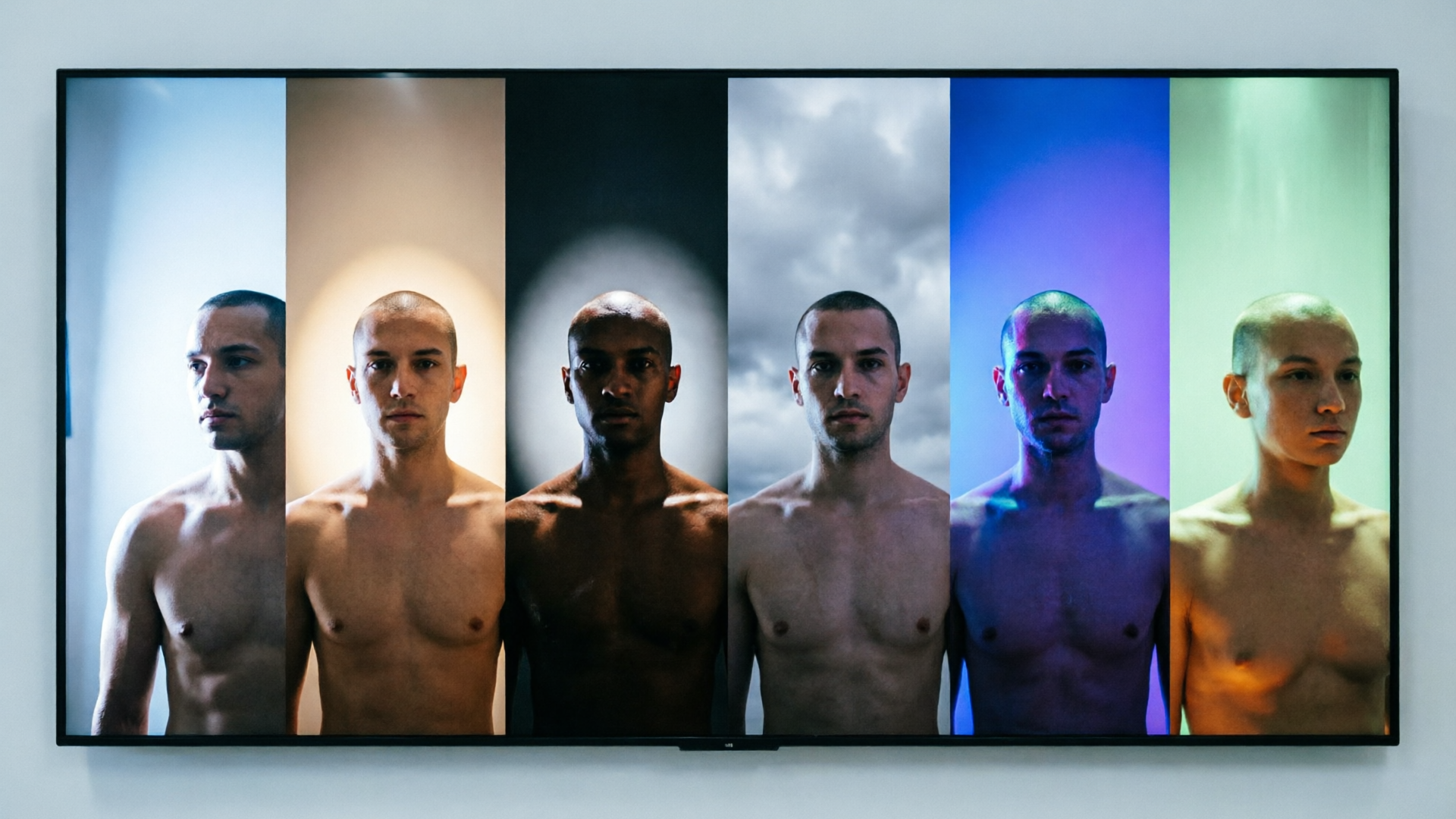
Step 6 — Curate down to six: From your saved variations, pick six that cover different lighting, silhouette, and mood combinations. Tag them in your library and note which prompt + seed produced each image — provenance helps later.
Worked example: imagine a cooking-show hero brief. Source images: host portrait (low angle), kitchen counter texture, warm amber palette. Prompt template filled: "host preparing dish, low-angle medium shot, subject left, color-lock: #A64B2A,#F7E6D6,#2C2F33, textures: warm wood grain, soft fabric; lighting: warm backlight, cinematic 50mm --ar 16:9 --seed 8342". Upload the host portrait to WowMade AI Image Generator and choose edit-in-place — the tool restyles the portrait into the moodboard look while keeping composition, giving you 4 variations to select from. Repeat for five more seeds to build six frames.
Hands-on: Iterating frames to match brand voice — guided upscaling, color-locking, and retiming for thumbnails and hero images
Selection is where intent becomes production-ready. With six frames in hand, follow a short iteration checklist to lock the brand voice.
Guided upscaling: Choose your hero frame(s) and run the generator’s upscale option to preserve detail at larger sizes. Upscaling matters most for hero images and thumbnails where clarity at small sizes is critical.
Color-locking and micro-edits: Re-open the chosen frame in WowMade AI Image Generator and use the color-lock seed phrase to nudge hues toward brand-accurate matches. If a frame still reads slightly off, use targeted inpainting to fix a collar, logo placement, or background element — this keeps you editing the photo rather than generating a new one.
Retiming for thumbnails and hero crops: Use multiple aspect outputs from the generator to create aligned crops. When you export a 1:1 thumbnail and a 16:9 hero frame, check that the subject remains in the safe zone. If the crop shifts the focal point, run a second in-place edit with a composition seed that centers the subject.
Practical tip: keep a small test grid with the same subject at the platform sizes you need (16:9, 4:5, 1:1, 9:16). This grid verifies that the visual hierarchy and brand cues hold across placements. For creators who plan to animate frames later, export a high-res PNG sequence to serve as reference frames in your animatic or drop them directly into the WowMade video pipeline.
Quality checks & ethical/legal checklist: attribution, model sources, and on-brand consistency
Before you move frames into production, run a short legal and quality checklist.
- Prompt provenance: Save the prompt text, seed value, and source images for each frame. This documentation is essential for audits and future edits.
- Model source & licensing: Confirm which model and training policy the generator uses and whether your use case requires attribution or commercial licensing. Different tools have different rules; document the policy you followed.
- Reference image rights: Verify that any uploaded logos, photos, or third-party reference images are permitted for derivative generation. If a photo is copyrighted and not your property, seek permission.
- Visual consistency checks: Compare frames side-by-side for palette drift, silhouette changes, and detail loss after upscaling. If a frame diverges, re-run a color-lock edit or inpaint the specific area.
- Accessibility & inclusivity: Check that thumbnails and hero images scale legibly on small screens and that the visual language avoids harmful stereotypes.
These checkpoints aren’t optional. Teams converting moodboards into production frames should treat them as part of the pipeline, and keep the records in a shared asset library for future audits. For more on documenting model provenance and ethical use, see research that surveys prompt provenance and dataset concerns.
How to pipeline final frames into video, thumbnails, and design systems (animatic and production-ready references)
Once frames pass quality and legal checks, the final step is pipeline integration.
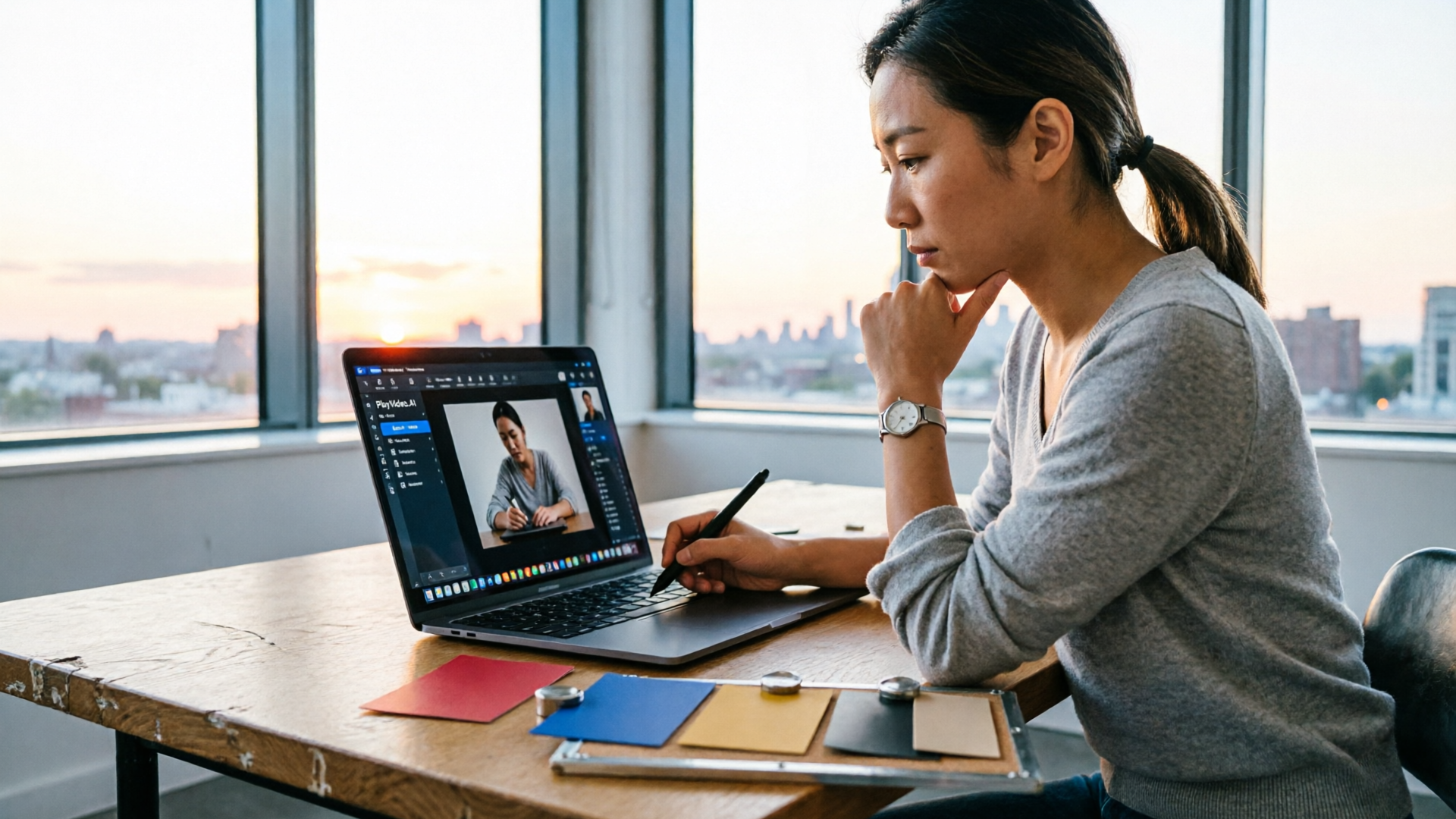
Animatic and storyboards: Import your selected frames into a storyboard or animatic timeline. Each frame should include a short note: duration, camera move, and audio cue. Export a 24–48 fps mock animatic using the frames as stills to test pacing before any animation work.
Feeding frames into video: WowMade’s ecosystem is designed so frames generated by the AI Image Generator flow directly into the AI Video Generator. Drop a hero frame into the /create-video tool as a starting frame and use simple text prompts to add camera push, parallax, or short cinematic motion. This eliminates the file juggling step and preserves the look you developed in the image stage.
Design systems and component libraries: Add the final frames and their exports (multiple aspect ratios, upscaled masters, and alternate crops) to your design system. Create component rules: headline placement, safe zones, and color overlays. This ensures whoever builds future creatives won’t accidentally break the brand voice.
For thumbnails specifically, export optimized JPEGs at the platform-recommended sizes and run an A/B test with two visual variants. Because the image-first workflow produces variations quickly, you can test which composition and color-lock choices drive better CTR without expensive photoshoots.
Why WowMade AI Image Generator is the right next step for creators turning moodboards into frames
If your workflow is image-first — start with a moodboard, extract seeds, and use img2img to preserve composition — you need a generator that supports edit-in-place, multiple aspect outputs, and a saved-variations library. WowMade AI Image Generator delivers on those points: it generates images from a text prompt, edits and restyles uploaded photos with a prompt, outputs social/ad aspect ratios in one pass, and saves variations to your library so iteration is fast and trackable.
Concrete reasons to pick it for this pipeline:
- Edit-in-place: Restyle a portrait or product shot rather than starting over — perfect for brand assets that must remain recognizable.
- Multi-aspect export: Create a 16:9 frame and export 1:1 and 9:16 crops without reruns, saving time when you need thumbnails, socials, and hero assets.
- Variation library: Save, tag, and iterate specific results so your selection and refinement stages are organized.
Worked mini-walkthrough (reminder): Upload a moodboard collage or a hero photo into the AI Image Generator, paste the template prompt with your color-lock hexes, set --ar 16:9 and a seed, then hit edit-in-place. Save the variations and export both 16:9 and 1:1 versions directly for your thumbnail tests.
If you plan to move frames into short motion, the saved frames integrate smoothly with WowMade AI Video Generator so you don’t lose the look during the jump to animatics or final clips.
Frequently Asked Questions
How many reference images should I put on a moodboard before generating frames?
Aim for 12–20 images covering silhouettes, materials, lighting, and cultural cues. This breadth gives image-to-image prompts enough coverage to generate consistent variations.
Can I keep the brand logo and exact colors when using AI generators?
Yes—many tools let you upload logos and use color-lock phrases or palette hexes. Always confirm the tool’s policy on uploaded brand assets and document provenance.
What’s the fastest way to get a usable thumbnail from a generated frame?
Generate the hero frame at 16:9, export a 1:1 crop using the multi-aspect output, then run a quick upscale and micro inpaint for legibility; test two variants in an A/B.
Conclusion
Turn your next moodboard into production-ready frames by adopting an image-first workflow: extract palette and composition seeds, use image-to-image to preserve composition while restyling, then iterate with guided upscaling and color-lock. WowMade AI Image Generator supports each of those steps — edit-in-place, multi-aspect exports, and a saved variations library make the pipeline repeatable and fast.
Open the AI Image Generator and spin up your first frame — you can keep refining the same prompt until the look is yours.